
Introduction
The ELK C1M1 LTEV Dual Path Alarm Communicator is an advanced device designed to provide fast and reliable emergency message transmission for your security system. It connects directly to the M1 Control panel, utilizing both IP (Internet Protocol) and cellular pathways to ensure critical alerts are sent without delay. This manual provides essential information for the proper installation, operation, maintenance, and troubleshooting of your C1M1 LTEV communicator.
Setup
1. Unboxing and Package Contents
Carefully unpack the ELK C1M1 LTEV Dual Path Alarm Communicator. Verify that all components are present:
- ELK C1M1 LTEV Communicator Unit
- Mounting Hardware
- Installation Guide (this document)
2. Physical Installation
Select a suitable location for the communicator, typically near your M1 Control panel. Ensure the location allows for good cellular signal reception and access to your network infrastructure.
- Mount the communicator securely to a wall or within an enclosure using the provided mounting hardware.
- Ensure adequate ventilation around the unit.
3. Wiring Connections
Connect the C1M1 LTEV to your M1 Control panel and power source.
- Power Connection: Connect the communicator to a stable 12V DC power source, typically from the M1 Control panel's auxiliary power output. Observe polarity.
- Data Bus Connection: Connect the C1M1 LTEV to the M1 Control panel's data bus terminals (usually labeled DATA, GND).
- Network Connection (IP): If using the IP pathway, connect an Ethernet cable from your network router/switch to the Ethernet port on the C1M1 LTEV.
4. Activation
After physical installation and wiring, activate the communicator through the ELK Products portal or your security provider. This typically involves registering the device's serial number and configuring communication settings.
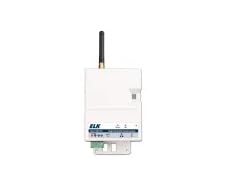
Figure 1: The ELK C1M1 LTEV Dual Path Alarm Communicator. This image shows the compact design of the communicator, highlighting its various ports for power, data bus, and Ethernet connections, along with LED indicators for status monitoring.
Operating Instructions
1. Basic Operation
The C1M1 LTEV operates in conjunction with your M1 Control panel. Once properly installed and activated, it automatically monitors the M1 Control for alarm events and transmits them to the central monitoring station via the fastest available pathway (IP or cellular).
2. Remote Access via ElkLink Mobile App
The ElkLink Mobile app (available for iOS and Android) allows you to remotely access and control your M1 system. This includes arming/disarming, checking system status, and receiving notifications. No port forwarding is required for remote access.
- Download the ElkLink Mobile app from your device's app store.
- Log in using your ELK account credentials.
- Follow the in-app instructions to link your C1M1 LTEV and M1 Control system.
3. Programming with ElkRP2
The C1M1 LTEV supports remote programming of the M1 Control panel using the ElkRP2 software. This allows for convenient upload/download of system configurations over both IP and cellular pathways.
- Ensure your ElkRP2 software is up to date.
- Establish a connection to the C1M1 LTEV through the software, specifying the appropriate communication pathway.
- Perform desired programming tasks (uploading new configurations, downloading current settings).
Maintenance
1. Firmware Updates
Periodically check for firmware updates for your C1M1 LTEV communicator. Firmware updates can provide new features, performance improvements, and security enhancements. Updates are typically performed remotely through the ELK Products portal or by your security provider.
2. Cleaning
The C1M1 LTEV requires minimal cleaning. Use a soft, dry cloth to wipe the exterior of the unit. Do not use liquid cleaners or abrasive materials, as these can damage the device.
Troubleshooting
1. No Communication
If the communicator is not reporting events:
- Check Power: Ensure the unit is powered on and its power indicator LED is lit.
- Verify Wiring: Confirm all power and data bus connections are secure and correctly wired.
- Network Connectivity: For IP communication, check your Ethernet cable and router connection. For cellular, ensure adequate signal strength.
- Activation Status: Confirm the communicator is properly activated and registered with ELK Products.
2. LED Indicators
The C1M1 LTEV features several LED indicators to display its status. Refer to the detailed installation guide for a complete description of each LED's function and what different states (solid, flashing, color) indicate regarding power, network, and cellular status.
3. Connectivity Issues
If experiencing intermittent connectivity:
- IP Pathway: Restart your network router and the C1M1 LTEV. Check for network congestion or firewall settings that might block communication.
- Cellular Pathway: Relocate the communicator if possible to improve cellular signal. Contact your service provider if cellular issues persist.
Specifications
| Manufacturer | ELK |
| Part Number | ELK - C1M1 LTEV |
| Included Components | Dual Path Alarm Communicator |
| Warranty Description | 1 Year |
| ASIN | B0DW9P65TT |
| Date First Available | February 6, 2025 |
Warranty Information
The ELK C1M1 LTEV Dual Path Alarm Communicator is covered by a 1-year limited warranty from the date of purchase. This warranty guarantees the product against defects in materials and workmanship under normal use. For specific terms, conditions, and to initiate a warranty claim, please refer to the official ELK Products warranty policy available on their website or contact their customer support.
Support
For technical assistance, troubleshooting guidance, or any inquiries regarding your ELK C1M1 LTEV Dual Path Alarm Communicator, please utilize the following resources:
- ELK Products Official Website: Visit www.elkproducts.com for product documentation, FAQs, and support contact information.
- Customer Support: Contact ELK customer support directly via phone or email as provided on their website.
- Professional Installer: If your system was installed by a professional, contact your installer for immediate assistance.
Note: No official product videos were provided in the source data to embed in this manual.