
121AV A136RF543C0001
User Manual: 121AV Original Replacement Backlit TV Remote Control
Model: A136RF543C0001
1. Introduction
This user manual provides comprehensive instructions for the 121AV Original Replacement Backlit TV Remote Control, model A136RF543C0001. This remote is designed as a direct replacement for various Philips Ambilight 4K Smart LED TV models, offering seamless control and access to smart features, including dedicated buttons for popular streaming services and Ambilight control.
The remote control features a backlit keypad for improved visibility in low-light conditions and utilizes infrared technology for reliable long-distance operation.

Figure 1.1: Front view of the 121AV Replacement Backlit TV Remote Control.
2. Safety Information
Please read and follow these safety guidelines to ensure safe and proper use of your remote control:
- Battery Safety: Do not mix old and new batteries. Do not mix alkaline, standard (carbon-zinc), or rechargeable (nickel-cadmium) batteries. Always remove exhausted batteries promptly to prevent leakage.
- Disposal: Dispose of batteries and the remote control according to local regulations. Do not dispose of batteries in fire.
- Environmental Conditions: Avoid exposing the remote control to extreme temperatures, direct sunlight, or high humidity.
- Cleaning: Use a soft, dry cloth for cleaning. Do not use liquid or aerosol cleaners.
3. Package Contents
Verify that all items are present in the package:
- 1 x 121AV Original Replacement Backlit TV Remote Control (Model: A136RF543C0001)
- 1 x User Manual (this document)
Note: Batteries are not included and must be purchased separately. The remote requires AAA batteries.
4. Setup
4.1 Installing Batteries
To power your remote control, follow these steps to install the batteries:
- Locate the battery compartment cover on the back of the remote control.
- Press down on the tab and slide the cover downwards to open the compartment.
- Insert two (2) AAA batteries, ensuring the positive (+) and negative (-) terminals align with the markings inside the compartment.
- Slide the battery compartment cover back into place until it clicks securely.

Figure 4.1: Rear view of the remote control with the battery compartment open.
The remote control is now ready for use. No pairing or programming is typically required for compatible Philips TV models.
5. Operating Instructions
5.1 Button Functions Overview
The remote control features a standard layout with dedicated buttons for various functions and quick access to smart TV features. Refer to the image below for a visual guide to the buttons.

Figure 5.1: Key buttons and their functions on the remote control.
- Power Button (⏻): Turns the TV on or off.
- Ambilight Button: Controls and customizes Ambilight settings.
- Navigation Pad (Up, Down, Left, Right, OK): Used to navigate menus, select options, and confirm choices.
- Back (←): Returns to the previous screen or menu.
- Home (⌂): Accesses the TV's home screen or smart hub.
- Volume Up/Down (+/-): Adjusts the TV volume.
- Mute (🔇): Mutes or unmutes the TV sound.
- Channel Up/Down (⏶/⏷): Changes TV channels.
- Netflix, Prime Video, Disney+, YouTube, Channels, Apps: Dedicated buttons for direct access to these streaming services or app menus.
- TV Guide: Displays the electronic program guide.
- Info: Displays information about the current program or input.
- Options: Accesses context-sensitive options for the current screen.
- Subtitle: Toggles subtitles on or off.
- TV/Exit: Switches between TV and other inputs, or exits current function.
- Numeric Keypad (1-9, 0): For direct channel input or other numeric entries.
- Color Buttons (Red, Green, Yellow, Blue): Used for specific functions within menus or applications, as indicated on screen.
- Media Playback Controls (Play, Pause, Stop, Rewind, Fast Forward): Controls media playback.
5.2 Ambilight Control
The dedicated Ambilight button allows you to quickly access and adjust your Philips TV's Ambilight settings. Press this button to cycle through different Ambilight modes or to open the Ambilight menu for more detailed customization, enhancing your viewing experience.
5.3 Dedicated App Buttons
The remote features one-touch access buttons for popular streaming services:
- Press the Netflix button to launch the Netflix application.
- Press the Prime Video button to launch the Amazon Prime Video application.
- Press the Disney+ button to launch the Disney+ application.
- Press the YouTube button to launch the YouTube application.
- The Channels button may provide quick access to a list of channels or a channel management menu.
- The Apps button typically opens the TV's application store or a list of installed applications.
5.4 Long Distance Operation
This remote control is designed to provide a strong infrared signal, allowing for precise control from a distance of up to 10 meters (approximately 33 feet). Ensure there are no obstructions between the remote and the TV's infrared receiver for optimal performance.

Figure 5.2: The remote control offers long-distance, precise control.
5.5 Backlight Feature
The remote control includes a backlight feature for improved visibility of buttons in dimly lit environments. The backlight typically activates automatically when a button is pressed and remains on for a short period before fading out.

Figure 5.3: The remote control features a convenient backlight for low-light conditions.
6. Maintenance
6.1 Cleaning
To clean your remote control, gently wipe the surface with a soft, dry, lint-free cloth. Do not use abrasive cleaners, solvents, or chemical sprays, as these can damage the remote's finish or internal components.
6.2 Battery Replacement
Replace the batteries when the remote control's response becomes sluggish or stops working. Always replace both batteries at the same time with new AAA batteries. Refer to Section 4.1 for battery installation instructions.
7. Troubleshooting
If you encounter issues with your remote control, refer to the table below for common problems and their solutions:
| Problem | Possible Cause | Solution |
|---|---|---|
| Remote not responding. | Dead or incorrectly inserted batteries. | Replace batteries with new AAA batteries, ensuring correct polarity. |
| Remote only works at close range. | Weak batteries or obstruction. | Replace batteries. Ensure no objects are blocking the line of sight between the remote and the TV's IR receiver. |
| Specific buttons not working. | Dirt or debris under the button. | Gently clean around the button. If problem persists, the button may be faulty. |
| TV not responding to any remote. | TV's IR receiver is blocked or TV is off. | Ensure TV is powered on and its IR receiver is not obstructed. Try unplugging the TV for a minute and plugging it back in. |
8. Specifications
Key technical specifications for the 121AV Replacement Backlit TV Remote Control:
| Feature | Detail |
|---|---|
| Brand | 121AV |
| Model Number (Remote) | A136RF543C0001 |
| Connectivity Technology | Infrared |
| Compatible Devices | Philips 4K Smart LED TVs (e.g., 43PUS7009/12, 43PUS7609/12) |
| Special Features | Ambilight Control, Backlit, Wireless |
| Maximum Range | 10 Meters (approx. 33 feet) |
| Power Source | 2 x AAA Batteries (not included) |
| Item Weight | 120 grams |
| Dimensions | 19.2 x 4.5 x 1.5 cm |
| Color | Black |
9. Compatible Models
This remote control is compatible with a wide range of Philips Ambilight 4K Smart LED TV models, including but not limited to:
- 43PUS7009/12
- 43PUS7609/12
- 398GR10BEPHNE000SY
- 398GR10BEPHNE000CR
- 996592404222
- 996592404610
- 32PFS6109/12
- 32PFS6939/12
- 32PHS6009
- 32PHS6009/05
- 32PHS6009/12
- 40PFS6009
- 40PFS6009/05
- 40PFS6009/12
- 43PUS7009
- 43PUS7609
- 43PUS8009
- 43PUS8009/12
- 43PUS8079
- 43PUS8079/12
- 50PUS7009
- 50PUS7009/12
- 50PUS7609/12
- 50PUS7609/62
- 50PUS8009/05
- 50PUS8009/12
- 50PUS8079
- 50PUS8079/12
- 50PUS8209/12
- 55PUS7009
- 55PUS7009/05
- 55PUS7009/12
- 55PUS7609/12
- 55PUS7609/62
- 55PUS8009/05
- 55PUS8009/12
- 55PUS8009/62
- 55PUS8079
- 55PUS8079/12
- 55PUS8209/12
- 65PUS7009
- 65PUS7009/12
- 65PUS7609/12
- 65PUS8009/05
- 65PUS8079
- 75PUS7009/12
- 75PUS7609/12
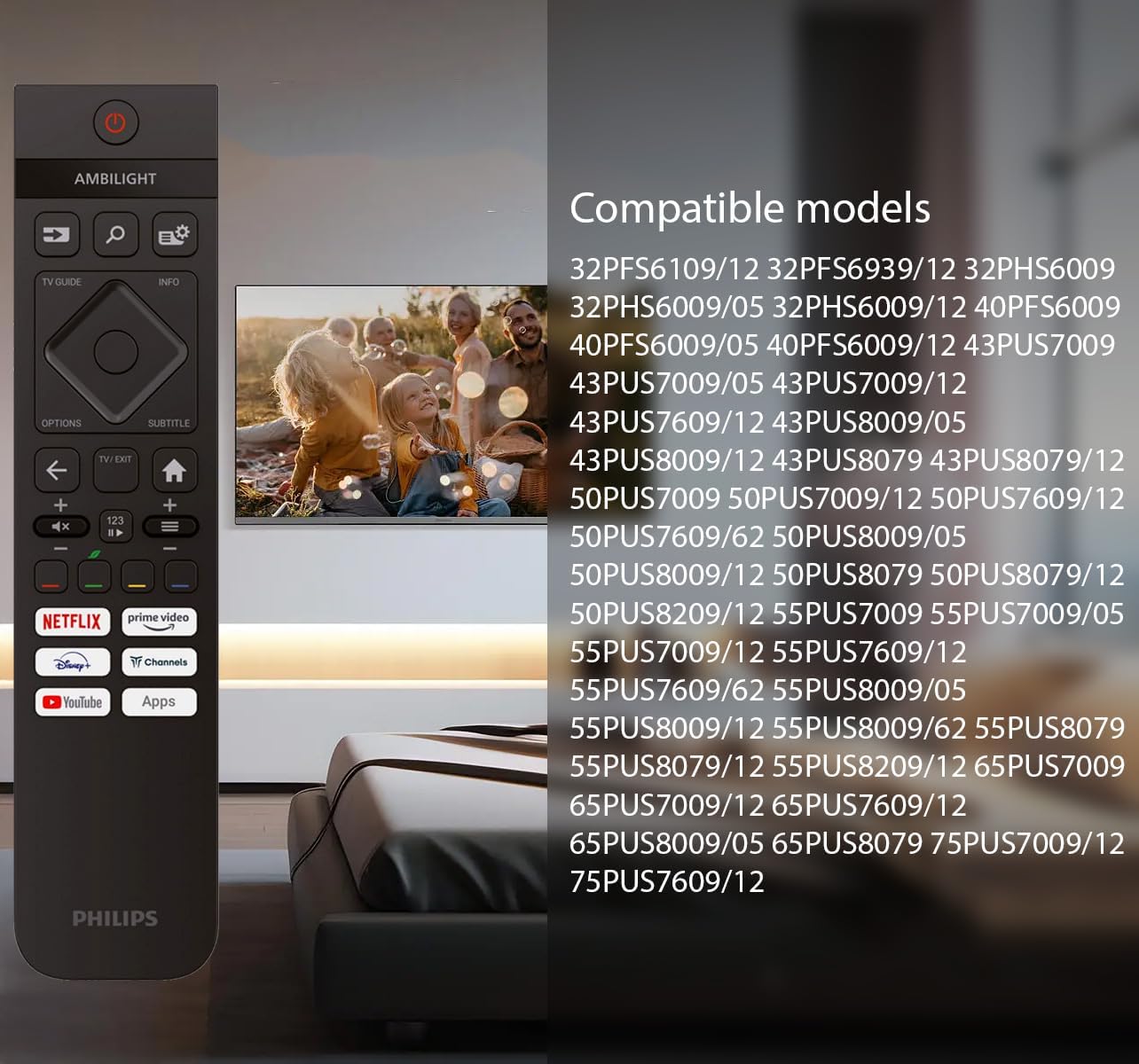
Figure 9.1: The remote is compatible with a wide range of Philips TV models.
10. Warranty and Support
For warranty information and customer support, please refer to the documentation provided with your purchase or contact the retailer where the product was acquired. Keep your proof of purchase for any warranty claims.
For technical assistance or further inquiries, please visit the 121AV official website or contact their customer service department.
Ask a question about this manual
Ask about setup, troubleshooting, compatibility, parts, safety, or missing instructions. Manuals+ will review the question and use this page’s manual context to help answer it.