1. Introduction
This manual provides essential information for setting up, operating, maintaining, and troubleshooting your CyberPowerPC Gamer Xtreme VR Gaming PC, model GXiVR8060A40. Please read this guide thoroughly to ensure proper use and to maximize the performance and longevity of your system.

Image 1.1: The CyberPowerPC Gamer Xtreme VR Gaming PC, GXiVR8060A40, shown with its included keyboard and mouse. This image provides a general overview of the product and its primary accessories.
2. Package Contents
Verify that all items listed below are included in your product packaging:
- CyberPowerPC Gamer Xtreme VR Gaming PC (GXiVR8060A40)
- Keyboard
- Mouse
- Power Cord

Image 2.1: Close-up view of the CyberPowerPC NOHI 2 Black Wired RGB 104-Key Keyboard and CyberPowerPC Elite M2 Black Wired RGB 4-Button Mouse, which are included with the system.
3. Initial Setup
Follow these steps to set up your new CyberPowerPC gaming system:
- Unpack the PC: Carefully remove the PC, keyboard, mouse, and power cord from their packaging. Place the PC on a stable, flat surface with adequate ventilation.
- Connect Peripherals:
- Connect your monitor(s) to the graphics card ports (HDMI or DisplayPort) located at the rear of the PC. Ensure the monitor is connected to the dedicated graphics card, not the motherboard's integrated graphics ports.
- Connect the included keyboard and mouse to available USB ports on the rear of the PC.
- Connect any other peripherals such as speakers, headphones, or external drives to the appropriate ports.
- Connect to Power: Plug the power cord into the power supply unit (PSU) at the rear of the PC, then plug the other end into a grounded electrical outlet.
- First Boot: Press the power button located on the top or front of the PC. The system will boot up, and you will be guided through the Windows 11 Home initial setup process. Follow the on-screen instructions to configure your operating system, create a user account, and connect to a network.
- Network Connection: Your PC supports WiFi 6 and Ethernet. Connect to your preferred network during the Windows setup or via the Windows settings after setup is complete.

Image 3.1: Top-down view of the PC case, highlighting the top-mounted I/O ports for easy access to USB devices and audio connections.
4. Operating Your PC
Your CyberPowerPC Gamer Xtreme VR Gaming PC comes pre-installed with Windows 11 Home, providing a user-friendly interface for all your computing needs.
- Power On/Off: Use the power button on the PC to turn it on. To shut down, click the Start button in Windows, then select Power > Shut down.
- RGB Lighting: The system features custom RGB lighting for internal fans and components. Refer to the specific software pre-installed on your PC (e.g., motherboard utility or dedicated RGB control software) to customize lighting effects and colors.
- Driver Updates: For optimal performance, especially in gaming, regularly check for and install the latest drivers for your NVIDIA GeForce RTX 5060 graphics card and other components. These can typically be found on the NVIDIA and CyberPowerPC support websites.
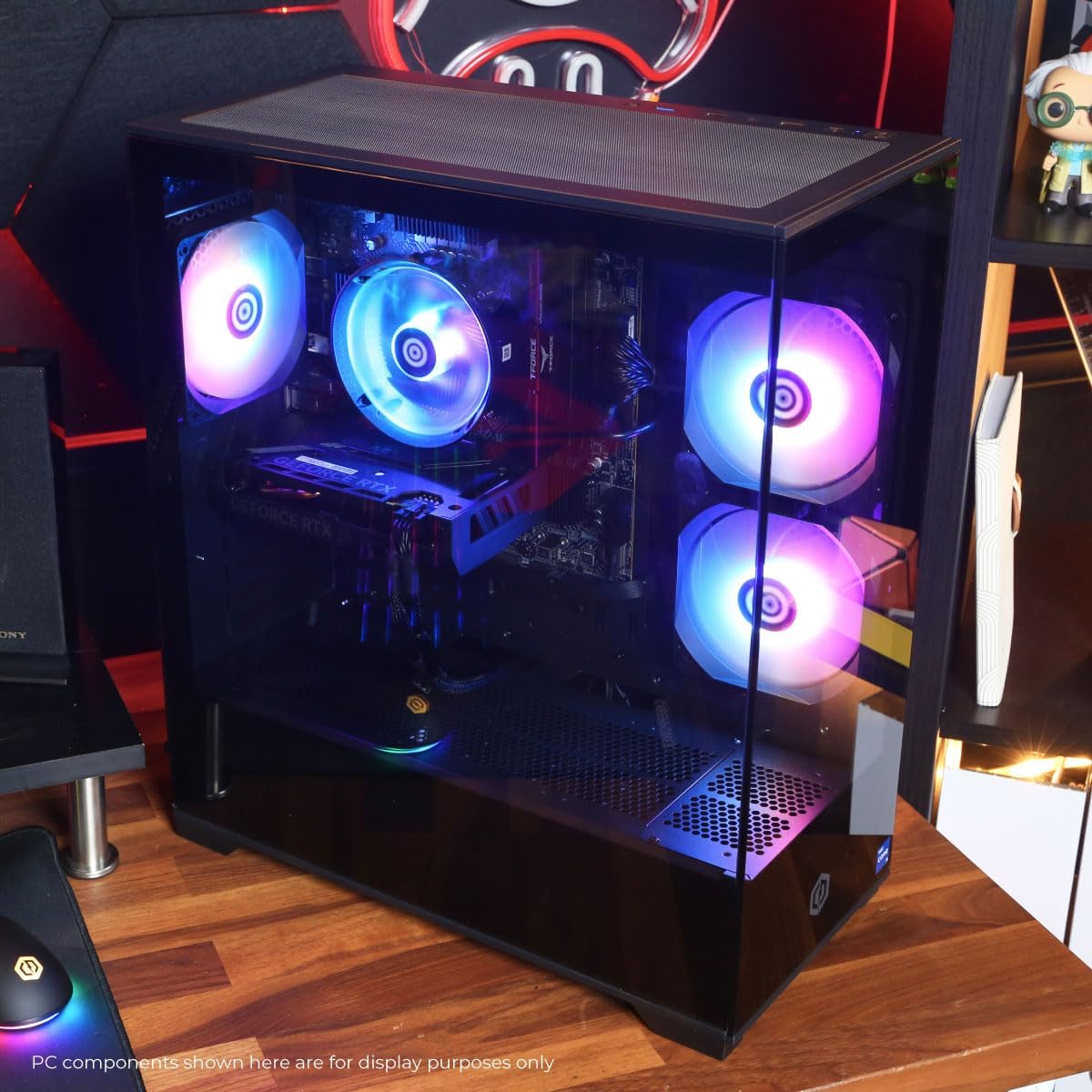
Image 4.1: The gaming PC displayed in a typical user environment, showcasing its customizable RGB lighting effects on the internal fans and components.
5. Maintenance
Regular maintenance helps ensure the longevity and optimal performance of your PC.
- Dust Cleaning: Periodically clean dust from the PC's interior, especially from fans, heatsinks, and ventilation grilles. Use compressed air for this purpose. Ensure the PC is powered off and unplugged before cleaning.
- Software Updates: Keep your Windows operating system, drivers (especially graphics drivers), and other software up to date. This improves security, stability, and performance.
- Ventilation: Ensure the PC has adequate airflow. Do not block the intake or exhaust vents. Maintain a clear space around the PC to prevent overheating.
- Cable Management: Organize internal and external cables to improve airflow and prevent accidental disconnections.

Image 5.1: An internal view of the PC, demonstrating the open view design and the arrangement of components, which highlights areas for dust cleaning and airflow management.
6. Troubleshooting
If you encounter issues with your PC, refer to the following common troubleshooting steps:
| Problem | Possible Solution |
|---|---|
| PC does not power on. |
|
| No display on monitor. |
|
| System is slow or unstable. |
|
| Peripherals (keyboard/mouse) not responding. |
|
7. Technical Specifications
Below are the key technical specifications for the CyberPowerPC Gamer Xtreme VR Gaming PC (GXiVR8060A40):
| Component | Detail |
|---|---|
| Model Number | GXiVR8060A40 |
| Operating System | Windows 11 Home |
| Processor | Intel Core i5-13400F 2.5GHz (10 Cores) |
| Chipset | Intel B760 |
| Graphics Card | NVIDIA GeForce RTX 5060 8GB |
| RAM | 16GB DDR5 6000MHz |
| Storage | 1TB PCIe 4.0 NVMe SSD |
| Connectivity |
|
| Video Outputs | 1x HDMI, 2x DisplayPort |
| Cooling | Air Cooler with active fan |
| Dimensions (H x W x D) | Approx. 20 in x 9.25 in x 17.5 in |
| Weight | Approx. 28.6 pounds |
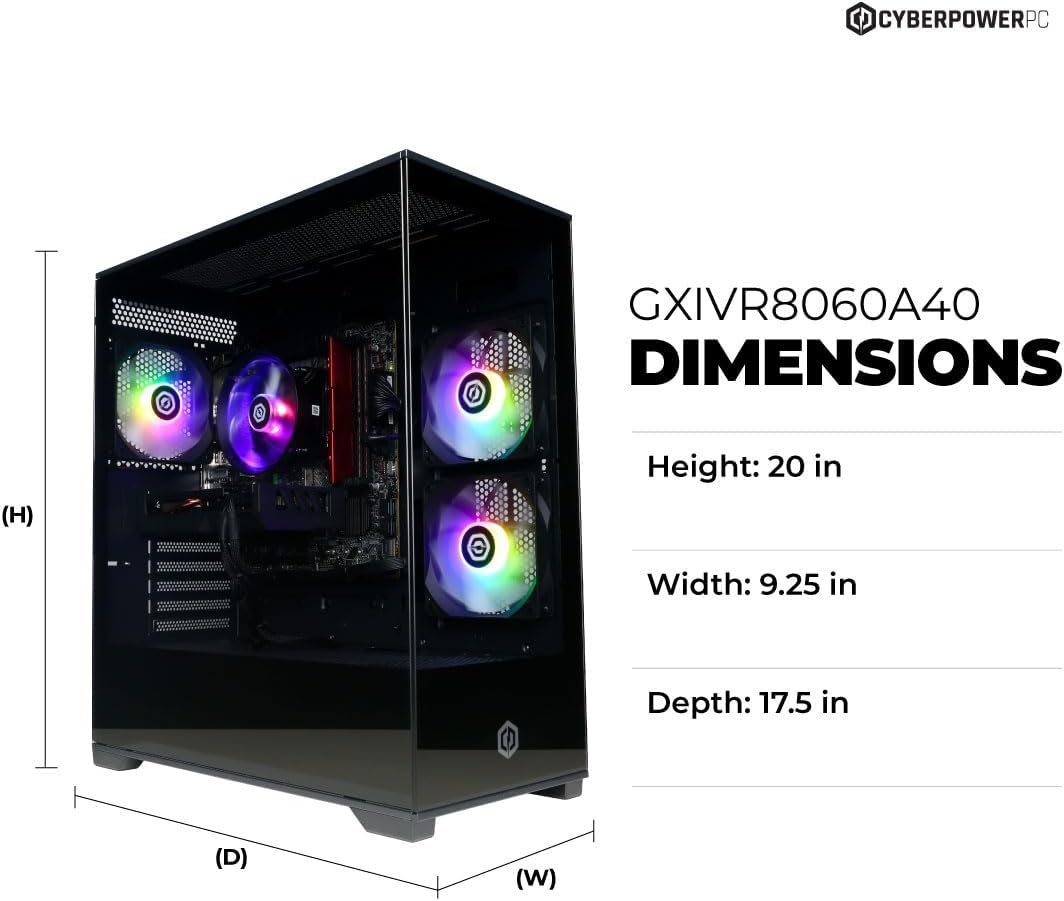
Image 7.1: Diagram illustrating the approximate dimensions of the GXiVR8060A40 PC case.

Image 7.2: Information regarding the 13th Gen Intel Core i5-13400F processor, highlighting its performance capabilities.

Image 7.3: Details about the NVIDIA GeForce RTX 50 Series graphics card, emphasizing its features for gaming and content creation.
8. Warranty and Support
Your CyberPowerPC Gamer Xtreme VR Gaming PC is backed by comprehensive support services.
- Warranty: The system includes a 1-Year Parts & Labor Warranty. This covers defects in materials and workmanship under normal use.
- Technical Support: Free Lifetime Technical Support is provided for your CyberPowerPC system. For assistance, please visit the official CyberPowerPC support website or contact their customer service.
- Online Resources: For additional drivers, FAQs, and support articles, please visit the official CyberPowerPC website: www.cyberpowerpc.com/support