
Introduction
The M-VAVE SMC PAD Pocket is a compact and versatile MIDI pad controller designed for music production and performance. Featuring 16 velocity-sensitive RGB backlit pads, it offers expressive control for triggering samples, playing drum patterns, and controlling virtual instruments. Its portable design and flexible connectivity options make it suitable for both studio and mobile use.
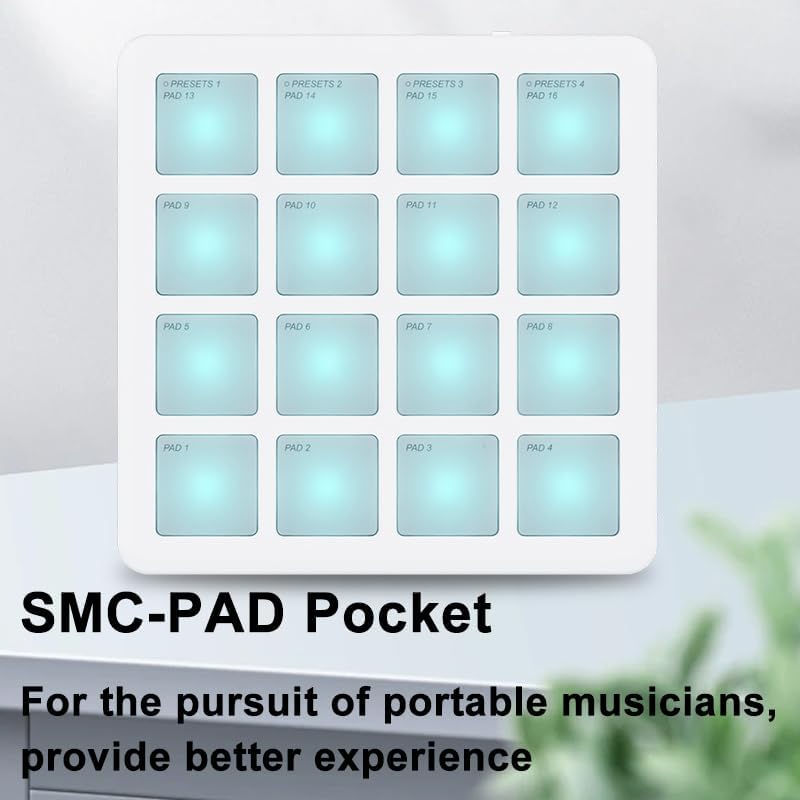
Figure 1: The SMC PAD Pocket, designed for portable music creation.
What's in the Box
Upon unpacking your SMC PAD Pocket, please ensure all items are present:
- SMC PAD Pocket MIDI Controller
- USB-C Cable
Product Overview
Familiarize yourself with the key components of your SMC PAD Pocket MIDI Controller.
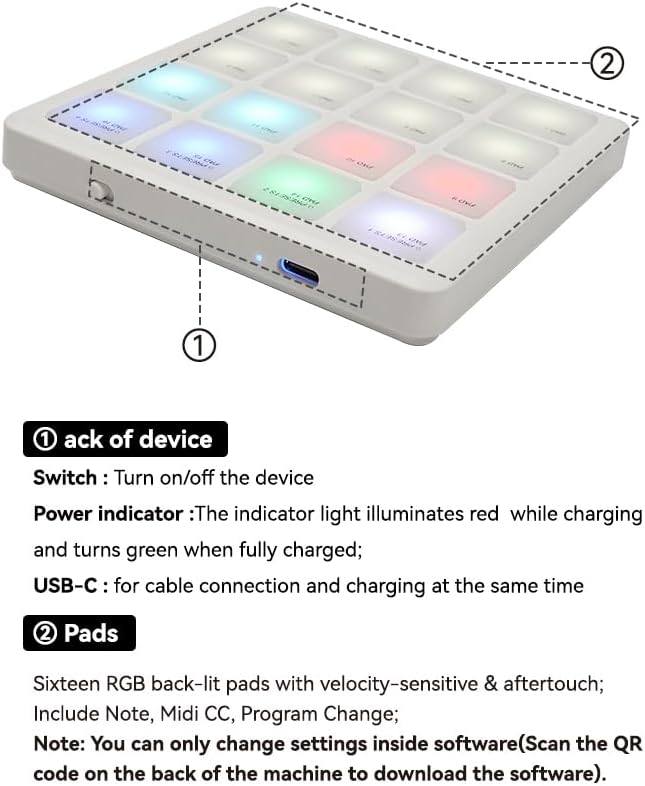
Figure 2: Key components and controls of the SMC PAD Pocket.
Device Components:
- Back of Device:
- Switch: Used to turn the device on or off.
- Power Indicator: Illuminates red when charging and turns green when fully charged.
- USB-C Port: For cable connection to a computer or mobile device, and for charging the internal battery.
- Pads:
- Sixteen RGB backlit pads with velocity-sensitive and aftertouch capabilities.
- Support for Note, MIDI CC (Control Change), and Program Change messages.
- Settings for pads can only be changed via software.
Setup
Charging the Device
Before first use, ensure your SMC PAD Pocket is fully charged. Connect the supplied USB-C cable to the device's USB-C port and the other end to a compatible USB power adapter or computer USB port. The power indicator light will be red while charging and turn green when fully charged.
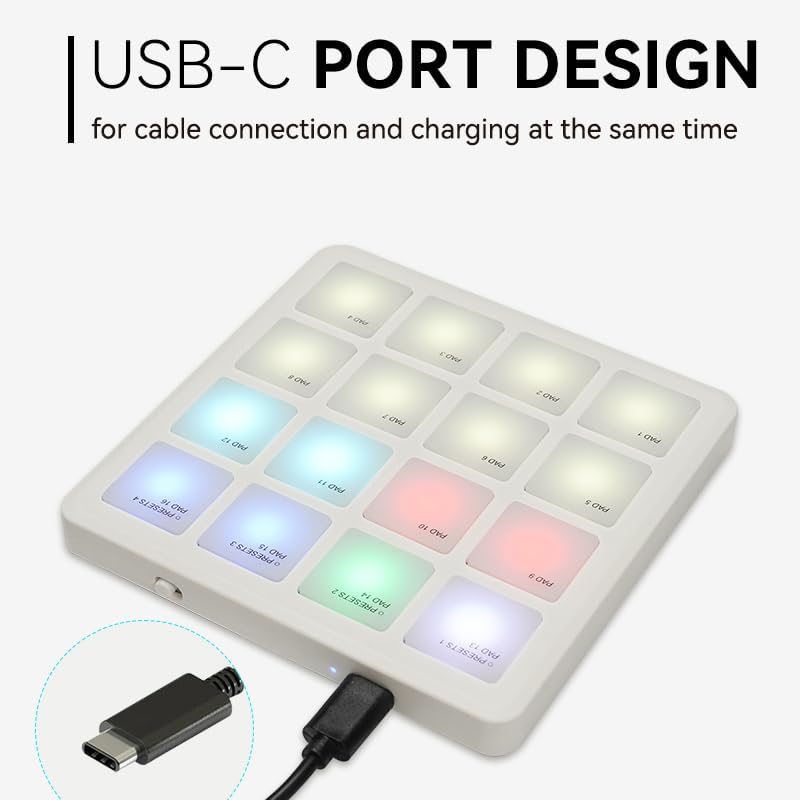
Figure 3: Connecting the USB-C cable for charging and data.
Connecting to a Computer or Mobile Device
The SMC PAD Pocket supports both wired USB-C and wireless Bluetooth MIDI connections.
Wired Connection (USB-C):
- Turn on the SMC PAD Pocket using the switch on the back.
- Connect the USB-C cable from the device to a USB port on your computer (PC/Mac) or compatible mobile device (iOS/Android with appropriate adapter, if needed).
- The device is plug-and-play and typically does not require drivers. It should be recognized automatically by your operating system and Digital Audio Workstation (DAW).
Wireless Connection (Bluetooth MIDI):
- Turn on the SMC PAD Pocket.
- On your computer (PC/Mac) or mobile device (iOS/Android), enable Bluetooth.
- Go to your device's Bluetooth settings or your DAW's MIDI settings and search for available Bluetooth MIDI devices.
- Select "SMC PAD Pocket" (or similar name) to pair.
- Once paired, the device will transmit MIDI data wirelessly.
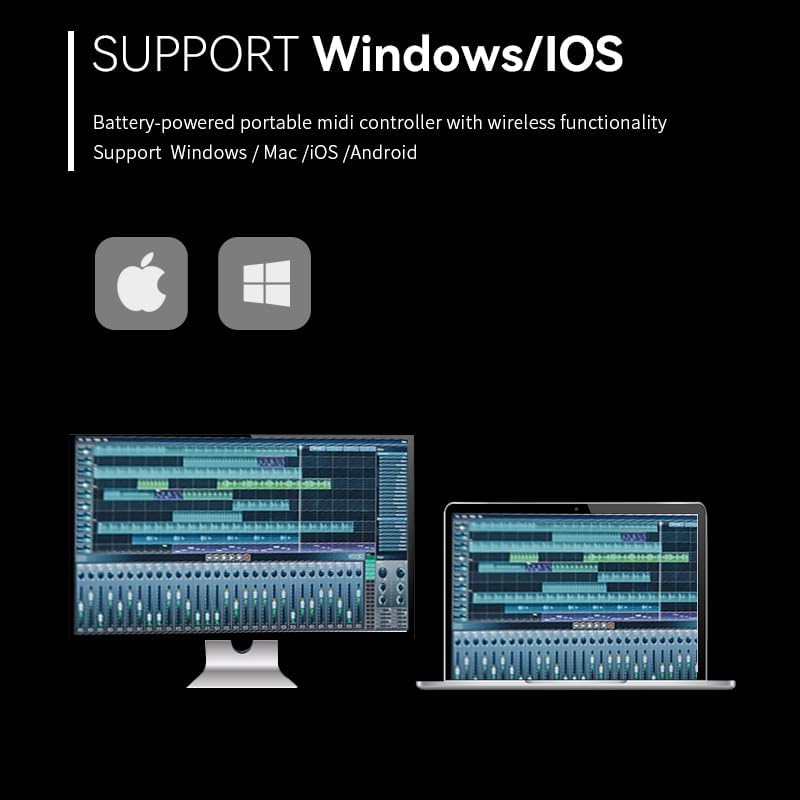
Figure 4: The SMC PAD Pocket supports various operating systems for seamless integration.
Operating the Device
Pad Functionality
The SMC PAD Pocket features 16 RGB backlit pads that are velocity-sensitive and support aftertouch. This allows for dynamic and expressive performance.
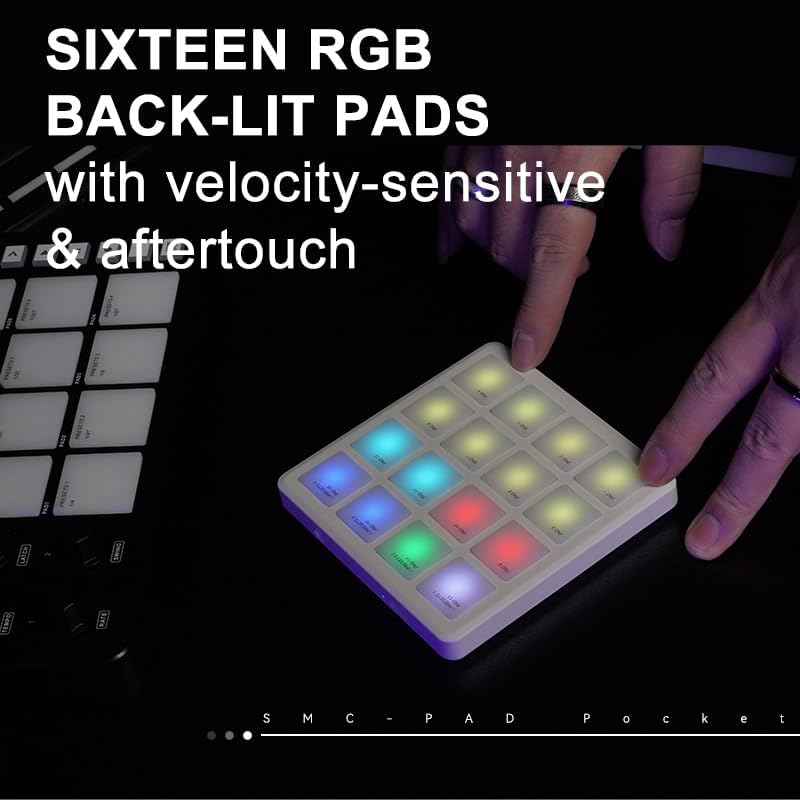
Figure 5: The 16 RGB backlit pads offer velocity sensitivity and aftertouch for expressive control.
- Velocity Sensitivity: The harder you strike a pad, the louder or more intense the sound will be, mimicking acoustic instruments.
- Aftertouch: After pressing a pad, applying continuous pressure can control parameters like vibrato, filter cutoff, or volume, depending on your software's mapping.
- RGB Backlighting: The pads illuminate with customizable RGB colors, providing visual feedback for velocity, mode, and active presets.
DAW Compatibility and Mapping
The SMC PAD Pocket is designed for deep compatibility with popular Digital Audio Workstations (DAWs) and music software.
- Pre-configured Templates: The device comes with pre-configured templates for software such as Ableton Live, FL Studio, and Logic Pro, allowing for quick plug-and-play functionality.
- Custom MIDI Mapping: For advanced users, the device supports custom MIDI mapping. This allows you to assign specific MIDI notes, CC messages, or program changes to each pad according to your workflow. Refer to your DAW's manual for instructions on MIDI mapping.
- Software Settings: Note that certain advanced settings and customizations for the pads (e.g., pressure/speed adjustments) can only be configured through dedicated software. Please scan the QR code on the back of the device (if present) or visit the manufacturer's website for software downloads.
Maintenance
Proper care and maintenance will ensure the longevity and optimal performance of your SMC PAD Pocket.
- Cleaning: Use a soft, dry cloth to wipe the surface of the device. For stubborn dirt, a slightly damp cloth can be used, but ensure no moisture enters the ports or gaps. Do not use abrasive cleaners or solvents.
- Storage: Store the device in a cool, dry place away from direct sunlight, extreme temperatures, and high humidity.
- Handling: Avoid dropping the device or subjecting it to strong impacts. Do not place heavy objects on top of it.
- Battery Care: To prolong battery life, avoid fully discharging the battery frequently. If storing for an extended period, charge the battery to approximately 50% and recharge every few months.
Troubleshooting
| Problem | Possible Cause | Solution |
|---|---|---|
| Device does not power on. | Battery is depleted. Device switch is off. | Charge the device using the USB-C cable. Ensure the power switch on the back of the device is in the 'On' position. |
| Pads are not responding in DAW. | Incorrect connection. MIDI input not enabled in DAW. Incorrect MIDI channel. | Verify USB-C cable connection or Bluetooth pairing. Check your DAW's MIDI settings to ensure the SMC PAD Pocket is enabled as an input device. Ensure the correct MIDI channel is selected in your DAW. |
| Pads are not lighting up or colors are incorrect. | Device not powered on. Software settings. | Ensure the device is powered on. Check the software settings for pad backlighting and ensure they are configured as desired. |
| Bluetooth connection is unstable or drops. | Interference. Device too far from host. Low battery. | Move the device closer to your computer/mobile device. Ensure there are no strong sources of wireless interference nearby. Charge the device fully. |
Specifications
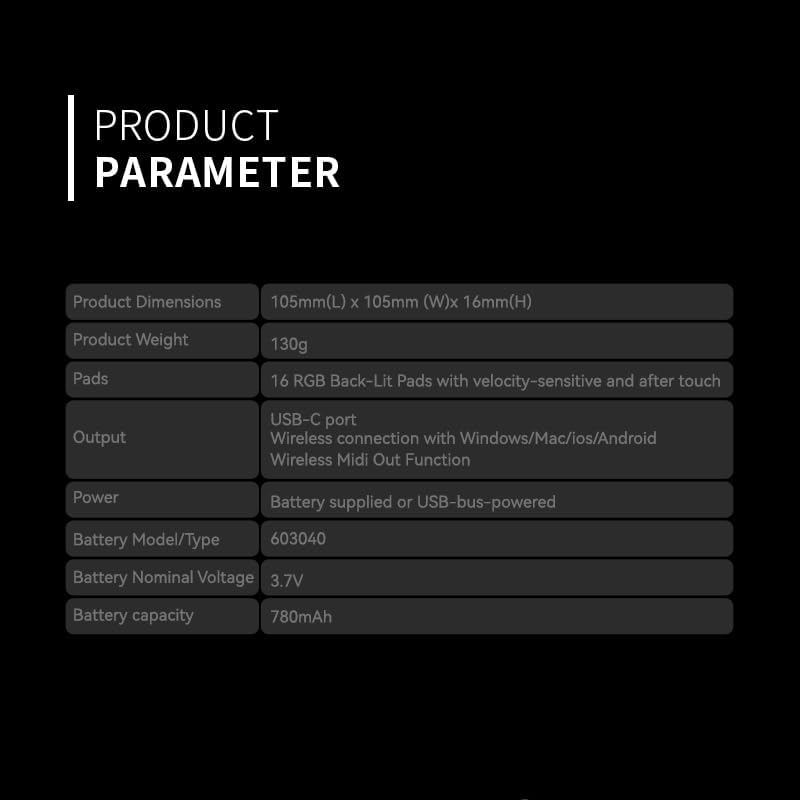
Figure 6: Detailed product parameters for the SMC PAD Pocket.
| Parameter | Value |
|---|---|
| Model Name | SMC PAD Pocket |
| Product Dimensions (L x W x H) | 105mm x 105mm x 16mm (4.1 x 4.1 x 0.8 inches) |
| Product Weight | 130g (4.5 ounces) |
| Pads | 16 RGB Back-Lit Pads with velocity-sensitive and aftertouch |
| Output | USB-C port, Wireless connection (Bluetooth MIDI) |
| Compatibility | Windows, Mac, iOS, Android |
| Power | Battery supplied or USB-bus-powered |
| Battery Model/Type | 603040 |
| Battery Nominal Voltage | 3.7V |
| Battery Capacity | 780mAh |
| Special Feature | RGB Backlit Pads |
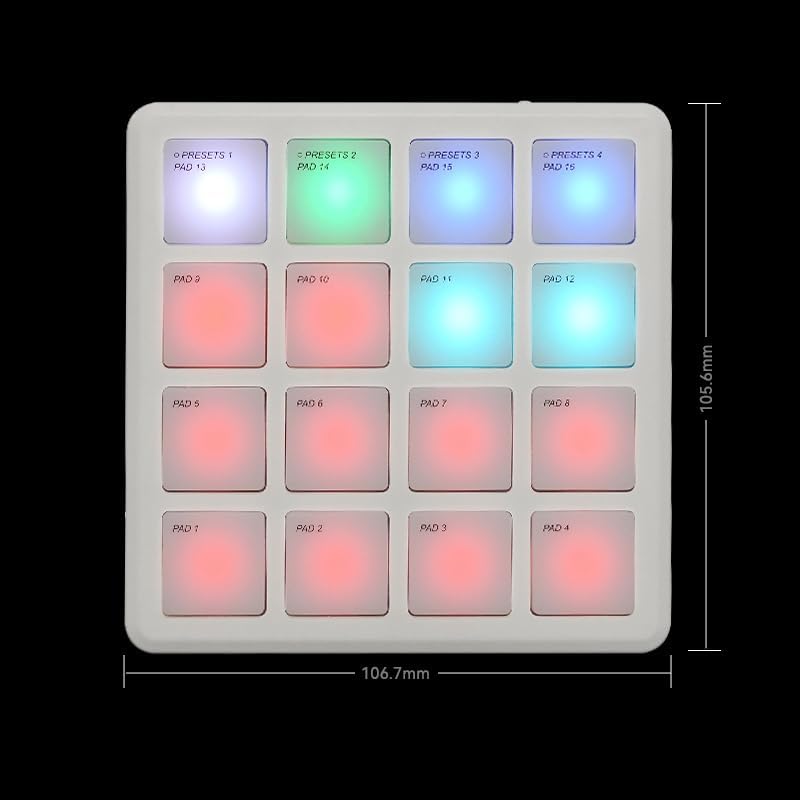
Figure 7: Physical dimensions of the SMC PAD Pocket.
Warranty and Support
For warranty information and technical support, please refer to the official M-VAVE website or contact their customer service directly. Keep your purchase receipt as proof of purchase for warranty claims.
Manufacturer: M-VAVE
For the most up-to-date information, software downloads, and FAQs, please visit the official M-VAVE support page.


