
1. Product Overview
The Kensington KB270 EQ Wireless Rechargeable Keyboard is a full-size, spill-proof keyboard designed for productivity across Windows and macOS operating systems. It offers flexible connectivity options and a long-lasting rechargeable battery. This keyboard also incorporates sustainable materials, with a minimum of 63% post-consumer recycled content in its total plastic components.
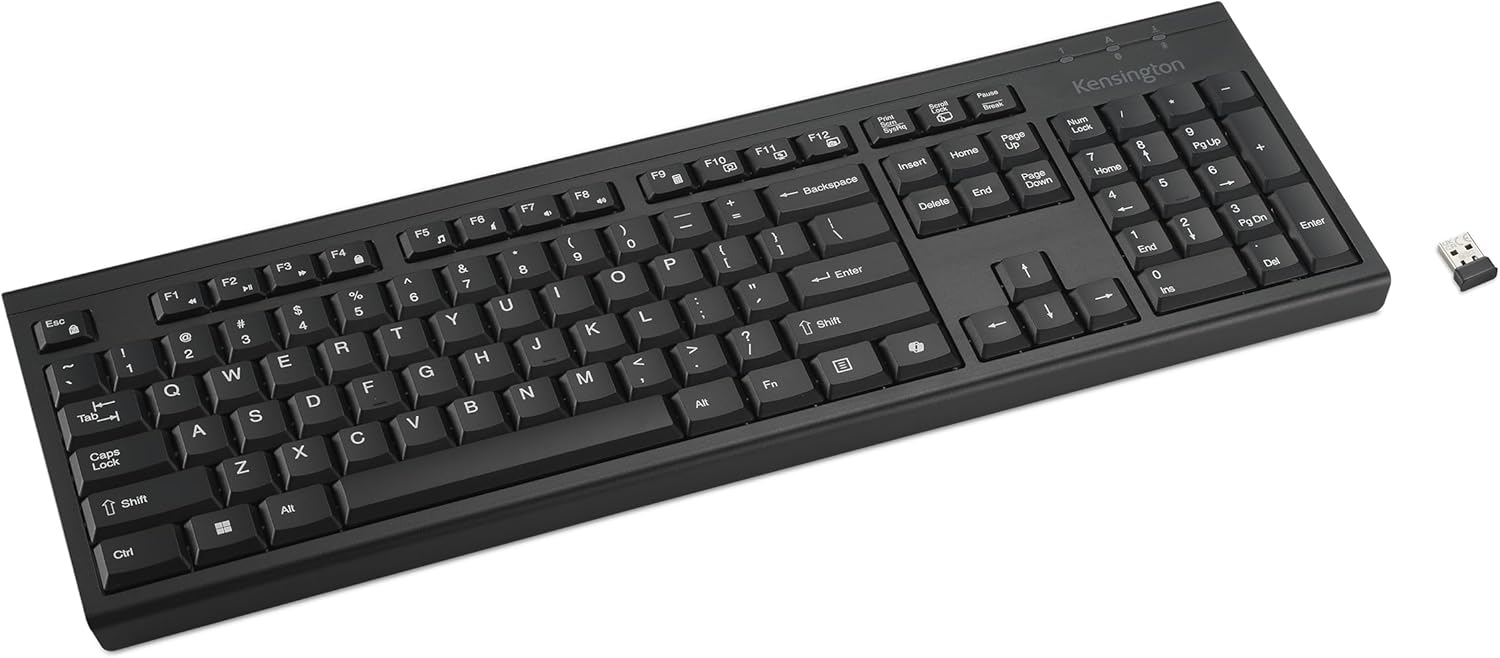
Image 1.1: The Kensington KB270 EQ Wireless Rechargeable Keyboard, showing the full layout and the compact USB-A nano receiver.

Image 1.2: Certification indicating the keyboard's use of a minimum of 63% post-consumer recycled content in its plastic components.
2. Package Contents
Verify that your package contains the following items:
- Kensington KB270 EQ Wireless Rechargeable Keyboard
- USB-A Nano Receiver (for 2.4GHz wireless connection)
- USB-A to USB-C Charging Cable
- USB-A to USB-C Adapter
3. Setup Instructions
3.1. Charging the Keyboard
Before initial use, fully charge the keyboard. Connect the provided USB-A to USB-C charging cable to the keyboard's USB-C port and the other end to a powered USB-A port on your computer or a wall adapter. The LED indicator will show charging status.

Image 3.1: The keyboard shown with its USB-C charging cable, highlighting the rechargeable 500mAh battery and up to 3 months of productivity per charge.
3.2. Connecting via 2.4GHz Wireless
- Locate the USB-A nano receiver. It may be stored in a compartment on the keyboard.
- Insert the USB-A nano receiver into an available USB-A port on your computer.
- Turn on the keyboard using the power switch, typically located on the back or side.
- The keyboard should automatically connect. If not, refer to the troubleshooting section.
The 2.4GHz connection utilizes AES 128-bit encryption for secure communication.
3.3. Connecting via Bluetooth 5.0
- Ensure the keyboard is turned on.
- Activate Bluetooth pairing mode on the keyboard (refer to specific key combination if available, otherwise assume a dedicated button or automatic pairing).
- On your computer (Windows or macOS), navigate to the Bluetooth settings.
- Search for available devices and select "Kensington KB270 EQ" (or similar name) from the list.
- Follow any on-screen prompts to complete the pairing process.

Image 3.2: Visual representation of the dual wireless connectivity options: 2.4GHz USB-A receiver and Bluetooth 5.0.
4. Operating Instructions
4.1. Function Keys and Special Features
- Dedicated Copilot Key: (Windows only) This key provides quick access to AI assistance features.
- Function Key Lock: Toggle between standard F-key operations and special media functions (e.g., volume control, media playback) using the function key lock feature. Consult your operating system's documentation for specific key combinations if needed.
- LED Indicators: The keyboard features LED lights to indicate battery life, Num Lock, Caps Lock, Scroll Lock, and pairing status.

Image 4.1: A close-up view of the keyboard highlighting the dedicated Copilot key, available for Windows users.
4.2. Spill-Proof Design
The KB270 EQ keyboard features a sealed membrane design, providing spill-proof protection. In the event of liquid spills, the electronics are protected, and the liquid can be wiped dry without damaging the keyboard.
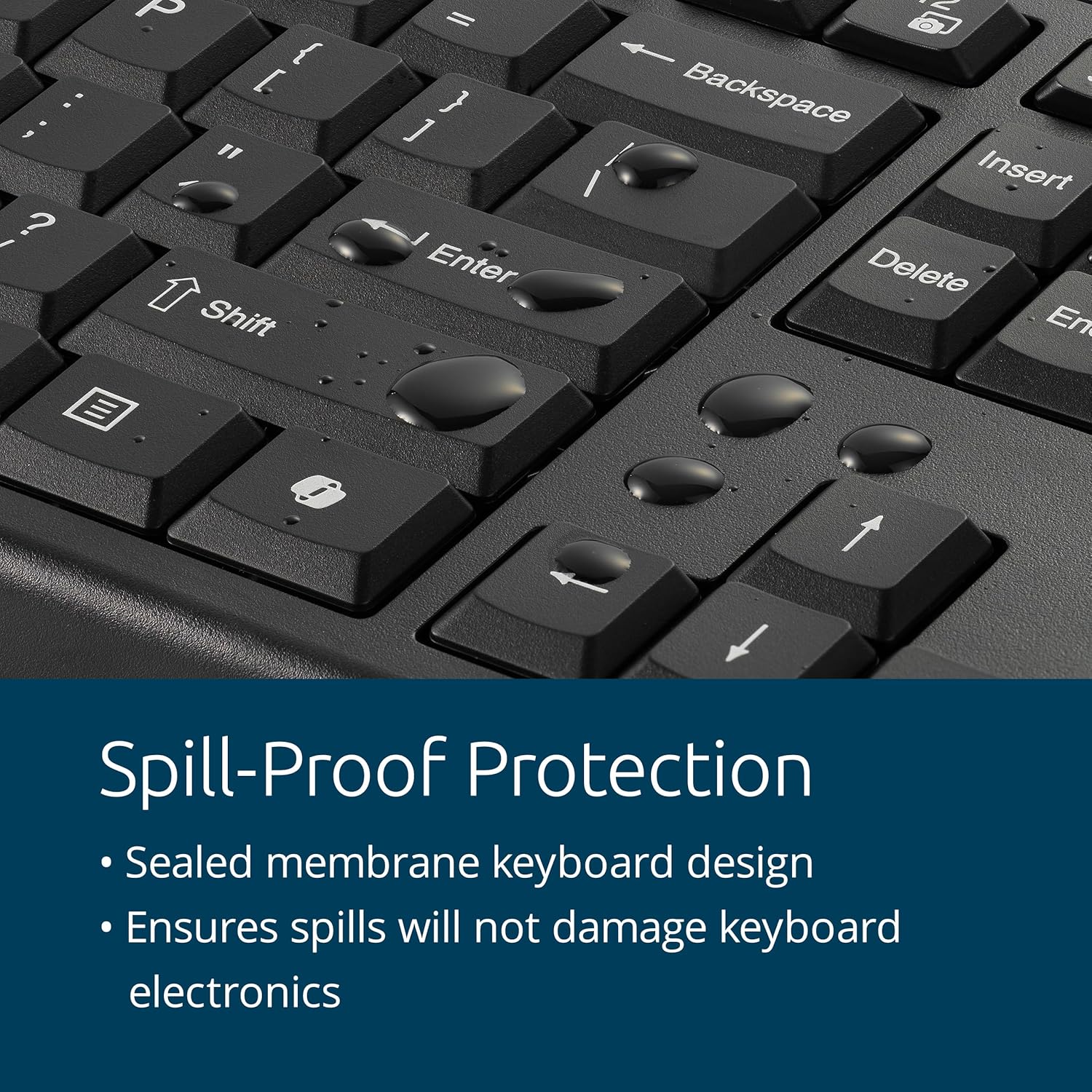
Image 4.2: Water droplets on the keyboard keys, illustrating the spill-proof design that protects internal components.
5. Maintenance
5.1. Cleaning
The keyboard is designed with wipe-down protection, meeting MIL-STD-810H Method 504.3 for Contamination by Fluids. This means it can be cleaned with disinfectants without degradation. To clean, gently wipe the surface with a soft cloth dampened with a mild cleaning solution or disinfectant. Avoid excessive moisture and do not submerge the keyboard.
5.2. Battery Care
To maximize battery life, charge the keyboard regularly. The 500mAh rechargeable battery provides up to 3 months of use on a single charge. Store the keyboard in a cool, dry place when not in use for extended periods.
6. Troubleshooting
- Keyboard not responding:
- Ensure the keyboard is turned on.
- Check battery level and charge if necessary.
- For 2.4GHz connection, ensure the USB-A nano receiver is securely plugged into a working USB port.
- For Bluetooth connection, verify that Bluetooth is enabled on your computer and the keyboard is paired. Try re-pairing if connection is lost.
- Try connecting the keyboard to a different USB port or computer to rule out port or system issues.
- Keys not functioning correctly:
- Ensure the keyboard is clean and free of debris.
- If specific keys are not working, contact customer support.
- Intermittent connection:
- Reduce the distance between the keyboard and the receiver/computer.
- Avoid sources of interference (e.g., other wireless devices, large metal objects).
- Ensure the battery is sufficiently charged.
7. Specifications
| Brand | Kensington |
| Model | KB270 EQ (K75558NA) |
| Connectivity Technology | 2.4GHz Wireless (USB-A Nano Receiver with AES 128-bit encryption), Bluetooth 5.0 |
| Compatible Operating Systems | Windows, macOS |
| Power Source | Rechargeable 500mAh Battery |
| Battery Life | Up to 3 months per charge |
| Special Features | Spill-Proof, Dedicated Copilot Key (Windows only), Wipe Down Protection (MIL-STD-810H Method 504.3) |
| Color | Black |
| Item Weight | 1.6 pounds |
| Package Dimensions | 19.75 x 6.25 x 1.5 inches |
8. Warranty Information
For detailed warranty information regarding your Kensington KB270 EQ Wireless Rechargeable Keyboard, please refer to the official Kensington website or the warranty card included with your product. Warranty terms and conditions may vary by region.
9. Customer Support
If you require further assistance or have questions not covered in this manual, please visit the official Kensington support website:
You may also find additional resources and FAQs on their website.