
1. Introduction
This manual provides comprehensive instructions for the setup, operation, maintenance, and troubleshooting of your new SAMSUNG UN75DU7200B 75 inch Class Crystal Series LED 4K UHD Smart TV. Please read this manual thoroughly before using your television to ensure proper and safe operation. Keep this manual for future reference.

Figure 1.1: Front view of the SAMSUNG UN75DU7200B 75 inch Crystal UHD Smart TV. This image displays the television from the front, showcasing its large screen and slim bezels, with the Samsung logo visible at the bottom center.
2. Important Safety Information
Always follow basic safety precautions when using this television to reduce the risk of fire, electric shock, and injury. This includes, but is not limited to:
- Do not expose this apparatus to rain or moisture.
- Do not block any ventilation openings. Install in accordance with the manufacturer's instructions.
- Do not install near any heat sources such as radiators, heat registers, stoves, or other apparatus (including amplifiers) that produce heat.
- Protect the power cord from being walked on or pinched, particularly at plugs, convenience receptacles, and the point where they exit from the apparatus.
- Only use attachments/accessories specified by the manufacturer.
- Refer all servicing to qualified service personnel.
3. Package Contents
Before proceeding with the setup, please verify that all items are present in the packaging:
- SAMSUNG UN75DU7200B 75 inch Class Crystal Series LED 4K UHD Smart TV
- Remote Control (with batteries)
- Power Cord
- Stand Components (if applicable)
- User Manual (this document)
4. Setup
4.1 Physical Setup
Carefully remove the TV from its packaging. You have two primary options for physical setup: using the included stand or wall mounting (wall mount sold separately).
4.1.1 Stand Installation
- Place the TV screen-down on a soft, flat surface to prevent damage.
- Attach the stand components to the designated slots on the bottom of the TV, ensuring they are securely fastened with the provided screws.
- Carefully lift the TV to its upright position on a stable, level surface.
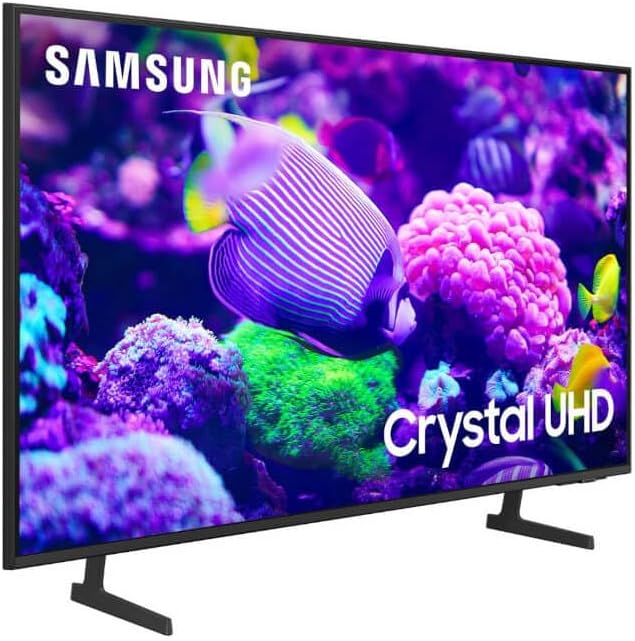
Figure 4.1: Angled view of the SAMSUNG UN75DU7200B 75 inch Crystal UHD Smart TV with its stand attached. This image shows the television positioned at an angle, highlighting the design of the included stand.
4.1.2 Wall Mounting
If you choose to wall mount your TV, refer to the instructions provided with your wall mount kit. Ensure you use a VESA-compliant wall mount appropriate for the TV's size and weight. Professional installation is recommended.
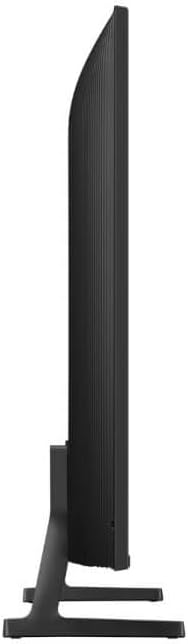
Figure 4.2: Side profile of the SAMSUNG UN75DU7200B 75 inch Crystal UHD Smart TV. This image illustrates the slim design of the television when viewed from the side.
4.2 Initial Power On and First-Time Setup
- Connect the power cord to the TV and then to a wall outlet.
- Press the Power button on the remote control or on the TV itself.
- Follow the on-screen instructions to complete the initial setup, which typically includes language selection, country, time zone, and channel scanning (if using an antenna/cable).
4.3 Network Connection
To access Smart TV features and streaming services, connect your TV to the internet.
- Wireless Connection (Wi-Fi): Navigate to Settings > General > Network > Open Network Settings. Select your Wi-Fi network from the list and enter the password.
- Wired Connection (Ethernet): Connect an Ethernet cable from your router to the LAN port on the back of the TV. The TV should automatically detect the wired connection.
5. Operating Your TV
5.1 Basic Functions
- Power On/Off: Use the Power button on the remote.
- Input Selection: Press the Source button on the remote to switch between connected devices (HDMI, USB, etc.).
- Volume Control: Use the Volume Up/Down buttons.
- Channel Selection: Use the Channel Up/Down buttons or the number pad.
- Menu Navigation: Use the directional pad and Enter button to navigate menus.
5.2 Smart Features (Tizen OS)
Your TV runs on the Tizen operating system, providing access to a wide range of streaming services and apps. Press the Smart Hub button on your remote to access the main Smart Hub interface. From here, you can:
- Browse and launch installed applications (e.g., Netflix, YouTube, Hulu).
- Download new apps from the App Store.
- Access connected devices and media.
5.3 Picture Settings
Optimize your viewing experience by adjusting picture settings. Navigate to Settings > Picture.
- Picture Mode: Select from modes like Standard, Dynamic, Movie, or adjust custom settings.
- Brightness, Contrast, Sharpness, Color: Fine-tune these parameters to your preference.
- PurColor: This technology enhances color performance, delivering a wider spectrum of colors.
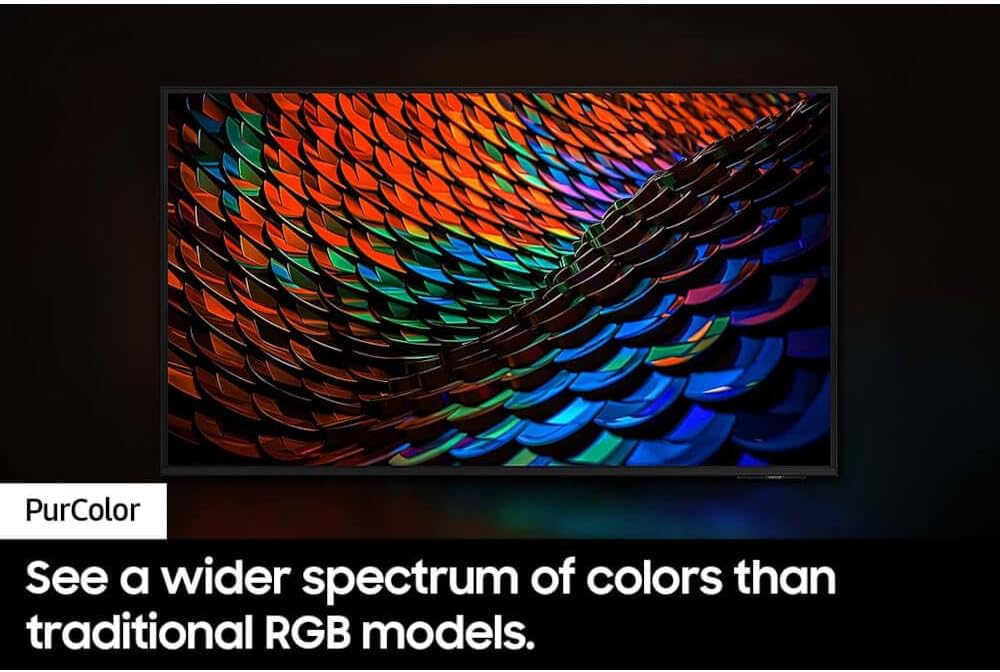
Figure 5.1: Illustration of PurColor technology. This image shows a television screen displaying a vibrant, detailed image, emphasizing the enhanced color spectrum provided by PurColor.
- 4K Upscaling (Crystal Processor 4K): The Crystal Processor 4K automatically upscales lower-resolution content to near 4K quality, providing a clearer picture even if the original content was not filmed in 4K.

Figure 5.2: Demonstration of 4K Upscaling. This image depicts a television screen showing a skateboarder, with a visual representation of how lower-resolution content is upscaled to achieve a clearer 4K picture.
- Motion Xcelerator: This feature enhances motion clarity, reducing blur in fast-paced scenes for a smoother viewing experience.

Figure 5.3: Visual of Motion Xcelerator. This image shows a television screen with a motocross rider in motion, illustrating how Motion Xcelerator provides clear motion and improved clarity.
5.4 Sound Settings
Adjust audio settings via Settings > Sound.
- Sound Mode: Choose from various sound modes (e.g., Standard, Adaptive Sound, Amplify).
- Q-Symphony: When connected to a compatible Samsung soundbar, Q-Symphony allows the TV speakers and soundbar to operate simultaneously, creating a more immersive audio experience.
- Equalizer: Customize audio frequencies for personalized sound.
6. Maintenance
6.1 Cleaning Your TV
- Screen: Gently wipe the screen with a soft, dry microfiber cloth. For stubborn smudges, lightly dampen the cloth with distilled water or a specialized screen cleaner (never spray directly onto the screen).
- Frame and Stand: Use a soft, dry cloth to wipe dust from the frame and stand.
- Do Not Use: Avoid using abrasive cleaners, alcohol, benzene, or thinners, as these can damage the TV's surface.
6.2 Software Updates
Ensure your TV's software is up-to-date for optimal performance and security. Navigate to Settings > Support > Software Update > Update Now. The TV will check for and install any available updates.
7. Troubleshooting
If you encounter issues with your TV, refer to the following common problems and solutions before contacting service personnel.
| Problem | Possible Solution |
|---|---|
| No power | Ensure the power cord is securely connected to both the TV and the wall outlet. Test the outlet with another device. |
| No picture, but sound is present | Check the input source. Ensure all cables (HDMI, etc.) are properly connected. Try restarting the TV. |
| No sound, but picture is present | Check the volume level and mute status. Verify audio output settings (e.g., TV Speaker, Optical). |
| Remote control not working | Replace the batteries. Ensure there are no obstructions between the remote and the TV's IR receiver. |
| Cannot connect to Wi-Fi | Check your router and modem. Restart both the TV and your router. Re-enter the Wi-Fi password carefully. |
| Smart Hub not loading apps | Check your internet connection. Try restarting the TV. Perform a Smart Hub reset (Settings > Support > Self Diagnosis > Smart Hub Reset). |
8. Specifications
| Feature | Detail |
|---|---|
| Model Name | SAMSUNG UN75DU7200B |
| Screen Size | 75 Inches (191 cm visible diagonal) |
| Display Technology | LED |
| Resolution | 4K UHD (3840 x 2160) |
| Processor | Crystal Processor 4K |
| Color Technology | PurColor |
| Motion Enhancement | Motion Xcelerator Clarity |
| Operating System | Tizen Smart OS |
| Audio Feature | Q-Symphony Sound Pairing, Built-In Speaker |
| Aspect Ratio | 16:9 |
| Product Dimensions (with stand) | Approximately 73"D x 44"W x 8"H (Dimensions may vary slightly) |
| Item Weight | Approximately 80 Pounds |
| Color | Gray |
9. Warranty and Support
For warranty information, please refer to the warranty card included with your product or visit the official Samsung website for your region. For technical support, troubleshooting assistance beyond this manual, or service requests, please contact Samsung Customer Service.
You can typically find contact information on the Samsung support website or in the documentation provided with your TV.