
P2961 Wireless Bluetooth Headphones
P2961 Wireless Bluetooth Headphones User Manual
Model: P2961 Wireless Bluetooth Headphones | Brand: Generic
Introduction
Elevate your listening experience with the P2961 Wireless Bluetooth Headphones, designed for both music enthusiasts and active lifestyles. These over-ear headphones deliver rich, high-quality sound with HIFI stereo technology, perfect for enjoying your favorite tracks while on the go. The built-in microphone allows for hands-free calls, making them ideal for both casual listening and staying connected. Whether you're hitting the gym, going for a run, or relaxing at home, these headphones provide the perfect blend of comfort, durability, and sound performance. With Bluetooth connectivity, you can easily pair the headphones with your devices, while the TF card slot and AUX input offer versatile music playback options.
What's in the Box
- P2961 Wireless Bluetooth Headphones
- User Manual
- Charging Cable (Type-C)
- AUX Audio Cable
Note: The specific contents may vary slightly based on the package.
Product Overview
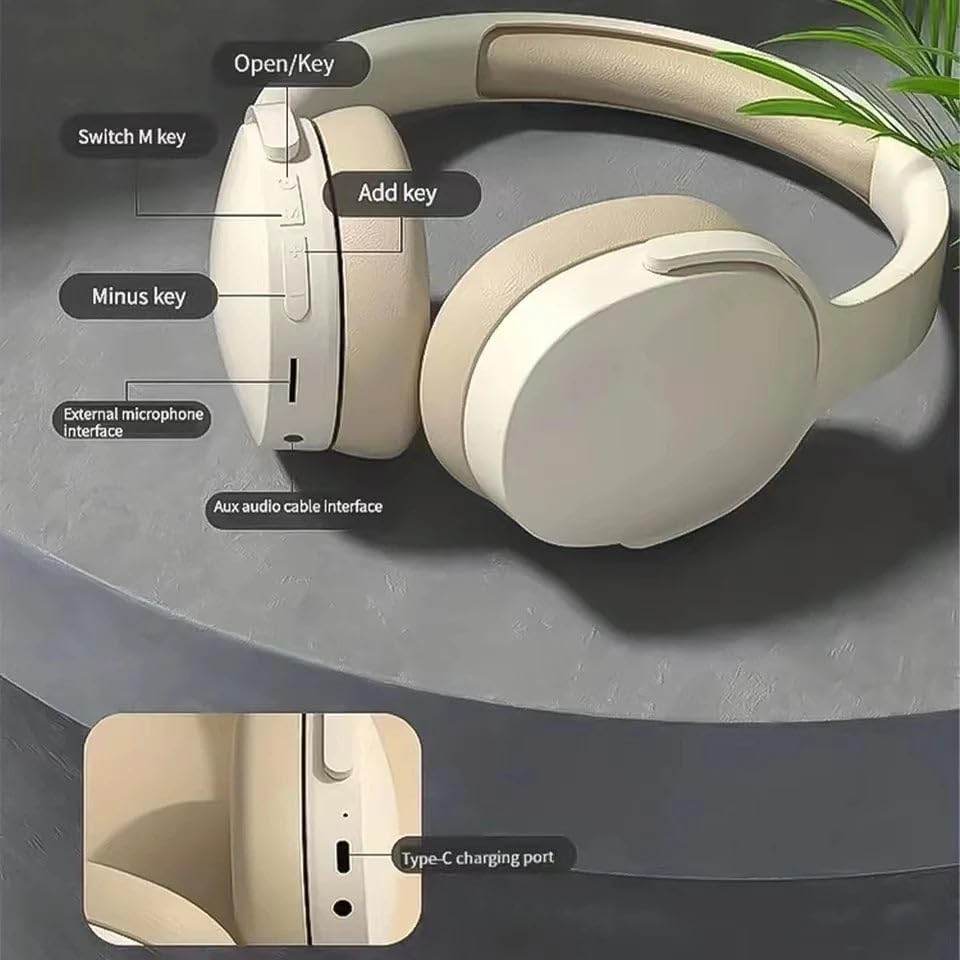
Figure 1: Headphone Controls and Ports
- Open/Key: Power on/off, Play/Pause, Answer/End Call.
- Switch M key: Mode switch (Bluetooth, TF Card, AUX).
- Add key (+): Volume Up, Next Track (long press).
- Minus key (-): Volume Down, Previous Track (long press).
- External microphone interface: For connecting an external microphone.
- Aux audio cable interface: For wired connection using a 3.5mm audio cable.
- Type-C charging port: For charging the headphones.
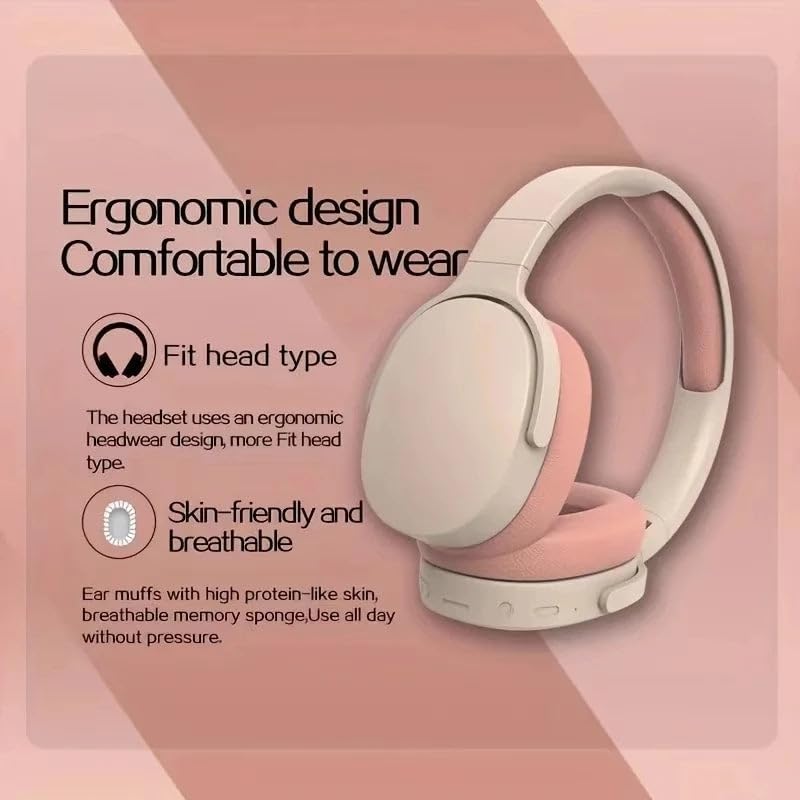
Figure 2: Ergonomic Design Features
- Fit head type: The headset uses an ergonomic headwear design for a better fit.
- Skin-friendly and breathable: Ear muffs made with protein-like skin and breathable memory sponge for comfortable all-day wear without pressure.
Setup
1. Charging the Headphones
Before first use, fully charge the headphones. Connect the provided Type-C charging cable to the charging port on the headphones and the other end to a USB power adapter (not included) or a computer's USB port. The indicator light will show charging status and turn off or change color when fully charged.
2. Powering On/Off
- Power On: Press and hold the "Open/Key" button for approximately 3 seconds until the indicator light flashes.
- Power Off: Press and hold the "Open/Key" button for approximately 3-5 seconds until the indicator light turns off.
3. Bluetooth Pairing
- Ensure the headphones are powered off.
- Press and hold the "Open/Key" button for about 5-7 seconds until the indicator light flashes red and blue alternately, indicating pairing mode.
- On your device (smartphone, tablet, etc.), enable Bluetooth and search for available devices.
- Select "P2961" from the list of found devices.
- Once paired, the indicator light will flash blue slowly, and you will hear a confirmation tone.
Note: The headphones will automatically attempt to reconnect to the last paired device when powered on.
Operating Instructions
Music Playback
- Play/Pause: Short press the "Open/Key" button.
- Volume Up: Short press the "Add key (+)" button.
- Volume Down: Short press the "Minus key (-)" button.
- Next Track: Long press the "Add key (+)" button.
- Previous Track: Long press the "Minus key (-)" button.
Call Management
- Answer/End Call: Short press the "Open/Key" button.
- Reject Call: Long press the "Open/Key" button for 2 seconds.
- Redial Last Number: Double-press the "Open/Key" button.
Mode Switching
Press the "Switch M key" to cycle through available modes: Bluetooth, TF Card (if a card is inserted), and AUX (if an audio cable is connected).
Connectivity Options
Bluetooth Mode
Connect wirelessly to your Bluetooth-enabled devices for audio playback and hands-free calls. Refer to the "Bluetooth Pairing" section under Setup for instructions.
TF Card Mode
Insert a TF (microSD) card with your favorite music files into the TF card slot. The headphones will automatically switch to TF card mode or can be selected using the "Switch M key".
AUX Mode (Wired Connection)
Connect one end of the 3.5mm AUX audio cable (not included) to the AUX audio cable interface on the headphones and the other end to the audio output of your device. The headphones will automatically switch to AUX mode, allowing for wired audio playback even when the battery is low or Bluetooth is not desired.
Maintenance
- Cleaning: Use a soft, dry cloth to clean the headphones. Do not use abrasive cleaners or solvents.
- Storage: Store the headphones in a cool, dry place away from direct sunlight and extreme temperatures.
- Battery Care: To prolong battery life, charge the headphones regularly, even if not used frequently. Avoid fully discharging the battery for extended periods.
- Avoid Water: These headphones are not waterproof. Avoid exposure to water or excessive moisture.
Troubleshooting
| Problem | Possible Cause | Solution |
|---|---|---|
| Headphones do not power on. | Low battery. | Charge the headphones fully. |
| Cannot pair with device. | Headphones not in pairing mode; Bluetooth disabled on device; device too far. | Ensure headphones are in pairing mode (flashing red/blue). Enable Bluetooth on your device. Move headphones closer to the device. |
| No sound. | Volume too low; incorrect mode; device not connected. | Increase volume on headphones and device. Check if the correct mode (Bluetooth, TF, AUX) is selected. Ensure successful Bluetooth connection or proper cable insertion. |
| Poor sound quality. | Interference; low battery; source audio quality. | Move away from sources of interference. Charge the headphones. Try a different audio source. |
Specifications
| Feature | Detail |
|---|---|
| Model Name | P2961 Wireless Bluetooth Headphones |
| Connectivity Technology | Wireless (Bluetooth) |
| Ear Placement | Over Ear |
| Form Factor | Over Ear |
| Color | Khaki |
| Audio Features | HIFI Stereo Sound, 40mm driver unit, Shocking Bass, 45dB Noise Reduction |
| Microphone | Built-In Mic, External microphone interface |
| Playback Options | Bluetooth, TF Card, AUX Input |
| Charging Port | Type-C |
| Manufacturer | Mix Buds |
Warranty and Support
For warranty information and technical support, please refer to the documentation included with your purchase or contact the manufacturer directly. Keep your proof of purchase for warranty claims.
Manufacturer: Mix Buds
Related documentsP2961 Wireless Bluetooth Headphones


Ask a question about this manual
Ask about setup, troubleshooting, compatibility, parts, safety, or missing instructions. Manuals+ will review the question and use this page’s manual context to help answer it.