
1. Introduction
This manual provides essential information for setting up, operating, maintaining, and troubleshooting your HP ProDesk 600 G6 Desktop PC. Please read this manual thoroughly to ensure proper use and to maximize the performance and longevity of your device.
The HP ProDesk 600 G6 is a full-size tower business desktop featuring a 10th Generation Intel Core i5-10500 processor, 32GB DDR4 memory, and a combination of 1TB SSD and 1TB HDD storage. It comes with Windows 11 Pro pre-installed and includes built-in Wi-Fi and Bluetooth capabilities.
2. Setup
2.1 Unboxing and Package Contents
Carefully remove all components from the packaging. Ensure the following items are present:
- HP ProDesk 600 G6 Desktop PC
- USB Keyboard
- USB Mouse
- Power Cable

Figure 2.1: Front-side view of the HP ProDesk 600 G6 Desktop PC.
2.2 Connecting Peripherals
- Connect Monitor(s): Connect your monitor(s) to the DisplayPort 1.4 ports on the rear of the desktop. The system supports multiple displays.
- Connect Keyboard and Mouse: Plug the USB keyboard and mouse into any available USB ports on the front or rear of the desktop.
- Connect to Network (Optional):
- Wired Connection: Connect an Ethernet cable from your router or modem to the RJ-45 port on the rear.
- Wireless Connection: The desktop has built-in Wi-Fi. You will configure this during the initial Windows setup.
- Connect Power: Plug the power cable into the power connector on the rear of the desktop, then plug the other end into a grounded electrical outlet.
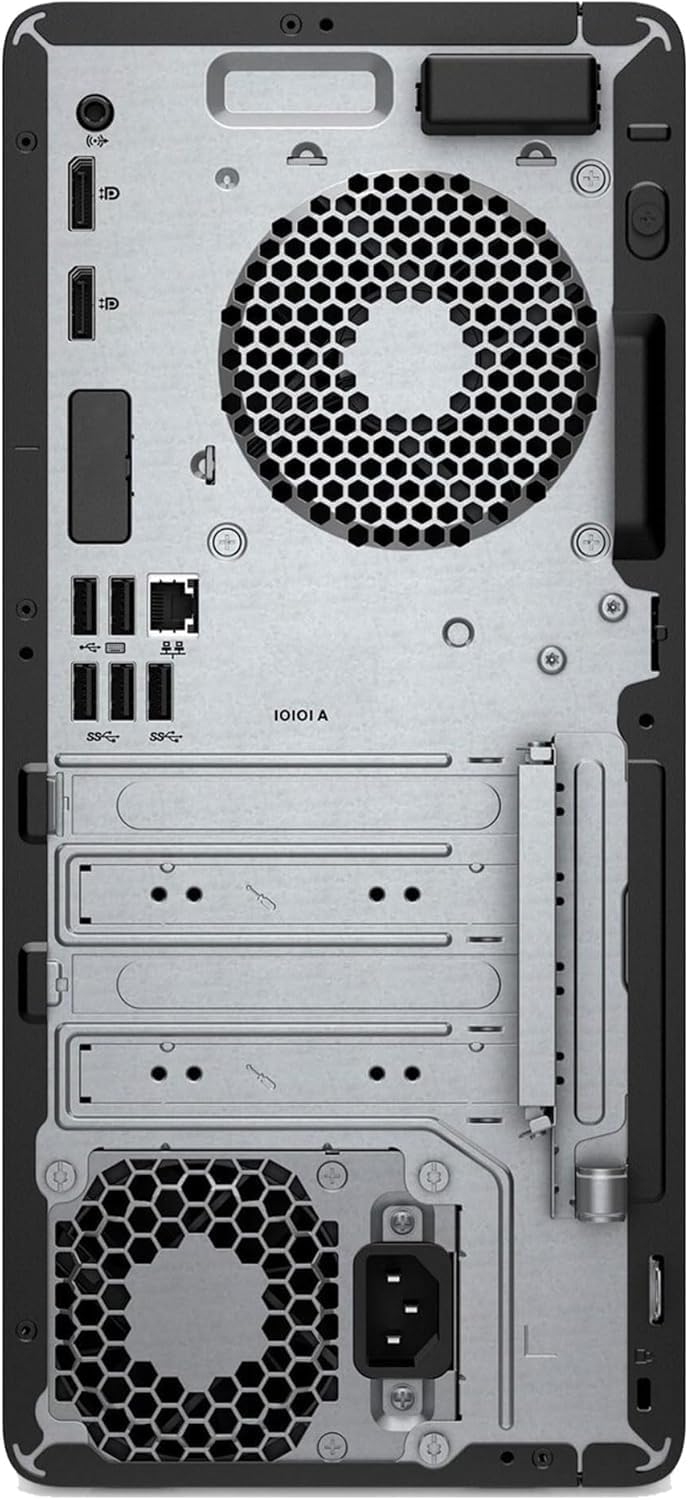
Figure 2.2: Rear view of the HP ProDesk 600 G6, highlighting connectivity ports.
2.3 Initial Power-On and Windows Setup
- Press the power button located on the front of the desktop.
- Follow the on-screen instructions to complete the Windows 11 Pro setup. This includes selecting your region, language, accepting license agreements, creating a user account, and connecting to a Wi-Fi network if not using a wired connection.
- Allow the system to install any necessary updates after the initial setup is complete.
3. Operating Instructions
3.1 Power Management
- Power On: Press the power button on the front panel.
- Shut Down: Click the Start button in Windows, then select Power > Shut down.
- Restart: Click the Start button in Windows, then select Power > Restart.
- Sleep: Click the Start button in Windows, then select Power > Sleep.
3.2 Using Ports and Connectivity
The HP ProDesk 600 G6 offers a variety of ports for connecting external devices:
- Front Ports:
- 1 x USB Type-C port
- 4 x USB 3.2 Gen 1 Type-A ports
- 1 x Universal Audio Jack (for headphones/microphone)
- Rear Ports:
- 2 x DisplayPort 1.4
- 1 x RJ-45 Ethernet port (10/100/1000 Mbps)
- 4 x USB 3.2 Gen 1 Type-A ports
- 2 x USB 2.0 ports
- 1 x Line-out audio port
- Wireless: Built-in 802.11ac dual-band Wi-Fi and Bluetooth for wireless network and peripheral connections.
3.3 Multi-Monitor Support
The HP ProDesk 600 G6 supports multiple monitors, allowing for an expanded workspace. Connect additional monitors to the available DisplayPort 1.4 ports on the rear of the desktop. Windows 11 Pro will automatically detect the displays, and you can configure their arrangement and resolution through the Display Settings.

Figure 3.1: The HP ProDesk 600 G6 supports triple monitor setups for enhanced productivity.
4. Maintenance
4.1 Cleaning the Desktop
- Exterior: Use a soft, lint-free cloth lightly dampened with water or a mild cleaning solution to wipe down the exterior surfaces. Avoid harsh chemicals.
- Vents: Periodically use compressed air to clear dust from the ventilation grilles to ensure proper airflow and prevent overheating.
- Peripherals: Clean your keyboard and mouse regularly to maintain hygiene and functionality.
4.2 Software Updates
Regularly update your operating system and drivers to ensure optimal performance, security, and compatibility.
- Windows Updates: Go to Start > Settings > Windows Update to check for and install the latest updates.
- Driver Updates: Visit the official HP support website for your specific model to download and install the latest drivers for components like graphics, audio, and network adapters.
4.3 Data Backup
It is highly recommended to regularly back up your important data to an external drive or cloud storage service to prevent data loss.
5. Troubleshooting
This section addresses common issues you might encounter. For more complex problems, refer to the HP support website or contact technical support.
5.1 No Power
- Ensure the power cable is securely connected to both the desktop and the electrical outlet.
- Verify that the electrical outlet is functional by plugging in another device.
- Check the power supply unit (PSU) switch on the rear of the desktop, if present, to ensure it is in the 'On' position.
5.2 No Display on Monitor
- Confirm that the monitor is powered on and its video cable is securely connected to the desktop's DisplayPort.
- Ensure the correct input source is selected on your monitor.
- Try connecting the monitor to a different DisplayPort on the desktop, if available.
- Test the monitor with another computer or a different cable if possible.
5.3 Network Connectivity Issues
- Wired: Check if the Ethernet cable is properly connected to both the desktop and the router/modem. Verify router/modem status.
- Wireless: Ensure Wi-Fi is enabled in Windows settings. Check if you are connected to the correct network and enter the password accurately. Restart your router/modem.
- Run the Windows Network Troubleshooter (Start > Settings > System > Troubleshoot > Other troubleshooters > Network Adapter).
6. Specifications
The following table details the key specifications of the HP ProDesk 600 G6 Desktop PC:
| Component | Detail |
|---|---|
| Model | HP ProDesk 600 G6 |
| Processor | 10th Generation Intel Core i5-10500 (6 Cores, 12 Threads, 3.10 GHz base, up to 4.50 GHz turbo) |
| Operating System | Windows 11 Pro 64-bit English |
| Memory (RAM) | 32GB DDR4 |
| Storage | 1TB M.2 PCIe NVMe SSD + 1TB HDD |
| Graphics | Intel UHD Graphics 630 |
| Wireless | Built-in 802.11ac Dual Band Wi-Fi + Bluetooth |
| Front Ports | 1x USB Type-C, 4x USB 3.2 Gen 1 Type-A, 1x Universal Audio Jack |
| Rear Ports | 2x DisplayPort 1.4, 1x RJ-45 (Gigabit Ethernet), 4x USB 3.2 Gen 1 Type-A, 2x USB 2.0, 1x Line-out Audio |
| Dimensions (H x W x D) | 13.26 x 6.1 x 11.93 inches (approx. 33.7 x 15.5 x 30.3 cm) |
| Weight | 11.79 lbs (approx. 5.35 kg) |
7. Warranty & Support
7.1 Product Warranty
This HP ProDesk 600 G6 desktop PC is a renewed product. Warranty terms and duration are typically provided by the seller or refurbisher. Please refer to your purchase documentation or contact your seller for specific warranty details and coverage.
7.2 Technical Support
For technical assistance, driver downloads, or further troubleshooting, please visit the official HP support website. You may need your product's serial number, which can usually be found on a label on the desktop chassis.
- HP Support Website: www.hp.com/support
- Seller Support: For issues related to the renewed status or specific warranty claims, contact the seller from whom you purchased the product.