
1. Introduction
The BSL Meta C3 is an Android 12 streaming box designed to deliver 4K Ultra HD video at 60 frames per second with HDR support. It features 2GB RAM and 16GB ROM, dual-band Wi-Fi 6 (2.4/5GHz), Bluetooth 4.2, and AV1 decoding. This device provides access to various streaming applications and games via Google Play, controlled by an included remote with voice assistant capabilities and quick access buttons.
2. Product Overview
2.1 Key Features
- Operating System: Android 12
- Video Output: 4K Ultra HD at 60fps with HDR (High Dynamic Range)
- Processor: High-performance 64-bit quad-core chip
- Memory: 2GB DDR4 RAM, 16GB eMMC ROM
- Wireless Connectivity: Dual-band Wi-Fi 6 (2.4/5GHz), Bluetooth 4.2
- Wired Connectivity: Ethernet RJ45, HDMI 2.0, Dual USB 2.0, TF Card slot, Optical audio output
- Video Decoding: Real-time AV1 4Kx2K@60fps, H.264/AVC, H.265/HEVC
- Remote Control: BT 4.2 remote with IR function, voice assistant, and dedicated app shortcut buttons (Netflix, YouTube, Disney+, Google Play)
2.2 Package Contents
Verify that all items are present in the package:
- BSL Meta C3 TV Box
- Remote Control
- Power Adapter
- HDMI Cable
- User Manual (this document)
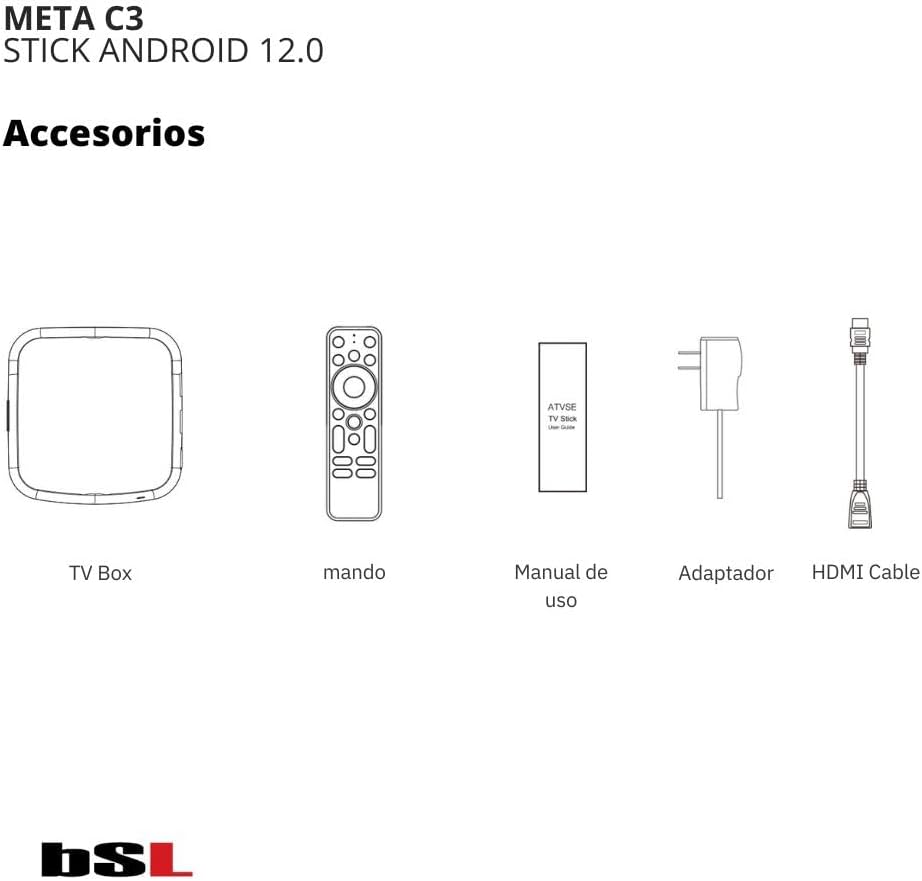
Figure 1: Included accessories for the BSL Meta C3 streaming box, showing the main unit, remote control, power adapter, HDMI cable, and user manual.
3. Setup
3.1 Connecting the Device
- Connect HDMI: Insert one end of the HDMI cable into the HDMI OUT port on the Meta C3 box and the other end into an available HDMI input on your television or display.
- Connect Power: Plug the power adapter into the DC 5V port on the Meta C3 box, then plug the adapter into a wall outlet.
- (Optional) Connect Ethernet: For a stable wired internet connection, connect an Ethernet cable from your router to the LAN port on the Meta C3 box.
- (Optional) Connect USB Devices: Insert USB storage devices or peripherals into the USB 2.0 ports.
- (Optional) Connect Optical Audio: For external audio systems, connect an optical cable from the OPTICAL port to your amplifier or soundbar.
- (Optional) Insert TF Card: If using external storage, insert a TF card into the designated slot.

Figure 2: Connection diagram illustrating how to connect the BSL Meta C3 to a router, TV, amplifier, and power source.
3.2 Initial Power On and Remote Pairing
- Turn on your television and select the correct HDMI input source.
- The Meta C3 box will power on automatically once connected to power.
- Follow the on-screen instructions for initial setup, including language selection and network configuration.
- The remote control should automatically pair via Bluetooth. If not, refer to the troubleshooting section.
4. Operating Instructions
4.1 Remote Control Functions

Figure 3: The remote control for the BSL Meta C3, featuring navigation, volume, and direct access buttons for popular streaming services.
- Power Button: Turns the device on or off.
- Navigation Pad (Up/Down/Left/Right/OK): Used to navigate menus and select items.
- Back Button: Returns to the previous screen.
- Home Button: Returns to the main Android home screen.
- Volume Buttons (+/-): Adjusts the audio volume.
- Voice Assistant Button: Activates the Google Assistant for voice commands.
- App Shortcut Buttons: Direct access to Netflix, YouTube, Disney+, and Google Play.
4.2 Navigating the Android Interface
The Meta C3 runs on Android 12, providing a user-friendly interface. Use the remote control's navigation pad to browse applications, settings, and content. Applications can be launched from the home screen or the app drawer.
4.3 Using Voice Assistant
Press the dedicated voice assistant button on the remote control and speak your command. You can search for content, open applications, check weather, and control smart home devices (if configured).
5. Connectivity
The BSL Meta C3 offers comprehensive connectivity options:
- Wi-Fi 6 Dual Band (2.4/5GHz): Provides fast and stable wireless internet access. Navigate to Settings > Network & Internet > Wi-Fi to connect to your wireless network.
- Ethernet (RJ45): For a direct and highly stable internet connection. Connect an Ethernet cable from your router to the LAN port on the device.
- Bluetooth 4.2: Allows connection to Bluetooth-enabled devices such as headphones, speakers, or game controllers. Go to Settings > Connected Devices > Pair new device.
- HDMI 2.0: Connects the device to your TV or display for 4K video and audio output.
- USB 2.0 (x2): For connecting external storage devices (USB drives) or peripherals (keyboards, mice).
- TF Card Slot: Supports expandable storage via TF (MicroSD) cards.
- Optical Audio Output: For connecting to external audio systems that support optical input, providing high-quality digital audio.

Figure 4: Rear and side ports of the BSL Meta C3, highlighting its various connectivity options.
6. Specifications
| Feature | Specification |
|---|---|
| Model Name | META C3 |
| Operating System | Android 12 |
| RAM | 2GB DDR4 |
| ROM | 16GB eMMC |
| Video Resolution | 4K Ultra HD @ 60fps |
| HDR Support | Yes |
| Video Decoding | AV1, H.264/AVC, H.265/HEVC |
| Wi-Fi | Dual Band 2.4/5GHz (Wi-Fi 6) |
| Bluetooth | 4.2 |
| HDMI Port | HDMI 2.0 |
| USB Ports | 2 x USB 2.0 |
| Ethernet Port | RJ45 |
| Card Reader | TF Card Slot |
| Audio Output | Optical, HDMI |
| Dimensions | 10L x 10W x 2H centimeters |
| Color | Black |
7. Troubleshooting
This section addresses common issues you might encounter with your BSL Meta C3 streaming box.
7.1 No Power / Device Not Turning On
- Ensure the power adapter is securely connected to the device and a working power outlet.
- Verify the power outlet is functional by plugging in another device.
- Try a different power outlet.
7.2 No Picture or Sound on TV
- Check that the HDMI cable is securely connected to both the Meta C3 and your TV.
- Ensure your TV is set to the correct HDMI input source.
- Try a different HDMI cable or HDMI port on your TV.
- Restart both the Meta C3 and your TV.
7.3 Remote Control Not Responding
- Ensure the remote control has fresh batteries and they are inserted correctly.
- Point the remote directly at the Meta C3 box.
- If the remote uses Bluetooth, try re-pairing it. Go to Settings > Connected Devices > Remote & accessories and follow the on-screen instructions to add a new device.
7.4 Wi-Fi Connectivity Issues
- Ensure your Wi-Fi router is on and functioning correctly.
- Check that the Wi-Fi is enabled on the Meta C3 (Settings > Network & Internet > Wi-Fi).
- Verify you are entering the correct Wi-Fi password.
- Move the Meta C3 closer to your Wi-Fi router or try connecting via an Ethernet cable for a more stable connection.
- Restart your Wi-Fi router and the Meta C3.
7.5 Applications Not Working / Freezing
- Ensure the Meta C3 has a stable internet connection.
- Close and reopen the application.
- Clear the app's cache: Go to Settings > Apps > See all apps, select the problematic app, then choose Storage & cache > Clear cache.
- If the issue persists, try uninstalling and reinstalling the application.
- Ensure the device's software is up to date (Settings > About > System update).
8. Maintenance
8.1 Cleaning
- Unplug the device before cleaning.
- Use a soft, dry cloth to wipe the exterior of the device.
- Do not use liquid cleaners or abrasive materials.
8.2 Software Updates
Regularly check for software updates to ensure optimal performance and security. Go to Settings > About > System update to check for and install available updates.
8.3 Storage Management
Periodically clear unnecessary files and uninstall unused applications to free up storage space and maintain device performance. Go to Settings > Storage to manage your device's storage.
9. Warranty and Support
For warranty information and technical support, please refer to the documentation provided with your purchase or visit the official BSL BEAUTIFUL SOUND LINE website. Contact details for customer service can typically be found on the manufacturer's website or through your retailer.


