
Trust Gaming GXT 735G Mylox
Trust GXT 735G Mylox Wireless Mobile Controller User Manual
Model: GXT 735G Mylox | Brand: Trust Gaming
1. Introduction
The Trust GXT 735G Mylox is a wireless mobile controller designed to transform your smartphone into a portable gaming console. Featuring low-latency Bluetooth 5.0 connectivity, dual vibration feedback, and RGB LED lighting, it offers an immersive gaming experience across various platforms. This manual provides essential information for setting up, operating, and maintaining your controller.

Image 1.1: The Trust GXT 735G Mylox controller with a smartphone.
2. Package Contents
Please ensure all items are present in the package:
- Trust GXT 735G Mylox Wireless Mobile Controller
- USB Charging Cable
- User Manual (this document)
- Travel Pouch (as indicated by product features)
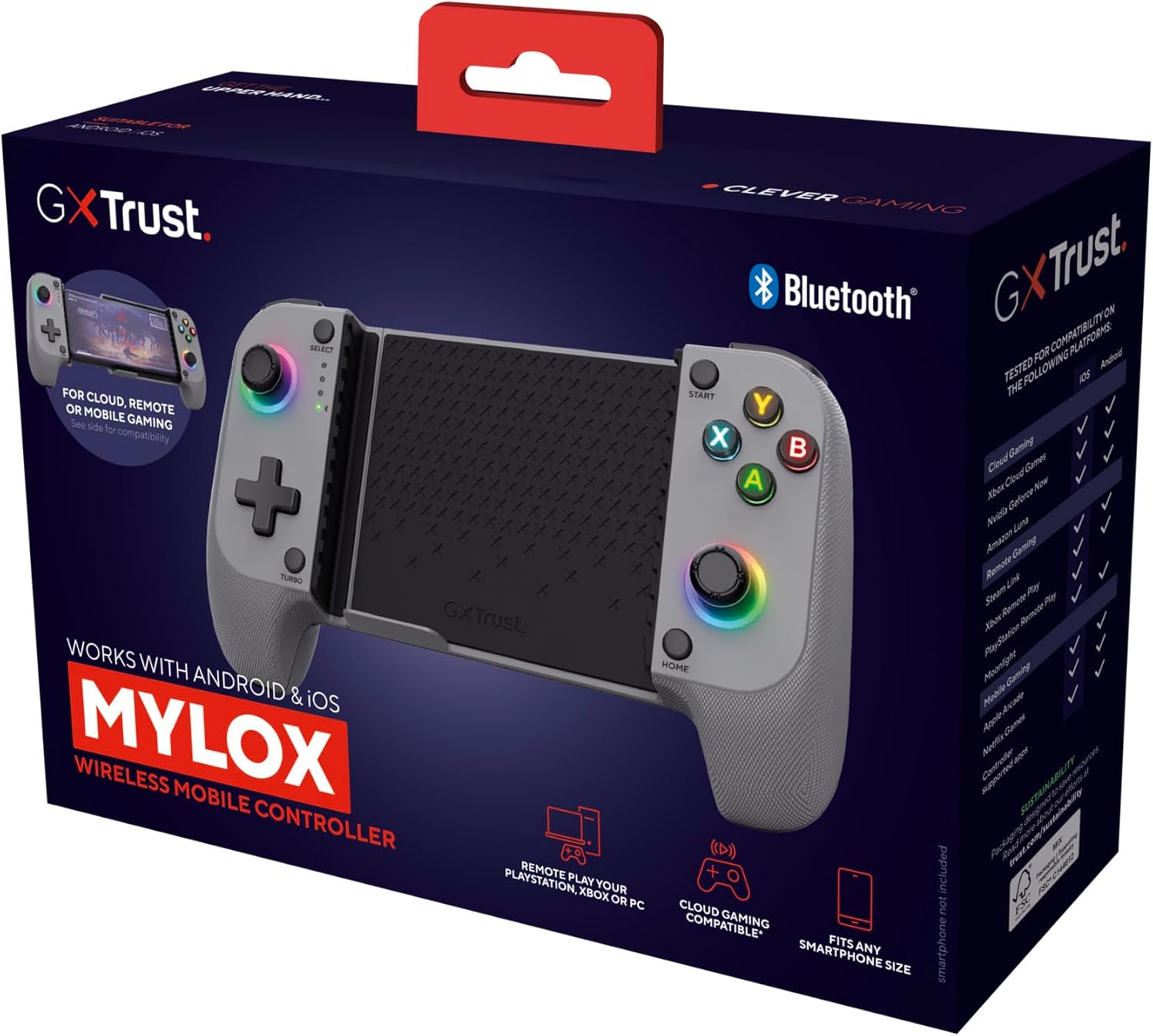
Image 2.1: The Trust GXT 735G Mylox product packaging.
3. Product Overview
The GXT 735G Mylox controller features a robust design with intuitive controls and customizable elements.

Image 3.1: Key features of the GXT 735G Mylox controller.
Controller Components:
- Left Analog Stick: For movement and navigation.
- D-Pad: Directional input.
- SELECT Button: Function varies by game/system.
- TURBO Button: Activates turbo function for assigned buttons.
- Right Analog Stick: For camera control or other actions.
- A/B/X/Y Buttons: Standard action buttons.
- START Button: Function varies by game/system.
- HOME Button: Returns to system menu or specific functions.
- Shoulder Buttons (L1/R1) & Triggers (L2/R2): Located on top of the controller.
- Smartphone Clamp: Adjustable clamp for securing your phone.
- RGB LED Lighting: Customizable lighting around analog sticks and buttons.

Image 3.2: Top view of the GXT 735G Mylox controller.
4. Setup
4.1. Charging the Controller
Before first use, fully charge the controller. Connect the supplied USB charging cable to the controller's charging port and to a USB power source (e.g., computer, USB wall adapter). The LED indicators will show charging status. A full charge provides up to 12 hours of gameplay.
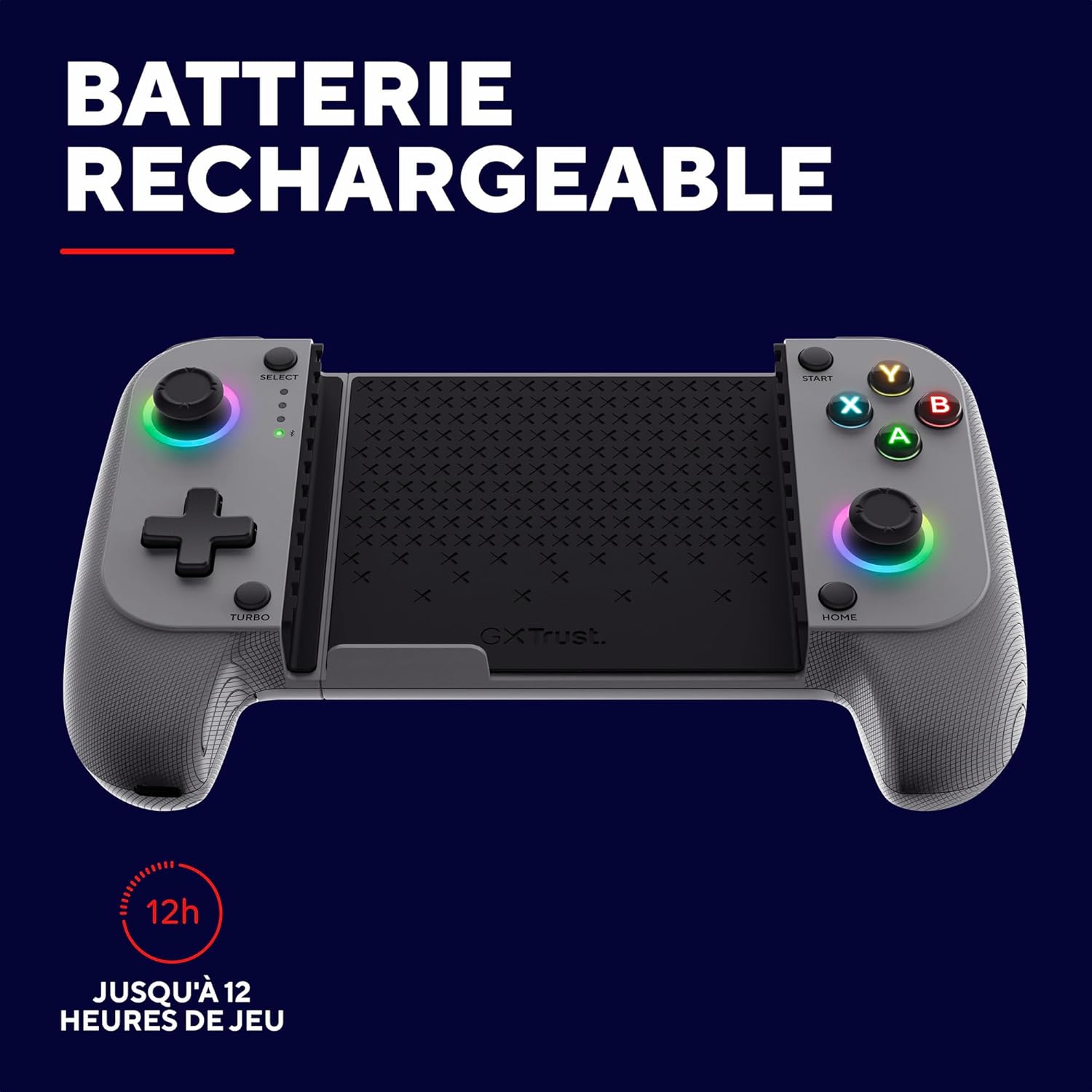
Image 4.1: The controller features up to 12 hours of battery life.
4.2. Attaching Your Smartphone
The controller features a robust rubber and spring clamp designed to securely hold smartphones of various sizes. It is compatible with phones up to 17cm in length, even with a case.
- Gently pull apart the two halves of the controller to extend the clamp.
- Carefully place your smartphone into the clamp, ensuring it is centered and securely held. The rubberized grips prevent scratches and provide stability.
- Ensure the phone's buttons or ports are not obstructed by the clamp.

Image 4.2: The controller accommodates smartphones up to 17cm in width.
4.3. Bluetooth Pairing
The GXT 735G Mylox uses Bluetooth 5.0 for a stable, low-latency connection.
- Power On: Press and hold the HOME button for a few seconds until the controller powers on and the LED indicators begin to flash, indicating pairing mode.
- Enable Bluetooth: On your smartphone (Android or iOS), go to your device's Bluetooth settings and ensure Bluetooth is enabled.
- Search for Devices: Your phone will scan for available Bluetooth devices. Look for "Trust GXT 735G Mylox" or a similar name in the list.
- Pair: Select the controller from the list to initiate pairing. Once successfully paired, the LED indicators on the controller will stop flashing and remain solid.
5. Operating Instructions
5.1. Power On/Off
- Power On: Press and hold the HOME button for approximately 3 seconds.
- Power Off: Press and hold the HOME button for approximately 5 seconds until the controller powers off. The controller will also automatically power off after a period of inactivity to conserve battery.
5.2. Gaming Modes and Compatibility
The GXT 735G Mylox supports various gaming modes and platforms:
- Mobile Gaming: Directly play iOS or Android games that support external controllers.
- Cloud Gaming: Compatible with services like Xbox Cloud Gaming, NVIDIA GeForce Now, and Amazon Luna.
- Remote Gaming: Control PlayStation and Xbox consoles remotely, or stream PC games via services like Steam Link, Xbox Remote Play, PlayStation Remote Play, and Moonlight. Note: A dedicated remote play application is required for console remote play.

Image 5.1: Gaming mode compatibility for iOS and Android.

Image 5.2: Multi-platform compatibility overview.
5.3. Dual Vibration Feedback
The controller features dual vibration motors for enhanced immersion. Vibration intensity may vary depending on the game and platform.
5.4. RGB LED Lighting
The GXT 735G Mylox includes customizable RGB LED lighting around the analog sticks and buttons, adding a visual flair to your gaming sessions. Specific controls for lighting modes may be available through the controller or connected device settings.

Image 5.3: The controller's RGB LED lighting.
6. Maintenance
6.1. Cleaning
- Ensure the controller is powered off before cleaning.
- Use a soft, dry cloth to wipe the surface of the controller.
- For stubborn dirt, slightly dampen the cloth with water. Avoid using harsh chemicals or abrasive cleaners.
- Do not allow liquids to enter the controller's openings.
6.2. Storage
- Store the controller in a cool, dry place away from direct sunlight and extreme temperatures.
- When not in use, it is recommended to store the controller in its travel pouch to protect it from dust and scratches.
- If storing for an extended period, ensure the controller has a partial charge to maintain battery health.
7. Troubleshooting
If you encounter issues with your Trust GXT 735G Mylox controller, please refer to the following common solutions:
- Controller not powering on: Ensure the controller is fully charged. Connect it to a power source and try again.
- Unable to pair via Bluetooth:
- Ensure Bluetooth is enabled on your smartphone.
- Make sure the controller is in pairing mode (flashing LEDs).
- Forget the device from your phone's Bluetooth settings and attempt to pair again.
- Restart both your smartphone and the controller.
- Input lag or disconnection:
- Ensure there are no obstructions between the controller and your smartphone.
- Move closer to your smartphone to reduce interference.
- Check for other active Bluetooth devices that might cause interference.
- Buttons or sticks not responding:
- Ensure the controller is properly connected.
- Test the controller with a different game or application to rule out software-specific issues.
- Check if the game you are playing supports external controllers.
- Smartphone overheating: While the controller itself does not generate significant heat, prolonged gaming sessions can cause your smartphone to heat up. Ensure adequate ventilation for your phone.
If these steps do not resolve your issue, please contact Trust Gaming customer support for further assistance.
8. Specifications
| Feature | Detail |
|---|---|
| Brand | Trust Gaming |
| Model Name | GXT 735G Mylox |
| Model Number | 25649 |
| Color | Gray |
| Connectivity Technology | Bluetooth 5.0 |
| Compatible Devices | Android, iOS, PlayStation 5, Xbox One, Xbox Series X |
| Special Features | 12 hours battery life, Compatible with all phone sizes, Low latency, Dual vibration feedback, RGB LED lighting |
| Battery Composition | Lithium-ion |
| Rechargeable Battery | Yes |
| Number of Buttons | 4 (Face buttons, excluding D-pad, triggers, etc.) |
| Item Weight | 220 Grams |
| Max Phone Width | 17 cm |
9. Warranty and Support
9.1. Manufacturer Warranty
The Trust GXT 735G Mylox Wireless Mobile Controller comes with a 2-year manufacturer warranty. Please retain your proof of purchase for warranty claims. The warranty covers defects in materials and workmanship under normal use.
9.2. Customer Support
For technical support, warranty claims, or further assistance, please visit the official Trust Gaming website or contact their customer service department. Contact information can typically be found on the product packaging or the Trust Gaming website.
Related Documents - GXT 735G Mylox
 |
Trust Gaming GXT 289 Movi Rennlenkrad - Schwarz Erleben Sie das Trust Gaming GXT 289 Movi Rennlenkrad mit Vibrationsfeedback und Pedalen für ein immersives Rennerlebnis auf PC, PS4, Xbox und Switch. Enthält 270° Drehwinkel, druckempfindliche Pedale und Tischklemmen. |
 |
Trust Gaming GXT 289 Movi Racing Wheel - Realistic Gaming Experience Discover the Trust Gaming GXT 289 Movi Racing Wheel, designed for an immersive racing experience on PC, PS4, Xbox, and Switch. Features vibration feedback, 270° rotation, and precise controls. |
 |
Trust Gaming GXT 929W Helox : Souris Gaming Sans Fil Ultra-Légère Découvrez la souris gaming sans fil Trust GXT 929W Helox. Ultra-légère (75g), avec éclairage LED multicolore, connexion 2.4 GHz à faible latence et jusqu'à 80h d'autonomie. Idéale pour les joueurs exigeants. |
 |
Trust Gaming GXT 863 Mazz Mechanical Keyboard - Black US Detailed specifications and features of the Trust Gaming GXT 863 Mazz Mechanical Keyboard. This gaming keyboard offers Outemu RED mechanical switches, N-key rollover, customizable rainbow wave illumination, and a dedicated Game Mode for an enhanced gaming experience. |
 |
Trust Gaming GXT 541 Muta PC Gaming Controller - Black Explore the Trust Gaming GXT 541 Muta PC Gaming Controller, featuring pressure-sensitive triggers, eco-friendly recycled materials, and a 3m cable for enhanced PC and laptop gaming. Get precise control and immersive feedback. |
 |
Trust GXT 890 Cada RGB Mechanical Keyboard | Gaming Features & Specifications Discover the Trust GXT 890 Cada RGB Mechanical Keyboard. This gaming keyboard features responsive Outemu Red switches, customizable per-key RGB lighting, advanced anti-ghosting, programmable macros, and a durable metal design. Compatible with PC and Laptops running Windows. |
Ask a question about this manual
Ask about setup, troubleshooting, compatibility, parts, safety, or missing instructions. Manuals+ will review the question and use this page’s manual context to help answer it.