
Introduction
Thank you for choosing the Inefala 2G+64G Android Car Radio. This advanced multimedia system is designed to upgrade your Hyundai i10 (2007-2013) with modern features including a 9-inch touchscreen, wireless Carplay/Android Auto, GPS navigation, and more. This manual provides detailed instructions for installation, operation, and maintenance to ensure optimal performance and user experience.

Image: The Inefala Android Car Radio seamlessly integrated into a Hyundai i10 dashboard, illustrating the significant visual and functional upgrade from the original system.
Product Features
- High Performance: Equipped with 2GB RAM and 64GB internal storage for powerful and stable processing, ensuring a smooth, lag-free experience with the latest Android operating system.
- Wireless Connectivity: Supports Wireless Carplay and Android Auto, allowing seamless smartphone integration for calls, messages, music, and navigation via voice or touch.
- Mirror Link Functionality: Easily mirror your smartphone screen to the 9-inch display via USB cable or Wi-Fi.
- Advanced Navigation: Features built-in GPS with support for both online and offline maps. Download additional navigation applications via Wi-Fi.
- Entertainment Hub: Enjoy FM/RDS Radio with EQ function for a customized listening experience. Download various apps, music, and videos via Wi-Fi.
- Bluetooth Capabilities: Connect your phone via Bluetooth for music playback, file transfer, video streaming, and hands-free communication.
- Customizable Interface: Choose from 26 different user interface themes to personalize your display.
- Steering Wheel Control (SWC): Compatible with original steering wheel controls for safe and convenient operation.
- Dual USB Input: Provides multiple connectivity options for accessories and media.
- 9-inch Capacitive Touchscreen: Offers a clear display with 1024*600 resolution and responsive touch input.
- DSP Audio Output: 4 x 45W audio output with 32-band EQ for enhanced sound quality.
Package Contents
Verify that all items are present in the package before proceeding with installation:
- Inefala Car Radio Unit for Hyundai i10
- Power Cable
- RCA Cable
- GPS Antenna
- Reversing Camera Input Cable
- AHD Emergency Camera
- External Microphone
- 2 USB Accessory Cables (6-pin and 4-pin)
- Mounting Bracket
- Installation Tool

Image: Visual representation of the car radio's dimensions and a comprehensive list of all included components and cables.
Setup and Installation
Professional installation is recommended. Ensure the vehicle's power is disconnected before beginning installation.
General Installation Steps:
- Carefully remove the original car radio unit from your Hyundai i10 dashboard.
- Connect the provided power cable to the car's wiring harness.
- Connect the RCA cables, GPS antenna, and USB cables to the corresponding ports on the new Inefala unit.
- Install the external microphone in a suitable location for clear audio.
- Mount the new car radio unit into the dashboard using the provided bracket and installation tools.
- Reconnect the vehicle's power and test all functions.
Steering Wheel Control (SWC) Setup:
The unit supports steering wheel controls. The setup method depends on whether your vehicle has a CANBUS decoder.
- Without CANBUS Decoder: Connect the plugs or the steering wheel control wires (Key1/Key2) in the power cable to the corresponding port or wire of your original car. Then, go to "SWC manual match" in the settings to activate the button function.
- With CANBUS Decoder: Connect the CANBUS decoder before powering on the radio. Follow this path: Car Settings > Factory (000000) > CarType Setting to make SWC work properly. First, select the brand of the CANBUS decoder, then select the matching model and year according to the actual situation.

Image: Detailed instructions and a visual diagram for connecting and configuring the steering wheel controls, covering both CANBUS and non-CANBUS setups.
Reversing Camera Wiring:
The reversing camera enhances safety. Ensure the reverse input cable is connected even if the camera is not immediately used, as it can affect Bluetooth and Wi-Fi signal reception.
- Red Cable: Connects to the positive terminal of the car's reverse light cable.
- Black Cable: Connects to the negative terminal of the car's reverse light cable.
- The other two red extension cables (if present) do not need to be connected.

Image: A clear wiring diagram illustrating how to correctly connect the reversing camera to your vehicle's reverse light system.
Operating Instructions
Wireless Carplay / Android Auto / Mirror Link:
Connect your smartphone wirelessly via Bluetooth for Carplay/Android Auto or via Wi-Fi/USB for Mirror Link. This allows you to access navigation, music, messages, and calls directly from the car radio screen.

Image: The car radio display showing the intuitive interface for Wireless Carplay and Android Auto, with various app icons and voice command prompts.

Image: A visual guide demonstrating the wireless connection methods for Carplay, Android Auto, and Mirror Link, highlighting their respective functionalities.
GPS Navigation & Wi-Fi Connection:
The unit comes with pre-installed online and offline maps. Connect to Wi-Fi to download additional navigation apps, stream content, or browse the internet.
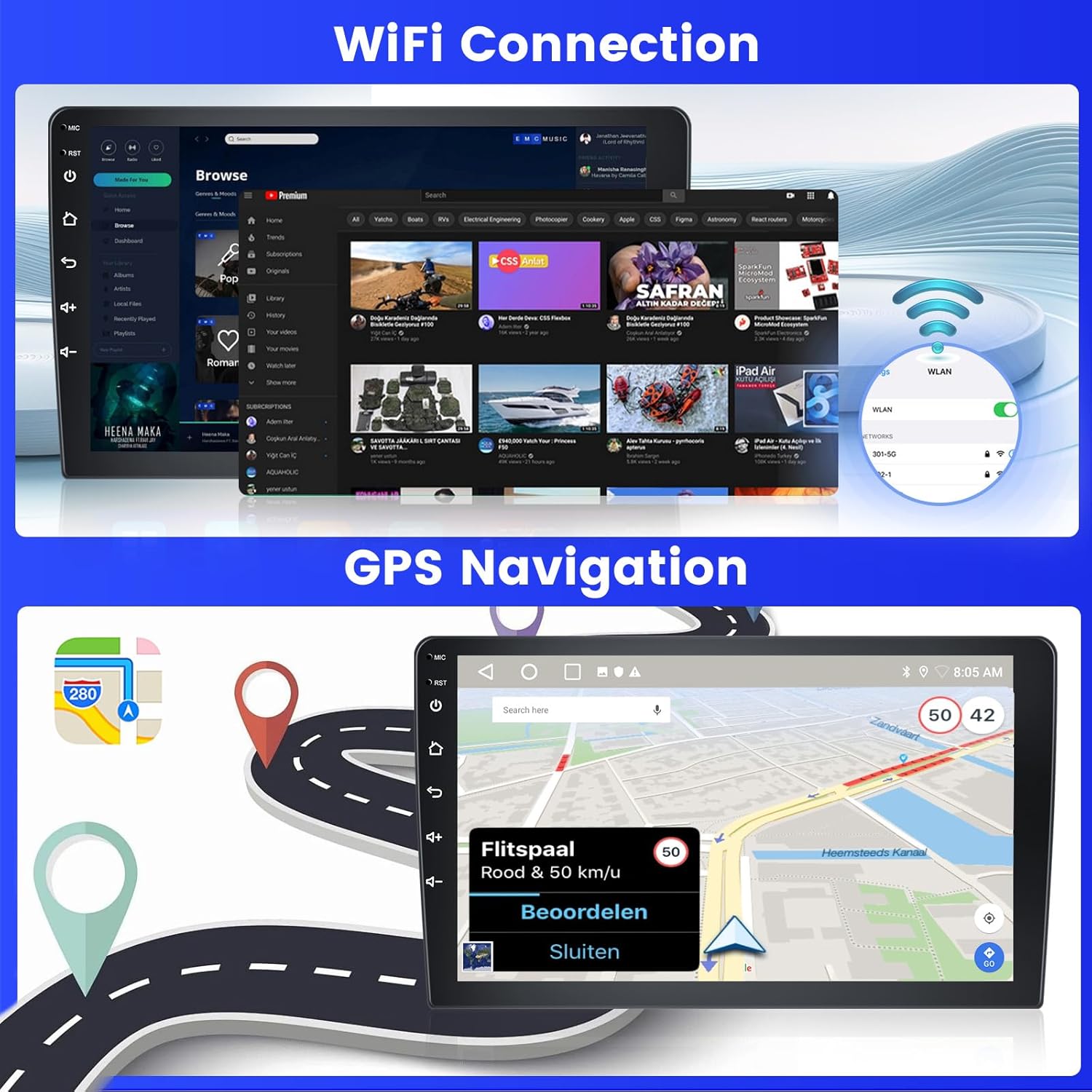
Image: The car radio screen displaying the Wi-Fi connection interface and a detailed GPS navigation map with active route guidance.
FM/RDS Radio & Bluetooth:
Tune into your favorite FM stations with RDS information. Use Bluetooth to connect your phone for hands-free calls and audio streaming.

Image: The car radio interface showing the FM/RDS radio tuner with frequency display and the Bluetooth music playback screen.
DSP, Split Screen & UI Themes:
Customize your audio experience with the Digital Sound Processor (DSP) and Equalizer (EQ). Utilize the split-screen feature to run two applications simultaneously. Personalize your display with 26 available UI themes.
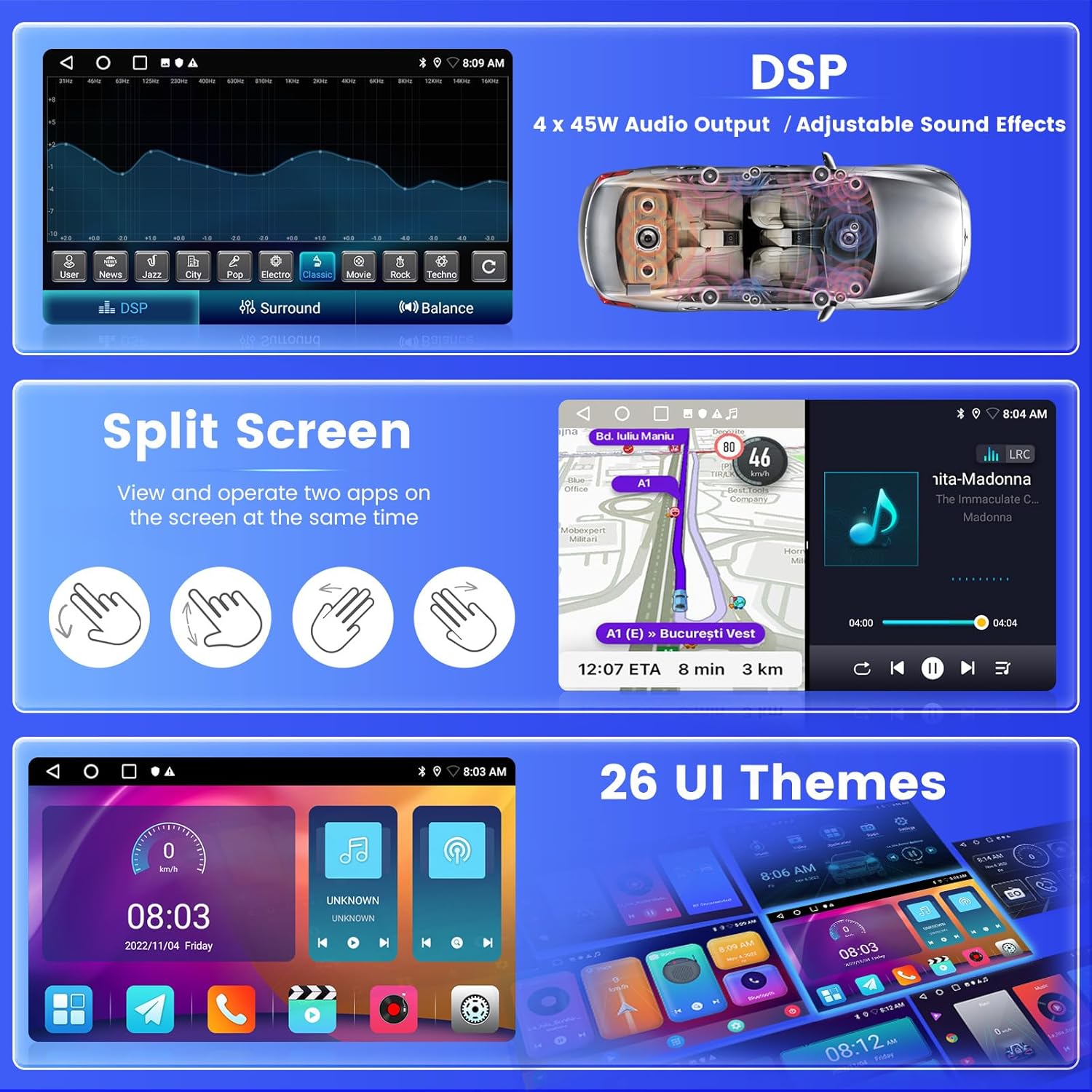
Image: A composite image showcasing the DSP audio settings, the split-screen feature running two apps concurrently, and a selection of the 26 available user interface themes.
Maintenance
To ensure the longevity and optimal performance of your Inefala car radio, follow these maintenance guidelines:
- Cleaning: Use a soft, dry cloth to clean the screen and exterior. Avoid abrasive cleaners or solvents that could damage the display or finish.
- Software Updates: Periodically check for available software updates to ensure you have the latest features and bug fixes. Connect to Wi-Fi and navigate to the system settings for updates.
- Temperature Control: Avoid exposing the unit to extreme temperatures. While designed for automotive use, prolonged exposure to direct sunlight or freezing conditions can affect performance.
- Cable Connections: Ensure all cables are securely connected. Loose connections can lead to intermittent functionality or signal loss.
Troubleshooting
If you encounter any issues with your Inefala car radio, refer to the following common troubleshooting tips:
- No Power: Check all power connections and fuses. Ensure the vehicle's ignition is on.
- No Sound: Verify speaker connections, volume settings, and EQ settings. Ensure the audio output mode is correctly selected.
- Poor Radio Reception: Check the antenna connection. An antenna adapter might be required for some Hyundai i10 models if not included.
- Bluetooth/Wi-Fi Connectivity Issues: Ensure the modules are enabled in settings. Try restarting the unit and your smartphone. For Wi-Fi, check network availability and password.
- Carplay/Android Auto Not Connecting: Ensure your phone's operating system is compatible (iOS 11+ or Android 11+). Try connecting via USB if wireless fails.
- Slow Performance/App Lag: Close unnecessary background applications. While the unit has 2GB RAM, heavy multitasking with many apps can affect performance. Consider clearing cache or performing a factory reset if issues persist.
- Steering Wheel Controls Not Working: Recheck the wiring connections (Key1/Key2) and ensure the SWC manual match or CANBUS settings are correctly configured as per the installation section.
- Backup Camera Not Displaying: Verify the camera's power and video input cable connections. Ensure the reverse input cable is properly connected to the car's reverse light.
If these steps do not resolve the issue, please contact customer support for further assistance.
Specifications
| Item Model Number | Inefala-A7415A3796A4MI2IT53-C490 |
| Brand | Inefala |
| Screen Size | 9 Inches |
| Display Type | Capacitive Touchscreen |
| Screen Resolution | 1024*600 |
| Memory Storage Capacity | 64 GB |
| RAM | 2 GB |
| Operating System | Android System |
| Power Output | 4 x 45W |
| Bluetooth Version | 4.2 |
| Radio Band | FM/RDS |
| Equalizer (EQ) | 32-band |
| Connectivity Technology | Bluetooth, USB, Wi-Fi |
| Supported Satellite Navigation System | GPS |
| Carplay/Android Auto | Wireless/Wired |
| Mirror Link | Wireless/Wired |
| USB Interface | Double USB interface |
| Audio Format Support | APE/FLAC/WAV/MP3/WMA etc. |
| Video Format Support | MKV/RMVB/AVI/MP4/MDV etc. |
| Picture Format Support | PNG/JPEG/JPG/GIF/WBMP/BNP etc. |
| Supported Languages | English/French/Italian/Spanish/Korean/Japanese/Arabic/Portuguese/Russian/Turkish/Vietnamese/Hebrew/Polish/German |
| Factory Setting Keyword | 000000 |
| Package Dimensions | 34.3 x 22.5 x 9.5 cm; 1.42 kilograms |
| Country of Origin | China |

Image: A comprehensive table outlining the technical specifications and features of the Inefala car radio.
Warranty and Support
Inefala is committed to providing high-quality products and excellent customer service.
- Warranty: This product comes with a 24-month warranty from the date of purchase.
- Technical Support: We offer lifetime online inquiry support. Our technical team aims to respond to all inquiries within 24 hours.
- Contacting Support: If you have any questions, installation difficulties, or require assistance, please contact Inefala customer service. You can typically find contact information on the product's purchase page or through the seller's profile on the platform where you purchased the item.