
1. Introduction
This manual provides detailed instructions for the installation, operation, and maintenance of your Inefala 9-inch Android 15 Car Radio. Please read this manual thoroughly before using the product to ensure proper function and safety. Keep this manual for future reference.

Image: Comparison of the car dashboard before and after installing the Inefala car radio, showing the seamless integration of the new 9-inch display.
2. Product Features
Your Inefala car radio is equipped with advanced features designed to enhance your driving experience:
- Android 15 System with 2GB RAM + 64GB Storage: Enjoy powerful and stable processing with ample storage for applications and media.
- Wireless Carplay/Android Auto & Mirror Link: Seamlessly integrate your smartphone for navigation, communication, and entertainment.
- 9-inch Split Screen Display: Operate two applications simultaneously for enhanced multitasking.
- GPS Navigation: Supports both online and offline maps, with the ability to download navigation apps via WiFi.
- WiFi Connectivity: Download apps, music, and videos directly to the device.
- Bluetooth: Connect your phone for music playback, file transfer, and hands-free calls.
- FM RDS Radio & EQ: Access radio stations with RDS information and customize your audio experience with the built-in equalizer.
- AHD Reversing Camera Support: Automatically displays high-definition rear view when reversing.
- Steering Wheel Control (SWC): Safely adjust volume and answer calls directly from your steering wheel.
- 26 Customizable UI Themes: Personalize the interface to match your preferences.
- Dual USB Input: Connect multiple USB devices for media playback or charging.
3. What's in the Box
Please verify that all the following components are included in your package:
- Inefala Car Radio Unit for Peugeot 301/Citroen Elysee
- 2 x Power Cables
- Canbus Box
- RCA Cable
- GPS Antenna
- Reversing Camera Input Cable
- AHD Emergency Camera
- External Microphone
- 2 x USB Cables
- Original Car USB Cable
- Radio Antenna
- Antenna Adapter
- Mounting Support
- Installation Tool

Image: Visual representation of all included accessories and detailed port connections for the car radio.
4. Setup and Installation
4.1 Wiring Connections
Carefully connect all cables according to the provided wiring diagrams. Ensure all connections are secure before powering on the unit.

Image: Detailed wiring diagram for the reversing camera and Canbus, highlighting positive (red) and negative (black) connections.
Reversing Camera Wiring:
- Red Cable (1): Connects to the positive terminal of the car's reverse light cable.
- Black Cable (2): Connects to the negative terminal of the car's reverse light cable.
- The reverse input cable must be plugged in even if the reverse camera is not being used. Otherwise, it may affect Bluetooth and WiFi signal reception.
4.2 Steering Wheel Control (SWC)
The unit supports steering wheel controls for convenience and safety.

Image: Illustration of steering wheel control integration and the role of the CANBUS decoder.
Without CANBUS Decoder:
Connect the plugs or the steering wheel control wires (Key1/Key2) in the power cable to the corresponding port or wire of your original car. Then, go to "SWC manual match" in the settings to activate the button function.
With CANBUS Decoder:
Connect the Canbus before powering on the radio. Follow this path: Car Settings > Factory (000000) > CarType Setting to make SWC work properly. First, select the brand of the Canbus decoder, then select the matching model and year according to the actual situation.
5. Operating Instructions
5.1 Wireless Carplay / Android Auto & Mirror Link
Connect your smartphone to the car radio via USB cable or WiFi to use Wireless Carplay, Android Auto, or Mirror Link. This allows you to access phone functions like calls, messages, music, and navigation directly on the car radio screen.

Image: Visual guide to connecting your smartphone for CarPlay, Android Auto, and Mirror Link functionalities.
5.2 GPS Navigation & WiFi
The unit supports GPS navigation with pre-installed maps. You can also download online navigation applications via WiFi. Connect to a local WiFi network to access online maps, download apps, and stream media.
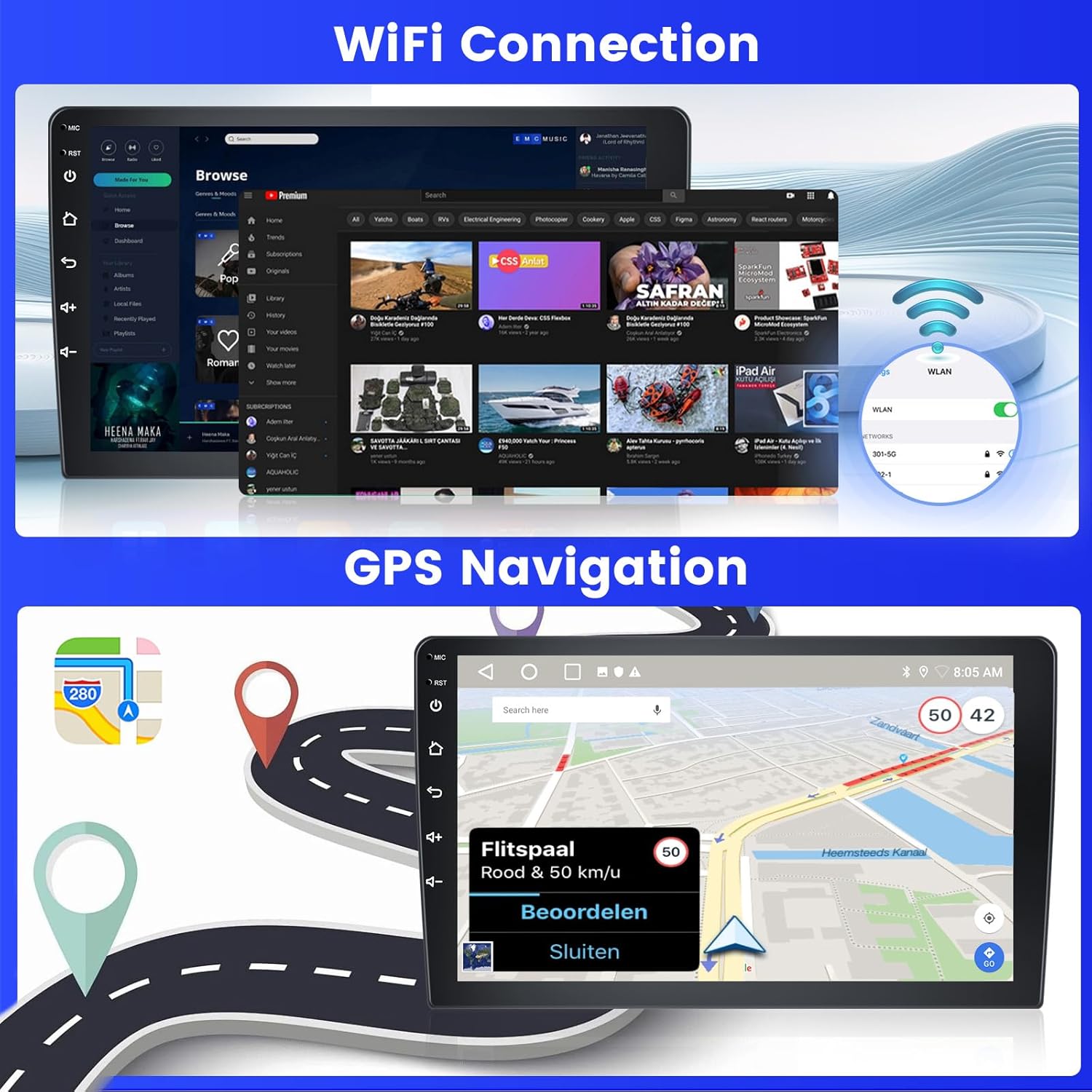
Image: Demonstrates WiFi connectivity for internet access and the GPS navigation interface with map display.
5.3 FM/RDS Radio & EQ
Tune into your favorite FM radio stations. The RDS (Radio Data System) feature displays station information. Use the built-in Equalizer (EQ) to adjust audio frequencies for a personalized listening experience.

Image: The FM/RDS radio interface, showing available frequencies and station selection options.
5.4 Bluetooth Functionality
Pair your phone via Bluetooth to stream music, transfer files, and make or receive hands-free calls. Access your phonebook directly from the car radio.

Image: Bluetooth interface showing music playback controls and options for hands-free calling and phonebook access.
5.5 Split Screen & UI Themes
Utilize the split-screen feature to run two applications side-by-side, such as navigation and music. Customize the look of your interface with 26 available UI themes.
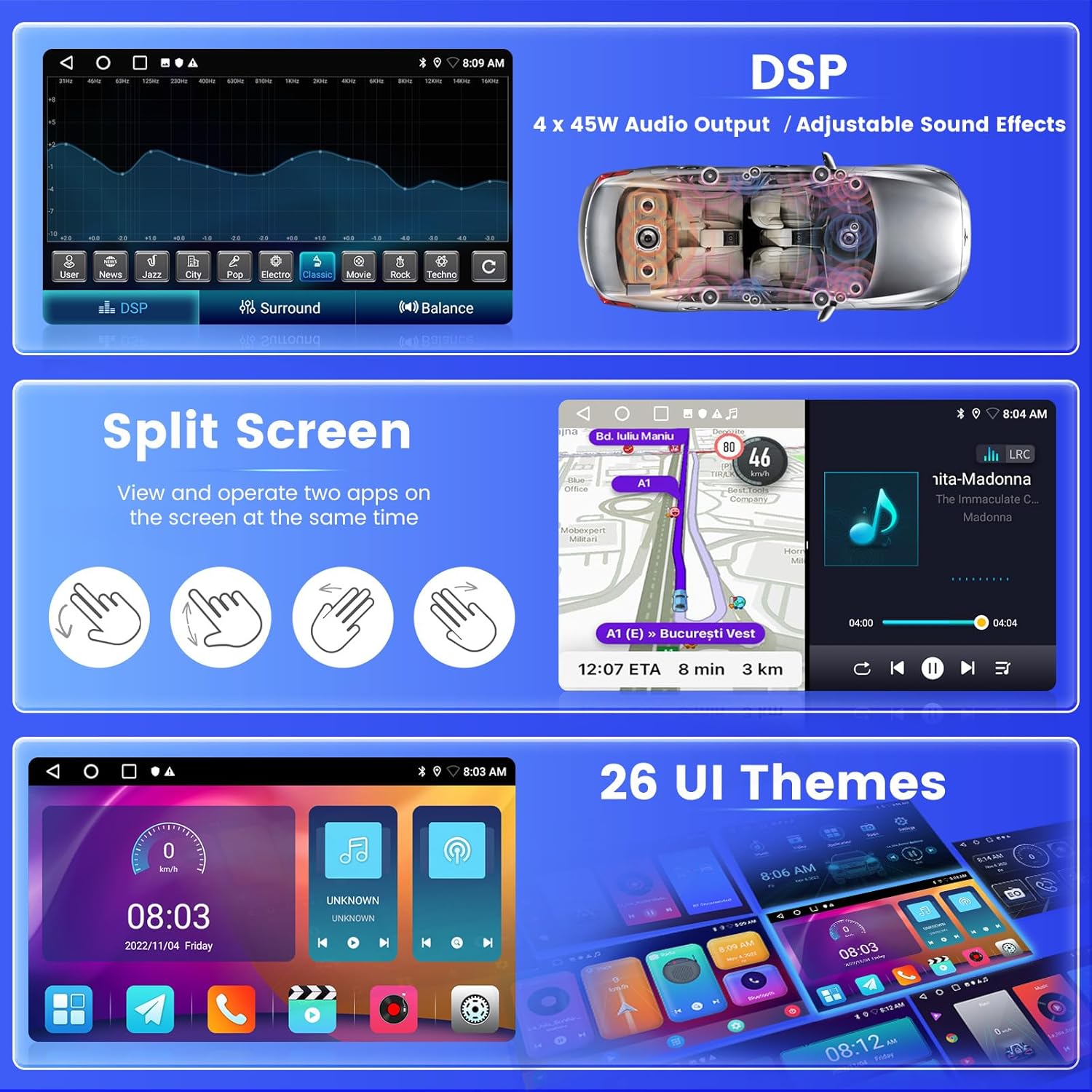
Image: Examples of the split-screen mode, digital sound processing (DSP) settings, and different user interface themes.
5.6 Backup Camera
When the vehicle is put into reverse, the AHD backup camera automatically displays a high-definition image on the screen, providing a clear view of the area behind your car for safer parking and maneuvering.
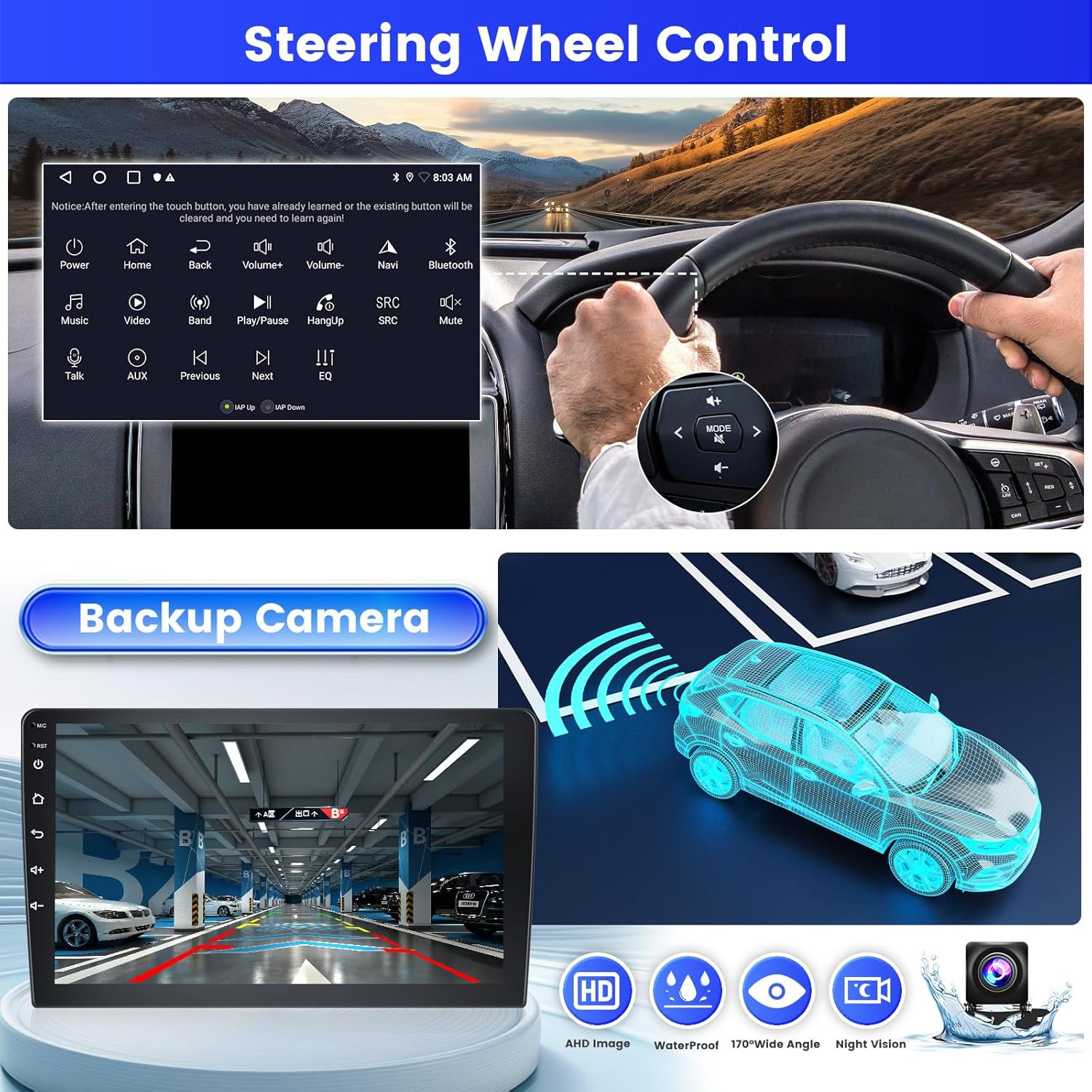
Image: The backup camera display with parking assistance lines, alongside an illustration of steering wheel controls.
6. Maintenance
To ensure the longevity and optimal performance of your Inefala car radio, follow these maintenance guidelines:
- Cleaning: Use a soft, dry cloth to clean the screen and exterior. Avoid abrasive cleaners or solvents that could damage the surface.
- Temperature: Avoid exposing the unit to extreme temperatures, both hot and cold, for extended periods.
- Moisture: Keep the unit dry. Do not expose it to water or excessive humidity.
- Software Updates: Periodically check for and install available software updates to ensure the system runs efficiently and securely.
7. Troubleshooting
If you encounter issues with your car radio, refer to the following common troubleshooting steps:
- No Power: Check all power cable connections. Ensure the car's ignition is on. Verify the fuse.
- No Sound: Check speaker connections. Ensure volume is not muted or set to zero. Verify audio output settings.
- Bluetooth Connection Issues: Ensure Bluetooth is enabled on both the car radio and your smartphone. Delete previous pairings and try reconnecting.
- GPS Signal Loss: Ensure the GPS antenna is properly installed and has a clear view of the sky. Move to an open area if signal is weak.
- Touchscreen Unresponsive: Try restarting the unit. If the issue persists, a factory reset might be necessary (note: this will erase all user data).
- Reversing Camera Not Displaying: Check the camera's power and video input connections. Ensure the reverse input cable is correctly connected to the car's reverse light circuit.
For persistent issues, please contact Inefala customer support.
8. Specifications
| Feature | Specification |
|---|---|
| Brand | Inefala |
| Model Name | A7684A3796A4MI2IT53 |
| Screen Size | 9 Inches |
| Operating System | Android 15 |
| Memory Storage Capacity | 64 GB |
| Connectivity Technology | Bluetooth, USB, Wi-Fi |
| Special Features | Carplay, Android Auto, Mirror Link, FM RDS Radio, EQ, WIFI, 2GB RAM, Bluetooth, GPS, 26 UI Themes, SWC, Dual USB Input |
| Supported Satellite Navigation System | GPS |
| Display Type | Touchscreen |
| Control Method | Touch |
| Audio Output Mode | APE/FLAC/WAV/MP3/WMA |
| Mounting Type | Dashboard Mount |
| Compatible Vehicle Type | Car (Peugeot 301/Citroen Elysee 2013-2018) |
| Batteries Included | No |
| Manufacturer | Inefala |
| Country of Origin | China |
9. Warranty and Support
9.1 Warranty Information
Your Inefala car radio comes with a 24-month warranty. This warranty covers manufacturing defects and ensures the product meets quality standards.
9.2 Customer Support
For any inquiries, technical assistance, or warranty claims, Inefala offers lifetime online support. We aim to respond to all queries within 24 hours.
You can contact us via email at: inefalaservices@163.com
Alternatively, you can reach out through the Amazon platform:
- Go to the product page on Amazon.
- Click on the seller's name (Inefala).
- Select the option to "Ask a question" or "Contact Seller."