1. Product Overview
The TP-Link TL-MC102 is a media converter designed to facilitate the conversion between 1000BASE-SX fiber and 1000Base-T copper media. It supports Gigabit Ethernet standards (IEEE802.3ab 1000Base-T and IEEE802.3z 1000Base-SX) and is compatible with multi-mode fiber optic cables using SC-Type connectors. This device operates at 850nm wavelength for both transmitting and receiving data, offering full wire-speed forwarding. It can function as a standalone unit or be integrated into TP-Link's MC1400 chassis. Key features include Auto MDI/MDI-X for the TX port and front panel status LEDs for easy monitoring.
The TL-MC102 extends fiber optic distances up to 0.55 kilometers (550 meters) when using 50/125µm multi-mode fiber, or 220 meters with 62.5/125µm multi-mode fiber.
2. Package Contents
Verify that your package contains the following items:
- 1 x TL-MC102 Gigabit SFP to RJ45 Fiber Media Converter
- 1 x Power Adapter
- 1 x Installation Guide
3. Product Features
- Converts 1000BASE-SX fiber to 1000Base-T copper media and vice versa.
- Supports auto-negotiation for Half-Duplex / Full-Duplex transfer modes.
- Features auto MDI/MDI-X for the TX port.
- Provides switch configuration for Force/Auto transfer mode on the FX port.
- Extends fiber distance up to 550m (1,800 feet) using 50/125µm Multi-Mode Fiber.
- Extends fiber distance up to 220m (720 feet) using 62.5/125µm Multi-Mode Fiber.
- Equipped with easy-to-view LED indicators for monitoring network activity.
- External power supply for operation.
- Operates at a wavelength of 850nm.
- Maximum power consumption: 1.66W.
- Complies with IEEE 802.3ab and IEEE 802.3z standards.
4. Hardware Overview
The TL-MC102 features a compact design with essential ports and LED indicators for status monitoring.
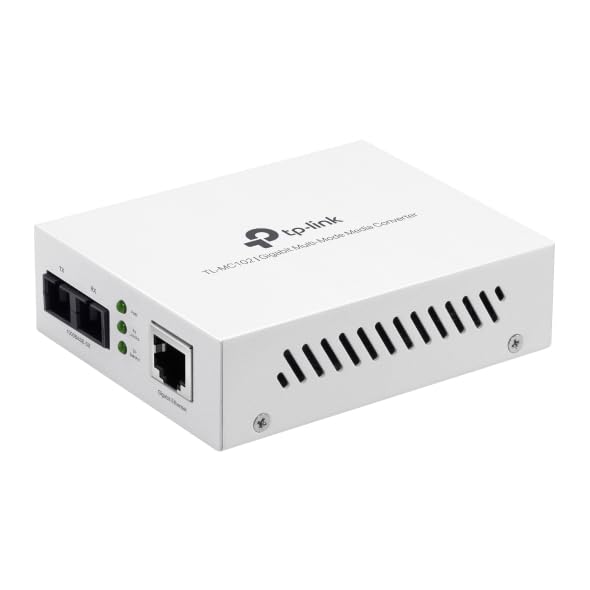
Figure 1: Front view of the TL-MC102 Gigabit SFP to RJ45 Fiber Media Converter. This image shows the compact white casing of the device, highlighting its ports and LED indicators on the front panel.
Ports and Connectors:
- RJ45 Port (TX): Standard Ethernet port for connecting to copper-based network devices (e.g., switch, router, computer) using an Ethernet cable. Supports 10/100/1000Mbps speeds and Auto MDI/MDI-X.
- SFP Port (FX): Slot for an SFP (Small Form-Factor Pluggable) module. This port is used for fiber optic connections. The TL-MC102 is designed for 1000BASE-SX multi-mode SFP modules.
- Power Input: Connector for the external power adapter.
LED Indicators:
The front panel LEDs provide real-time status information about the converter's operation:
- PWR (Power):
- On: The converter is powered on.
- Off: The converter is powered off.
- FX Link/Act (Fiber Link/Activity):
- On: A fiber link is established.
- Flashing: Data is being transmitted or received over the fiber link.
- Off: No fiber link is established.
- TX Link/Act (Copper Link/Activity):
- On: A copper Ethernet link is established.
- Flashing: Data is being transmitted or received over the copper link.
- Off: No copper Ethernet link is established.
- TX 1000 (Copper Speed):
- On: The copper port is operating at 1000Mbps.
- Off: The copper port is operating at 10/100Mbps.
5. Setup Instructions
Follow these steps to set up your TL-MC102 media converter:
- Power Off Devices: Before making any connections, ensure that all devices (e.g., switch, router, computer) to be connected to the media converter are powered off.
- Insert SFP Module: Carefully insert a compatible 1000BASE-SX multi-mode SFP module into the SFP port (FX) of the TL-MC102. Ensure it clicks into place.
- Connect Fiber Cable: Connect one end of a multi-mode fiber optic cable (with SC-Type connectors) to the SFP module in the TL-MC102. Connect the other end of the fiber cable to a compatible fiber optic device (e.g., fiber switch, another media converter).
- Connect Ethernet Cable: Connect one end of an Ethernet cable to the RJ45 port (TX) of the TL-MC102. Connect the other end of the Ethernet cable to the Ethernet port of your copper-based network device (e.g., switch, router, PC).
- Connect Power Adapter: Plug the provided power adapter into the power input of the TL-MC102, then plug the other end into a standard electrical outlet.
- Power On Devices: Power on the TL-MC102. The PWR LED should illuminate. Then, power on your connected network devices.
- Verify Connections: Check the LED indicators on the TL-MC102. The FX Link/Act and TX Link/Act LEDs should illuminate, indicating successful link establishment. If data is flowing, these LEDs will flash. The TX 1000 LED should be on if the copper connection is at Gigabit speed.
Note: Ensure that the fiber optic cable type (multi-mode) and connector type (SC) match the requirements of the SFP module and the connected fiber device.
6. Operating Instructions
Once properly set up, the TL-MC102 operates automatically to convert signals between fiber and copper media. No further configuration is typically required for basic operation.
Monitoring Status:
Regularly observe the LED indicators on the front panel to monitor the status of your network connections:
- A solid PWR LED indicates the device is receiving power.
- Solid FX Link/Act and TX Link/Act LEDs confirm active network links on both fiber and copper sides.
- Flashing FX Link/Act and TX Link/Act LEDs indicate active data transmission.
- A solid TX 1000 LED confirms a Gigabit Ethernet connection on the copper side.
If any Link/Act LED is off when it should be on, refer to the Troubleshooting section.
7. Maintenance
To ensure optimal performance and longevity of your TL-MC102, consider the following maintenance guidelines:
- Keep Clean: Regularly clean the exterior of the device with a soft, dry cloth. Avoid using liquid or aerosol cleaners.
- Ventilation: Ensure the device is placed in a well-ventilated area to prevent overheating. Do not block any ventilation openings.
- Cable Management: Keep fiber and Ethernet cables neatly organized and free from kinks or excessive bends, especially fiber optic cables which are sensitive to bending.
- Power Supply: Use only the power adapter provided with the device. If a replacement is needed, ensure it meets the exact specifications.
- Environment: Operate the device within its specified environmental conditions (temperature, humidity) to prevent damage.
- Firmware Updates: While media converters typically do not require frequent firmware updates, check the TP-Link support website periodically for any recommended updates for your model.
8. Troubleshooting
If you encounter issues with your TL-MC102, refer to the following common problems and solutions:
- No Power (PWR LED Off):
- Ensure the power adapter is securely connected to the converter and a working electrical outlet.
- Verify the electrical outlet is functional by plugging in another device.
- Check if the power adapter is damaged.
- No Fiber Link (FX Link/Act LED Off):
- Verify that the SFP module is correctly inserted into the SFP port.
- Check the fiber optic cable for damage or kinks.
- Ensure the fiber cable connectors are clean and properly seated at both ends.
- Confirm that the connected fiber device is powered on and functioning correctly.
- Ensure the SFP module and the connected fiber device are compatible (e.g., multi-mode to multi-mode, correct wavelength).
- No Copper Link (TX Link/Act LED Off):
- Check the Ethernet cable for damage and ensure it is securely connected to both the TL-MC102 and the network device.
- Verify that the connected network device (e.g., switch, router, PC) is powered on and its Ethernet port is active.
- Try a different Ethernet cable.
- Ensure the network device's Ethernet port is configured correctly (e.g., not disabled).
- Slow Network Speed:
- Check the TX 1000 LED. If it's off, the copper connection is not at Gigabit speed. This could be due to the connected device or cable.
- Ensure all connected devices (including the SFP module) support Gigabit Ethernet.
- Inspect Ethernet and fiber cables for damage or poor connections.
- Intermittent Connectivity:
- Check all cable connections (power, Ethernet, fiber) for looseness.
- Ensure the device is not overheating.
- Verify that the power supply is stable.
- Consider testing with different cables or SFP modules if available.
9. Specifications
| Feature | Description |
|---|---|
| Brand | TP-Link |
| Model Number | TL-MC102 |
| Hardware Interface | Ethernet, SFP |
| Compatible Devices | NICs, Network Switch, Router |
| Data Link Protocol | Ethernet |
| Data Transfer Rate | 1 Gigabits Per Second |
| Fiber Type | Multi-Mode Fiber (1000BASE-SX) |
| Wavelength | 850nm |
| Max Fiber Distance | 550m (50/125µm MMF), 220m (62.5/125µm MMF) |
| Power Consumption | Max 1.66W |
| Standards | IEEE 802.3ab, IEEE 802.3z |
| Item Weight | 0.46 Pounds |
| UPC | 810142823715 |
10. Warranty and Support
Warranty Information:
The TP-Link TL-MC102 comes with a 2-Year Manufacturer Warranty. Please retain your proof of purchase for warranty claims. For detailed warranty terms and conditions, refer to the official TP-Link website or the warranty card included with your product.
Technical Support:
For technical support, product updates, and additional resources, please visit the official TP-Link support website. You can typically find FAQs, troubleshooting guides, and contact information for customer service there.
TP-Link Official Website: www.tp-link.com


