
Acer NX.BB7EG.002
Acer TravelMate P2 16" Laptop User Manual
Model: TMP216-51-G2-TCO-5949 (NX.BB7EG.002)
1. Introduction
This manual provides essential information for the setup, operation, maintenance, and troubleshooting of your Acer TravelMate P2 16" laptop. Designed for productivity and reliability, this device features an Intel Core 5-120U processor, 16GB DDR5 RAM, a 512GB SSD, and comes with eShell operating system. Please read this manual thoroughly to ensure proper use and to maximize the lifespan of your device.
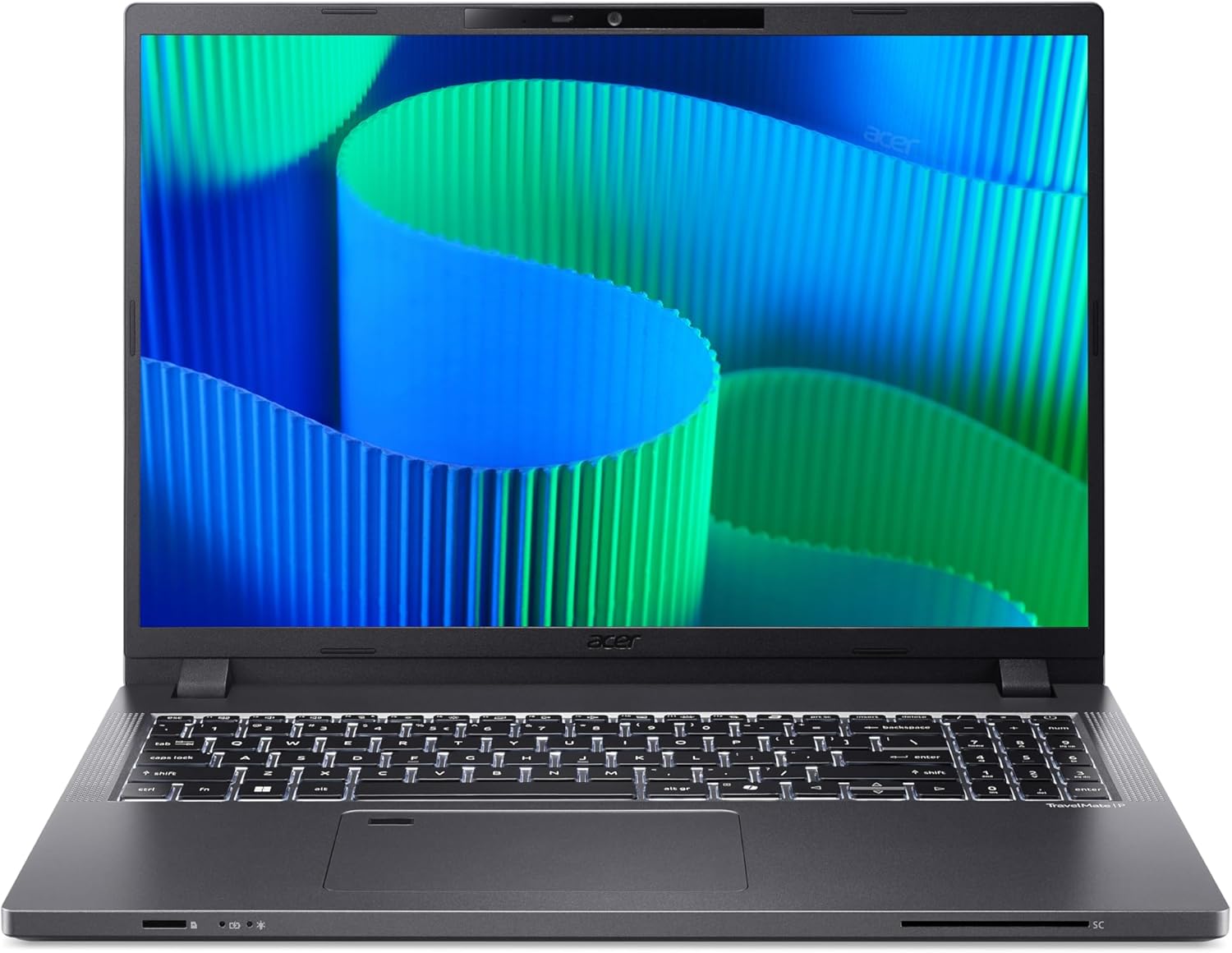
Figure 1.1: Front view of the Acer TravelMate P2 16" laptop. This image shows the laptop open, revealing the 16-inch display, keyboard, and touchpad. The screen displays a vibrant, abstract blue and green pattern, highlighting the WUXGA (1920 x 1200) resolution.
2. Initial Setup
2.1 Unpacking and Inspection
Carefully remove all components from the packaging. Verify that all items listed below are present and undamaged. If any item is missing or damaged, contact your retailer immediately.
- Acer TravelMate P2 16" Laptop
- AC Power Adapter and Power Cord
- Quick Start Guide (if included)
- Warranty Information (if included)
2.2 Connecting to Power
Before first use, ensure the laptop battery is fully charged. Connect the AC power adapter to the laptop's power input port and then plug the power cord into a wall outlet. The charging indicator light will illuminate.
2.3 Initial Boot and Operating System Setup
Press the power button to turn on the laptop. The system will guide you through the initial setup process for the eShell operating system. Follow the on-screen prompts to configure language, region, network settings, and user accounts.
2.4 Connecting Peripherals
Your laptop is equipped with various ports for connecting external devices. Refer to the "Operating" section for details on port usage.
3. Operating Your Laptop
3.1 Powering On/Off and Sleep Mode
- Power On: Press the power button located on the keyboard deck.
- Power Off: From the operating system, select "Shut Down" from the power options.
- Sleep Mode: Close the lid or select "Sleep" from the power options. Press any key or the power button to wake the laptop.
3.2 Using the Keyboard and Touchpad
The laptop features a full-size keyboard and a precision touchpad. The keyboard includes a numeric keypad for enhanced data entry. The touchpad supports multi-touch gestures for navigation.
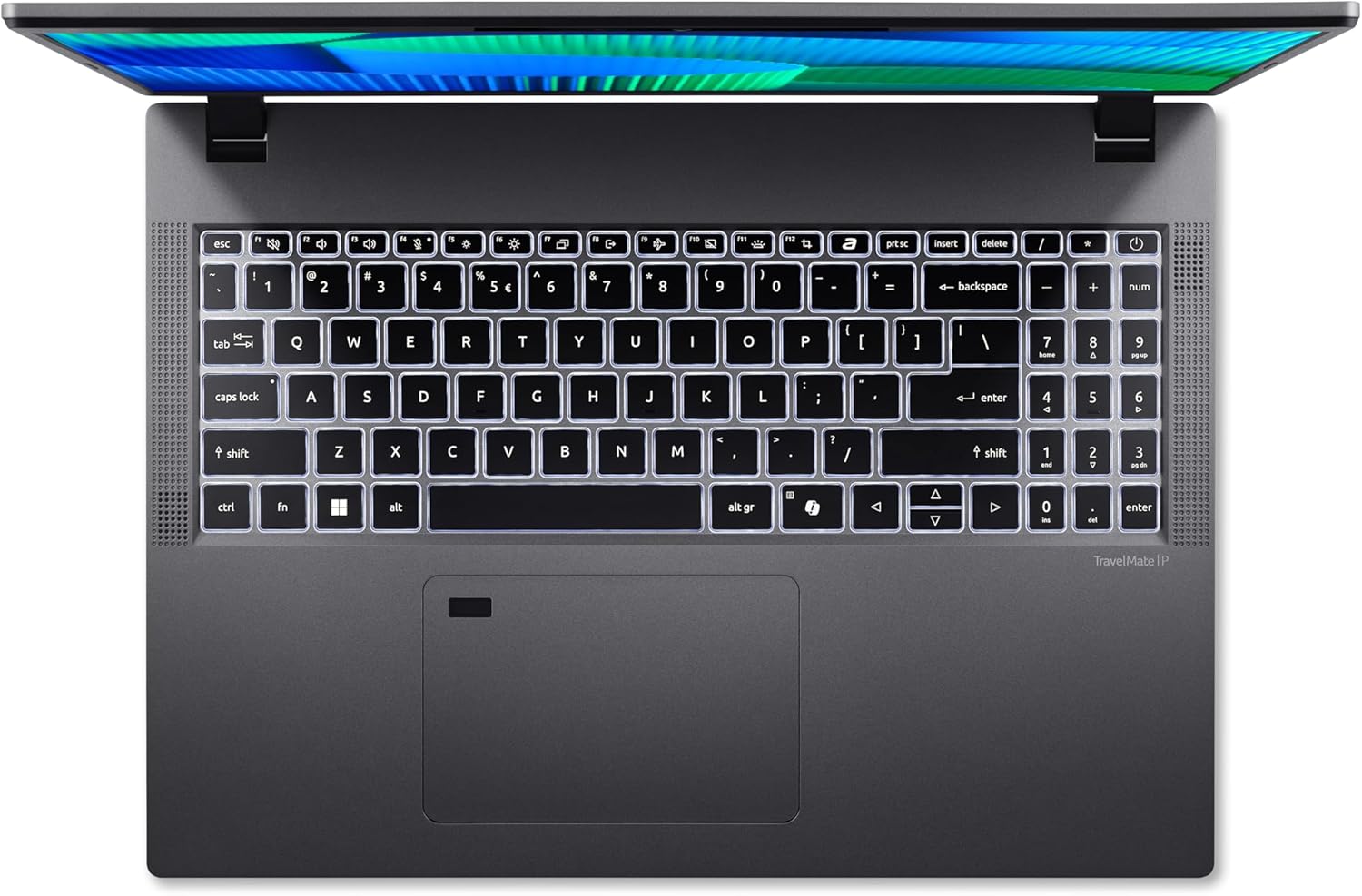
Figure 3.1: Top-down view of the Acer TravelMate P2 16" laptop's keyboard and touchpad. This image highlights the full-size keyboard layout, including the numeric keypad, and the large, central touchpad. The keys appear backlit, indicating a potential feature for low-light use.
3.3 Connecting to a Network
Your laptop supports Wi-Fi connectivity. To connect to a wireless network, access the network settings in your operating system, select your desired Wi-Fi network, and enter the password if required.
3.4 Using Ports and Connectors
The Acer TravelMate P2 16" is equipped with various ports for connectivity:
- USB 3.0 Ports: For connecting high-speed USB devices such as external hard drives, flash drives, and peripherals. (2 ports available)
- HDMI Port: For connecting to external displays, projectors, or TVs.
- Ethernet (RJ-45) Port: For wired network connections.
- Audio Jack: For headphones or external speakers.
- Power Input: For connecting the AC adapter.
- SD Card Reader: For reading data from SD memory cards.
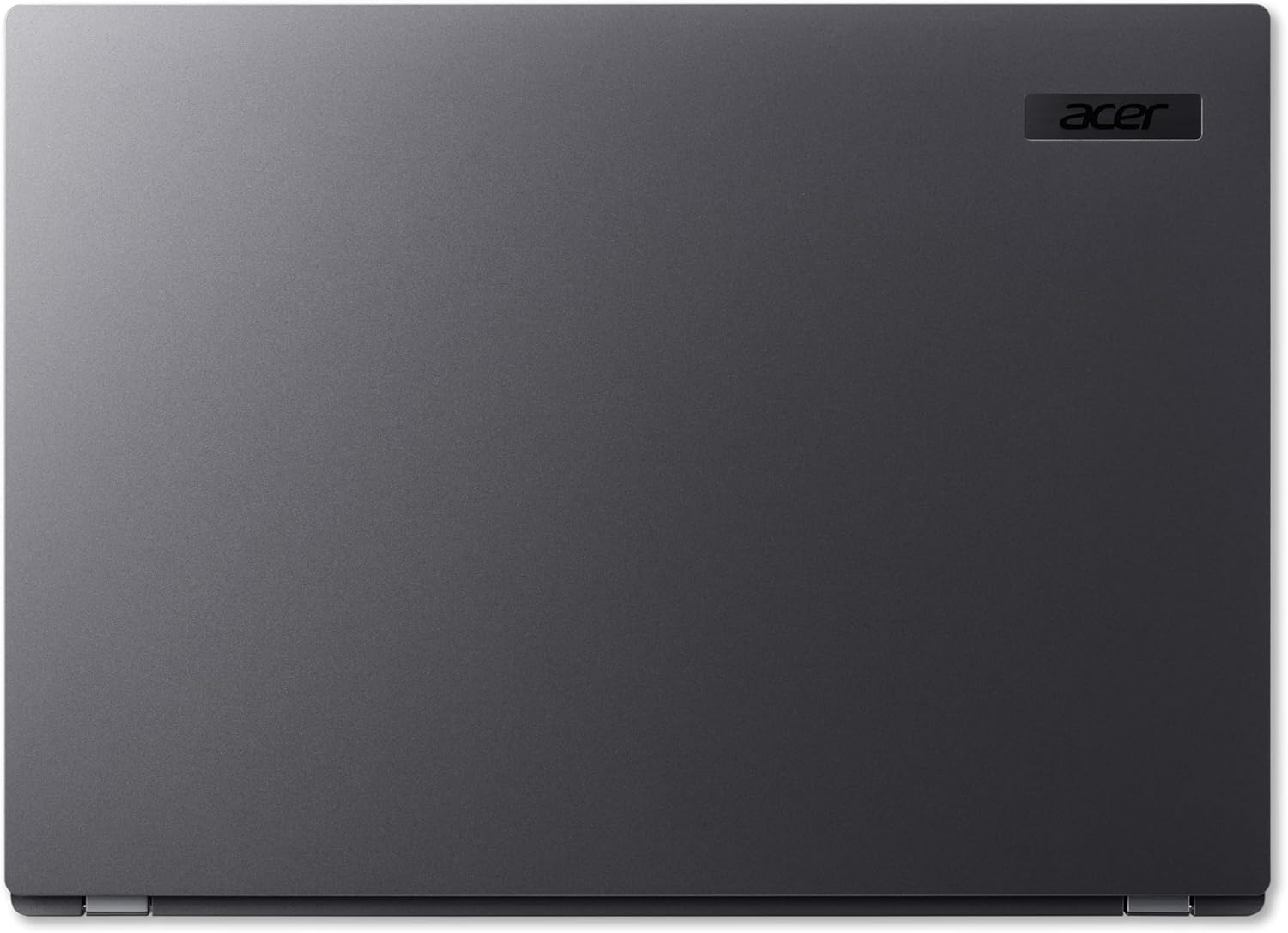
Figure 3.2: Side view of the Acer TravelMate P2 16" laptop, illustrating the arrangement of its various ports. This image shows USB ports, an HDMI port, and potentially an Ethernet port or other connectivity options, providing a visual guide for connecting peripherals.
3.5 Fingerprint Reader
The laptop includes a fingerprint reader for secure and convenient login. To set up the fingerprint reader, navigate to the security settings within your eShell operating system and follow the instructions to register your fingerprints.
4. Maintenance and Care
4.1 Cleaning Your Laptop
- Screen: Use a soft, lint-free cloth specifically designed for electronics. Dampen the cloth slightly with water or a screen cleaner solution. Do not spray liquid directly onto the screen.
- Chassis and Keyboard: Use a soft, dry cloth. For stubborn dirt, a slightly dampened cloth with mild soap solution can be used, ensuring no liquid enters openings.
- Ports: Use compressed air to gently clear dust from ports.
4.2 Battery Care
To prolong battery life:
- Avoid extreme temperatures.
- Do not fully discharge the battery frequently.
- If storing the laptop for an extended period, charge the battery to about 50% before storage.
4.3 Software Updates
Regularly check for and install operating system and driver updates to ensure optimal performance, security, and compatibility. Refer to your eShell operating system's documentation for update procedures.
4.4 Storage Management
Periodically review and delete unnecessary files to maintain sufficient free space on your 512GB SSD, which contributes to system performance.
5. Troubleshooting
This section addresses common issues you might encounter. For more complex problems, consult Acer's official support resources.
5.1 No Power / Laptop Not Turning On
- Ensure the AC adapter is securely connected to both the laptop and a working power outlet.
- Check if the power outlet is functional by plugging in another device.
- If the battery is completely drained, allow it to charge for at least 30 minutes before attempting to power on.
5.2 Display Issues
- Blank Screen: Ensure the laptop is powered on. Try pressing the display toggle function key (often Fn + F5 or similar) to cycle through display modes.
- External Monitor Not Detected: Verify the HDMI cable connection. Ensure the external monitor is powered on and set to the correct input source.
5.3 Network Connectivity Problems
- Wi-Fi Not Connecting: Check if Wi-Fi is enabled in the operating system settings. Restart your router and modem. Ensure you are entering the correct Wi-Fi password.
- Slow Connection: Move closer to your Wi-Fi router. Disconnect other devices from the network if they are consuming significant bandwidth.
5.4 System Performance Issues
- Slow Performance: Close unnecessary applications. Check for background processes consuming high CPU or RAM. Ensure sufficient free space on the SSD.
- Overheating: Ensure the laptop's vents are not blocked. Use the laptop on a hard, flat surface to allow for proper airflow.
6. Technical Specifications
| Feature | Specification |
|---|---|
| Model Name | TMP216-51-G2-TCO-5949 (NX.BB7EG.002) |
| Processor | Intel Core 5-120U (up to 5.00 GHz) |
| RAM | 16GB DDR5 |
| Storage | 512GB SSD |
| Display | 16-inch WUXGA (1920 x 1200 pixels) |
| Operating System | eShell |
| Ports | 2x USB 3.0, HDMI, Ethernet, Audio Jack, SD Card Reader |
| Dimensions (LxWxH) | 14.15 x 10.28 x 0.9 inches (369 x 261 x 22.9 mm) |
| Weight | 6.2 pounds (1.7 kg) |
| Color | All Grey |
| Special Feature | Fingerprint Reader |
7. Warranty and Support
7.1 Product Warranty
Your Acer TravelMate P2 laptop comes with a standard manufacturer's warranty. Please refer to the warranty card included in your product packaging or visit the official Acer website for detailed terms and conditions, including warranty duration and coverage.
7.2 Technical Support
For technical assistance, driver downloads, or further troubleshooting, please visit the official Acer support website. You may need your product's serial number (located on a sticker on the bottom of the laptop) when contacting support.
Acer Official Website: www.acer.com/support
Related Documents - NX.BB7EG.002
 |
Acer Aspire 3 User's Manual Comprehensive user's manual for the Acer Aspire 3 laptop, covering setup, operation, maintenance, troubleshooting, and safety guidelines. Learn to maximize your Acer Aspire 3 experience. |
 |
Acer Chromebook 311 User's Manual Official user's manual for the Acer Chromebook 311, providing comprehensive guidance on setup, hardware features, operation, and troubleshooting. |
 |
Acer Chromebook 511 User Manual User manual for the Acer Chromebook 511, covering setup, features, hardware overview, and frequently asked questions. Learn how to use your Chromebook, connect to networks, manage files, and access support. |
 |
Acer Chromebook 314 & Enterprise 314 User's Manual User's manual for Acer Chromebook 314 and Acer Chromebook Enterprise 314, covering setup, hardware overview, keyboard functions, touchpad gestures, connectivity, and FAQs. |
 |
Acer Predator Orion 3000 PO3-600 Gaming Desktop Specifications Detailed specifications for the Acer Predator Orion 3000 PO3-600 gaming desktop, featuring Intel Core i7 9th Gen processor, NVIDIA GeForce RTX 1660 Ti graphics, 16GB DDR4 RAM, 512GB SSD, and 1TB HDD. |
 |
Acer Projector Quick Start Guide: Setup and Connection Concise guide to setting up and connecting your Acer projector, including power-on instructions and image adjustment tips. Available in multiple languages. |
Ask a question about this manual
Ask about setup, troubleshooting, compatibility, parts, safety, or missing instructions. Manuals+ will review the question and use this page’s manual context to help answer it.