
1. Introduction
The PHILIPS TAZ6000 is a versatile all-in-one sound system designed for a rich audio experience. It combines a CD player, DAB+/FM radio, Bluetooth 5.4 connectivity, and USB playback, offering multiple ways to enjoy your music. Its portable design with both AC and battery power options allows you to take your music anywhere. This manual provides detailed instructions for setting up, operating, and maintaining your device.

The Philips TAZ6000, an all-in-one CD/FM DAB++ radio player, offering multiple audio sources in a compact design.
2. Safety Information
Please read all safety warnings and instructions carefully before using this product. Keep this manual for future reference.
- Power Source: Use only the specified power adapter or batteries. Ensure the voltage matches the requirements of the unit.
- Ventilation: Do not block any ventilation openings. Install in accordance with the manufacturer's instructions.
- Water and Moisture: Do not expose this apparatus to dripping or splashing. Do not place objects filled with liquids, such as vases, on the apparatus.
- Heat: Do not install near any heat sources such as radiators, heat registers, stoves, or other apparatus (including amplifiers) that produce heat.
- Cleaning: Clean only with a dry cloth.
- Servicing: Do not attempt to service this product yourself. Refer all servicing to qualified service personnel.
3. Package Contents
Ensure all items are present in the package:
- Main Unit (PHILIPS TAZ6000)
- Power Cable
- Quick Start Guide
- Safety Sheet
- Warranty Card
4. Product Overview
Familiarize yourself with the main components and controls of your PHILIPS TAZ6000.

Front view of the Philips TAZ6000, showing the CD compartment, display, control buttons, and speakers.

Top and rear view of the Philips TAZ6000, highlighting the telescopic antenna and AC power input.
Controls and Connections:
- Power Button: Turns the unit on or off.
- Display: Shows current mode, track information, radio frequency, etc.
- Source Buttons: Selects between CD/BT, DAB/FM, USB/AUX IN.
- Volume Controls: Adjusts the audio output level.
- Playback Controls: Play/Pause, Skip/Search (for CD/USB), Tune (for radio).
- Preset Buttons: Store and recall favorite radio stations.
- USB Port: For playing MP3 files from a USB drive.
- 3.5mm Headphone Jack: For private listening.
- Audio-in Port: Connect external audio devices.
- Telescopic Antenna: For DAB+/FM radio reception.
- AC Power Input: Connects to the mains power supply.
5. Setup
5.1 Power Connection
The PHILIPS TAZ6000 can be powered by AC mains or batteries.
- AC Power: Connect the supplied power cable to the AC power input on the rear of the unit and then to a wall outlet.
- Battery Power: For portable use, insert 6 x C-type (LR14) batteries into the battery compartment on the bottom of the unit. Ensure correct polarity.
5.2 Antenna Setup
For optimal DAB+/FM radio reception, fully extend the telescopic antenna. Adjust its position for the best signal quality.

The Philips TAZ6000 with its telescopic antenna extended, crucial for clear DAB+/FM radio reception.
6. Operating Instructions
6.1 Basic Operation
- Power On/Off: Press the Power button to turn the unit on or off.
- Volume Adjustment: Use the Volume +/- buttons to increase or decrease the sound level.
6.2 CD Playback
The unit supports CD, MP3-CD, CD-R/RW formats.
- Open the CD compartment cover.
- Place a CD with the label side facing up.
- Close the CD compartment cover.
- Press the CD/BT button to select CD mode.
- Playback will start automatically. Use the playback controls to skip tracks or pause.
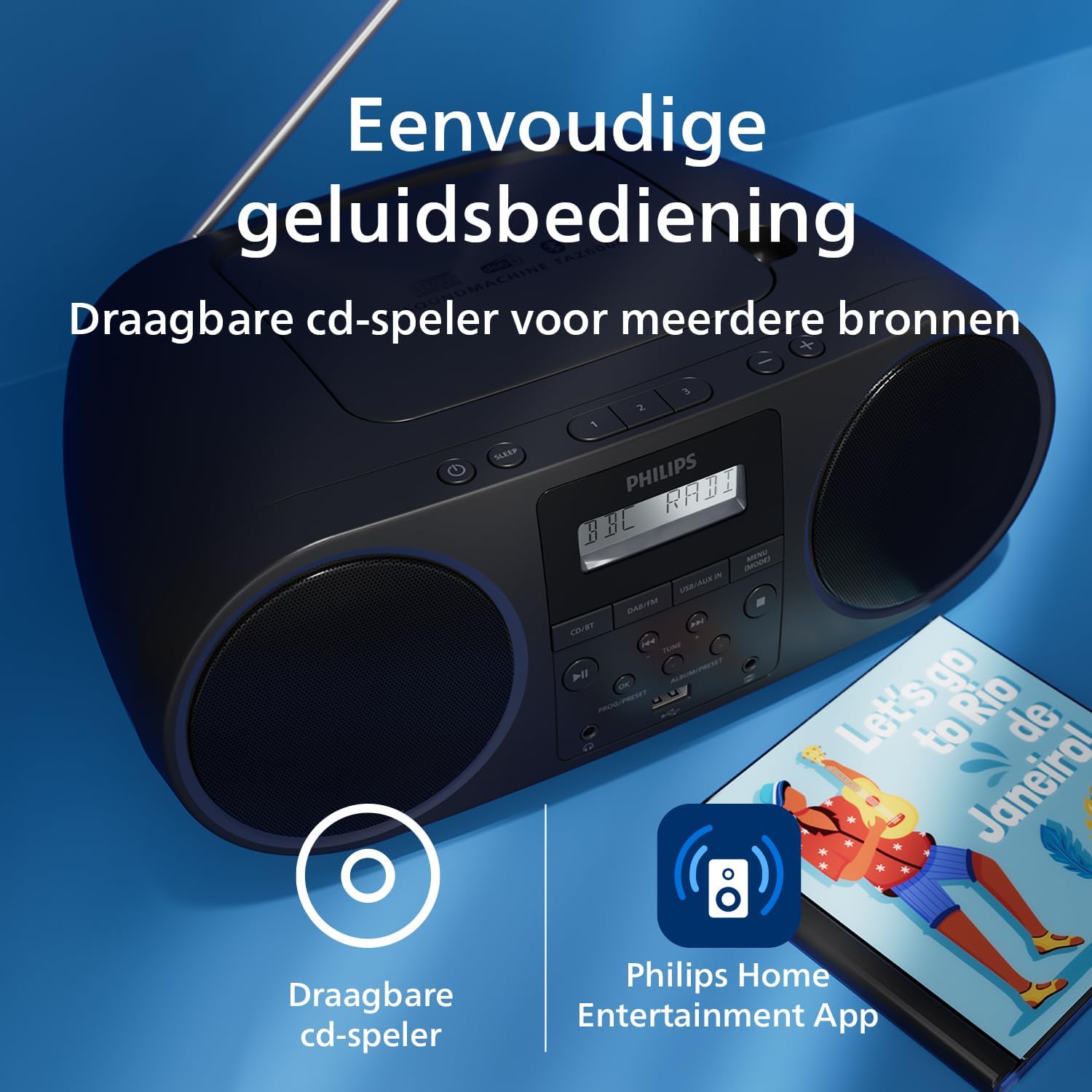
The Philips TAZ6000 functions as a portable CD player, allowing you to enjoy your CD collection on the go.
6.3 DAB+/FM Radio Operation
Enjoy clear digital radio with DAB+ or traditional FM broadcasts.
- Press the DAB/FM button to select the desired radio mode.
- Auto Scan: In DAB+ mode, the unit will automatically scan and store available stations upon first use. For FM, you can perform an auto scan or manual tune.
- Tuning: Use the Tune +/- buttons to manually tune to stations or search for the next available station.
- Presets: Store up to 30 favorite stations. To store, tune to the desired station, press and hold a preset number button (1-3), then release. To recall, simply press the corresponding preset number button.
6.4 Bluetooth Pairing
Stream audio wirelessly from your Bluetooth-enabled devices.
- Press the CD/BT button to select Bluetooth mode. The display will show "PAIRING" or similar.
- On your Bluetooth device (e.g., smartphone), enable Bluetooth and search for available devices.
- Select "PHILIPS TAZ6000" from the list.
- Once connected, you can play audio from your device through the TAZ6000.
The unit supports Bluetooth 5.4 with LC3 codec for enhanced sound quality and Auracast for multi-device streaming (firmware update may be required for full Auracast functionality).

The Philips TAZ6000 offers versatile connectivity including USB, audio-in, Bluetooth 5.4, and DAB+/FM radio.

Experience improved sound and multi-device streaming with Bluetooth 5.4 and Auracast support on the Philips TAZ6000.
6.5 USB Playback
Play MP3, FLAC, WMA, and WAV audio files from a USB flash drive.
- Insert a USB flash drive into the USB port.
- Press the USB/AUX IN button to select USB mode.
- Playback will begin automatically. Use the playback controls to navigate tracks.
6.6 Audio-in Connection
Connect external audio devices like turntables or older MP3 players.
- Connect one end of a 3.5mm audio cable (not supplied) to the Audio-in port on the TAZ6000.
- Connect the other end to the audio output of your external device.
- Press the USB/AUX IN button to select AUX IN mode.
- Play audio from your external device.
6.7 Headphone Use
For private listening, connect headphones with a 3.5mm jack to the headphone port.

Easily connect headphones for private listening or a USB drive for MP3 playback using the dedicated ports on the Philips TAZ6000.
6.8 Philips Home Entertainment App Control
Control your TAZ6000 remotely using the Philips Home Entertainment app on your smartphone.
- Download the Philips Home Entertainment app from your device's app store.
- Ensure your smartphone is connected to the same network as the TAZ6000 (if applicable, or via Bluetooth).
- Open the app and follow the on-screen instructions to connect to your TAZ6000.
- Through the app, you can switch sources, select radio stations, adjust volume and bass, set a sleep timer, and change display brightness.

Control your Philips TAZ6000 conveniently from your smartphone using the Philips Home Entertainment app, offering remote access to various functions.
7. Maintenance
7.1 Cleaning
- Wipe the unit with a soft, damp cloth. Do not use abrasive cleaners or solvents.
- For the CD lens, use a specialized CD lens cleaner.
7.2 Storage
When not in use for extended periods, disconnect the power cable and remove batteries. Store the unit in a cool, dry place away from direct sunlight and extreme temperatures.

The Philips TAZ6000 is constructed with recycled materials and features responsible packaging, reflecting its eco-friendly design.
8. Troubleshooting
If you encounter issues with your PHILIPS TAZ6000, refer to the following common problems and solutions:
| Problem | Possible Cause | Solution |
|---|---|---|
| No power | Power cable not connected; Batteries depleted or incorrectly inserted. | Ensure power cable is securely connected. Replace batteries or check polarity. |
| No sound | Volume too low; Incorrect source selected; Headphones connected. | Increase volume. Select the correct input source (CD, DAB/FM, BT, USB, AUX). Disconnect headphones if using speakers. |
| CD not playing | CD inserted incorrectly; CD is scratched or dirty; Disc format not supported. | Insert CD with label side up. Clean or replace CD. Ensure it's a supported format (CD, MP3-CD, CD-R/RW). |
| Poor radio reception | Antenna not extended or positioned correctly; Weak signal area. | Fully extend and adjust the telescopic antenna. Try moving the unit to a different location. |
| Bluetooth pairing failed | Unit not in pairing mode; Device too far; Bluetooth disabled on device. | Ensure unit is in Bluetooth pairing mode. Move device closer. Enable Bluetooth on your device. |
9. Specifications
| Feature | Specification |
|---|---|
| Brand | PHILIPS |
| Manufacturer | TP Vision |
| Model Number | TAZ6000/10 |
| Audio Output Mode | Stereo |
| Supported Audio Formats (USB) | MP3, FLAC, WMA, WAV |
| Supported Disc Formats | CD, MP3-CD, CD-R/RW |
| Wattage | 4 watts |
| Power Source | Wired Electric (AC), Battery (6 x C-type LR14, not included) |
| Connectivity | Bluetooth 5.4, USB, 3.5mm Audio-in, 3.5mm Headphone Jack |
| Compatible Devices | Television, Tablet, Personal Computer, Smartphone |
| Product Dimensions (L x W x H) | 16.5 x 31 x 12.8 cm (6.5 x 12.2 x 5.0 inches) |
| Weight | 790 g (1.74 lbs) |
10. Warranty and Support
For warranty information, please refer to the Warranty Card included in your package. Keep your proof of purchase for any warranty claims.
For technical support, product registration, or frequently asked questions, please visit the official Philips support website or contact their customer service. Contact details can typically be found on the Philips website or in the Quick Start Guide.
Online Support: www.philips.com/support