
1. Introduction
This manual provides essential instructions for the setup, operation, and maintenance of your Infinix XWatch XW3E Smart Watch. Please read this guide thoroughly to ensure proper usage and to maximize your device's capabilities. The Infinix XWatch XW3E is designed to enhance your daily life with its advanced features, including a vibrant AMOLED display, comprehensive health tracking, and Bluetooth calling.

Image: The Infinix XWatch XW3E Smart Watch displaying a watch face with time, date, and activity metrics.
2. What's in the Box
Upon unboxing your Infinix XWatch XW3E, verify that all components are present:
- Infinix XWatch XW3E Smart Watch
- 2 Straps (one pre-attached, one spare)
- Charging Cable
- User Manual (this document)
3. Setup
3.1 Initial Charging
Before first use, fully charge your Infinix XWatch XW3E. The device supports wireless charging.
- Connect the charging cable to a compatible USB power adapter (not included).
- Place the back of the watch onto the wireless charging pad. Ensure the watch is correctly aligned for charging to begin.
- The watch display will indicate charging status. A full charge typically takes approximately 3 hours.

Image: The Infinix XWatch XW3E Smart Watch on a wireless charging pad, displaying a charging icon.
3.2 Powering On/Off
- To Power On: Press and hold the side button until the Infinix logo appears.
- To Power Off: Press and hold the side button, then select 'Power Off' from the options on the screen.
3.3 Pairing with Your Smartphone
To unlock the full potential of your smart watch, pair it with your smartphone via Bluetooth.
- Ensure your smart watch is charged and powered on.
- Enable Bluetooth on your smartphone.
- Download and install the 'My Health' application from your phone's app store.
- Open the 'My Health' app, create an account or log in, and follow the on-screen instructions to add your device.
- Select 'Infinix XWatch XW3E' from the list of available devices in the app.
- Confirm the pairing request on both your smartphone and the smart watch.
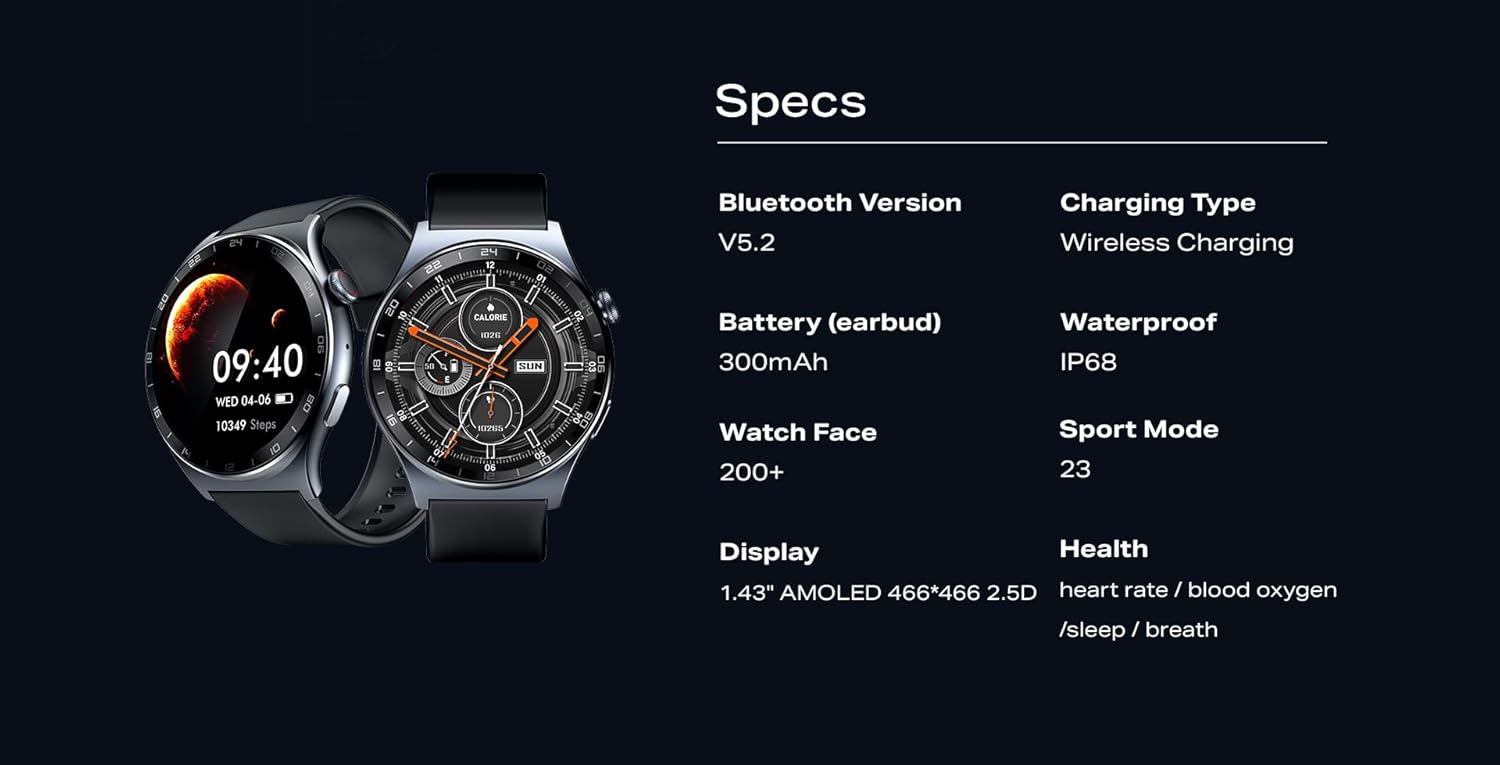
Image: A smartphone displaying the 'My Health' application interface alongside the Infinix XWatch XW3E, illustrating app integration.
4. Operating the Smart Watch
4.1 Display Navigation
The Infinix XWatch XW3E features a 1.43-inch AMOLED touchscreen display for intuitive interaction.
- Swipe Up/Down: Scroll through notifications or quick settings.
- Swipe Left/Right: Access different widgets or main menu screens.
- Tap: Select an item or open an application.
- Press Side Button: Return to the home screen or access the app list.
- Rotate Crown: Navigate through menus or adjust settings.
Image: The Infinix XWatch XW3E's vivid AMOLED display showcasing a grid of application icons.
4.2 Watch Faces
Personalize your watch with over 200 stylish watch faces available through the 'My Health' app.
- On Watch: Press and hold the watch face, then swipe left or right to browse pre-installed faces. Tap to select.
- Via App: Open the 'My Health' app, navigate to the watch face section, and choose from a wider selection. Download and sync your preferred watch face.
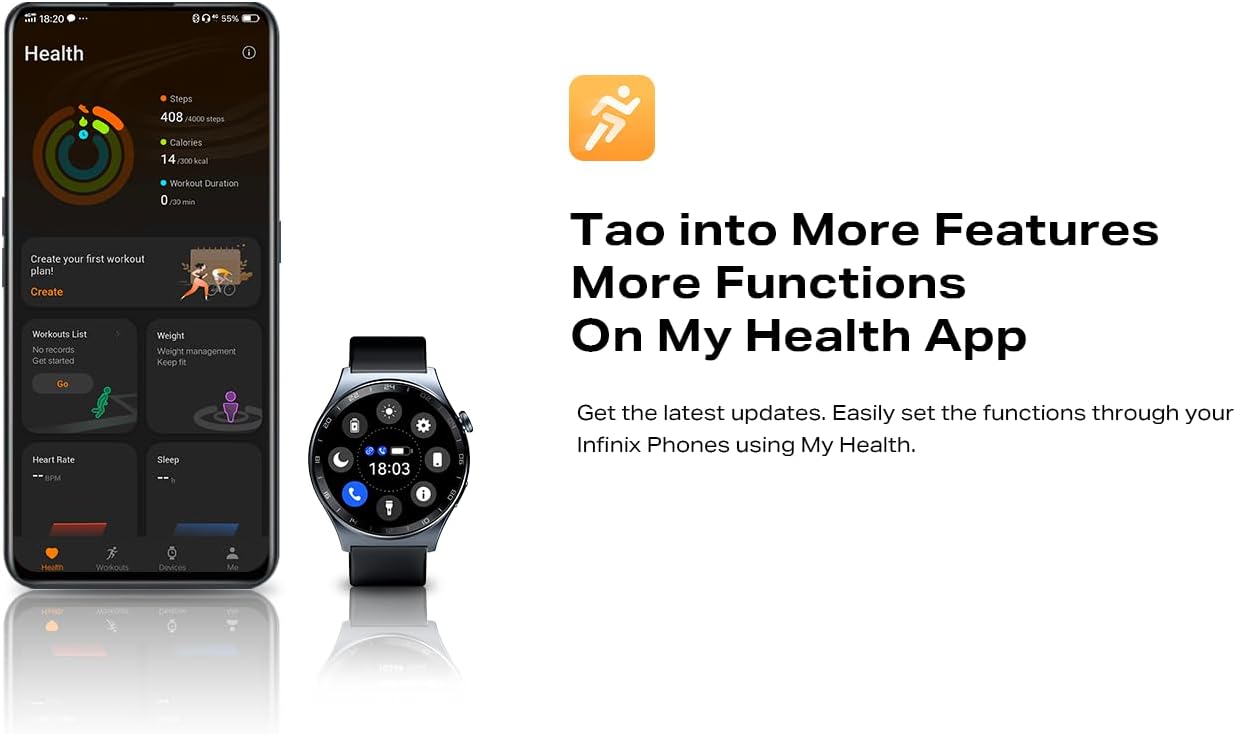
Image: The Infinix XWatch XW3E showcasing three different customizable watch faces.
4.3 Bluetooth Calling
With Bluetooth 5.3 connectivity, you can make and receive calls directly from your wrist when connected to your smartphone.
- Making a Call: Access the dialer from the app list, enter the number, and tap the call icon. Alternatively, select a contact from your synced phonebook.
- Receiving a Call: When a call comes in, the watch will display the caller ID. Tap the green icon to answer or the red icon to reject.

Image: The Infinix XWatch XW3E displaying interfaces for dialing, messages, and an incoming call.
4.4 Health & Fitness Tracking
The XWatch XW3E offers comprehensive health and fitness monitoring features.
- Heart Rate Monitoring: The watch continuously monitors your heart rate. View real-time data on the watch or detailed trends in the 'My Health' app.
- Blood Oxygen Monitoring: Measure your SpO2 levels to understand your blood oxygen saturation.
- Sleep Monitoring: Tracks your sleep patterns, including deep sleep, light sleep, and wake times, providing insights into your sleep quality.
- Multiple Sports Modes: Choose from over 20 sports modes, including running, cycling, swimming, and more, to track specific workout data like calories burned, distance, and duration.
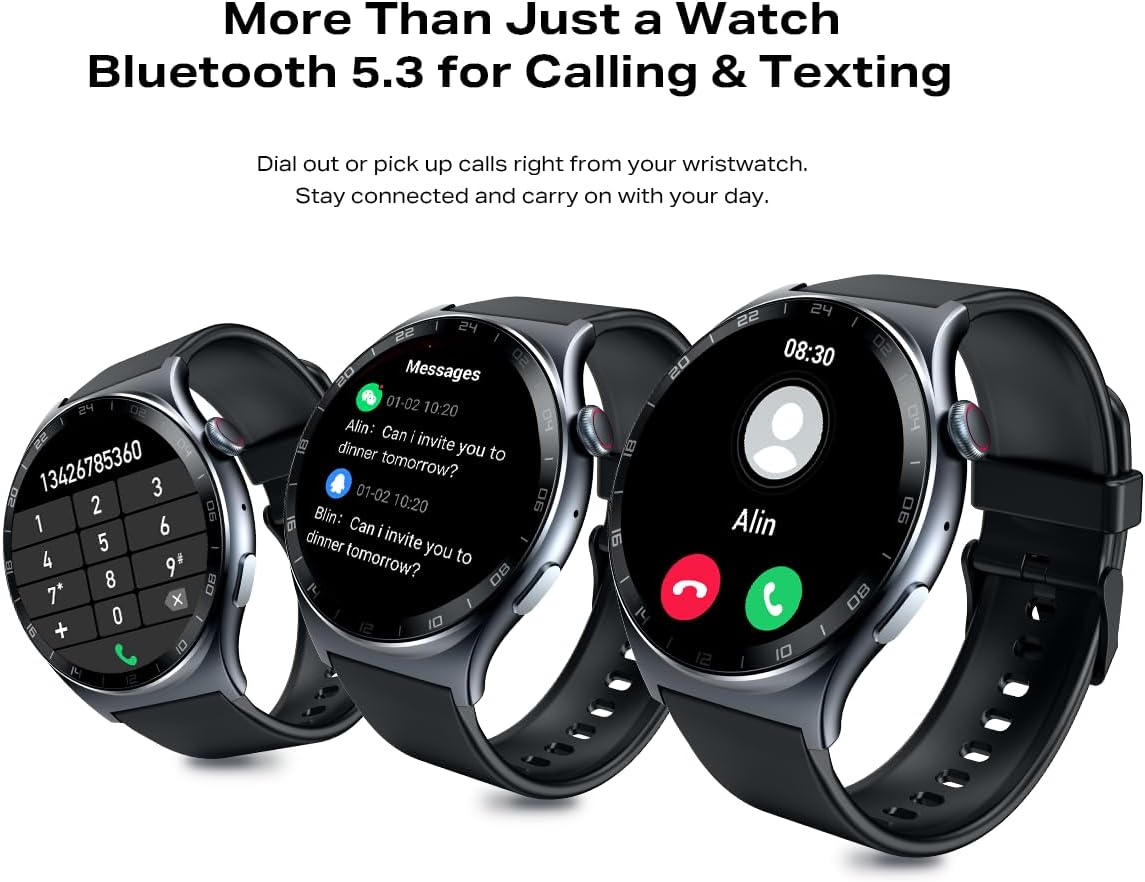
Image: Visual representation of the Infinix XWatch XW3E's heart rate, blood oxygen, and sleep monitoring features, along with icons for various workout modes.

Image: The rear view of the Infinix XWatch XW3E, highlighting the optical sensors for health tracking.
4.5 Water Resistance
The Infinix XWatch XW3E is IP68 water and dust resistant, making it suitable for daily wear and various water-related activities.
- It can withstand immersion in up to 1.5 meters of fresh water for up to 30 minutes.
- Suitable for showering, hand washing, and swimming in shallow water.
- Not recommended for diving, high-pressure water activities, or exposure to hot water/steam.
- After exposure to water, dry the watch thoroughly before charging or using physical buttons.

Image: Two Infinix XWatch XW3E devices depicted with water splashes, illustrating their water resistance.
5. Maintenance
5.1 Cleaning
Regular cleaning helps maintain the watch's appearance and functionality.
- Wipe the watch body and straps with a soft, damp, lint-free cloth.
- Avoid using harsh chemicals, abrasive cleaners, or solvents.
- Ensure the charging contacts on the back of the watch are clean and dry.
5.2 Battery Care
- Avoid exposing the watch to extreme temperatures, which can affect battery life.
- Charge the watch regularly, ideally before the battery is completely depleted.
- Use only the provided charging cable.
6. Troubleshooting
If you encounter issues with your Infinix XWatch XW3E, refer to the following common solutions:
- Watch Not Powering On: Ensure the watch is fully charged. Connect it to the charger for at least 30 minutes.
- Cannot Pair with Phone: Check that Bluetooth is enabled on your phone and the watch. Ensure the 'My Health' app is open and updated. Try restarting both devices.
- Inaccurate Health Data: Ensure the watch is worn snugly on your wrist, not too tight or too loose. Clean the sensors on the back of the watch.
- Short Battery Life: Reduce screen brightness, disable Always-on Display, limit background app refresh, and ensure no apps are constantly running in the background.
- No Notifications: Check notification settings in the 'My Health' app and on your phone's system settings to ensure permissions are granted for the app to send notifications.
For further assistance, consult the official Infinix support website or contact customer service.
7. Specifications
Detailed technical specifications for the Infinix XWatch XW3E Smart Watch:
| Feature | Specification |
|---|---|
| Model Name | XW3E |
| Display | 1.43-inch AMOLED, 466x466 resolution, 2.5D Glass |
| Operating System | Android (compatible) |
| Connectivity | Bluetooth V5.2 |
| Water Resistance | IP68 |
| Charging Type | Wireless Charging |
| Battery Life | Up to 7 days (typical usage) |
| Watch Faces | 200+ options |
| Sports Modes | 20+ modes |
| Health Monitoring | Heart Rate, Blood Oxygen, Sleep Tracking |
| Item Weight | 75 g |
| Dimensions | 17 x 9.5 x 3.1 cm (Package) |

Image: A collage highlighting key features of the Infinix XWatch XW3E, including display, charging, tracking, and water resistance.
8. Warranty and Support
Your Infinix XWatch XW3E Smart Watch is covered by a manufacturer's warranty. Please refer to the warranty card included in your product packaging for specific terms and conditions, including warranty period and coverage details.
For technical support, service inquiries, or to report any issues, please visit the official Infinix support website or contact their customer service department. Keep your purchase receipt and product serial number handy for faster service.
Online Resources:
- Infinix Official Website: www.infinixmobility.com
- Product Support Page: (Refer to official website for specific product support links)