
RW-64
Smart Watch RW 64 - User Manual
Model: RW-64
1. Introduction
Thank you for choosing the Smart Watch RW 64. This manual provides essential information for setting up, operating, and maintaining your new smartwatch. The RW 64 features a vibrant round AMOLED display, supports Bluetooth calls, and is compatible with both Android and iOS devices. It comes with three interchangeable straps to suit various styles.

Image: The Smart Watch RW 64 presented with its three distinct strap options: black, brown, and silver metal.
2. Package Contents
Please verify that all items are present in your package:
- Smart Watch RW 64 (Main Unit)
- 3 x Interchangeable Straps (Black, Brown, Silver Metal)
- Wireless Charging Cable
- User Manual
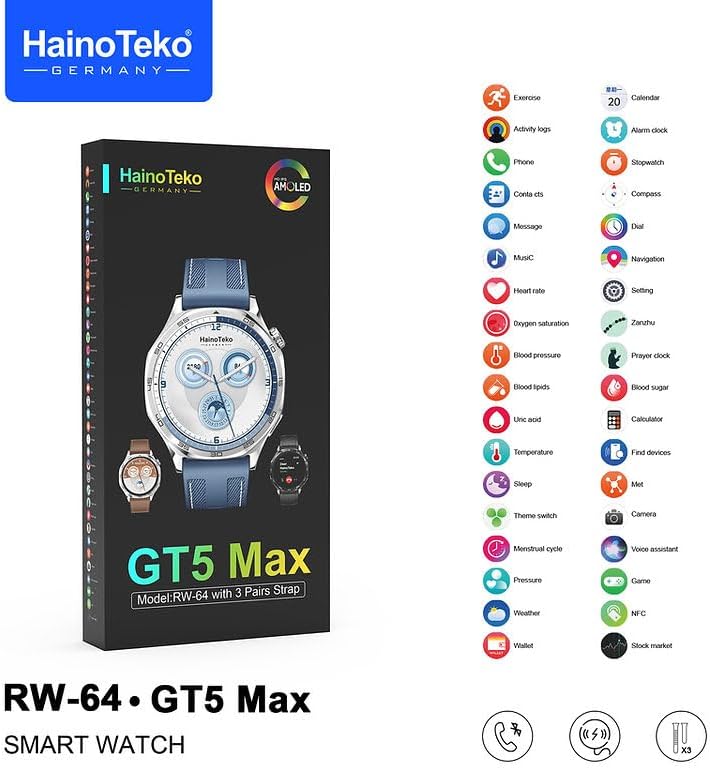
Image: The packaging for the Smart Watch RW 64, highlighting the model and inclusion of three strap pairs.
3. Setup
3.1 Charging the Smart Watch
Before first use, fully charge your Smart Watch RW 64.
- Connect the wireless charging cable to a USB power adapter (not included).
- Place the back of the watch onto the charging pad. Ensure the watch aligns correctly with the charger for optimal contact.
- The watch display will indicate charging status. A full charge typically takes approximately 2 hours.
3.2 Power On/Off
- To Power On: Press and hold the side button until the screen illuminates.
- To Power Off: Press and hold the side button, then select "Power Off" on the screen.
3.3 App Installation and Device Pairing
To unlock the full functionality of your Smart Watch RW 64, you need to install the companion application on your smartphone and pair the devices via Bluetooth. The watch is compatible with both Android and iOS devices.
- Scan the QR code provided in the quick start guide (or search for the official app name in your phone's app store).
- Install the application on your smartphone.
- Enable Bluetooth on your smartphone.
- Open the companion app and follow the on-screen instructions to search for and connect to your Smart Watch RW 64.
- Confirm the pairing request on both your phone and the watch.
4. Operating the Smart Watch
4.1 Display Navigation
The Smart Watch RW 64 features a responsive AMOLED touch display.
- Tap: Select an item or confirm an action.
- Swipe Up/Down: Scroll through menus or notifications.
- Swipe Left/Right: Navigate between different screens or widgets.
- Press Side Button: Return to the home screen or access the app menu.
4.2 Bluetooth Calls
With the built-in speaker and microphone, you can make and receive calls directly from your watch when connected to your smartphone.
- Receiving Calls: When a call comes in, the watch will display the caller ID. Tap the green icon to answer or the red icon to decline.
- Making Calls: Access the "Phone" or "Dial" function on your watch to initiate a call from your contacts or by dialing a number.
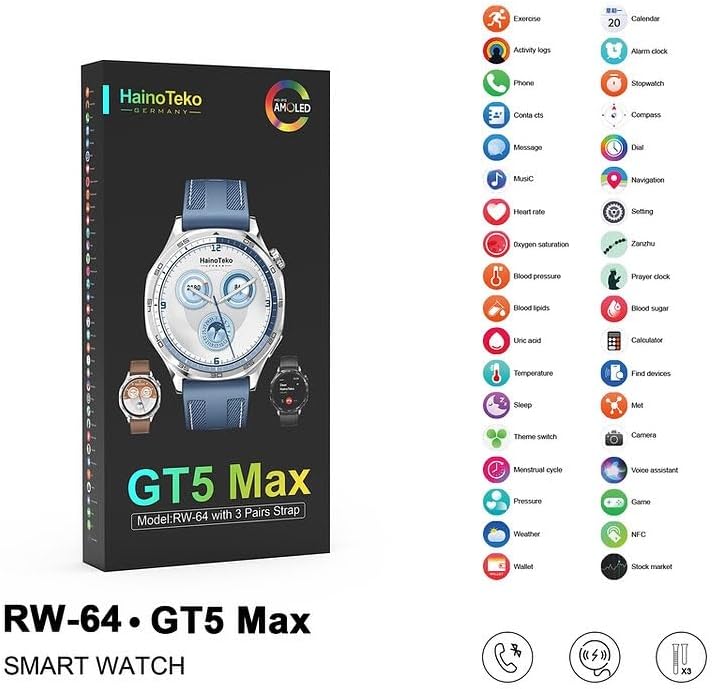
Image: The Smart Watch RW 64 displaying an active incoming call notification.
4.3 Smart Notifications
Receive alerts for calls, messages, and notifications from various applications directly on your watch. Ensure notification permissions are enabled in your smartphone's settings and the companion app.
4.4 Customizable Watch Faces
Personalize your watch by choosing from multiple built-in dial faces or downloading new ones through the companion app.

Image: A customizable watch face on the Smart Watch RW 64, featuring various data points.
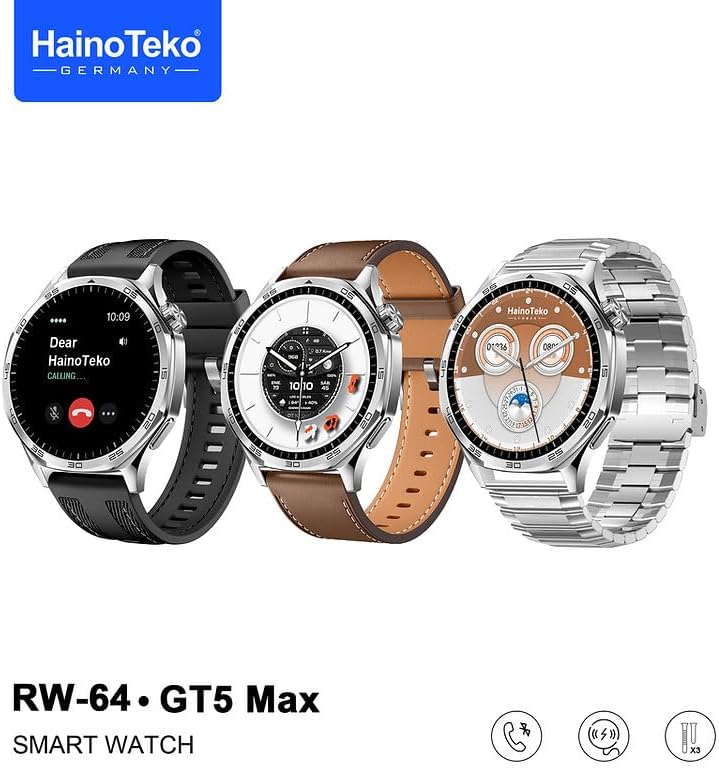
Image: Another customizable watch face on the Smart Watch RW 64, displaying a moon phase complication.
4.5 Activity Tracking and Health Monitoring
The Smart Watch RW 64 includes features for activity tracking and basic health monitoring.
- Activity Tracker: Monitors steps, distance, and calories burned.
- Custom Activity Tracking: Allows for tracking specific exercises.
- Health Metrics: The watch may offer features such as heart rate monitoring, blood oxygen saturation, and sleep tracking. Refer to the companion app for detailed data and insights.

Image: The Smart Watch RW 64 packaging, illustrating a comprehensive list of its integrated features through icons.
5. Maintenance
5.1 Cleaning the Watch
To keep your watch in optimal condition:
- Wipe the screen and body with a soft, lint-free cloth.
- For stubborn marks, slightly dampen the cloth with water. Avoid using harsh chemicals or abrasive materials.
- Clean the charging contacts periodically to ensure efficient charging.
5.2 Changing Straps
The Smart Watch RW 64 comes with three interchangeable straps.
- Locate the quick-release pins on the underside of the watch straps.
- Slide the pin inwards to detach the strap from the watch body.
- Align the new strap with the watch lugs, insert one end of the pin, then slide the other end inwards to secure it into place.
- Gently pull on the strap to ensure it is securely attached before wearing.
5.3 Battery Care
- Avoid exposing the watch to extreme temperatures.
- Charge the watch regularly, but avoid leaving it fully discharged for extended periods.
6. Troubleshooting
If you encounter issues with your Smart Watch RW 64, try the following solutions:
- Watch Not Powering On:
- Ensure the watch is fully charged. Place it on the wireless charger for at least 30 minutes.
- Press and hold the side button for 10-15 seconds to attempt a forced restart.
- Cannot Connect/Pair with Phone:
- Ensure Bluetooth is enabled on your phone and the watch.
- Restart both your phone and the watch.
- Forget the device in your phone's Bluetooth settings and attempt to re-pair through the companion app.
- Ensure the companion app is up to date.
- Notifications Not Appearing:
- Check notification permissions for the companion app in your phone's settings.
- Ensure the watch is properly connected to the phone via Bluetooth.
- Verify notification settings within the companion app.
- Inaccurate Activity Data:
- Ensure the watch is worn snugly on your wrist.
- Calibrate the watch through the companion app if an option is available.
7. Specifications
| Feature | Detail |
|---|---|
| Model Name | RW-64 |
| Display Type | Round AMOLED Display |
| Connectivity Technology | Bluetooth |
| Operating System | Android Wear 1.1 |
| Special Features | Activity Tracker, Custom Activity Tracking, Wireless Charging |
| Compatible Devices | Smartphone (Android, iOS) |
| Item Model Number | RW-64 |
| Package Dimensions | 22.2 x 11.3 x 3.2 cm; 310 g |
| Manufacturer | China |
| Colour | Silver-tone |
8. Warranty and Support
Your Smart Watch RW 64 is covered by a standard manufacturer's warranty. Please refer to the warranty card included in your package for specific terms and conditions.
For technical support, troubleshooting assistance, or warranty claims, please contact the retailer or manufacturer's customer service. Keep your purchase receipt as proof of purchase.
Ask a question about this manual
Ask about setup, troubleshooting, compatibility, parts, safety, or missing instructions. Manuals+ will review the question and use this page’s manual context to help answer it.