
1. Introduction
This manual provides detailed instructions for the setup, operation, and maintenance of your Owlotech EK500 Wireless QWERTY Spanish Keyboard. Please read this manual thoroughly before use to ensure optimal performance and longevity of your device. Keep this manual for future reference.
2. Package Contents
Please check the package contents upon unboxing. If any items are missing or damaged, contact your retailer.
- Owlotech EK500 Wireless Keyboard
- USB 2.4GHz Receiver
- User Manual
3. Product Overview
The Owlotech EK500 is a wireless ergonomic keyboard designed for comfort and efficiency. It features a QWERTY Spanish layout and connects via a 2.4GHz USB receiver.

Image of the Owlotech EK500 Wireless QWERTY Spanish Keyboard, showcasing its ergonomic, split-key design and integrated wrist rest.

Image showcasing the ergonomic, split-key, and curved structure of the Owlotech EK500 keyboard, designed for natural typing.
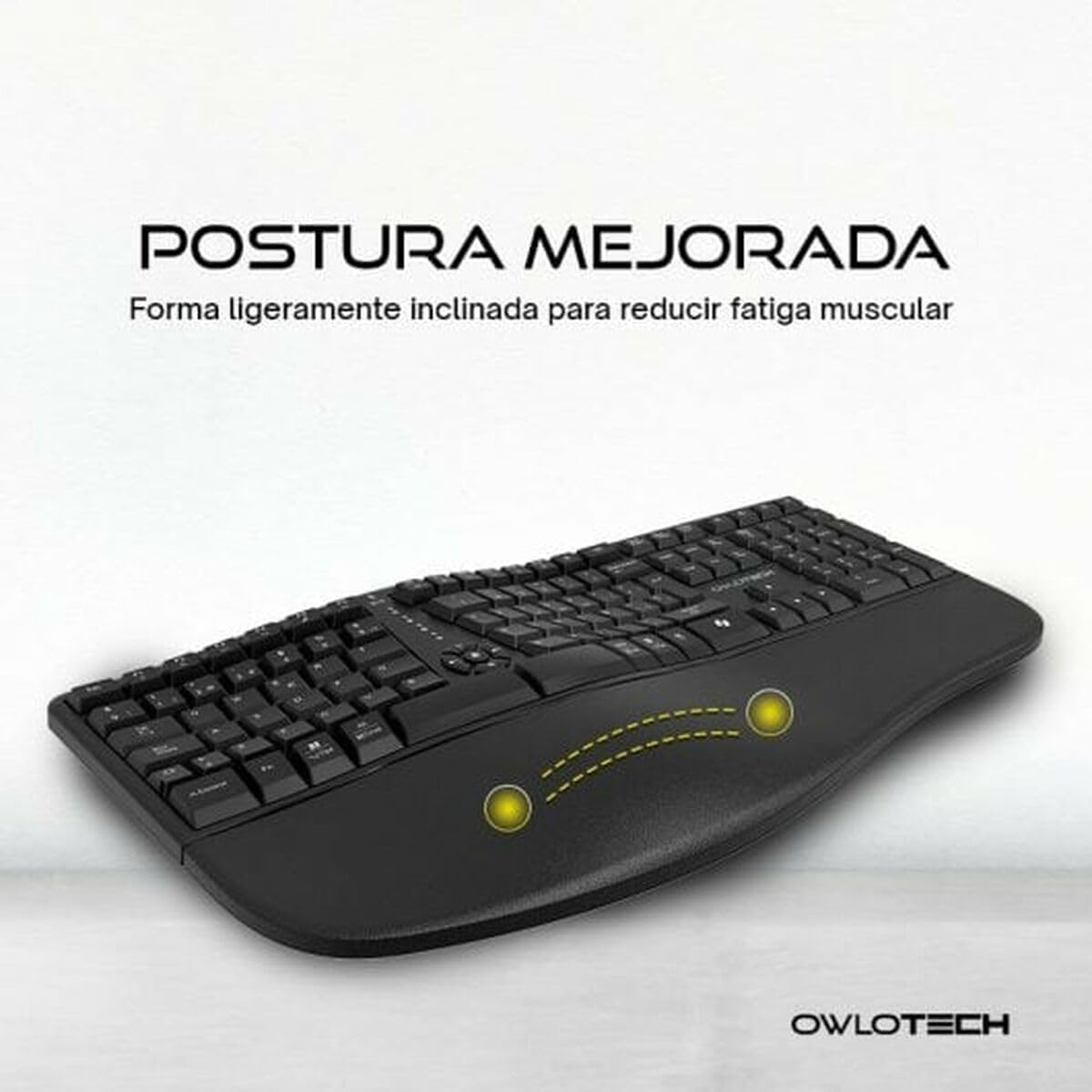
Image demonstrating the slightly inclined shape of the Owlotech EK500 keyboard, intended to reduce muscle fatigue and promote improved posture.

Image highlighting the integrated wrist rest of the Owlotech EK500 keyboard, designed for enhanced comfort.

Image illustrating the 2.4GHz USB wireless connection feature of the Owlotech EK500 keyboard.
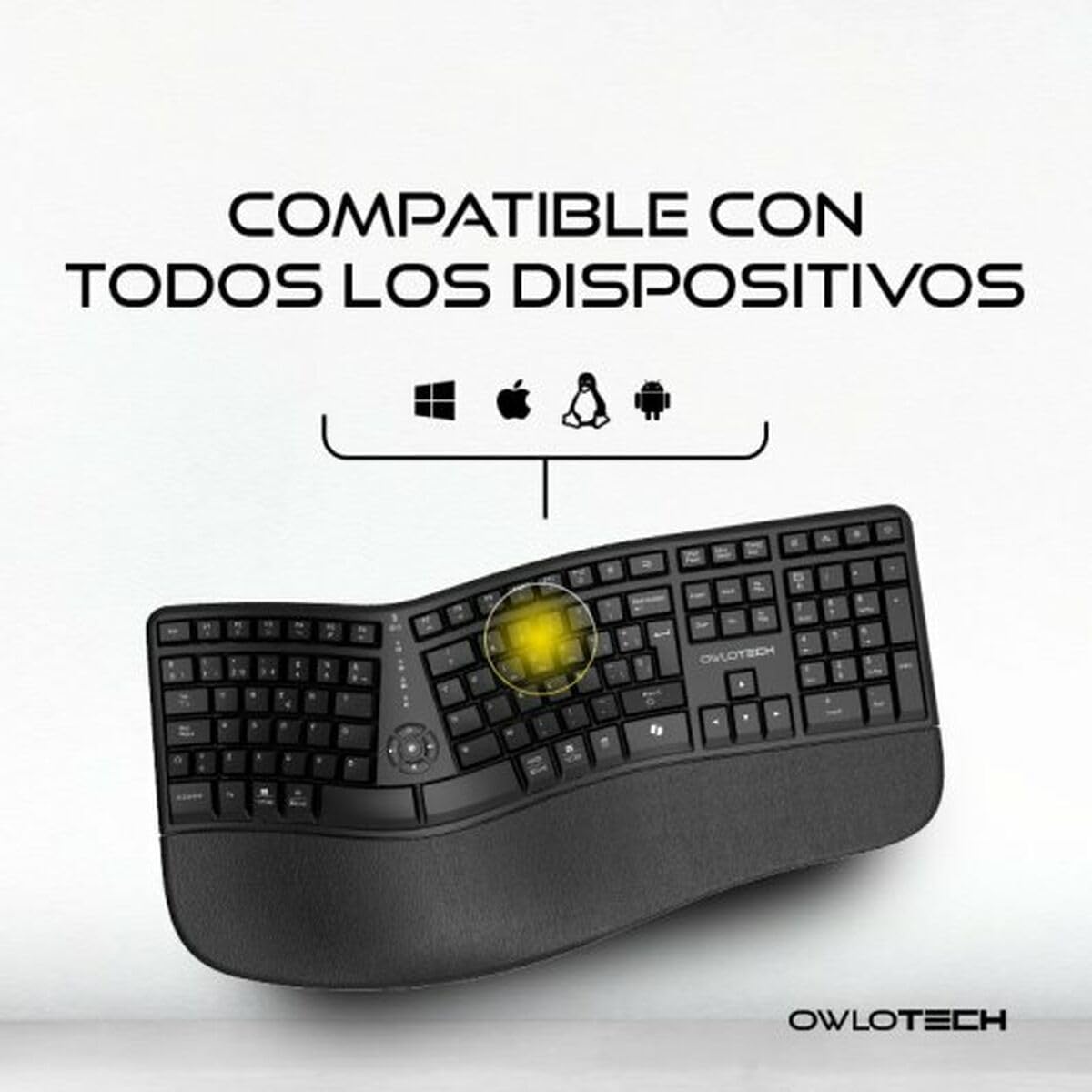
Image indicating the Owlotech EK500 keyboard's compatibility with various operating systems, including Windows, macOS, Android, and Linux.
4. Setup
4.1. Battery Installation
- Locate the battery compartment on the underside of the keyboard.
- Open the battery compartment cover.
- Insert the required batteries (typically AA or AAA, not included) according to the polarity indicators (+/-).
- Close the battery compartment cover securely.
4.2. Connecting the USB Receiver
- Locate the USB 2.4GHz receiver, usually stored within the battery compartment or a dedicated slot on the keyboard.
- Plug the USB receiver into an available USB port on your computer or device.
- The operating system should automatically detect and install the necessary drivers. This may take a few moments.
4.3. Powering On
Ensure the keyboard has fresh batteries and the USB receiver is connected. Most wireless keyboards do not have a separate power switch; they activate automatically upon key press or when the receiver is detected. Some models may have a small ON/OFF switch, typically located on the underside or side of the keyboard. If present, switch it to the 'ON' position.
5. Operating Instructions
5.1. Basic Typing
Begin typing as you would with any standard keyboard. The QWERTY Spanish layout includes specific keys for Spanish characters such as 'Ñ' and accented vowels.
5.2. Function Keys (F1-F12)
The function keys (F1-F12) may have secondary functions (e.g., multimedia controls, volume, brightness) accessible by pressing them in combination with the Fn key, usually located near the bottom left of the keyboard. Refer to your operating system's settings for specific key assignments.
5.3. Indicator Lights
The keyboard may feature indicator lights for:
- Caps Lock: Illuminates when Caps Lock is active.
- Num Lock: Illuminates when the numeric keypad is active.
- Battery Status: May flash or change color to indicate low battery.
6. Maintenance
6.1. Cleaning
To clean your keyboard:
- Disconnect the USB receiver from your computer.
- Use a soft, slightly damp cloth to wipe the surface of the keyboard. Avoid excessive moisture.
- For dust and debris between keys, use compressed air.
- Do not use harsh chemicals, abrasive cleaners, or solvents.
6.2. Battery Replacement
When the battery indicator light signals low power or if the keyboard becomes unresponsive, replace the batteries following the instructions in Section 4.1.
6.3. Storage
Store the keyboard in a cool, dry place away from direct sunlight and extreme temperatures. If storing for an extended period, remove the batteries to prevent leakage.
7. Troubleshooting
If you encounter issues with your Owlotech EK500 keyboard, refer to the following common solutions:
- Keyboard not responding:
- Check if the batteries are correctly installed and have sufficient charge. Replace if necessary.
- Ensure the USB receiver is securely plugged into a working USB port on your computer. Try a different USB port.
- Restart your computer.
- If your keyboard has an ON/OFF switch, ensure it is in the 'ON' position.
- Lagging or intermittent input:
- Move the keyboard closer to the USB receiver.
- Ensure there are no large metal objects or other wireless devices (e.g., Wi-Fi routers, cordless phones) causing interference between the keyboard and receiver.
- Specific keys not working:
- Clean around and under the affected keys using compressed air to remove any debris.
- If the issue persists, the key mechanism may be damaged.
8. Specifications
| Feature | Detail |
|---|---|
| Brand | Owlotech |
| Model | EK500 |
| Connectivity | Wireless 2.4GHz USB |
| Layout | QWERTY Spanish |
| Color | Black |
| Product Weight | 780 g |
| Dimensions (L x W x H) | 31.19 x 20.78 x 11.27 cm |
| ASIN | B0DV9JKBC2 |
9. Warranty and Support
Owlotech products are designed and manufactured to the highest quality standards. For information regarding warranty coverage, technical support, or service, please refer to the warranty card included with your product or visit the official Owlotech website. Keep your proof of purchase for warranty claims.