
1. Introduction
This manual provides detailed instructions for the installation, operation, and maintenance of your Hikity Android 15 Car Radio. This unit features a 9-inch Incell touchscreen, Wireless CarPlay, Android Auto, Bluetooth, GPS, WiFi, FM/RDS, and supports a rearview camera. It is specifically designed for Fiat 500X models manufactured between 2014 and 2020. Please read this manual thoroughly before use to ensure proper functionality and safety.
2. Package Contents
Verify that all items listed below are included in your package. If any items are missing or damaged, please contact customer support.
- 1 x Hikity Android Car Radio (Main Unit with 9-inch screen)
- 1 x Power Cable
- 1 x RCA Cable Set
- 2 x USB Cables
- 1 x Rear Camera Input Cable
- 1 x GPS Antenna
- 1 x Small Microphone
- 1 x Canbus Box
- 1 x Installation Tool
- 1 x AHD Rear Camera
- 2 x Mounting Brackets
- 4 x Screws
- 1 x User Manual (This document)

Figure 2.1: Product Size & Package List. This image displays the 9-inch car radio unit along with all its components and accessories, including various cables, antennas, and mounting hardware.
3. Product Features
The Hikity Android 15 Car Radio offers a range of advanced features for an enhanced in-car experience:
- 9-inch Incell Touchscreen: An updated display that remains clear in sunlight, offers wide viewing angles, and superior color accuracy.
- High Performance: Equipped with 4GB RAM and 128GB internal storage for smooth operation and ample space for applications.
- Wireless CarPlay & Android Auto: Seamless smartphone integration for navigation, music, calls, and messages without cables.
- Bluetooth 5.0: High-sensitivity Bluetooth for clear hands-free calls and immersive music streaming.
- GPS Navigation: Integrated GPS with fast acquisition, supporting online maps with real-time traffic and offline map usage.
- Wi-Fi Connectivity: Built-in Wi-Fi for hotspot access, streaming, app downloads, and map updates.
- FM/RDS Radio: Enhanced radio reception for music, news, and traffic alerts, with a built-in digital equalizer for sound optimization.
- Steering Wheel Control: Convenient management of volume, playback, and calls directly from your steering wheel.
- Backup Camera Support: Compatible with the included AHD rearview camera for safer parking and reversing.
- Split-Screen Functionality: Allows simultaneous use of two applications on the screen.
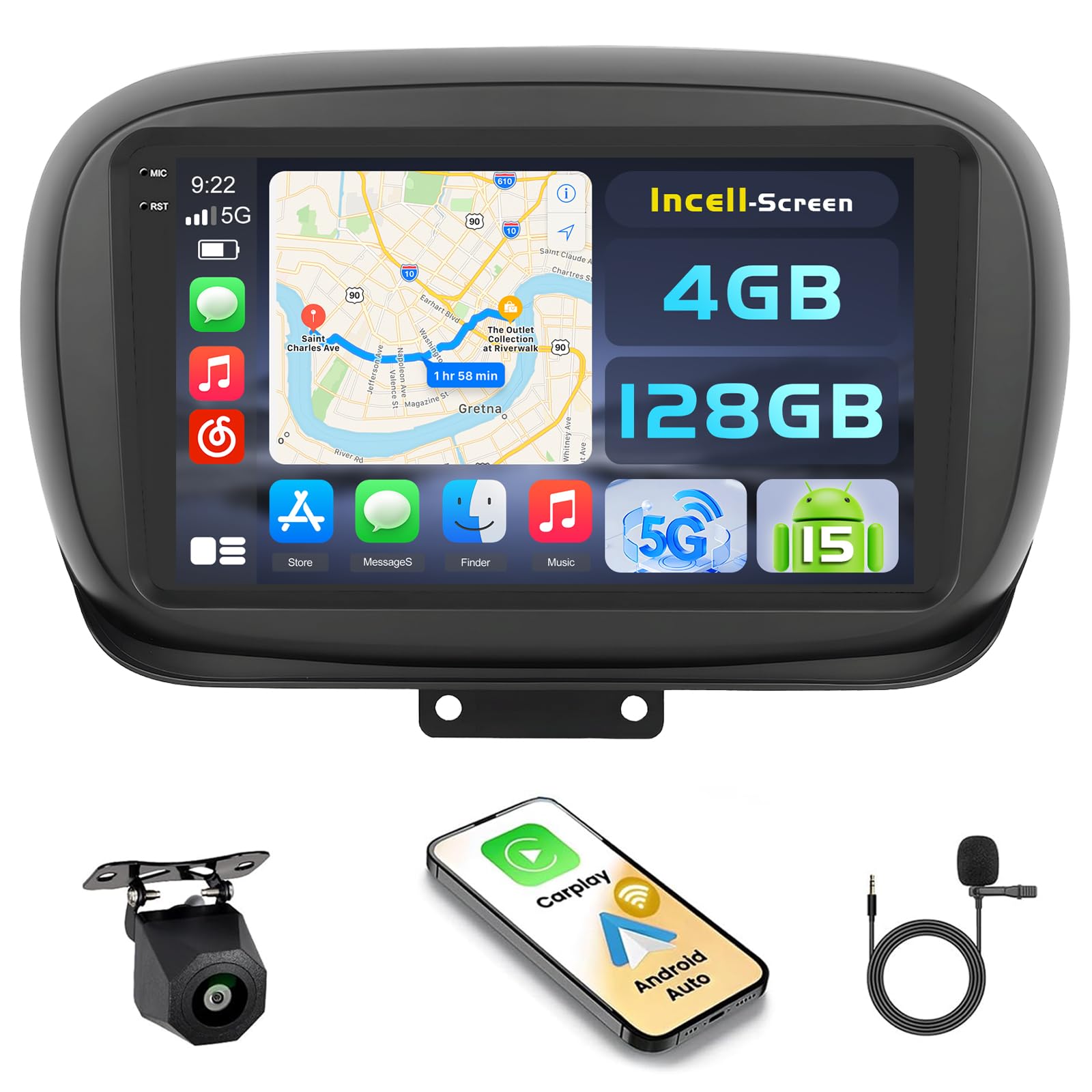
Figure 3.1: Before and After Installation in Fiat 500X. This image illustrates the visual upgrade provided by the Hikity car radio.

Figure 3.2: 1280P Incell Full Screen Technology. This graphic explains the display technology used in the car radio.
4. Setup and Installation
Professional installation is recommended. If performing self-installation, refer to vehicle-specific guides and diagrams. It is advisable to watch online video tutorials for Fiat 500X head unit upgrades to understand the process thoroughly.
4.1 Wiring Connections
- RCA Connectors: Connect various RCA plugs (e.g., Audio L/R) between the supplied cable harnesses. Do not connect these directly to the car's original wiring unless specified.
- USB Connection: Connect the gray micro-USB cable (for console USB port) using the provided 4-pin micro USB adapter.
- Antenna: Connect the car's white coaxial antenna cable to the provided antenna adapter.
- GPS Antenna: The car's original blue GPS antenna cable may not be compatible. Use the supplied GPS antenna and secure it in the installation slot under the dashboard for optimal signal reception.
- Power and Canbus: Connect the main power cable and Canbus box according to the provided wiring diagram. The Canbus system ensures proper communication with your vehicle's existing systems.
4.2 Initial Configuration
- Vehicle Type Selection: The device may come pre-configured for a generic Fiat model (e.g., Fiat Argo). Access the factory settings (refer to the provided code in the manual) and select "Jeep Renegade" as the vehicle type, as it shares technical similarities with the Fiat 500X.
- Rearview Camera Settings: If the rearview camera does not function initially, navigate to the settings menu. Change the image format to "Automatic" and ensure that the parking guidelines are activated.
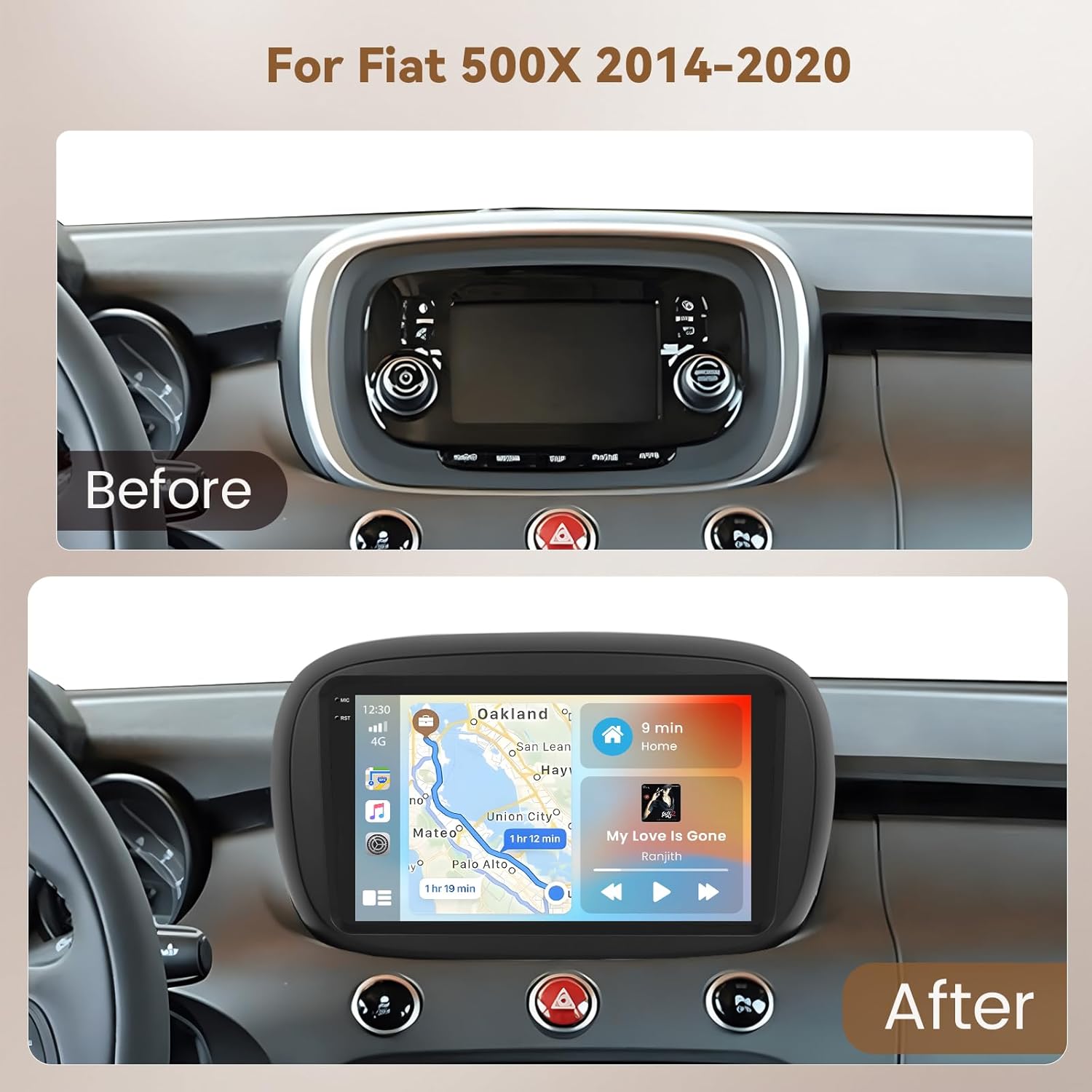
Figure 4.1: Rear Panel Connections. This image shows the various input and output ports on the back of the car radio unit.
5. Operating Instructions
5.1 Wireless CarPlay and Android Auto
Connect your iOS or Android smartphone wirelessly to access navigation, music, calls, and messages directly on the car radio's touchscreen. This feature allows for a safer and more integrated driving experience.
5.2 Bluetooth Hands-Free and Audio Streaming
Pair your mobile phone via Bluetooth 5.0 for crystal-clear hands-free calls and high-quality wireless music streaming. Access your phone book and manage calls directly from the unit.
5.3 GPS Navigation and Wi-Fi
Utilize the integrated GPS for reliable navigation. The system supports online maps with real-time traffic updates and allows for offline map usage. Connect to a Wi-Fi hotspot for internet access, streaming, app downloads, and map updates.
5.4 FM/RDS Radio and Digital Equalizer
Tune into FM/RDS radio stations for various broadcasts. Use the built-in digital equalizer to fine-tune audio settings, reduce distortion, and achieve optimal sound clarity across all audio sources.
5.5 Steering Wheel Control
Configure the steering wheel controls to manage volume, track playback, and answer/end calls without taking your hands off the wheel. Refer to the unit's settings for programming these controls.
5.6 Split-Screen Function
The split-screen feature allows you to run two applications simultaneously, such as navigation on one side and music playback on the other, enhancing multitasking capabilities.

Figure 5.1: Wireless CarPlay, Android Auto, and Mirror Link Interface. This image demonstrates the smartphone integration features.
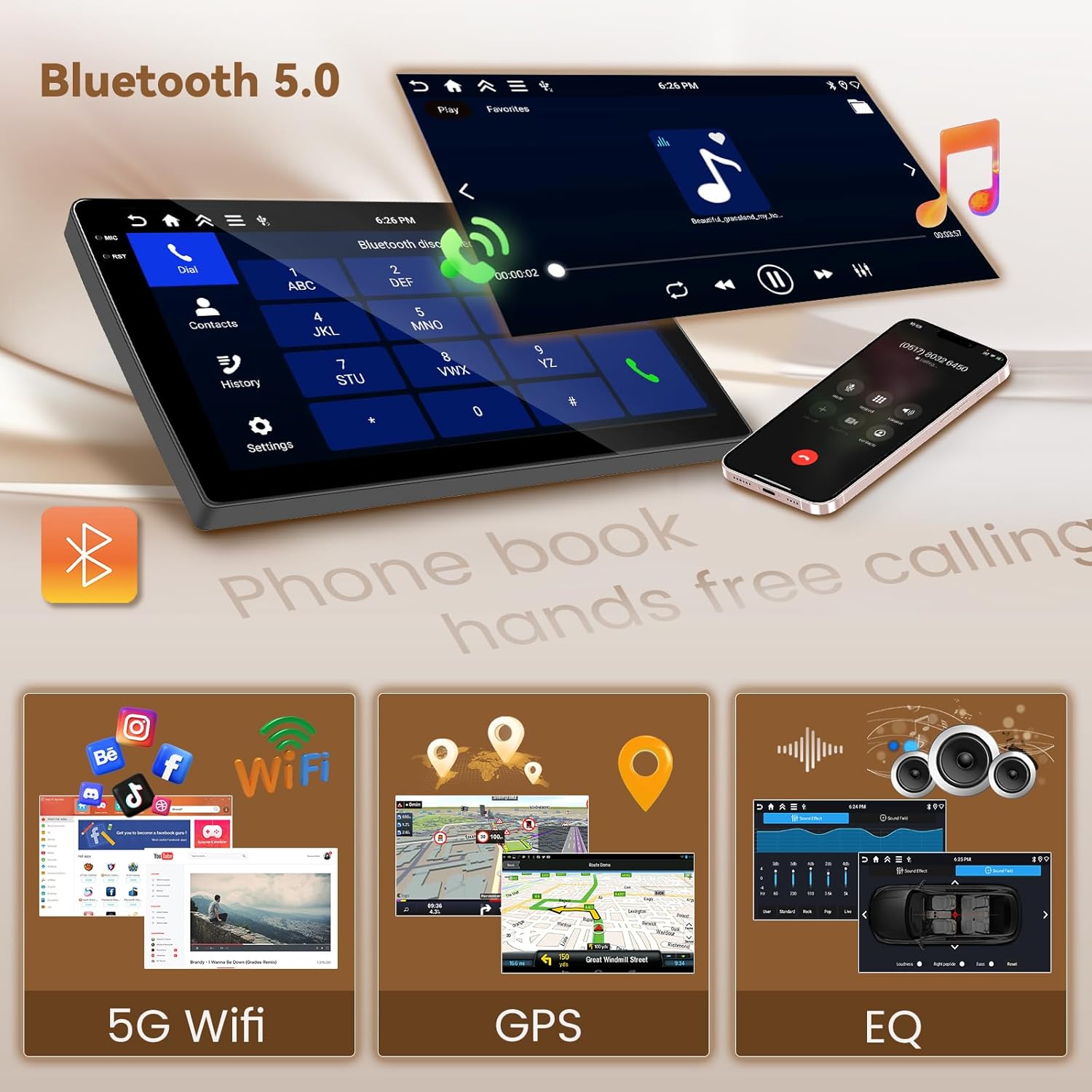
Figure 5.2: Bluetooth, WiFi, GPS, and EQ Features. This image highlights key connectivity and audio customization options.

Figure 5.3: Backup Camera, FM/RDS, Steering Wheel Control, and Split-Screen. This image illustrates additional operational features.
6. Maintenance
- Screen Cleaning: Use a soft, lint-free cloth to gently wipe the touchscreen. Avoid abrasive cleaners or solvents that could damage the display.
- Software Updates: Periodically check for software updates through the system settings to ensure optimal performance and access to new features. Connect to Wi-Fi for updates.
- General Care: Keep the unit free from dust and extreme temperatures. Ensure all connections are secure.
7. Troubleshooting
| Problem | Possible Cause / Solution |
|---|---|
| Poor Radio Reception | Ensure the antenna connection is secure. Check for obstructions or interference. Consider a stronger external antenna if issues persist. |
| Low or Unclear Microphone Audio | Verify the microphone is properly connected and positioned. Ensure no obstructions are blocking the microphone. Adjust microphone sensitivity in settings if available. |
| Wireless Android Auto / CarPlay Unstable | Ensure your phone's Wi-Fi and Bluetooth are enabled. Try connecting with a USB cable for a more stable connection if wireless issues persist. Check for software updates on both the car radio and your smartphone. |
| Rearview Camera Not Displaying | Check all camera wiring connections. In settings, ensure the image format is set to "Automatic" and that parking guidelines are enabled. Verify the camera is receiving power. |
| Unit Does Not Power On | Check power cable connections and vehicle's fuse box. Ensure the ignition is on. |
| Touchscreen Unresponsive | Restart the unit. Ensure the screen is clean and free of debris. If the issue persists, a factory reset might be necessary (note: this will erase all user data). |
8. Specifications
| Feature | Detail |
|---|---|
| Brand | Hikity |
| Model Number | A8036A3796A4MI2-63EU |
| Operating System | Android 15 |
| Memory (RAM + ROM) | 4GB RAM + 128GB ROM |
| Screen Size | 9 inches |
| Display Type | Incell Touchscreen |
| Connectivity Technology | USB, AHD, CVBS, Bluetooth, Wi-Fi |
| Bluetooth Version | 5.0 |
| Special Features | FM/RDS, GPS Navigation, Wireless CarPlay, Android Auto, Digital Equalizer, Split-Screen |
| Compatible Devices | Smartphones (iOS & Android) |
| Audio Output Mode | Stereo, 5.1 Surround Sound Configuration |
| Video Encoding Support | MKV, AVI, MP4 |
| Audio Format Support | AVI, WAV, WMA |
| Output Power | 45 Watts (per channel), 180 Watts (total) |
| Number of Channels | 4 |
| Control Method | Touch |
| Dimensions (D x W x H) | 20P x 29.5l x 4.5H cm (approx. 7.9 x 11.6 x 1.8 inches) |
| Weight | 2.31 Kilograms (approx. 5.1 lbs) |
| Country of Origin | China |
9. Warranty and Support
Your Hikity Car Radio comes with a 24-month warranty from the date of purchase. During this period, Hikity provides support for online inquiries and aims to respond within 24 hours.
For technical assistance, troubleshooting, or warranty claims, please contact Hikity customer support through the platform where you purchased the product or refer to the contact information provided in your purchase documentation.


