
1. Product Overview
The GOWENIC 48MP 1080P HD Compact Digital Camera is designed for ease of use, offering high-resolution photo and video capture in a portable form factor. It features a 2.0-inch TFT color screen, built-in fill light, 8X digital zoom, and additional functions like an MP3 player and games.

Image: Front view of the GOWENIC Compact Digital Camera in violet.
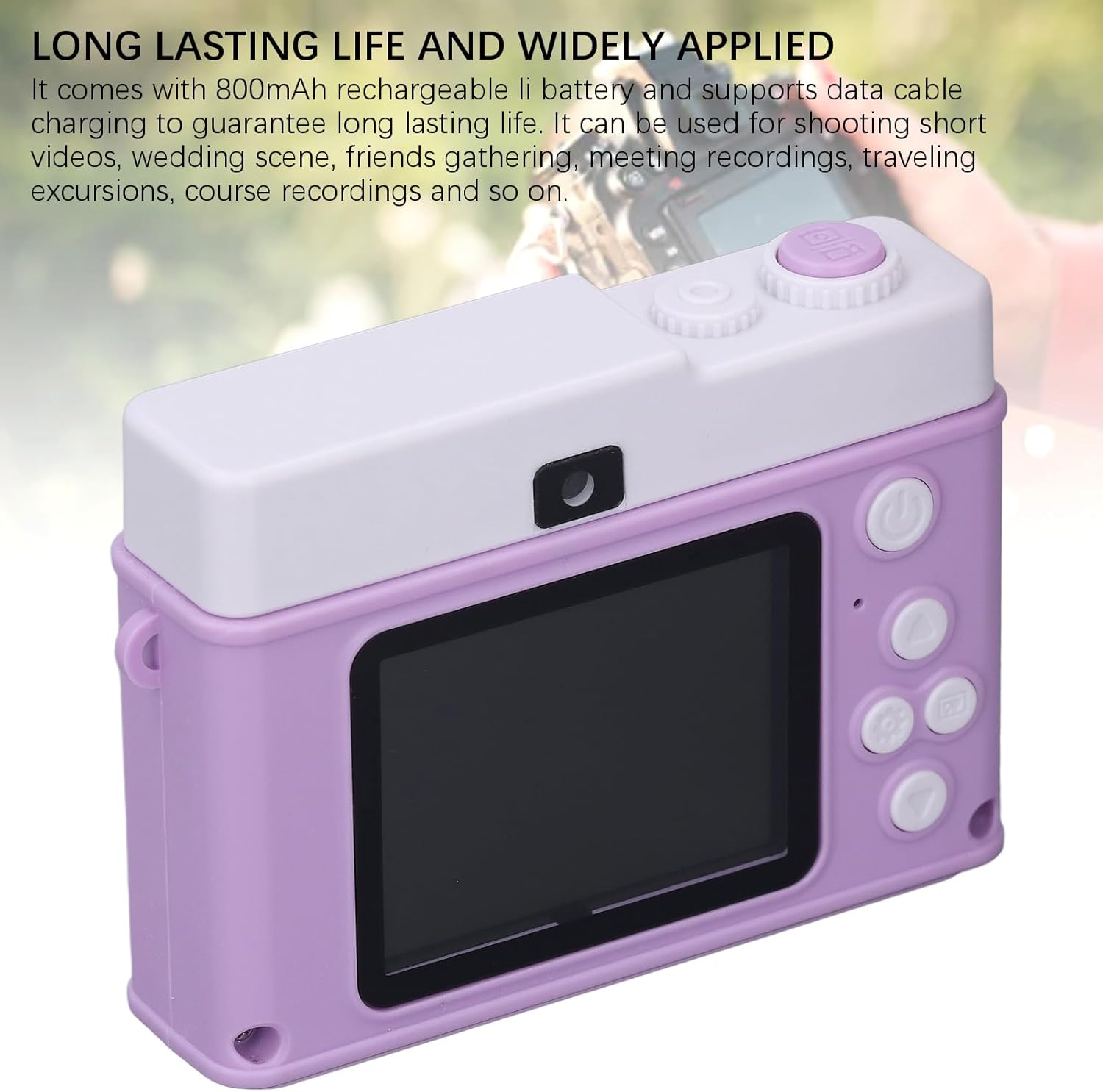
Image: Rear view of the GOWENIC Compact Digital Camera, highlighting the screen and control layout.
2. Setup
2.1 Charging the Battery
The camera is equipped with an 800mAh rechargeable lithium battery. Before first use, fully charge the battery.
- Connect the camera to a USB power source (e.g., computer, wall adapter) using the provided data cable.
- The charging indicator light will illuminate.
- Once fully charged, the indicator light will change or turn off. Charging typically takes 2-3 hours.
2.2 Inserting a Memory Card
A memory card (not included) is required to store photos and videos. The camera supports standard MicroSD cards.
- Locate the memory card slot on the side or bottom of the camera.
- Insert the MicroSD card with the metal contacts facing down until it clicks into place.
- To remove, gently push the card in until it springs out.
2.3 Initial Power On
Press and hold the power button (usually located on the top or back of the camera) for a few seconds until the screen illuminates.
3. Operating Instructions
3.1 Taking Photos
- Turn on the camera.
- Frame your shot using the 2.0-inch TFT HD color display.
- Press the Shutter button (typically on top) to capture the image.

Image: The camera's 2.0-inch TFT HD screen, which restores real colors for charming pictures.
3.2 Recording Videos
- Turn on the camera.
- Switch to video recording mode (refer to the camera's on-screen menu or mode button).
- Press the Shutter button to start recording. Press again to stop.

Image: The camera supports both 1080P video recording and 48MP photo capture.
3.3 Using the Fill Light
The built-in fill light improves scene lighting in low-light conditions.
- Activate the fill light via the camera's menu settings or a dedicated button (if available).
- The fill light helps record clearly even in low light environments and night scenes.

Image: The built-in fill light enhances visibility in dark environments.
3.4 8X Digital Zoom
The camera features an 8X digital zoom system to magnify distant subjects.
- While in photo or video mode, use the zoom buttons (often marked with 'W' for wide and 'T' for telephoto) to adjust the zoom level.
- The intelligent anti-shake function helps maintain image quality during zoomed shots.

Image: Visual representation of the 8X digital zoom capability.
3.5 MP3 Player and Games
The camera includes additional entertainment features.
- MP3 Player: Transfer MP3 audio files to the memory card. Access the MP3 player function through the camera's main menu to play music.
- Games: Select the game function from the menu to access built-in games.

Image: The camera offers built-in games and MP3 playback functionality.
3.6 Creative Functions
Enhance your photos and videos with various creative options:
- Stickers and Filters: Apply various stickers and filters directly from the camera's editing menu.
- Loop Recording: For video, enable loop recording to continuously record, overwriting the oldest files when the memory card is full.
- Timer Recording: Set a timer for photos or videos to allow time to get into position.
4. Maintenance
4.1 Cleaning the Camera
- Use a soft, dry cloth to clean the camera body.
- For the lens and screen, use a specialized lens cleaning cloth and solution to avoid scratches.
- Do not use harsh chemicals or abrasive materials.
4.2 Battery Care
- Avoid exposing the battery to extreme temperatures.
- Charge the battery regularly, even if the camera is not in use, to maintain its lifespan.
- If the camera will not be used for an extended period, store it with a partially charged battery (around 50%).
4.3 Storage
- Store the camera in a cool, dry place away from direct sunlight and moisture.
- Consider using a protective case to prevent dust and physical damage.
5. Troubleshooting
5.1 Camera Does Not Turn On
- Ensure the battery is fully charged.
- Check that the battery is inserted correctly.
- Try connecting the camera to a power source to see if it powers on while charging.
5.2 Images Are Blurry
- Ensure the lens is clean and free from smudges.
- Check lighting conditions; use the fill light in dim environments.
- Hold the camera steady when taking photos.
5.3 Cannot Record or Save Files
- Verify that a memory card is inserted and has sufficient free space.
- Ensure the memory card is not locked (check for a small lock switch on the card itself).
- Try formatting the memory card (this will erase all data, so back up first).
5.4 Battery Drains Quickly
- Reduce screen brightness.
- Disable unnecessary features like the fill light when not needed.
- Ensure the camera is fully powered off when not in use, not just in standby.
6. Specifications
| Feature | Specification |
|---|---|
| Model Number | GOWENICqgunb25txm-14 |
| Image Resolution | Up to 48MP |
| Video Resolution | 1080P HD |
| Screen | 2.0 Inch TFT Color Screen |
| Digital Zoom | 8X |
| Battery Capacity | 800mAh Li-ion |
| Special Features | Fill Light, MP3 Player, Games, Stickers, Filters, Loop Recording, Timer Recording |
| Item Weight | 4.1 ounces |
| Package Dimensions | 4.33 x 3.54 x 2.36 inches |
7. Warranty and Support
For warranty information and technical support, please refer to the documentation included with your purchase or contact GOWENIC customer service through the retailer's platform where the product was purchased. Please have your model number (GOWENICqgunb25txm-14) and purchase details ready when contacting support.