1. Introduction
Thank you for choosing the Generic Smart Pen. This digital stylus is designed to enhance your experience with compatible tablets, offering precise input, palm rejection, and convenient shortcut functions. Please read this manual carefully to ensure proper use and maintenance of your device.
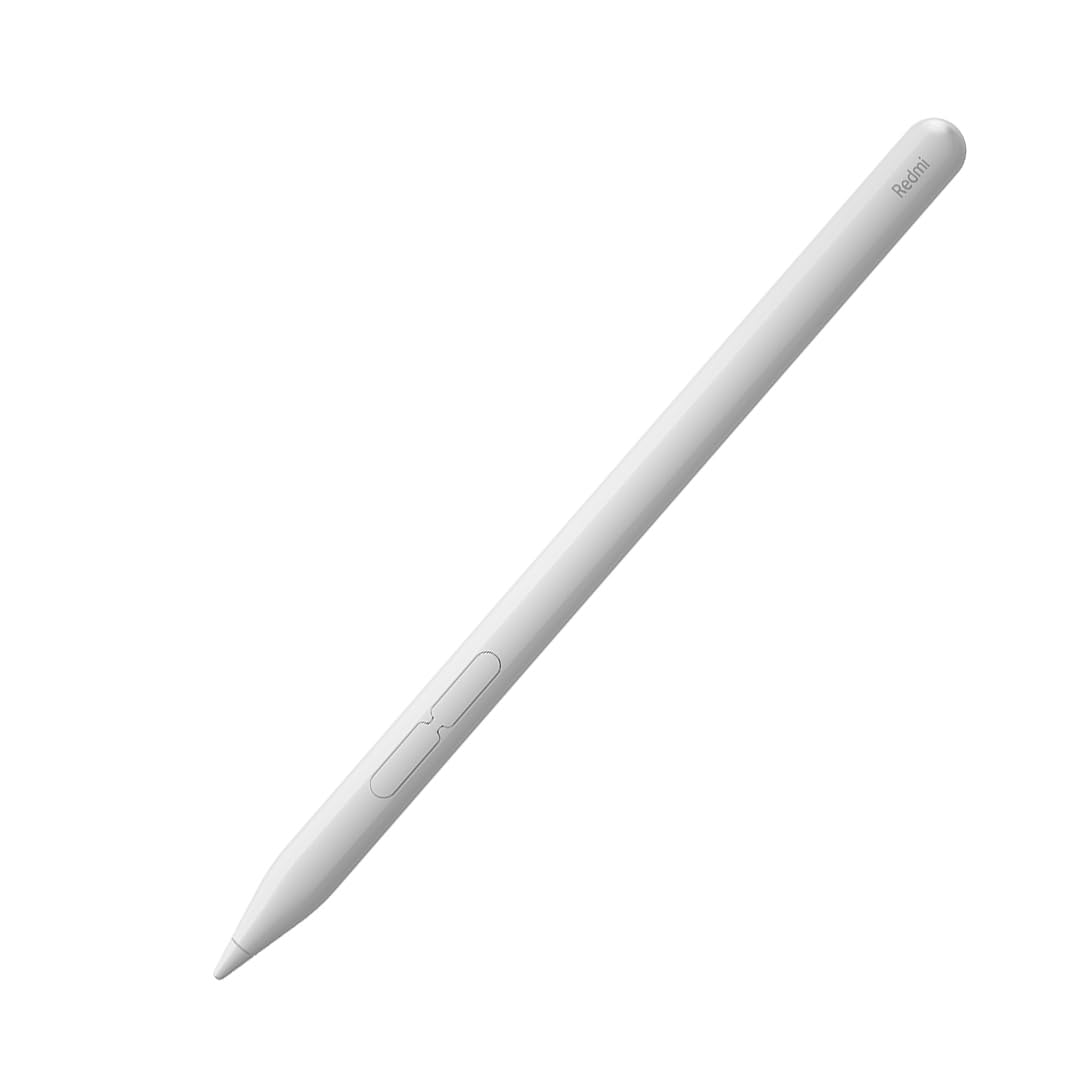
Image 1.1: The Generic Smart Pen. This image displays the sleek, white design of the smart pen, highlighting its minimalist aesthetic.
2. Product Features
- 4096 Pressure Sensitivity Levels: Allows for precise control over line thickness and shading.
- Palm Rejection Technology: Prevents unintended marks from your hand resting on the screen.
- Ultra-Low Latency: Provides a responsive and natural writing experience with a 5ms response time.
- Shortcut Keys: Integrated buttons for quick access to functions like writing, screenshot, and page navigation.
- Long Battery Life: Up to 12 hours of continuous writing on a single charge.
- Type-C Charging: Convenient and fast charging.
- Compatible Devices: Designed for Xiaomi Poco Pad and Redmi Pad Pro 12.1.

Image 2.1: Illustration of the pen's 4096 pressure sensitivity and palm rejection features. The image shows the pen being held with a hand resting on the tablet screen, indicating effective palm rejection.

Image 2.2: The smart pen shown in use with a tablet, illustrating its compatibility with various drawing applications and its role as an efficient tablet partner.
3. Setup
3.1 Charging the Smart Pen
Before first use, fully charge the smart pen. Connect the included Type-C charging cable to the pen's charging port and to a compatible USB power source. A full charge provides up to 12 hours of continuous writing. The pen can also be used while charging.

Image 3.1: A user working on a tablet with the smart pen, illustrating its 12-hour battery endurance and the ability to use it while charging.
3.2 Pairing with Your Tablet
- Ensure your compatible tablet (Xiaomi Poco Pad or Redmi Pad Pro 12.1) is powered on and Bluetooth is enabled.
- The smart pen typically pairs automatically when brought near the tablet or when first activated. If not, navigate to your tablet's Bluetooth settings.
- Look for "Smart Pen" or a similar device name in the list of available Bluetooth devices and select it to pair.
- Once paired, the pen is ready for use.
4. Operating Instructions
4.1 Basic Writing and Drawing
Hold the smart pen as you would a regular pen. The 4096 pressure sensitivity levels allow for varied line thickness and opacity depending on the pressure applied. The palm rejection feature ensures that only the pen's input is registered, allowing you to rest your hand comfortably on the screen.

Image 4.1: The smart pen in action, illustrating its ultra-low latency for seamless writing and drawing on a tablet screen.
4.2 Shortcut Key Functions
The smart pen features two integrated buttons for quick access to various functions:
- Main Key (Writing Button): Press and hold this button while touching the display to open Mi Canvas or switch brushes within compatible applications.
- Secondary Key (Screenshot Button): Press and hold this button while touching the display to quickly take a screenshot. In Mi Canvas, this button can be used to switch colors.
- Page Flipping: Either the Writing or Screenshot button can be tapped to scroll through documents or articles.

Image 4.2: A visual guide to the smart pen's multifunctional shortcut keys, detailing their uses for writing, taking screenshots, and flipping pages.

Image 4.3: A detailed close-up of the smart pen, showing the placement and design of its two shortcut buttons.
4.3 Write with Screen Off
To quickly capture inspiration, tap the display with the pen tip when the screen is off. This action will activate the display and reveal the full-screen canvas, allowing you to start writing or drawing instantly.
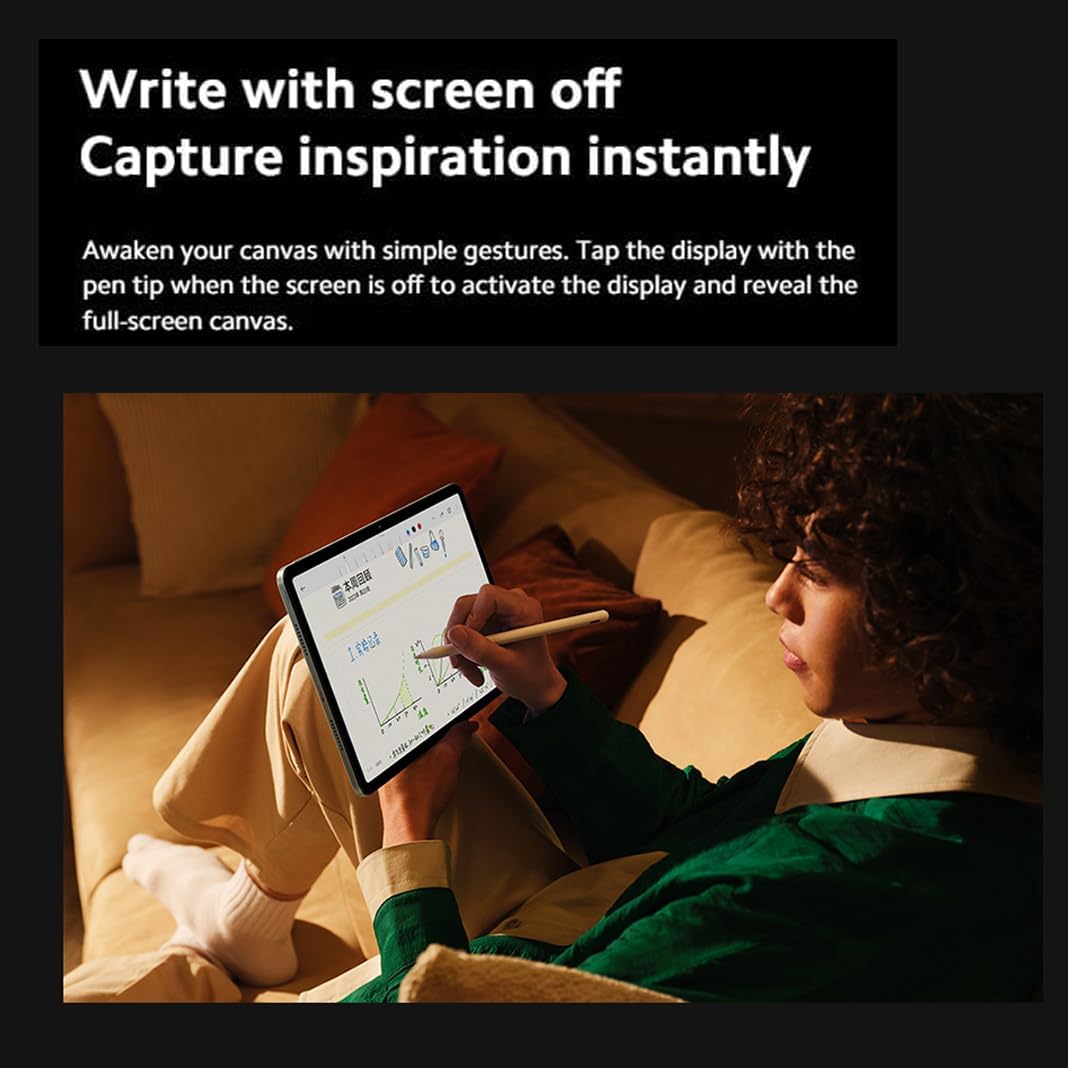
Image 4.4: A user demonstrating the 'Write with screen off' feature, instantly capturing notes or drawings on their tablet.
5. Maintenance
5.1 Cleaning
Wipe the smart pen with a soft, dry, lint-free cloth. Do not use abrasive cleaners, solvents, or aerosol sprays, as these may damage the pen's finish or internal components.
5.2 Storage
Store the smart pen in a cool, dry place away from direct sunlight and extreme temperatures. Avoid placing heavy objects on the pen or exposing it to strong magnetic fields.
5.3 Battery Care
To prolong battery life, avoid fully discharging the pen frequently. Charge the pen regularly, even if not in use for extended periods, to maintain battery health.
6. Troubleshooting
6.1 Pen Not Responding
- Check Battery: Ensure the pen is charged. Connect it to a power source and try again.
- Re-pair Device: Go to your tablet's Bluetooth settings and try disconnecting and re-pairing the smart pen.
- Restart Tablet: Sometimes, a simple tablet restart can resolve connectivity issues.
- Check Compatibility: Ensure your tablet model is compatible with this smart pen (Xiaomi Poco Pad, Redmi Pad Pro 12.1).
6.2 Inaccurate Input or Lag
- Clean Screen and Pen Tip: Dust or debris on the screen or pen tip can affect accuracy.
- Check for Interference: Strong electromagnetic fields nearby can cause interference.
- Update Software: Ensure your tablet's operating system and drawing applications are up to date.
7. Specifications
| Feature | Specification |
|---|---|
| Brand | Generic |
| Manufacturer | EndyTech |
| ASIN | B0DTZ3NG11 |
| Color | Smart Pen Only (White) |
| Material | Conductive Material |
| Pressure Sensitivity | 4096 Levels |
| Palm Rejection | Yes |
| Response Time | 5 milliseconds |
| Activation Force | 10g |
| Battery Life (Continuous Writing) | 12 Hours |
| Charging Type | Type-C |
| Compatible Devices | Xiaomi Poco Pad, Redmi Pad Pro 12.1 |
| Minimum OS Required | Android 12L |
8. Warranty and Support
For warranty information or technical support, please refer to the documentation provided with your purchase or contact the seller directly. Keep your proof of purchase for any warranty claims.