
Inefala 2G+64G Poste Radio
Inefala 2+64G 9-inch Android 15 Car Radio User Manual
Model: 2G+64G Poste Radio for Hyundai i20 (2008-2012)
1. Introduction
This manual provides detailed instructions for the installation, operation, and maintenance of your Inefala 2+64G 9-inch Android 15 Car Radio. Please read this manual thoroughly before installation and use to ensure proper function and safety. This device is designed specifically for Hyundai i20 models manufactured between 2008 and 2012.
2. Vehicle Compatibility
This car radio is compatible with Hyundai i20 models from 2008 to 2012. Ensure your vehicle's dashboard matches the compatible configuration shown below before proceeding with installation.

Image: Dashboard compatibility for Hyundai i20 (2008-2012). The image displays a compatible dashboard layout with a green checkmark and two incompatible layouts with red crosses, indicating which original car stereo configurations are suitable for this product.
3. Package Contents
Verify that all items listed below are included in your package:
- Inefala 9-inch Android 15 Car Radio for Hyundai i20
- Power Cable
- RCA Cable
- GPS Antenna
- Rear Camera Input Cable
- AHD Emergency Camera (Rear View Camera)
- External Microphone
- 2 x USB Cables
- Installation Tools
- Accessories (specific small parts for installation)

Image: Port Details and Package List. This diagram illustrates the main wiring harness connections and a visual representation of all components included in the package, such as the power cable, USB cables, GPS antenna, and AHD rear camera.
4. Setup and Installation
Professional installation is recommended. Incorrect wiring can damage the unit or your vehicle. Ensure the vehicle's battery is disconnected before starting installation.
4.1. General Wiring
Connect the main power cable harness to the corresponding ports on the car radio and your vehicle's wiring. Ensure all connections are secure.
4.2. Rear View Camera Connection
The car stereo includes an AHD rear view camera for enhanced safety during reversing. Proper connection is crucial for its functionality.
- Red Cable (1): Connects to the positive terminal of the car's reverse light cable.
- Black Cable (2): Connects to the negative terminal of the car's reverse light cable.
Note: The reverse input cable must be plugged in even if the reverse camera is not being used. Otherwise, it may affect Bluetooth and WiFi signal reception.

Image: How to Connect the Backup Camera. This diagram illustrates the wiring connections for the AHD rear view camera, showing how to connect the red and black cables to the vehicle's reverse light system.
4.3. Steering Wheel Control (SWC)
The unit supports steering wheel controls for convenient operation.
- Without CANBUS Decoder: Connect the plugs or the steering wheel control wires (Key1/Key2) in the power cable to the corresponding port or wire of your original car. Then, navigate to "SWC manual match" in the radio settings to activate the button function.
- With CANBUS Decoder: Connect the CANBUS decoder before powering on the radio. Then, follow this path: Car Settings > Factory (000000) > CarType Setting to make SWC work properly. First, select the brand of the CANBUS decoder, then select the matching model and year according to the actual situation.

Image: Steering Wheel Control. This image displays the car radio's interface for configuring steering wheel controls and provides a visual of the wiring connections for SWC functionality.
5. Operating Instructions
5.1. Android System and Storage
The radio operates on the Android 15 system, providing a smooth and responsive user experience. With 2GB of RAM and 64GB of internal storage, you have ample space for applications, music, and videos.
5.2. Wireless CarPlay / Android Auto & Mirror Link
Connect your smartphone wirelessly via WiFi or USB cable to access CarPlay or Android Auto. This allows you to use navigation, music, calls, and other apps directly on the radio's screen. The Mirror Link function projects your phone's screen onto the car stereo.

Image: Wireless CarPlay and Android Auto. This image shows the car radio display with the CarPlay interface, featuring app icons for YouTube, Spotify, Phone, Messages, Waze, and TikTok, along with a visual representation of Bluetooth and wireless connectivity.
5.3. GPS & WiFi Navigation
The unit supports both online and offline GPS navigation. Connect to a WiFi network to download maps, stream videos, music, and access other online applications.

Image: WiFi Connection and GPS Navigation. The top panel shows the WiFi connection interface, allowing the user to browse online content. The bottom panel displays the GPS navigation interface with a map and speed limit information.
5.4. Bluetooth & FM RDS Radio & EQ
- Bluetooth: Pair your phone via Bluetooth to stream music, make hands-free calls, and transfer files.
- FM RDS Radio: Tune into your favorite FM radio stations with RDS (Radio Data System) support for station information.
- EQ (Equalizer): Customize your audio experience with the built-in equalizer to adjust sound frequencies to your preference.
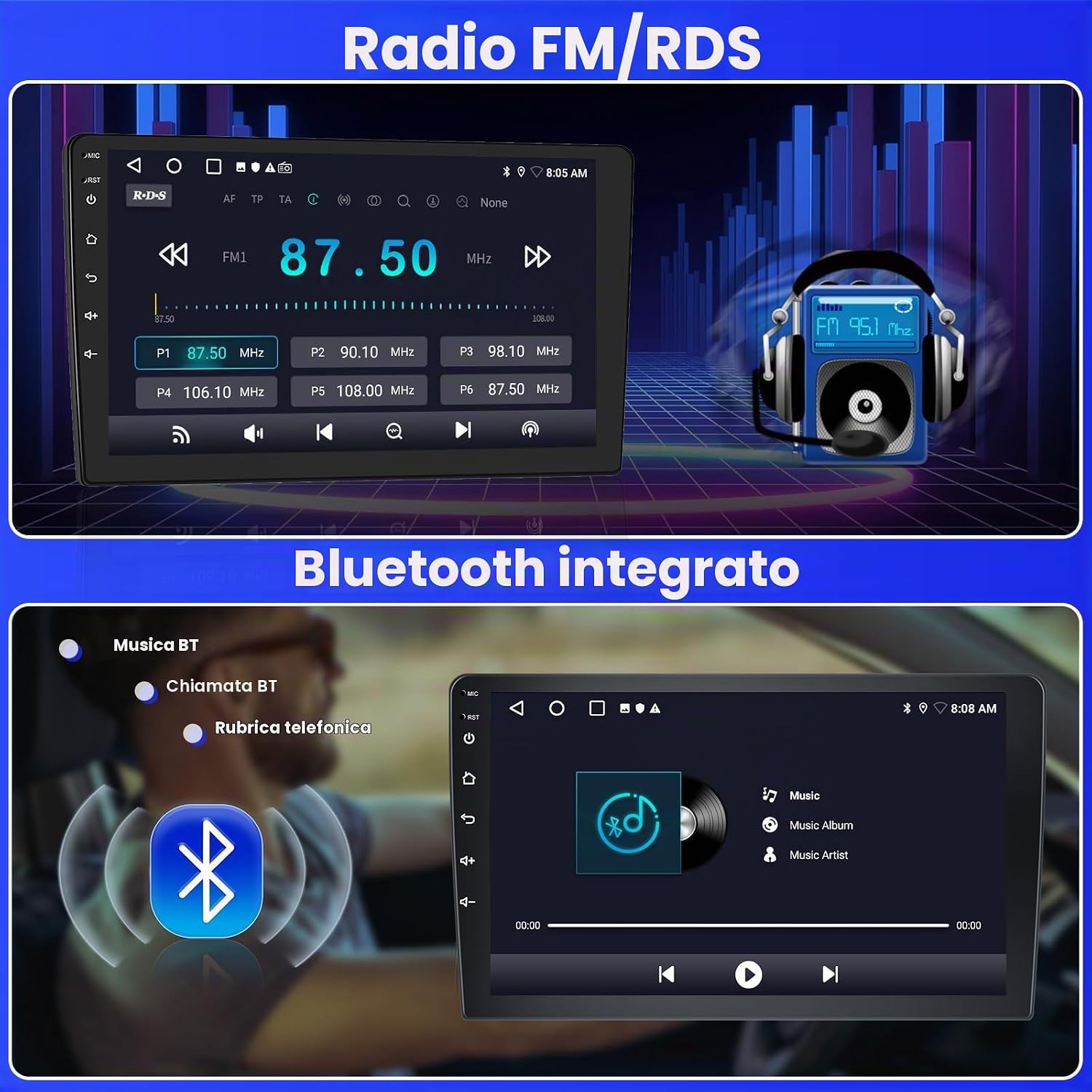
Image: FM/RDS Radio and Integrated Bluetooth. The top panel shows the FM radio interface with station frequencies and RDS information. The bottom panel displays the Bluetooth music playback screen, indicating a connected device and music controls.
5.5. Split Screen Function
The 9-inch screen supports a split-screen function, allowing you to run and view two applications simultaneously. For example, you can have navigation on one side and music playback on the other.

Image: DSP, Split Screen, and 26 UI Themes. This image illustrates the Digital Sound Processor (DSP) settings, the split-screen feature displaying navigation and music concurrently, and a selection of the 26 available user interface themes for personalization.
5.6. User Interface Themes
Personalize your car radio's appearance with 26 different user interface themes available in the settings menu.
6. Maintenance
- Cleaning: Use a soft, dry cloth to clean the screen and exterior. Avoid abrasive cleaners or solvents.
- Software Updates: Periodically check for software updates through the system settings to ensure optimal performance and access to new features.
- Temperature: Avoid exposing the unit to extreme temperatures.
7. Troubleshooting
| Issue | Possible Cause | Solution |
|---|---|---|
| No Power | Incorrect wiring; Blown fuse; Vehicle battery low. | Check power connections; Inspect and replace fuses; Check vehicle battery. |
| No Sound | Speaker wires disconnected; Volume too low; Mute activated. | Verify speaker connections; Increase volume; Deactivate mute function. |
| GPS Signal Loss | GPS antenna obstructed or disconnected; Poor satellite reception. | Ensure GPS antenna is properly connected and has a clear view of the sky; Move to an open area. |
| Rear Camera Not Displaying | Camera wiring incorrect; Reverse gear not detected; Camera faulty. | Check camera power and video input connections; Ensure reverse gear is engaged; Test camera functionality. |
| Bluetooth/WiFi Connectivity Issues | Incorrect pairing; Signal interference; Module error. | Re-pair device; Ensure no obstructions; Restart the radio. |
8. Specifications
| Feature | Detail |
|---|---|
| Brand | Inefala |
| Model Name | 2G+64G Poste Radio |
| Screen Size | 9 Inches |
| Operating System | Android 15 |
| Memory (RAM) | 2GB |
| Storage (ROM) | 64GB |
| Special Features | Wireless CarPlay, Android Auto, Mirror Link, Bluetooth, EQ, WiFi, GPS, Steering Wheel Control (SWC), 26 UI Themes |
| Connectivity Technology | Bluetooth, USB, Wi-Fi |
| Map Type | Roads (Online/Offline) |
| Audio Output Mode | APE/FLAC/WAV/MP3/WMA |
| Mounting Type | Mountable |
| Compatible Devices | Smartphone |
| Control Method | Touch |
| Supported Satellite Navigation | GPS |
| Compatible Flash Memory Type | SD |
| Manufacturer | Inefala |
| Country of Origin | China |
9. Warranty and Support
9.1. Product Warranty
This Inefala product comes with a 24-month warranty from the date of purchase, covering manufacturing defects and malfunctions under normal use.
9.2. Technical Support
For any technical assistance, questions, or issues, Inefala provides lifetime online consultation support. Our support team aims to respond to inquiries within 24 hours.
To contact support, please refer to the seller's contact information on the platform where you purchased the product.
Ask a question about this manual
Ask about setup, troubleshooting, compatibility, parts, safety, or missing instructions. Manuals+ will review the question and use this page’s manual context to help answer it.