
XIXIMENG R36S
XIXIMENG R36S Retro Handheld Game Console User Manual
Model: R36S
Brand: XIXIMENG
Introduction
This manual provides comprehensive instructions for the setup, operation, maintenance, and troubleshooting of your XIXIMENG R36S Retro Handheld Game Console. The R36S is a portable gaming device designed to deliver a wide range of classic gaming experiences. It features a 3.5-inch IPS screen, a powerful RK3326 chip, and a 3500mAh battery for extended gameplay.

Image: The R36S Retro Handheld Game Console in transparent blue, showcasing its screen displaying a game and included accessories like a USB-C charging cable and TF card.
What's in the Box
Upon unboxing your R36S Retro Handheld Game Console, please verify that all the following items are included:
- R36S Handheld Game Console
- Type-C Charging Cable
- TF Card (pre-installed or included separately)
- User Manual (this document)
Product Overview
Familiarize yourself with the various components and controls of your R36S console.

Image: Diagram illustrating the key functions and ports of the R36S console, including power, reset, volume keys, joysticks, D-pad, action buttons, and TF card slots.
Control Layout:
- Power Button: Located on the top left.
- Reset Button: Small recessed button, typically requires a pin to press.
- Volume Keys: Up and Down buttons for audio adjustment.
- Left Joystick (L3): For directional control.
- Right Joystick (R3): For directional control or camera movement.
- D-Pad (Directional Pad): For precise directional input.
- Action Buttons (A, B, X, Y): For in-game actions.
- Select Button: Typically used for menu selections.
- Start Button: Typically used to start games or pause.
- Shoulder Buttons (R1, R2, L1, L2): Located on the back/top of the device for additional in-game controls.
- TF1 (OS) Slot: For the operating system MicroSD card.
- TF2 (Game) Slot: For the game library MicroSD card.
- DC Port: For charging the device.
- OTG Interface: For connecting external peripherals.
- 3.5mm Interforce: Headphone jack.
Setup
1. Initial Charging:
Before first use, fully charge the R36S console. Connect the provided Type-C charging cable to the DC port on the device and the other end to a compatible USB power adapter (not included). The charging indicator will typically show the charging status and turn off or change color when fully charged. A full charge provides up to 8 hours of battery life.
2. Inserting TF Cards:
The R36S uses two TF (MicroSD) card slots. TF1 is designated for the operating system, and TF2 is for game storage. Ensure both cards are properly inserted into their respective slots before powering on the device. The 64GB model typically comes with over 20,000 games pre-loaded on the game TF card.
3. Powering On:
Press and hold the Power button located on the top left of the console until the screen illuminates and the system starts.
Operating Instructions
1. System Navigation:
Use the Left Joystick or the D-Pad to navigate through the system menus and game lists. The A button typically confirms selections, and the B button usually cancels or goes back.
2. Game Selection and Launch:
Browse through the available emulators and game titles. Select a game using the A button to launch it. The console supports up to 21 different emulators.
3. In-Game Functions:
- Save Game: Press Select Button + L1/R1 simultaneously.
- Load Game: Press Select Button + L1/R1 simultaneously.
- Pause Game: Press Select Button + A simultaneously.
- Exit Game: Press Select Button + Start Button simultaneously.
- Restart Game: Press Select Button + B simultaneously.
4. Adjusting Brightness:
To adjust screen brightness, press Select Button + Up/Down on the D-Pad. The 3.5-inch IPS screen has a resolution of 640x480.
5. Volume Control:
Use the dedicated Volume Up and Volume Down buttons to adjust the audio output.
6. External Connectivity:

Image: Diagram showing how to connect the R36S to an external display and gamepad using OTG adapters.
- External Display: Connect an OTG adapter to the OTG port, then use a compatible cable to connect to a large screen output device.
- External Gamepad: Connect an OTG adapter to the OTG port, then connect a compatible gamepad for alternative control.
- WiFi Connection: The device supports WiFi connectivity. You may need to provide your own Type-C Wi-Fi receiver to utilize this feature for functions like game loading or online features.

Image: Illustration highlighting the R36S's support for WiFi connection, enabling features like collecting, searching, archiving, and loading games.
Maintenance
1. Cleaning:
Keep the console clean by using a soft, dry cloth. Avoid using harsh chemicals, abrasive cleaners, or solvents, as these may damage the screen or the body of the console.
2. Battery Care:
To ensure the longevity of the 3500mAh lithium-ion battery, use the original USB Type-C cable or a high-quality compatible cable for charging. Avoid overcharging or completely draining the battery frequently.
3. Storage:
Store the console in a cool, dry place away from direct sunlight and extreme temperatures. Avoid exposing the device to moisture or dust.
Troubleshooting
If you encounter any issues with your R36S console, please refer to the following common solutions:
- Console not powering on: Ensure the battery is sufficiently charged. Connect the console to a charger and wait a few minutes before attempting to power it on again.
- Screen issues (no display, flickering): Check if the console has sufficient power. Try restarting the device using the Reset button (requires a pin).
- Games not loading or freezing: Ensure the game TF card (TF2) is properly inserted. If issues persist, the game file or TF card may be corrupted.
- Controls unresponsive: Check for any physical obstructions. If the issue is intermittent, try restarting the console.
- Sound issues: Verify the volume settings using the volume keys. Check if headphones are properly connected if in use.
For persistent problems or issues not covered here, please contact customer support for assistance.
Specifications

Image: Illustration detailing the RK3326 professional gaming chip, highlighting its powerful performance and quick operation.
| Feature | Detail |
|---|---|
| Model Number | R36S |
| Processor | RK3326 Chip, ARM 64-bit quad-core Cortex-A35 CPU (up to 1.5GHz) |
| Screen Size | 3.5 Inches IPS OCA fully laminated MIPI screen |
| Resolution | 640x480 pixels |
| Memory Storage Capacity | 64 GB (via TF card) |
| Battery | 3500mAh Lithium-Ion |
| Battery Life | Up to 8 hours |
| Controller Type | Dual 3D Joysticks, D-Pad, Action Buttons, Shoulder Buttons (L1/L2/R1/R2) |
| Form Factor | Handheld |
| Material | Plastic |
| Product Dimensions | 4.1 x 1.8 x 6.5 inches |
| Manufacturer | XIXIMENG |
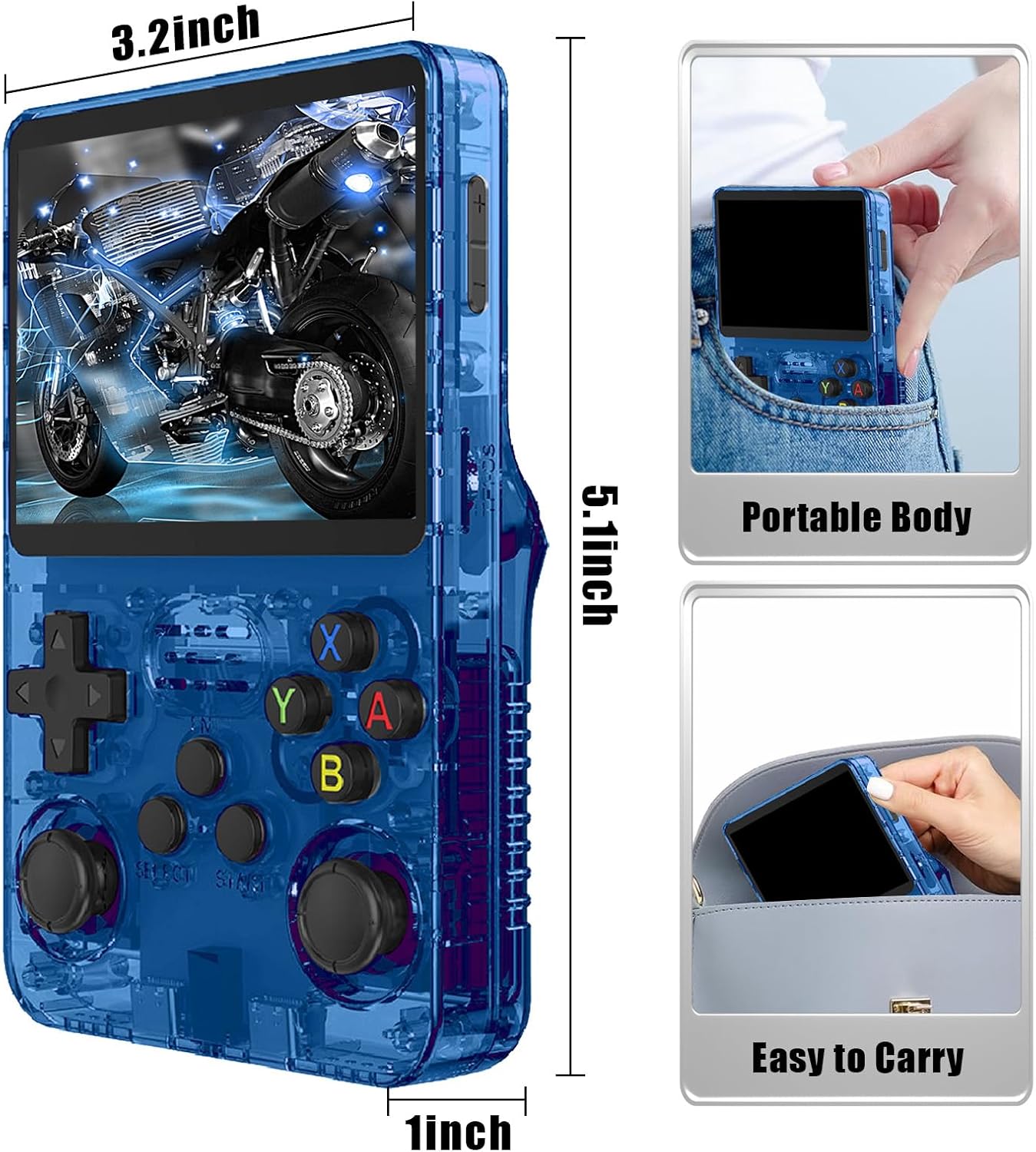
Image: Visual representation of the R36S console's dimensions (3.2 inches width, 5.1 inches height, 1 inch thickness) and its portable design, fitting easily into a pocket or bag.
Safety Information
Please read and follow these safety guidelines to ensure safe operation and prolong the life of your device:
- Avoid exposing the console to extreme temperatures (hot or cold) or direct sunlight for extended periods, as this can negatively affect performance and battery lifespan.
- When charging, always use the original USB Type-C cable or a high-quality, compatible cable to ensure safe and efficient charging.
- Keep the console away from water and other liquids. Do not operate the device with wet hands.
- Do not attempt to disassemble, repair, or modify the console yourself. This can void the warranty and cause damage.
- Keep the device out of reach of small children to prevent accidental ingestion of small parts.
Warranty and Support
XIXIMENG offers a one-year return service for the R36S Retro Handheld Game Console. You may request a refund at any time if you are not satisfied with the product. The product also comes with a lifetime worry-free warranty.
If you encounter any problems during use, please contact customer support. We aim to respond and resolve issues within 12 hours.
Ask a question about this manual
Ask about setup, troubleshooting, compatibility, parts, safety, or missing instructions. Manuals+ will review the question and use this page’s manual context to help answer it.