
1. Introduction
This manual provides detailed instructions for the installation, operation, and maintenance of your Inefala 9-inch Android Car Radio. Please read this manual thoroughly before using the product to ensure proper function and safety. This device is designed specifically for Hyundai i20 models from 2015 to 2018.

Figure 1: Inefala 9-inch Android Car Radio and accessories.
2. Safety Information
- Professional Installation Recommended: Due to the complexity of car audio systems, professional installation is highly recommended to prevent damage to the vehicle or the product.
- Power Disconnection: Always disconnect the vehicle's battery before beginning any installation or wiring work.
- Wiring: Ensure all wiring is correctly connected according to the wiring diagram. Incorrect wiring can cause damage or fire.
- Driving Safety: Do not operate the device in a way that distracts you from driving. Always prioritize road safety.
- Temperature: Avoid exposing the device to extreme temperatures or direct sunlight for prolonged periods.
3. Product Features
The Inefala Android Car Radio offers a range of advanced features for an enhanced in-car experience:
- Android System (2GB RAM + 64GB ROM): Provides powerful and stable processing with ample storage for applications.
- Wireless Carplay/Android Auto: Seamless smartphone integration for navigation, calls, messages, and music.
- Mirror Link: Display your smartphone screen directly on the car radio's display via USB or Wi-Fi.
- 9-inch Touchscreen: Large display for clear visibility and easy interaction.
- GPS Navigation: Supports online and offline maps, with access to navigation apps via Wi-Fi.
- Wi-Fi Connectivity: Download apps, music, and videos, and access online content.
- Bluetooth: For hands-free calling, music streaming, and file transfer.
- FM/RDS Radio: Enjoy your favorite radio stations with clear reception and RDS information.
- EQ (Equalizer): Customize audio output for an optimized listening experience.
- 26 User Interface Themes: Personalize the display's appearance.
- Steering Wheel Control (SWC): Integrate with your vehicle's existing steering wheel controls.
- Dual USB Input: For connecting external devices.
- Split Screen Functionality: View and operate two applications simultaneously.
- DSP (Digital Sound Processor): 4 x 45W audio output with adjustable sound effects.
4. Setup and Installation
4.1. Pre-Installation Overview
Before installation, ensure you have all necessary tools and components. It is recommended to compare the new unit with your original car radio to understand the fitment.
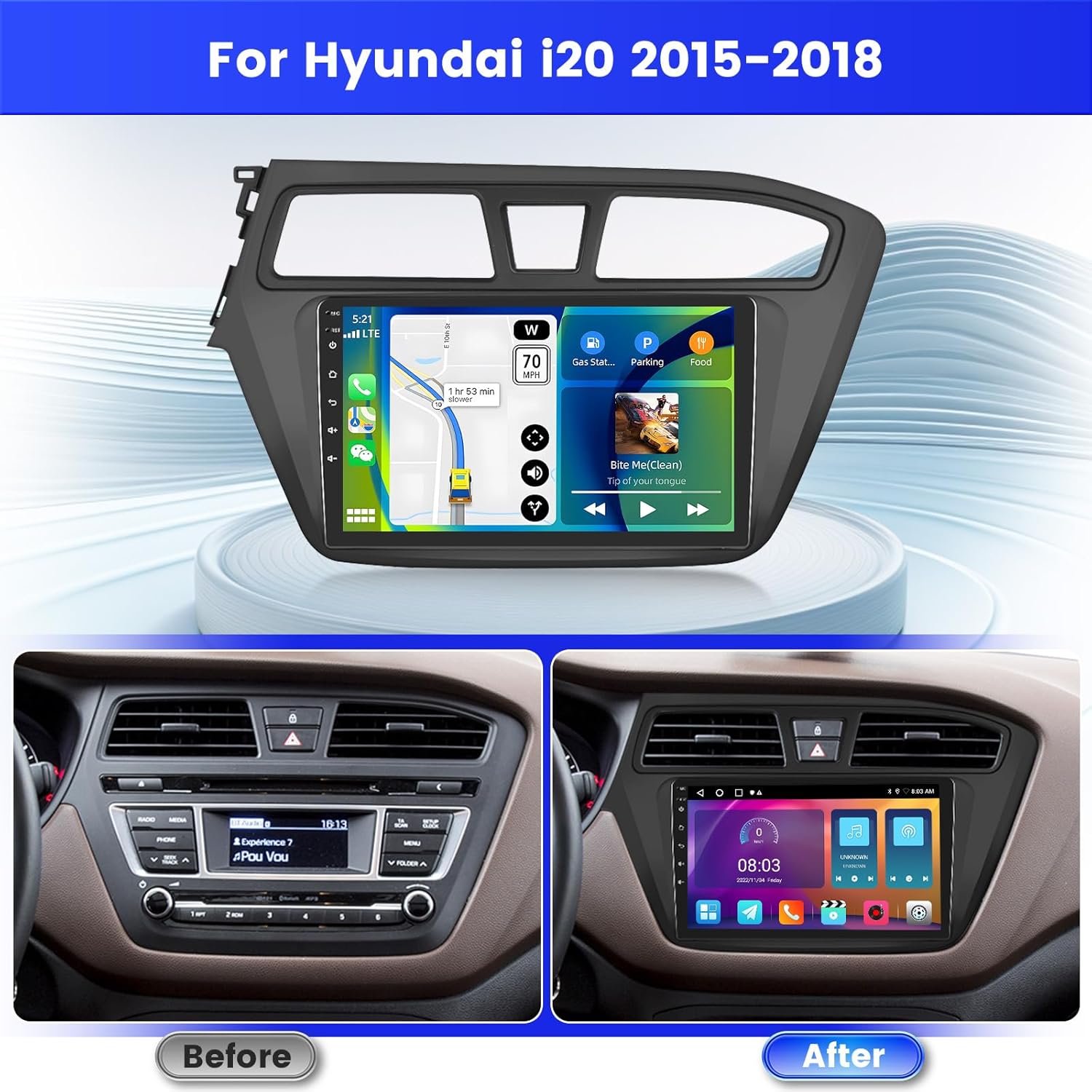
Figure 2: Before and After Installation in a Hyundai i20 (2015-2018).
4.2. Reversing Camera Wiring
The reversing camera input cable must be connected, even if a reverse camera is not currently in use, to avoid affecting Bluetooth and Wi-Fi signal reception.
- Red Cable (①): Connects to the positive terminal of the car's reverse light cable.
- Black Cable (②): Connects to the negative terminal of the car's reverse light cable.
- The other two red extension cables (③ and ④) do not need to be connected.

Figure 3: Reversing Camera Wiring Diagram.
The backup camera offers HD resolution, waterproof design, 170° wide-angle view, and night vision capabilities.
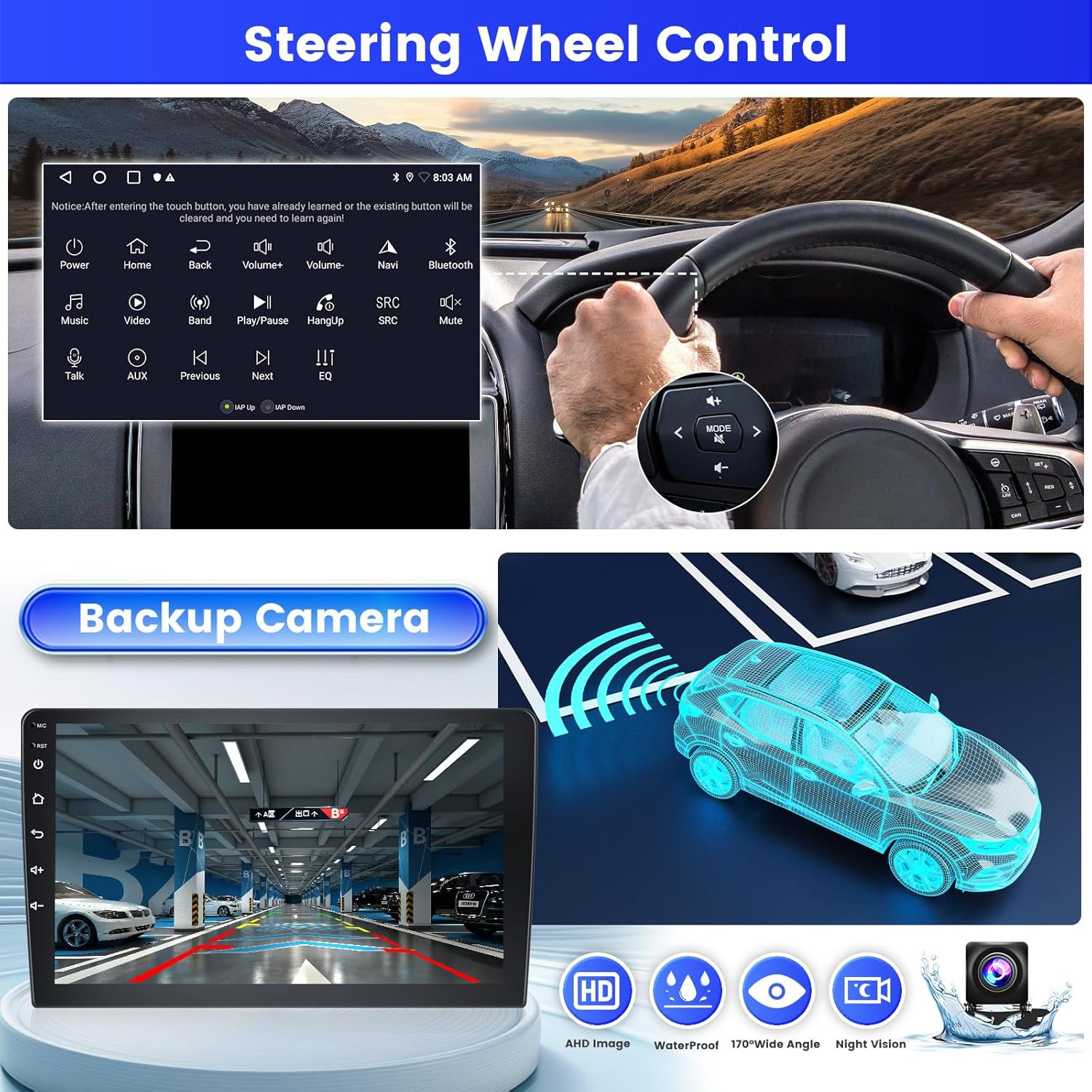
Figure 4: Backup Camera Functionality.
5. Operating Instructions
5.1. Wireless Carplay / Android Auto / Mirror Link
Connect your smartphone to the device via USB cable or Wi-Fi to utilize Wireless Carplay, Android Auto, or Mirror Link functionalities. This allows you to access phone features like calls, messages, music, and navigation directly from the car radio display.

Figure 5: Wireless Carplay and Android Auto Interface.

Figure 6: Carplay, Android Auto, and Mirror Link Overview.
5.2. GPS Navigation and Wi-Fi
The unit supports GPS navigation with pre-installed maps and allows for downloading online navigation applications via Wi-Fi. Connect to a Wi-Fi network to access online content, download apps, music, and videos.
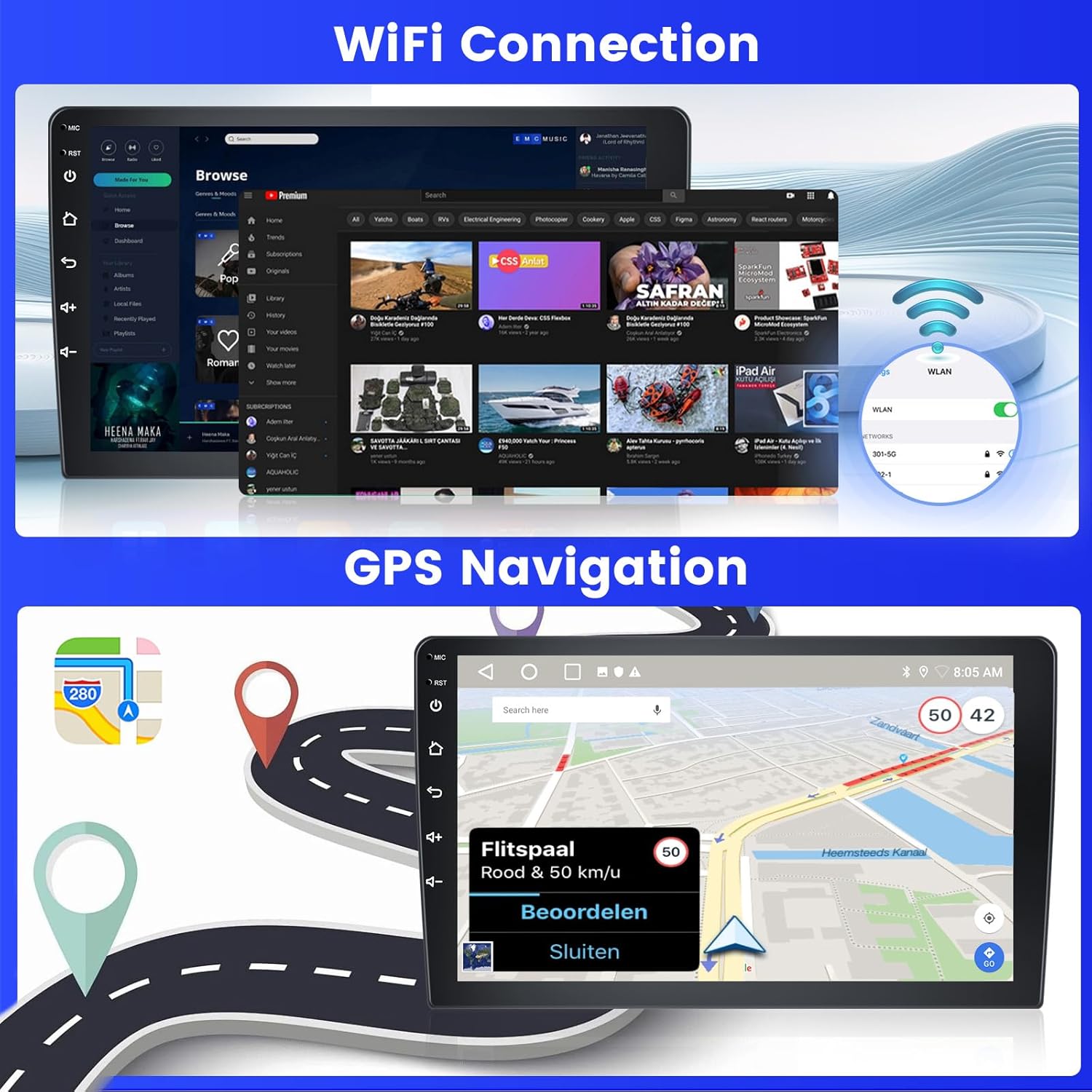
Figure 7: Wi-Fi Connectivity and GPS Navigation.
5.3. FM/RDS Radio and Bluetooth
Tune into FM radio stations. The RDS (Radio Data System) feature provides additional information like station name and song titles where available. Connect your phone via Bluetooth for hands-free calls, music streaming, and contact synchronization.

Figure 8: FM/RDS Radio and Bluetooth Functions.
5.4. Audio Settings (DSP & EQ)
Utilize the built-in Digital Sound Processor (DSP) and Equalizer (EQ) to fine-tune your audio experience. Adjust sound effects and balance for optimal listening.
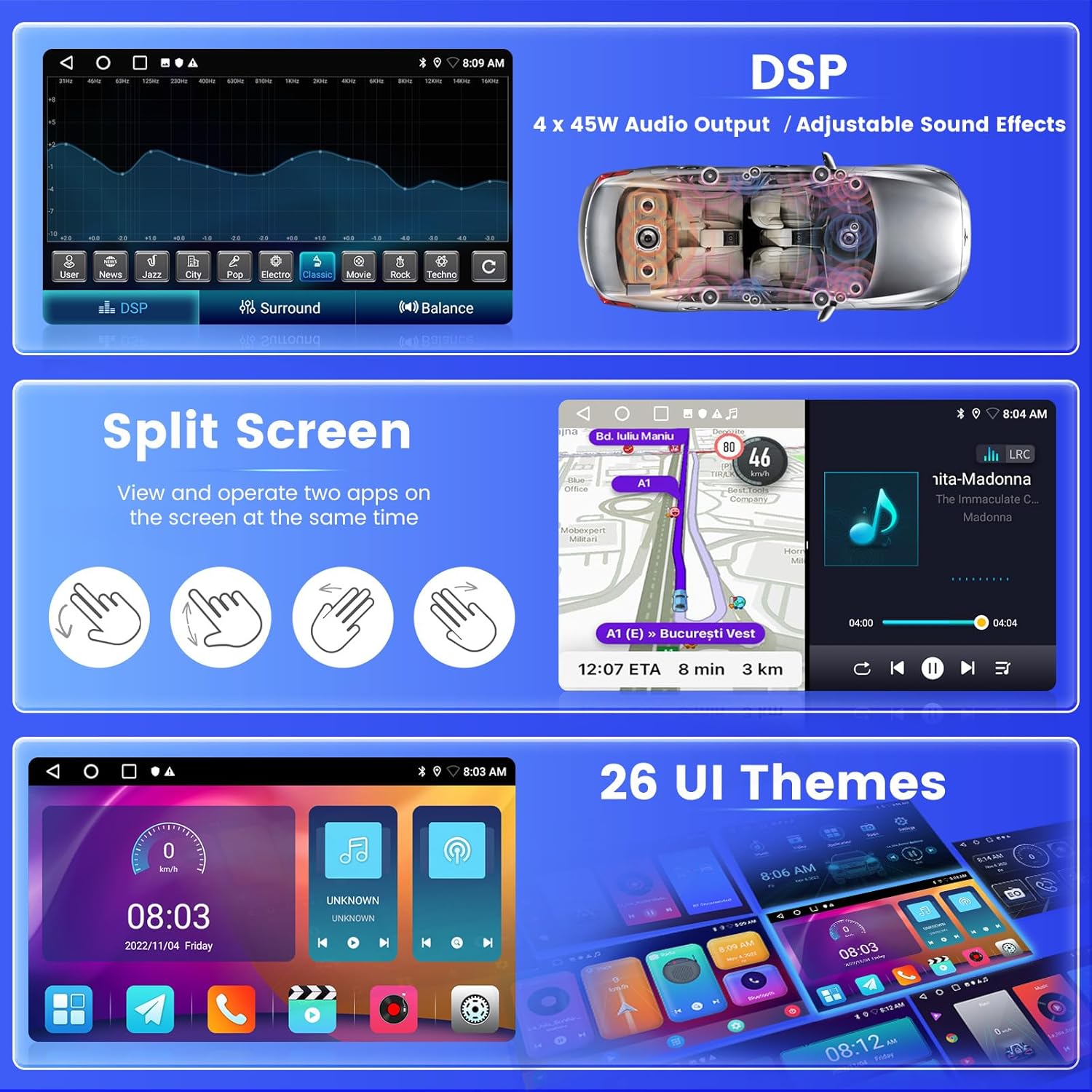
Figure 9: DSP, Split Screen, and UI Themes.
5.5. Split Screen Functionality
The split-screen feature allows you to run and view two applications simultaneously on the 9-inch display, such as navigation and music playback.
5.6. Steering Wheel Control (SWC)
Integrate the car radio with your vehicle's steering wheel controls for convenient operation without taking your hands off the wheel.
- Without CANBUS Decoder: Connect the plugs or the steering wheel control wires (Key1/Key2) in the power cable to the corresponding port or wire of your original car. Then, go to "SWC manual match" in the settings to activate the button function.
- With CANBUS Decoder: Connect the CANBUS before powering on the radio. Follow this path: Car Settings > Factory (000000) > CarType Setting to make SWC work properly. First, select the brand of the CANBUS decoder, then select the matching model and year according to the actual situation.

Figure 10: Steering Wheel Control Setup.
6. Maintenance
- Cleaning: Use a soft, dry cloth to clean the screen and exterior. Avoid abrasive cleaners or solvents.
- Software Updates: Periodically check for software updates to ensure optimal performance and access to new features. Updates can usually be found via the system settings or the manufacturer's website.
- Environmental Conditions: Operate the device within recommended temperature ranges. Extreme heat or cold can affect performance and lifespan.
7. Troubleshooting
- No Power:
- Check all power connections and fuses.
- Ensure the vehicle's battery is charged.
- No Sound:
- Verify speaker connections.
- Check volume levels and mute settings.
- Ensure the correct audio source is selected.
- GPS Signal Issues:
- Ensure the GPS antenna is properly installed and has a clear view of the sky.
- Check for obstructions that might block the signal.
- Bluetooth Connection Problems:
- Ensure Bluetooth is enabled on both the car radio and your smartphone.
- Delete previous pairings and try re-pairing the devices.
- Restart both devices.
- Wi-Fi Connectivity Issues:
- Ensure the Wi-Fi antenna is properly connected.
- Verify the Wi-Fi network password.
- Check if the reversing camera input cable is connected, as it can affect Wi-Fi reception if disconnected.
- Steering Wheel Controls Not Working:
- Review the SWC wiring connections.
- Perform the SWC manual matching procedure in the settings (refer to Section 5.6).
- If using a CANBUS decoder, ensure it is correctly configured for your vehicle model.
8. Specifications
| Feature | Specification |
|---|---|
| Brand | Inefala |
| Model Number | 142a600b-954c-428f-a043-24405babf69f |
| Operating System | Android |
| RAM | 2GB |
| Internal Storage (ROM) | 64GB |
| Screen Size | 9 inches |
| Connectivity Technology | Bluetooth, USB, Wi-Fi |
| Special Features | Carplay, Android Auto, Mirror Link, FM RDS Radio, EQ, WIFI, GPS, 26 UI Themes, SWC, Dual USB Input |
| Compatible Devices | Smartphone |
| Audio Output Mode | Stereo |
| Surround Sound Channel Configuration | 5.1 |
| Output Power | 22 Watts |
| Power Consumption | 45 Watts |
| Country of Origin | China |
9. Warranty and Support
9.1. Manufacturer Warranty
The product comes with a 24-month manufacturer's warranty. This warranty covers defects in materials and workmanship under normal use.
9.2. Online Support
For any inquiries or assistance, online support is available. The manufacturer commits to responding within 24 hours. You can contact the seller, "xinghua001", through the Amazon platform or via email at inefalaservices@163.com.

Figure 11: Contacting Support.