
1. Introduction
Thank you for choosing the Joymate Wireless Phone Charger Stand with Bluetooth Speaker. This device combines a wireless phone charger, an adjustable phone stand, and a Bluetooth speaker into one compact unit, designed to enhance your desk or living space. This manual provides detailed instructions for setup, operation, maintenance, and troubleshooting to ensure optimal performance and longevity of your product.
2. What's in the Box
Please verify that all items are present in the packaging:
- Joymate Wireless Phone Charger Stand with Bluetooth Speaker (Model L41)
- Type-C Data Cable with Wall Charger
- Instruction Manual
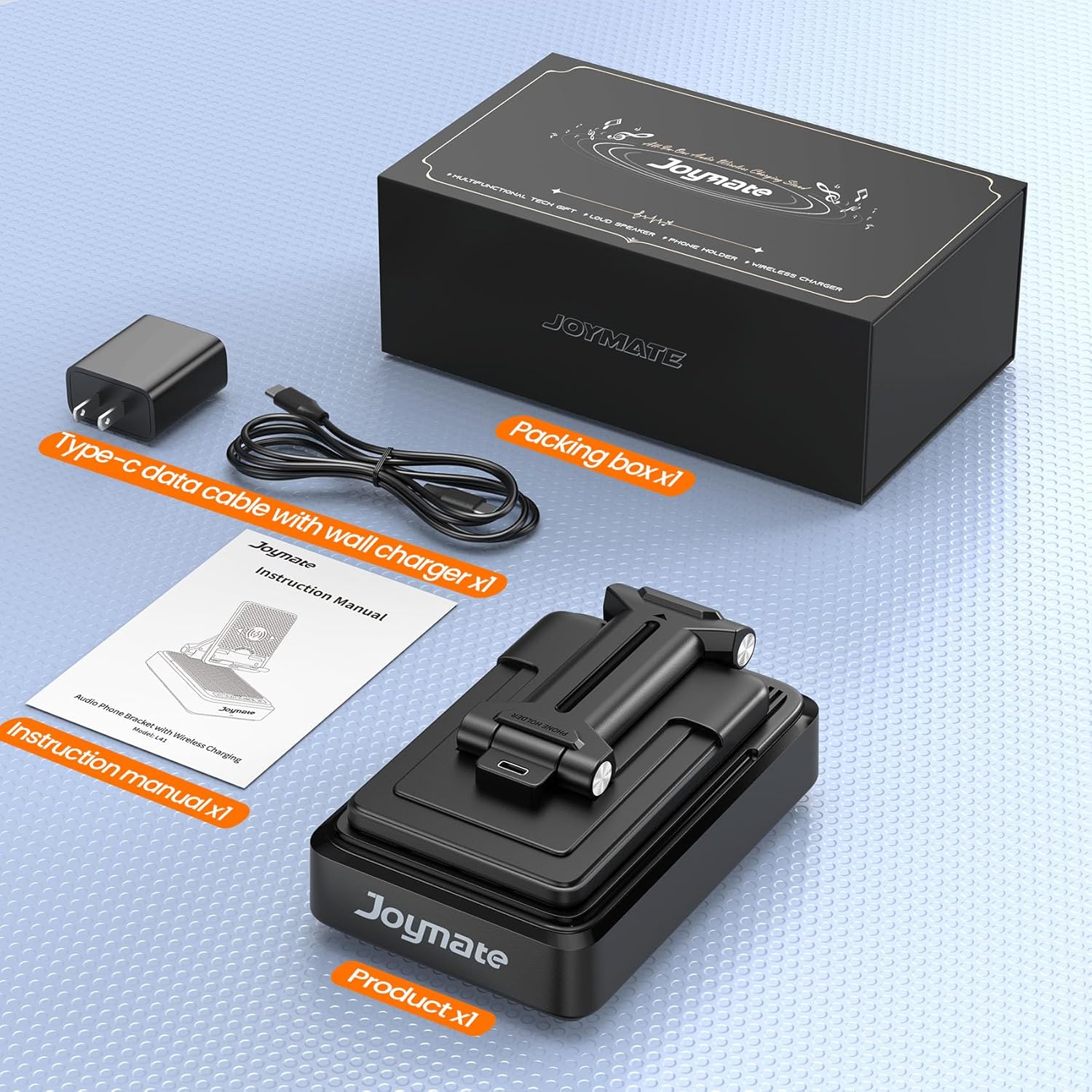
Figure 2.1: Packaging contents including the main unit, charging cable, and manual.
3. Product Overview
Familiarize yourself with the components and controls of your Joymate device.
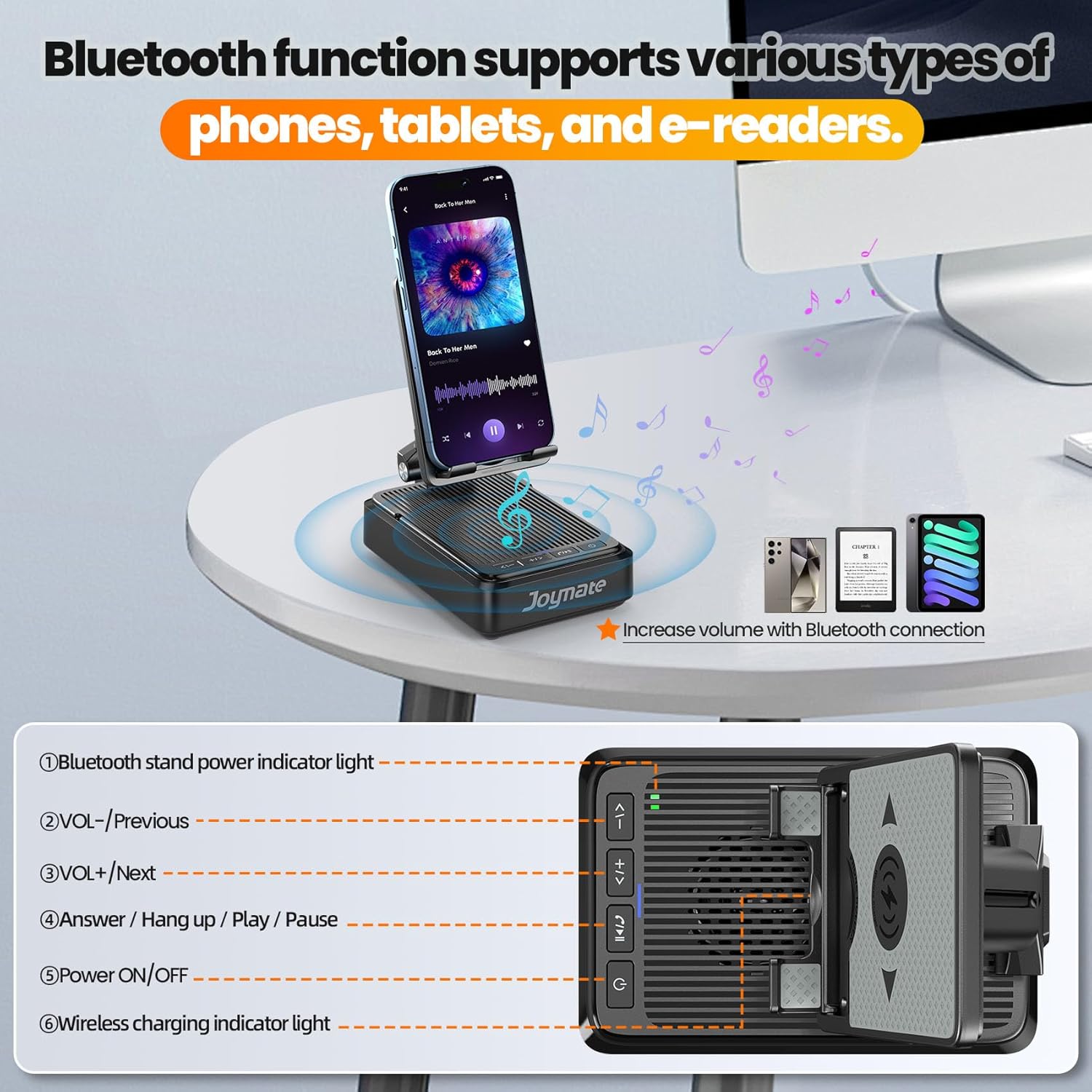
Figure 3.1: Front view of the Joymate L41 with control labels.
Control Buttons and Indicators:
- Bluetooth Stand Power Indicator Light: Indicates the power status of the Bluetooth speaker.
- VOL- / Previous: Short press to decrease volume, long press to go to the previous track.
- VOL+ / Next: Short press to increase volume, long press to go to the next track.
- Answer / Hang up / Play / Pause: Press to answer or end calls, or to play/pause audio playback.
- Power ON/OFF / Mode: Long press to power on/off the device. Short press to switch modes (if applicable).
- Wireless Charging Indicator Light: Illuminates when a device is wirelessly charging.
4. Setup Instructions
Follow these steps to set up your Joymate device:
- Unpack the Device: Carefully remove the Joymate Wireless Phone Charger Stand and all accessories from the packaging.
- Connect Power: Insert the Type-C end of the provided data cable into the charging port on the back of the Joymate stand. Plug the wall charger into a standard electrical outlet. The device will power on automatically or can be powered on by long-pressing the Power ON/OFF button.
- Adjust the Stand: The phone stand is adjustable. Gently extend the arm and tilt the panel to your desired viewing angle. Ensure the stand is stable on a flat surface.

Figure 4.1: Connecting the Joymate L41 to a power source.
5. Operating Instructions
5.1. Wireless Charging
The Joymate L41 supports wireless charging for compatible smartphones.
- Placement: Place your wireless charging-compatible smartphone directly onto the charging pad of the stand. Ensure the phone is centered on the pad for optimal charging.
- Charging Indicator: The Wireless Charging Indicator Light (6) will illuminate to confirm that charging has begun.
- Important Note: For best results, ensure your phone supports wireless charging. Thin phone cases (up to 0.62 inches) are generally compatible, but very thick cases or cases with metal attachments may interfere with charging. The device is not a power bank and requires continuous power input for charging functionality.
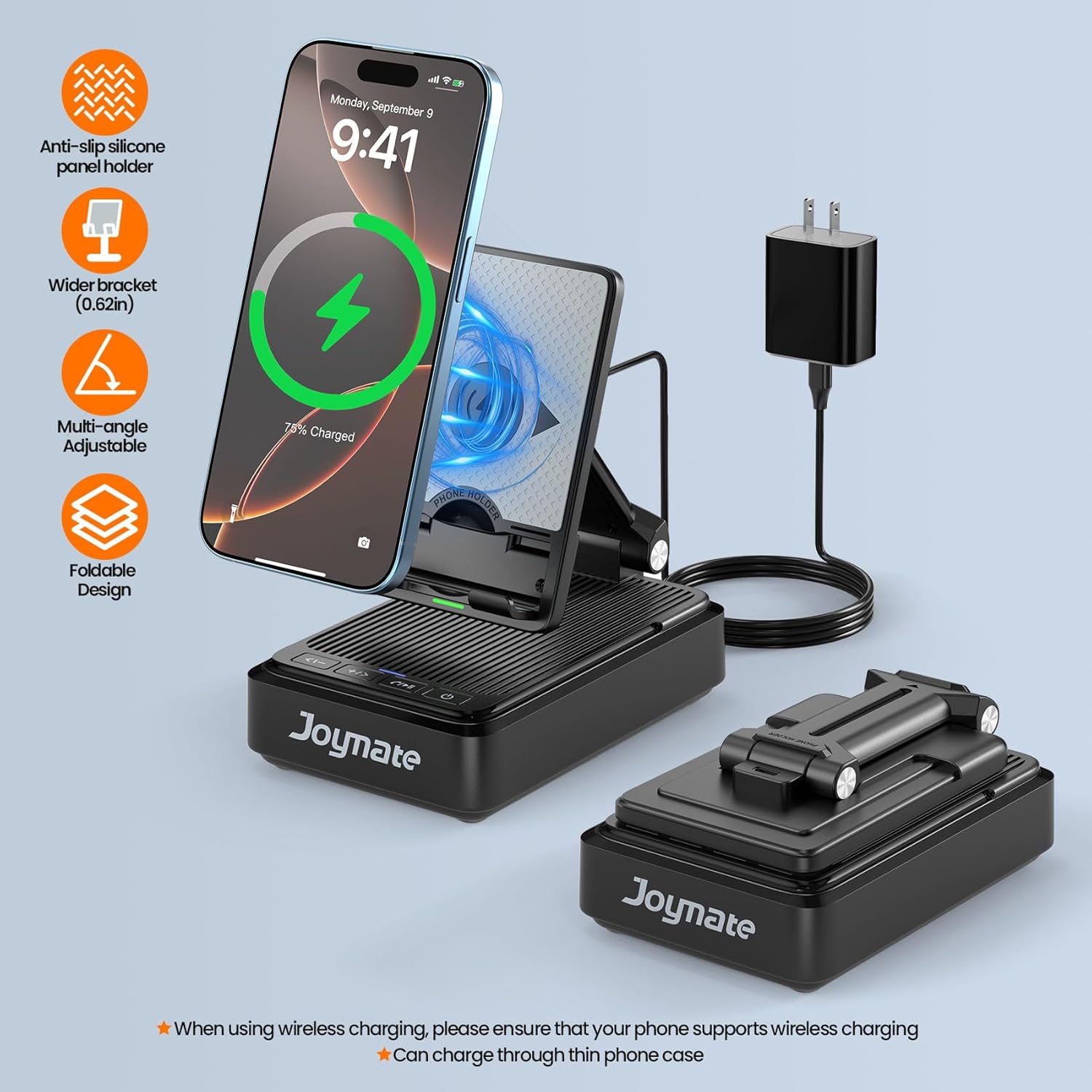
Figure 5.1: Wireless charging a smartphone on the stand.
5.2. Bluetooth Speaker Operation
Connect your device to the built-in Bluetooth speaker for audio playback.
- Power On: Ensure the Joymate L41 is powered on. The Bluetooth Stand Power Indicator Light (1) will show its status.
- Pairing: On your smartphone or other Bluetooth-enabled device, navigate to the Bluetooth settings. Search for available devices and select "Joymate L41" to pair. A confirmation sound will indicate successful pairing.
- Audio Playback: Once paired, audio from your connected device will play through the Joymate L41 speaker. Use the VOL- / Previous (2) and VOL+ / Next (3) buttons to adjust volume or skip tracks. The Answer / Hang up / Play / Pause (4) button controls playback.
- Hands-Free Calls: The built-in microphone allows for hands-free calls. Press the Answer / Hang up / Play / Pause (4) button to answer or end a call.

Figure 5.2: Connecting to the Bluetooth speaker for audio.
5.3. Adjustable Phone Holder
The integrated phone holder offers flexibility for viewing.
- Adjusting Angle: The stand's panel can be adjusted to various angles. Gently pivot the phone support arm to achieve your preferred viewing position for watching videos, making calls, or browsing.
- Stability: The stand features a non-slip silicone surface to securely hold your device and reduce vibration. For tablets, adjust the panel angle to ensure stable placement.

Figure 5.3: Demonstrating the adjustable arm and anti-slip panel.
6. Maintenance
Proper care ensures the longevity of your Joymate L41.
- Cleaning: Use a soft, dry cloth to wipe the surface of the device. Avoid using abrasive cleaners or solvents, as these can damage the finish.
- Storage: When not in use, store the device in a cool, dry place away from direct sunlight and extreme temperatures. The foldable design allows for compact storage.
- Avoid Liquids: Do not expose the device to water or other liquids.
7. Troubleshooting
If you encounter issues with your Joymate L41, refer to the following common problems and solutions:
| Problem | Possible Cause | Solution |
|---|---|---|
| Device does not power on. | No power connection or loose cable. | Ensure the Type-C cable is securely connected to the device and the wall charger is plugged into a working outlet. Try a different outlet. |
| Wireless charging is not working. | Phone not compatible, misaligned, or thick case. | Verify your phone supports wireless charging. Re-position the phone to ensure it is centered on the charging pad. Remove thick phone cases or cases with metal. |
| Bluetooth speaker not connecting. | Device not in pairing mode, or already connected to another device. | Ensure the Joymate L41 is powered on. Check your phone's Bluetooth settings to ensure it's searching for devices. Disconnect from other Bluetooth devices if necessary. |
| Phone becomes warm during wireless charging. | Normal operation, or potential misalignment. | Some warmth is normal during wireless charging. Ensure the phone is correctly aligned on the charging pad. If excessive heat is observed, discontinue use and contact support. |
| Audio quality is poor or distorted. | Low battery, interference, or source audio quality. | Ensure the device is adequately powered. Move closer to the speaker to reduce interference. Check the quality of the audio source. |
8. Specifications
| Feature | Detail |
|---|---|
| Model Number | L41 |
| Product Dimensions | 5.6 x 3.6 x 2.1 inches |
| Item Weight | 13.1 ounces |
| Bluetooth Version | 5.3 |
| Bluetooth Range | Up to 32.8 feet (10 meters) |
| Power Source | Type-C (wired connection required for charging) |
| Compatible Devices | Smartphones, Tablets, E-readers (with wireless charging capability for charging function) |
| Material | High-quality ABS with non-slip silicone |
9. Warranty and Support
Joymate is committed to providing high-quality products and customer satisfaction. For any questions, concerns, or support needs regarding your Joymate L41, please refer to the following:
- Customer Service: Joymate offers hassle-free customer service.
- Response Time: Expect quick responses to your inquiries.
- Online Support: 24-hour online service is available for assistance.
Please retain your purchase receipt for warranty purposes. For specific warranty terms and conditions, refer to the documentation provided with your purchase or contact Joymate customer support directly.