
Dpofirs Dpofirsfh1dtcnxwm-12
Dpofirs Digital Pen Instruction Manual
Model: Dpofirsfh1dtcnxwm-12
Introduction
This manual provides instructions for the Dpofirs Digital Pen, designed for use with various graphics drawing tablets. It features 2048 levels of pressure sensitivity, an ergonomic design, and is constructed from lightweight ABS material for comfortable, extended use. This pen requires one AAA battery (not included).
Package Contents
- 1 x Dpofirs Digital Pen
- 4 x Pen Tips
- 1 x Pen Tip Clip
- 1 x User Manual (this document)

Setup
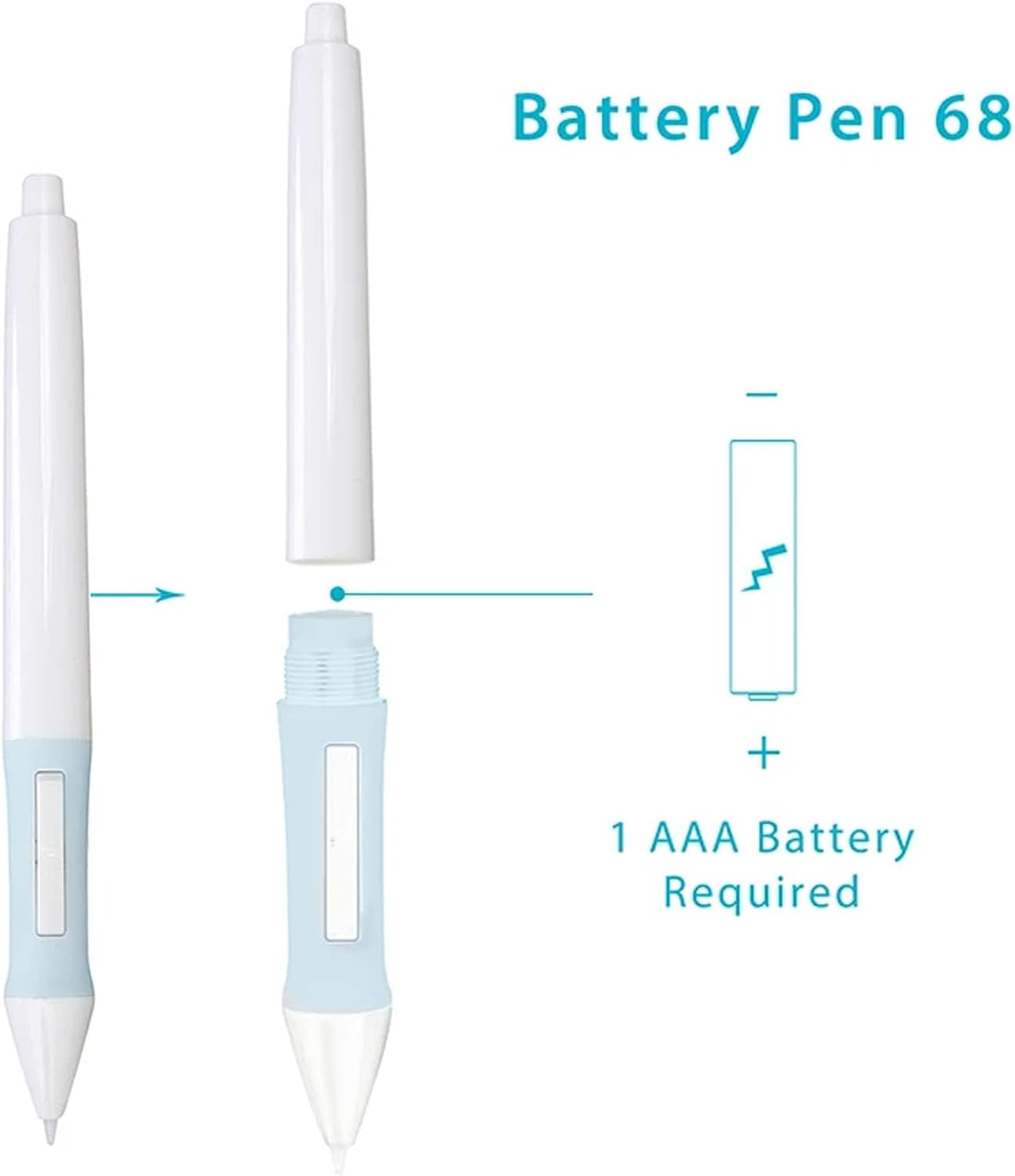
1. Battery Installation
- Unscrew the top cap of the digital pen by twisting it counter-clockwise.
- Insert one AAA battery (not included) into the battery compartment, ensuring correct polarity (+/-). The positive end typically faces towards the pen tip.
- Screw the top cap back on clockwise until secure.
Note: Ensure the battery is inserted correctly to avoid damage to the pen.
Operating Instructions
Pen Overview
Using the Digital Pen
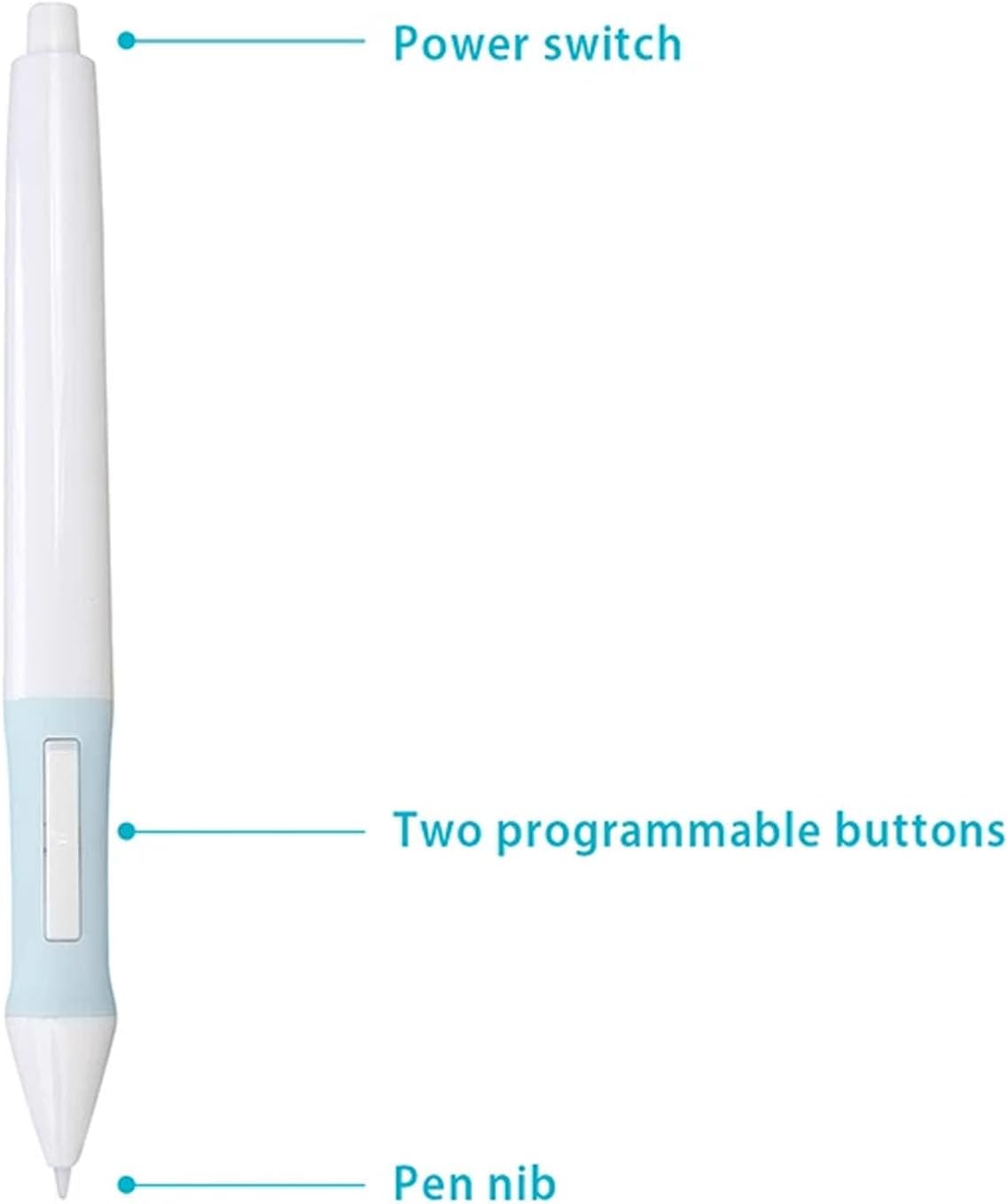
- Power On: The pen automatically powers on when a battery is inserted and it is brought near a compatible drawing tablet. Some models may have a physical power switch at the top (refer to the diagram above).
- Drawing and Writing: Hold the pen as you would a regular pen. The pen's tip interacts with the drawing tablet surface.
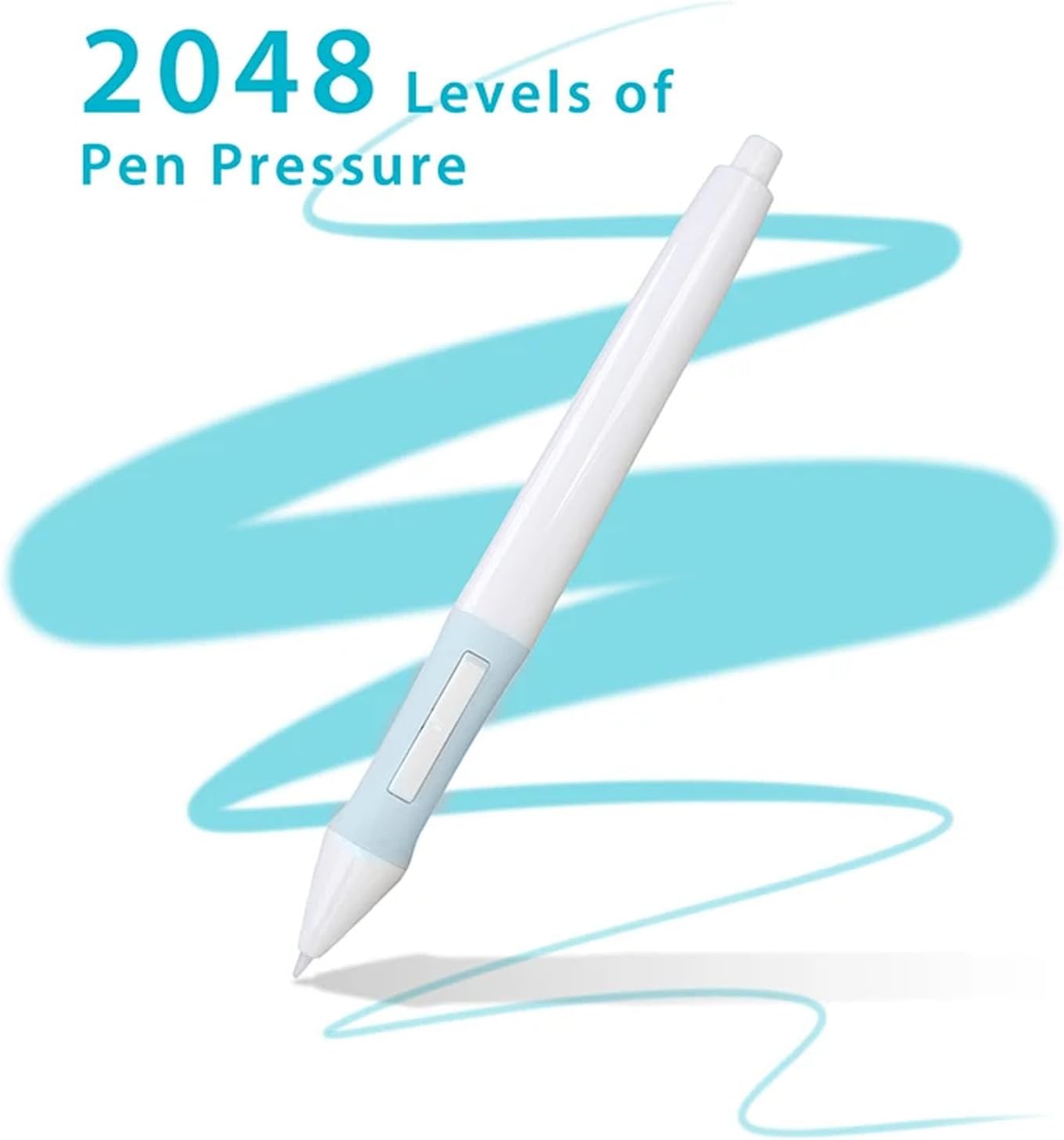
- Pressure Sensitivity: The pen features 2048 levels of pressure sensitivity. Apply varying pressure to the pen tip to achieve different line thicknesses or opacities in your drawing software.
- Programmable Buttons: The two buttons on the side of the pen can be customized for various functions (e.g., right-click, eraser, scroll) through your drawing tablet's driver software. Refer to your tablet's specific software settings for configuration.

Maintenance
Replacing Pen Tips
Over time, the pen tip may wear down and require replacement for optimal performance.
- Use the included pen tip clip (metal ring tool) to gently grasp the worn pen tip.
- Pull the worn tip straight out from the pen body.
- Insert a new pen tip firmly into the pen body until it is securely seated.

Troubleshooting
- Pen not responding:
- Ensure the AAA battery is correctly installed and not depleted. Replace if necessary.
- Verify that your drawing tablet is powered on and properly connected to your computer.
- Check if the pen tip is securely inserted.
- Reinstall or update your drawing tablet's drivers.
- Inconsistent pressure sensitivity:
- Replace the pen tip if it appears worn.
- Calibrate the pen and tablet through your drawing tablet's software settings.
- Buttons not working:
- Ensure your drawing tablet's drivers are installed and up to date.
- Check the button assignments in your tablet's software settings.
Specifications
| Item Type | Drawing Pen |
| Brand | Dpofirs |
| Model Number | Dpofirsfh1dtcnxwm-12 |
| Material | ABS |
| Pressure Levels | 2048 |
| Compatibility | For 420, H420, H58L, 680S, K56, K58, 680TF, H610PRO, NEW 1060PLUS, W58, DWH69, WH1409, 2048; for S56K drawing tablets. |
| Battery Type | 1 x Triple A Battery (AAA) (not included) |
| Item Weight | 1.59 ounces |
| Package Dimensions | 7.87 x 3.15 x 1.18 inches |
Warranty and Support
For warranty information or technical support, please refer to the documentation provided with your drawing tablet or contact Dpofirs customer service. Contact details can typically be found on the manufacturer's official website or product packaging.