
1. Introduction
This manual provides essential instructions for the setup, operation, and maintenance of your SanDisk Professional G-Drive 22TB external hard drive with USB-C 10Gbps interface, bundled with a 1TB SanDisk Professional Pro-Blade SSD Mag. This high-capacity storage solution is designed for demanding workloads and high-value content, offering reliable performance for professionals.

Image: The SanDisk Professional G-Drive 22TB external hard drive with the Pro-Blade SSD Mag shown above it.
2. What's in the Box
Verify that all components are present in your package:
- SanDisk Professional G-Drive Hard Drive with USB-C 10Gbps Interface (22TB)
- SanDisk Professional Pro-Blade SSD Mag (1TB)
- USB-C to USB-C cable
- Power adapter
- Quick Start Guide (not included in this manual)

Image: A visual representation of the G-Drive and the Pro-Blade SSD Mag, indicating the items included in the package.
3. Setup
3.1 Connecting the G-Drive
- Connect the power adapter to the G-Drive's 12V DC port and then to a power outlet.
- Connect one end of the provided USB-C cable to the USB-C (10Gbps) port on the G-Drive.
- Connect the other end of the USB-C cable to an available USB-C port on your computer.

Image: A close-up view of the G-Drive's rear ports, showing the power adapter and USB-C cable connected.
3.2 Initial Formatting
The G-Drive comes pre-formatted for Mac systems and is compatible with Apple Time Machine. For Windows compatibility, the drive must be reformatted. Reformatting will erase all data on the drive, so ensure no critical data is present before proceeding.

Image: The G-Drive connected to a MacBook Pro, illustrating its Mac readiness and compatibility.
3.3 Adjusting LED Brightness
The G-Drive features an adjustable LED light. You can customize its brightness with three modes: off, default, and bright. Refer to the device's physical controls or accompanying software (if applicable) for specific adjustment instructions.
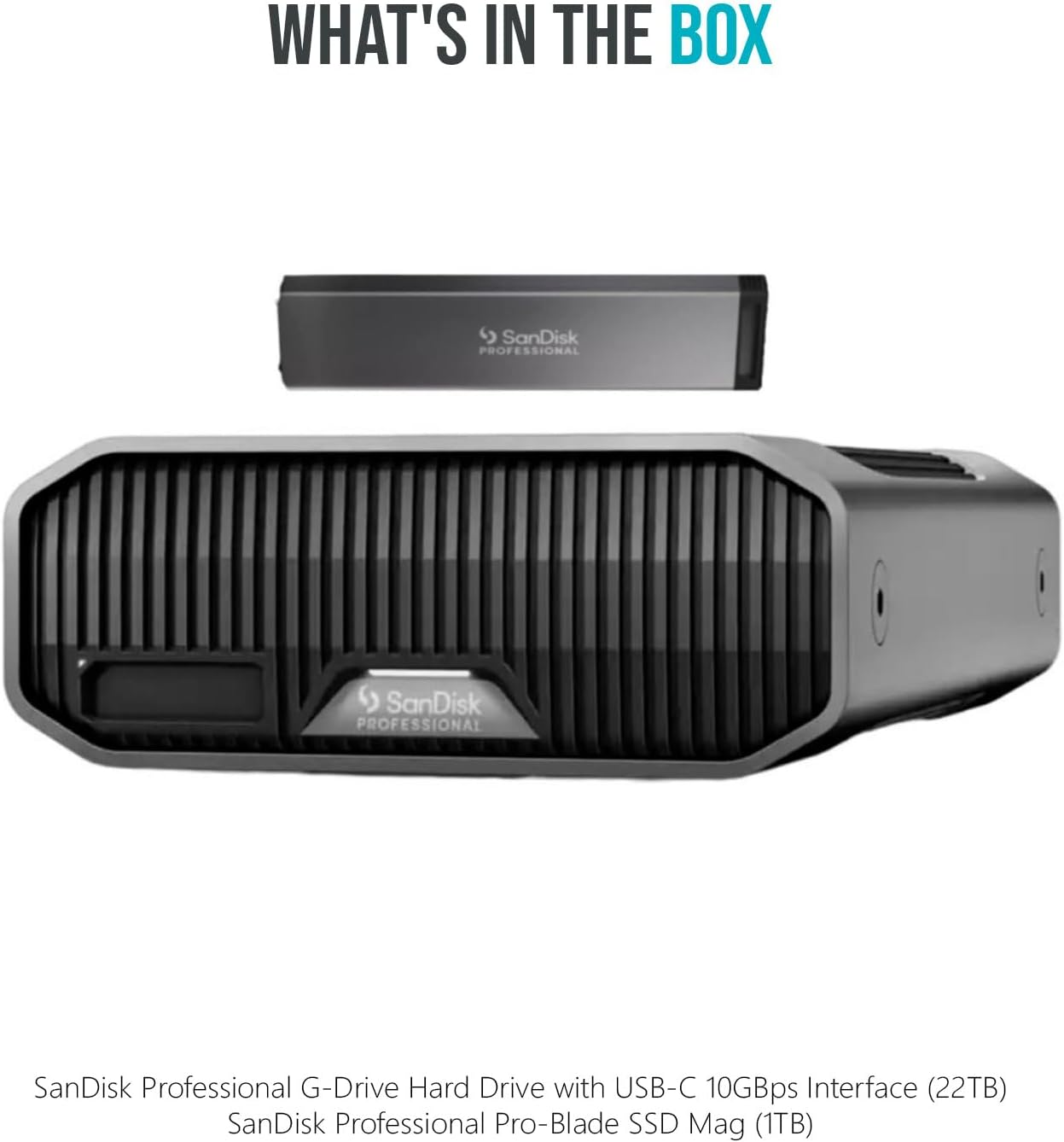
Image: A close-up of the G-Drive's front panel, highlighting the SanDisk Professional logo and the integrated LED light.
4. Operating Instructions
4.1 Data Transfer
The G-Drive utilizes a 7200RPM Ultrastar enterprise-class hard drive, providing data transfer speeds up to 280MB per second read and 280MB per second write via the USB-C (10Gbps) interface. This performance is suitable for fast backup and access to high-resolution media files.

Image: A professional workstation featuring the G-Drive connected to a laptop, demonstrating its integration into a creative workflow.
4.2 Pro-Blade SSD Mag Usage
The bundled 1TB Pro-Blade SSD Mag is a portable SSD solution designed for high-speed data capture and transfer. It can be used independently or integrated into compatible SanDisk Professional ecosystems for enhanced workflow. Refer to the Pro-Blade SSD Mag's specific documentation for detailed usage instructions.
4.3 Enclosure Design
The G-Drive features a stackable, anodized all-aluminum enclosure. This design provides durability and allows for efficient stacking with other compatible devices, optimizing workspace organization.
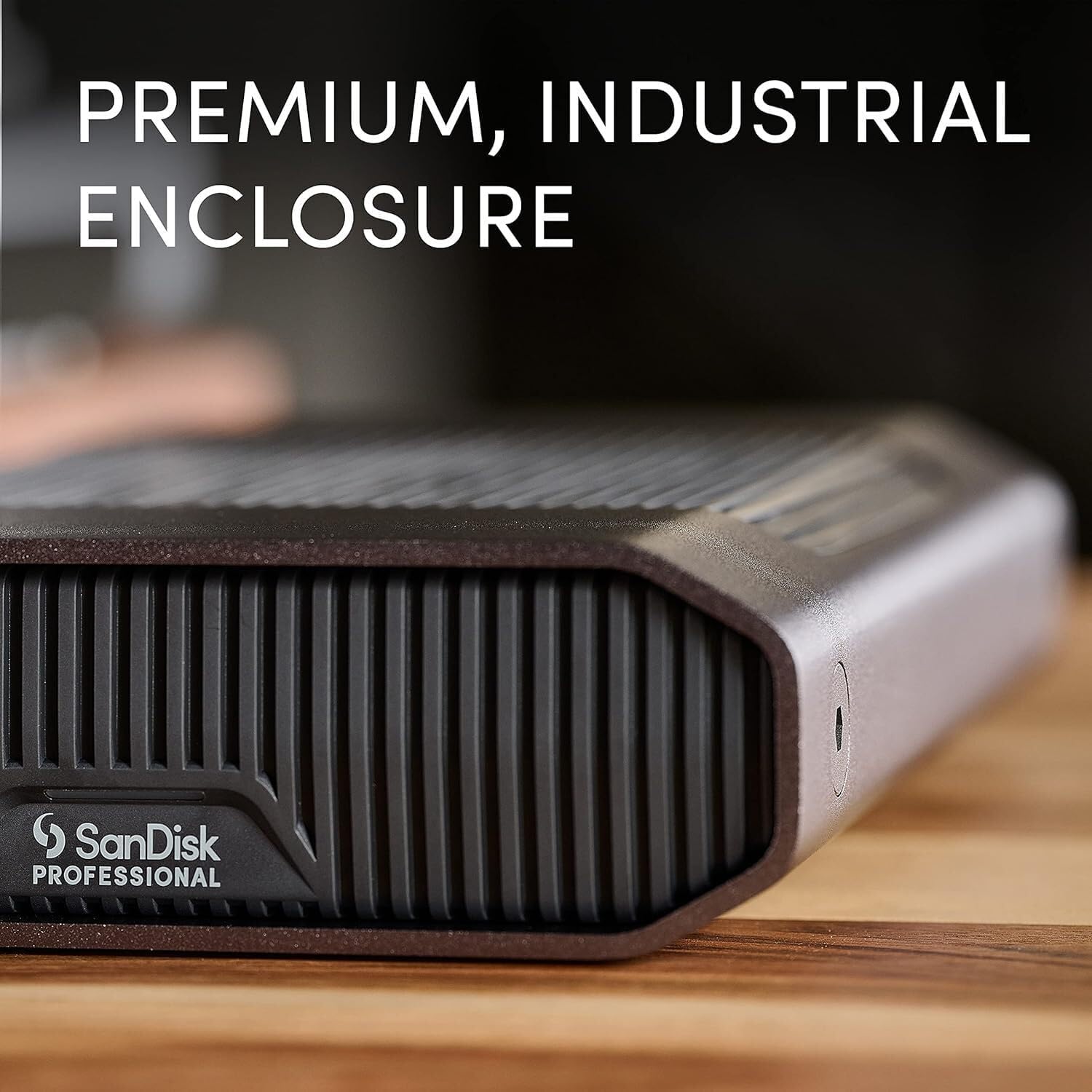
Image: A close-up view of the G-Drive's side, showcasing its premium, industrial anodized aluminum enclosure.
5. Maintenance
To ensure optimal performance and longevity of your G-Drive and Pro-Blade SSD Mag:
- Keep the devices clean and free from dust. Use a soft, dry cloth for cleaning.
- Avoid exposing the devices to extreme temperatures, humidity, or direct sunlight.
- Always safely eject the drive from your computer before disconnecting the USB-C cable or power.
- Regularly back up important data to another storage device to prevent data loss.
6. Troubleshooting
6.1 Drive Not Recognized
- Ensure all cables (power and USB-C) are securely connected.
- Try connecting the drive to a different USB-C port on your computer.
- Restart your computer.
- Verify that the drive is powered on (check LED indicator).
- Check your operating system's disk management utility to see if the drive is detected but unformatted or has a partition issue.
6.2 Slow Data Transfer Speeds
- Ensure you are using the provided USB-C 10Gbps cable and connecting to a compatible USB-C 10Gbps port on your computer.
- Close any unnecessary applications running in the background that might be consuming system resources.
- Check your computer's system health and ensure sufficient free RAM.
- Avoid transferring many small files simultaneously, as this can be slower than transferring a few large files.
7. Specifications
| Feature | Specification |
|---|---|
| Digital Storage Capacity | 22 TB (G-Drive), 1 TB (Pro-Blade SSD Mag) |
| Hard Disk Interface | USB-C |
| Connectivity Technology | USB |
| Hard Disk Rotational Speed | 7200 RPM |
| Read Speed (G-Drive) | Up to 280 MB/s |
| Write Speed (G-Drive) | Up to 280 MB/s |
| Item Weight | 5.81 pounds |
| Product Dimensions (LxWxH) | 12.3 x 10.4 x 8.6 inches |
| Manufacturer | SanDisk Professional |
8. Warranty and Support
For warranty information and technical support, please refer to the official SanDisk Professional website or contact their customer service. Keep your proof of purchase for warranty claims.
Online Support: Visit SanDisk Professional Support for drivers, software, and troubleshooting resources.