
HAODEE Valdus PGD
Valdus PGD Android Smart Watch User Manual
Model: Valdus PGD
Introduction
This manual provides comprehensive instructions for the setup, operation, and maintenance of your Valdus PGD Android Smart Watch. Please read this manual thoroughly to ensure proper use and to maximize the features of your device. This smartwatch combines advanced communication, navigation, and health monitoring capabilities in a compact wearable form factor.
Product Overview
Familiarize yourself with the components and controls of your Valdus PGD Smart Watch.
Watch Face and Display
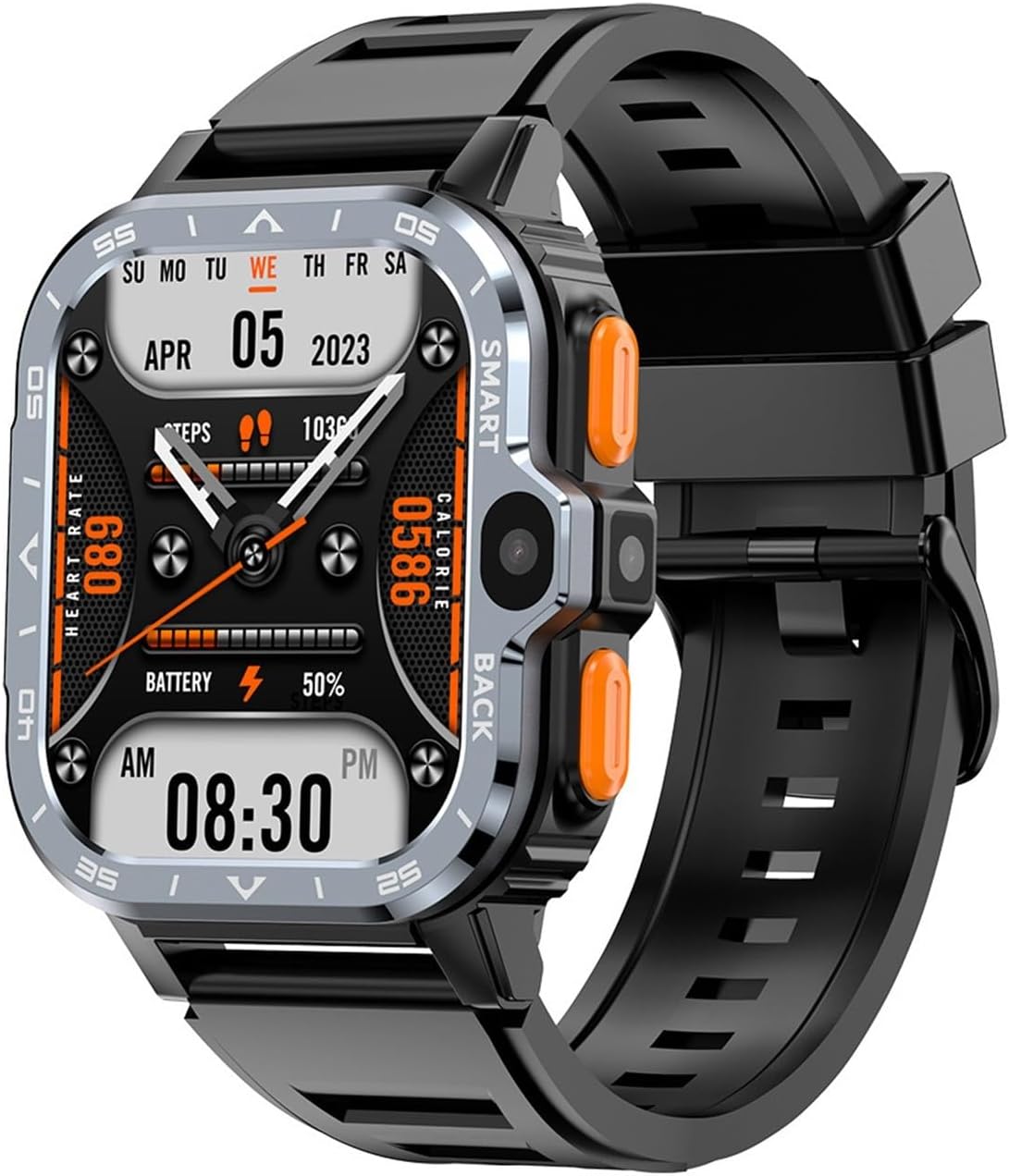
The main display shows essential information such as time, date, heart rate, step count, and battery status. The 2.03-inch HD square screen provides a clear and vibrant interface for all functions.
Application Interface
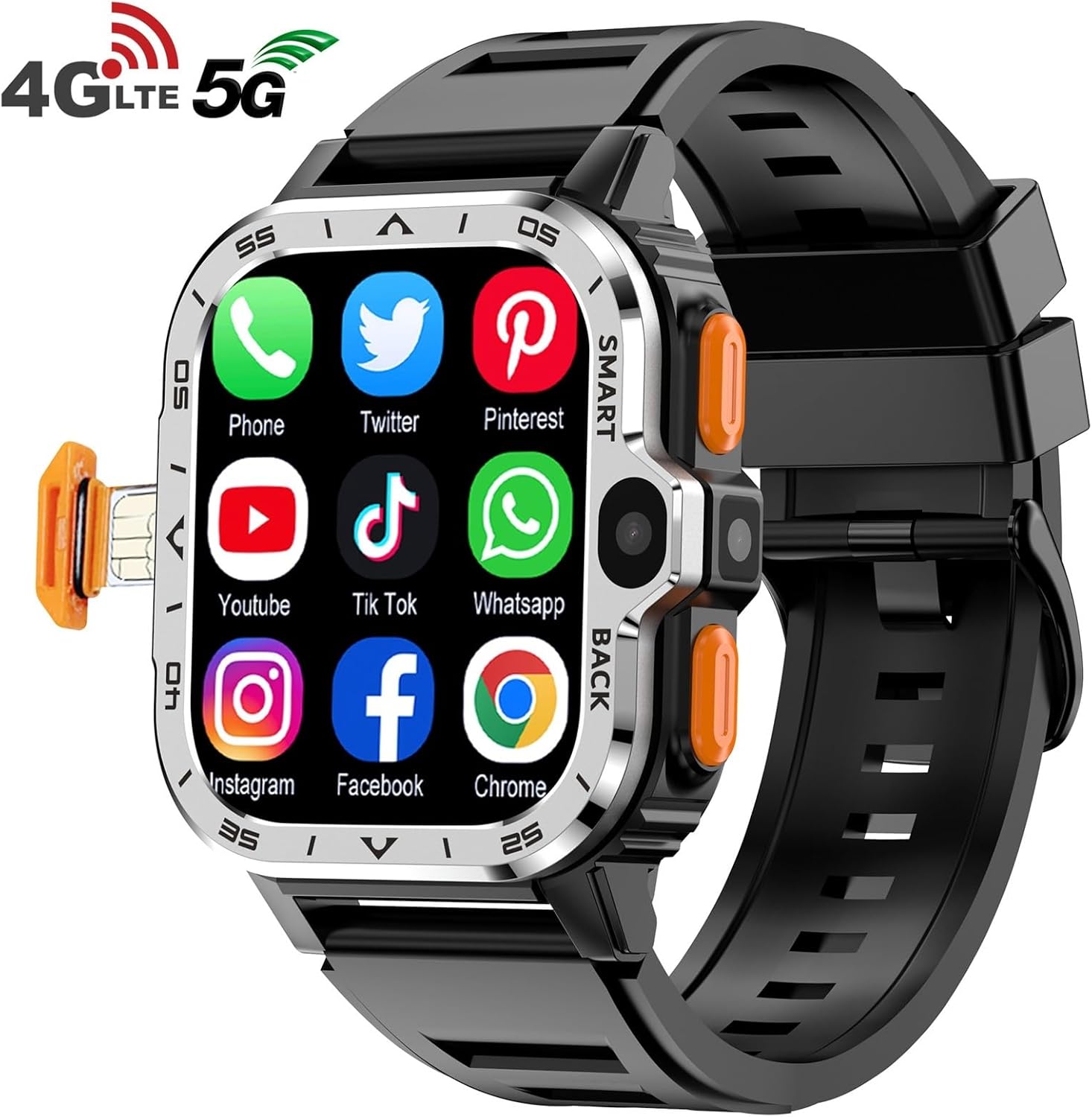
The watch supports a range of applications, accessible directly from the main screen. These include communication apps, social media, and web browsing tools, leveraging the Android 8.1 operating system.
Dual Camera System

Equipped with HD dual cameras (2MP + 8MP), the smartwatch allows for capturing photos and videos directly from your wrist. The cameras are strategically placed for convenience.
GPS Navigation

The integrated GPS functionality provides accurate positioning and navigation capabilities, allowing you to view maps and track your location directly on the watch screen.
High Definition Large Screen

The watch features a 2.03-inch HD square screen, designed for clarity and ease of use. Its high-definition display ensures crisp visuals for all applications and content.
Setup
1. Charging the Device
Before first use, fully charge your smartwatch. Connect the magnetic charging cable to the 4-pin magnetic port on the watch and the USB end to a power adapter (not included) or a computer's USB port. The battery indicator on the screen will show charging progress.
2. Inserting the SIM Card

The watch supports a single Nano SIM card for 2G, 4G, and potentially 5G network access. Locate the SIM card tray on the side of the watch. Use the provided SIM ejector tool (if applicable) or a small pin to open the tray. Insert the Nano SIM card with the gold contacts facing down, ensuring it is correctly seated. Gently push the tray back into the watch until it clicks into place.
3. Initial Power On
Press and hold the power button (typically on the side of the watch) for a few seconds until the screen illuminates and the Valdus logo appears. Follow the on-screen prompts to select your language, time zone, and connect to a Wi-Fi network.
4. Connecting to Wi-Fi and Bluetooth
- Wi-Fi: From the home screen, swipe down to access the quick settings panel or navigate to Settings > Network & Internet > Wi-Fi. Select your desired network and enter the password.
- Bluetooth: To pair with Bluetooth devices (e.g., headphones), go to Settings > Connected devices > Bluetooth. Turn Bluetooth on, and select the device from the list to pair.
Operating Instructions
Basic Navigation
- Touchscreen: Swipe left, right, up, or down to navigate through menus and screens. Tap to select items.
- Side Buttons: The watch features two side keys. Typically, one acts as a power/home button, and the other as a back or shortcut button. Refer to on-screen prompts for specific functions.
Communication Features
- Making Calls: Tap the "Phone" icon. You can dial numbers directly using the on-screen keypad or select contacts from your address book.
- Video Calls: Utilize the dual cameras for video calls through supported applications. The watch supports Wi-Fi and cellular networks for video communication.

The watch supports high-definition video calls over Wi-Fi or cellular networks, allowing for clear face-to-face communication directly from your wrist.
- Messaging and Social Apps: Access pre-installed or downloaded messaging and social media applications like WhatsApp, Facebook, and Twitter for text communication and social interaction.

Engage in various social functions and chat applications directly from your smartwatch, providing convenient communication anytime, anywhere.
Camera Usage
To use the camera, tap the camera icon on the app screen. You can switch between the front and side cameras. Tap the shutter button to take photos or record videos. Captured media is stored in the watch's gallery.
GPS and Navigation
The built-in GPS allows for accurate location tracking and navigation. Open a map application (e.g., Google Maps if installed) to view your current location, search for destinations, and get directions. This feature is particularly useful for outdoor activities.
Health Monitoring
- Heart Rate Measurement: Access the heart rate application to measure your pulse. Ensure the watch is snug on your wrist for accurate readings.
- Step Counting: The watch automatically tracks your steps and calculates calories burned throughout the day. View your activity data in the dedicated fitness application.
- Multi-motion Mode: Select from various sports modes to track specific activities more accurately.
Maintenance
Cleaning Your Smart Watch
Wipe the watch screen and body with a soft, lint-free cloth. For stubborn smudges, slightly dampen the cloth with water. Avoid using harsh chemicals, abrasive materials, or strong cleaning agents, as these can damage the watch's finish and internal components. Ensure the charging port is clean and dry before charging.
Battery Care
- Avoid exposing the watch to extreme temperatures (hot or cold) as this can degrade battery life.
- Charge the watch regularly, but avoid leaving it fully discharged for extended periods.
- Use only the provided or recommended charging cable.
Software Updates
Periodically check for software updates to ensure your watch has the latest features and security patches. Navigate to Settings > About Watch > System Update to check for and install available updates. Ensure the watch is sufficiently charged and connected to Wi-Fi before initiating an update.
Troubleshooting
| Problem | Possible Cause | Solution |
|---|---|---|
| Watch does not turn on. | Low battery; software crash. | Charge the watch for at least 30 minutes. If still unresponsive, perform a forced restart by holding the power button for 10-15 seconds. |
| Cannot connect to Wi-Fi. | Incorrect password; out of range; router issue. | Verify Wi-Fi password. Move closer to the router. Restart the watch and the router. |
| SIM card not detected. | SIM card improperly inserted; incompatible SIM type. | Ensure the Nano SIM card is correctly inserted and seated in the tray. Verify the SIM card is active and compatible with 4G networks. |
| GPS not accurate. | Poor satellite signal; indoor use. | Move to an open outdoor area with a clear view of the sky. Ensure GPS is enabled in settings. |
| Battery drains quickly. | High screen brightness; many apps running; frequent network use. | Reduce screen brightness. Close unused applications. Limit background data usage. Disable unnecessary features like Wi-Fi/Bluetooth when not in use. |
Specifications
| Feature | Detail |
|---|---|
| Operating System | Android OS v8.1 |
| CPU | Quad-core (SC9832E) |
| Memory | 4GB RAM + 64GB ROM (Storage) |
| Display | 2.03 inch HD Square Screen, 320*386 resolution |
| Network Type | Single Nano SIM card (GSM/WCDMA/LTE) |
| Supported Frequency Bands | GSM: B2/B3/B5/B8; WCDMA: B1/B2/B5/B8; LTE_FDD: B1/B2/B3/B5/B7/B8/B20; LTE-TDD: B38/39/40/41(100MHz) |
| Cameras | HD Dual Camera (2MP + 8MP) |
| Battery Capacity | 800mAh |
| Connectivity | Wi-Fi, Bluetooth 4.2, GPS |
| Data Interface | 4-pin magnetic charging, USB function support |
| Dimensions (Package) | 1.18 x 0.79 x 0.39 inches |
| Item Weight | 531 Grams (1.17 pounds) |
Warranty and Support
For warranty information and technical support, please refer to the documentation provided with your purchase or contact the manufacturer directly. Keep your proof of purchase for warranty claims.
Manufacturer: HAODEE
For further assistance, please visit the official HAODEE support website or contact their customer service.