
1. Introduction
This manual provides comprehensive instructions for the installation, operation, and maintenance of your aboutBit Single Din Wireless CarPlay Stereo with a 7-inch Motorized Flip-Out Touchscreen. Please read this manual thoroughly before using the product to ensure proper operation and to prevent damage.
The aboutBit Single Din Wireless CarPlay Stereo is designed to enhance your in-car entertainment and connectivity, offering features such as Wireless CarPlay, Android Auto, Bluetooth, MirrorLink, AM/FM radio, and support for a backup camera.
2. Safety Information
- Installation: Professional installation is recommended. Incorrect wiring can cause damage to the unit or vehicle.
- Power Supply: Connect the unit to a 12V DC power supply with a negative ground.
- Driving Safety: Do not operate the unit in a way that distracts you from driving. Always prioritize road safety.
- Temperature: Avoid exposing the unit to extreme temperatures or direct sunlight for extended periods.
- Moisture: Keep the unit away from water and excessive moisture.
- Cleaning: Use a soft, dry cloth for cleaning. Do not use abrasive cleaners or solvents.
3. Package Contents
Verify that all items are present in the package:
- Single Din Wireless CarPlay Radio
- Backup Camera & Backup Camera Cable
- Harness & Mounting Kits
- User Manual

Image: Illustration of the standard single DIN size unit and included accessories such as the remote control, wiring harness, backup camera, and mounting keys.
4. Product Overview
The aboutBit Single Din Wireless CarPlay Stereo features a motorized 7-inch touchscreen that retracts into the single DIN chassis. The front panel includes essential controls and ports.
4.1 Front Panel Controls and Ports
- Power/Volume Knob: Press to power on/off, rotate to adjust volume.
- SRC Button: Source selection (Radio, USB, AUX, Bluetooth, CarPlay/Android Auto).
- Band Button: Selects radio bands (FM1, FM2, FM3, AM1, AM2).
- MIC: Built-in microphone for hands-free calling.
- USB Port: For media playback and wired CarPlay/Android Auto connection.
- Type-C Port: For charging portable devices (2.1A fast charging).
- AUX Input: 3.5mm jack for external audio devices.
- RST Button: Reset button (use a thin object to press).
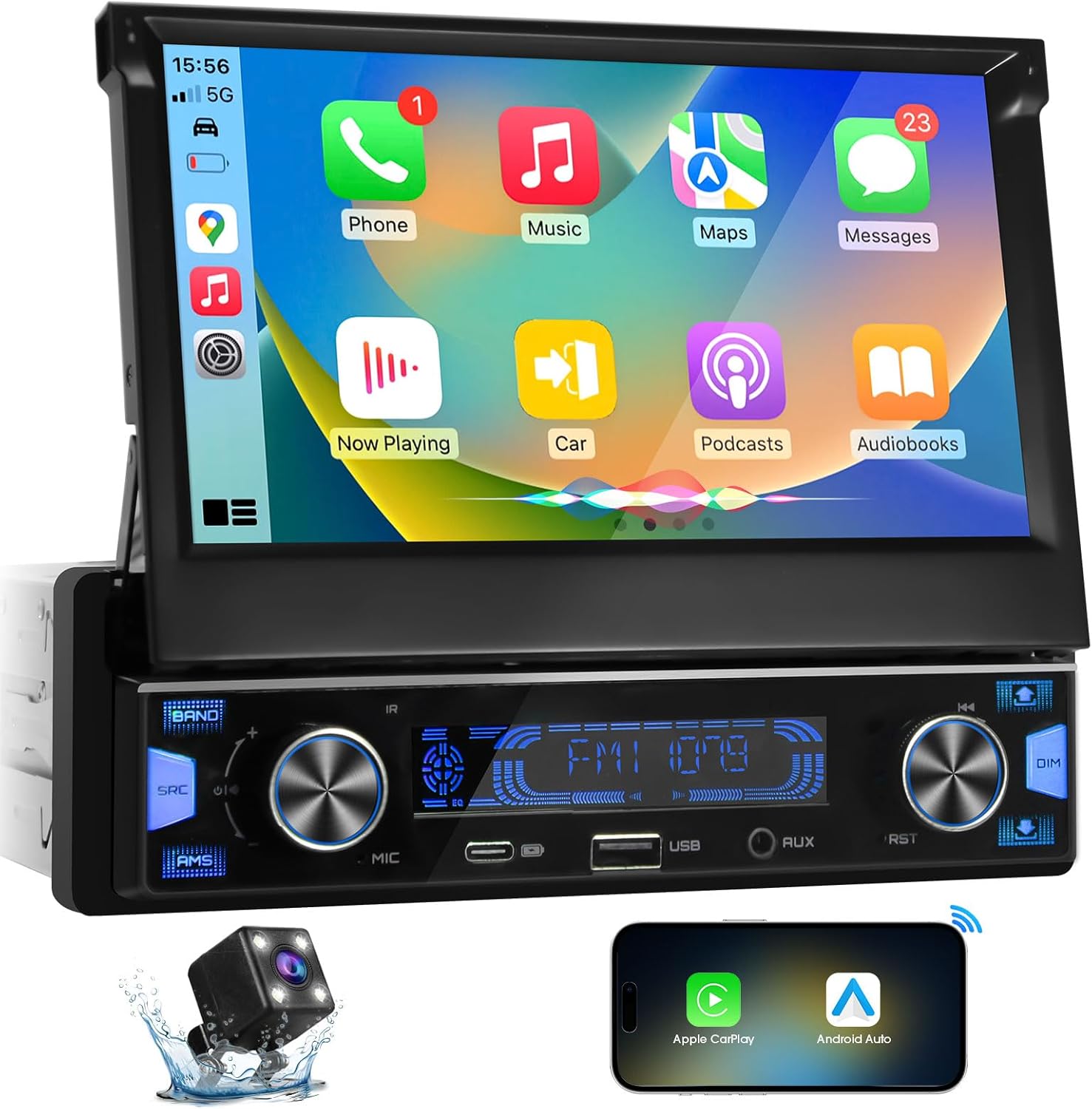
Image: Front view of the aboutBit single DIN stereo with its 7-inch motorized touchscreen extended, displaying the CarPlay interface. The main unit shows control knobs, USB, AUX, and Type-C ports.
4.2 Rear Connections
The rear panel provides various input and output connections for system integration.
- RCA Audio Outputs: For connecting external amplifiers and subwoofers (4.2 channels).
- Video Input/Output: For external video sources or monitors.
- Backup Camera Input: Dedicated RCA input for the rearview camera.
- Antenna Input: For AM/FM radio antenna.
- Wiring Harness Connector: For power, speaker, and other vehicle connections.
- 3.5mm External Microphone Jack: For an optional external microphone.

Image: Detailed diagram showing the rear connections of the stereo, including RCA outputs, power harness, and the specific wiring for the included backup camera.
5. Setup
5.1 Installation
- Preparation: Disconnect the vehicle's negative battery terminal before starting installation.
- Mounting: Install the single DIN chassis into your vehicle's dashboard opening. Ensure it is securely fastened.
- Wiring Harness: Connect the provided wiring harness to the stereo and then to your vehicle's wiring. Match colors and functions carefully (e.g., power, ground, accessory, speaker wires).
- Antenna: Connect the vehicle's AM/FM antenna to the stereo.
- Backup Camera (Optional):
- Mount the backup camera at the rear of your vehicle.
- Connect the camera's power wire to the vehicle's reverse light power source.
- Run the video cable from the camera to the 'R-CAM' input on the stereo's rear panel.
- Connect the reverse trigger wire (usually pink/black) from the stereo's harness to the vehicle's reverse light signal.
- External Microphone (Optional): If using an external microphone, connect it to the 3.5mm jack on the rear.
- Reconnect Battery: Once all connections are secure, reconnect the vehicle's negative battery terminal.

Image: Visual comparison showing a standard single DIN slot before installation and the same dashboard with the aboutBit stereo installed and its screen extended.
6. Operating Instructions
6.1 Basic Operation
- Power On/Off: Press the Power/Volume knob.
- Volume Adjustment: Rotate the Power/Volume knob.
- Source Selection: Press the SRC button to cycle through available audio sources (Radio, USB, AUX, Bluetooth, CarPlay/Android Auto).
6.2 Motorized Screen Operation
The 7-inch touchscreen is motorized for retraction and extension.
- Extend/Retract: Press the dedicated button on the front panel (often labeled with an arrow icon) to extend or retract the screen.
- Angle Adjustment: Once extended, you can adjust the screen's viewing angle to minimize glare by pressing the angle adjustment buttons on the panel or through the touchscreen interface.

Image: Depiction of the motorized screen extending and retracting, highlighting the smooth operation and adjustable viewing angles.
6.3 Wireless CarPlay and Android Auto
Connect your smartphone wirelessly for integrated navigation, music, calls, and messaging.
- Enable Bluetooth and Wi-Fi: On your iPhone or Android phone, ensure Bluetooth and Wi-Fi are enabled.
- Pair Device: On the stereo, go to the Bluetooth settings and search for your phone. Pair your phone with the stereo.
- Initiate CarPlay/Android Auto: Once paired, the stereo should prompt you to start CarPlay or Android Auto. Follow the on-screen instructions.
- Voice Control: Use Siri (for CarPlay) or Google Assistant (for Android Auto) for voice commands.

Image: The stereo's screen displaying the CarPlay interface with navigation and music. Text indicates voice command activation for Siri and Google Assistant.
6.4 Bluetooth Connection
For hands-free calling and wireless audio streaming.
- Enable Bluetooth: Turn on Bluetooth on your smartphone.
- Search for Device: On the stereo, navigate to the Bluetooth menu and select 'Pair Device' or 'Search'.
- Connect: Select your phone from the list of available devices. Confirm the pairing code if prompted.
- Hands-Free Calling: Once connected, you can make and receive calls directly through the stereo.
- Audio Streaming: Play music from your phone, and it will stream wirelessly to the stereo.

Image: The stereo displaying a music playback interface via Bluetooth, with icons indicating clear calling, crystal sound, wireless music, and fast transmission.
6.5 MirrorLink
Display your phone's screen directly on the stereo's touchscreen.
- Connect Phone: Connect your smartphone to the stereo via USB.
- Activate MirrorLink: Select the MirrorLink option on the stereo's interface.
- Follow Prompts: Follow any on-screen prompts on both your phone and the stereo to establish the connection.
6.6 AM/FM Radio
- Select Radio Source: Press the SRC button until 'Radio' is selected.
- Band Selection: Press the BAND button to switch between FM1, FM2, FM3, AM1, and AM2.
- Tuning: Use the touchscreen controls or physical buttons to scan for stations or manually tune.
- Preset Stations: Touch and hold a preset number on the screen to save the current station.
6.7 USB, AUX, and Type-C Multimedia
- USB Playback: Insert a USB drive into the USB port for audio or video playback. The unit supports various formats.
- AUX Input: Connect external audio devices (e.g., MP3 players) to the 3.5mm AUX input using an audio cable.
- Type-C Charging: Use the Type-C port to fast charge compatible devices. This port is primarily for charging and may not support data transfer for all devices.
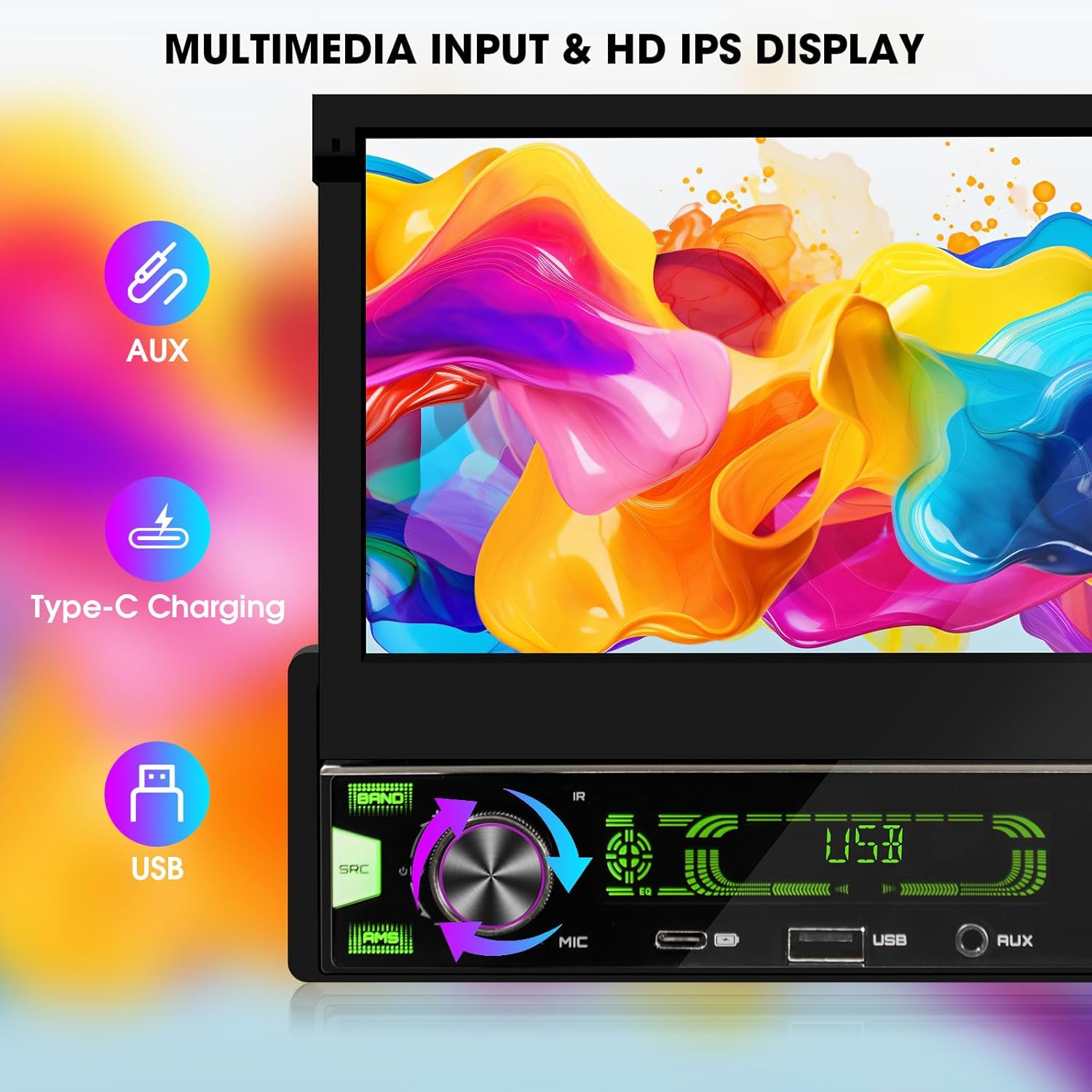
Image: Close-up of the stereo's front panel highlighting the AUX, Type-C, and USB ports, indicating their functions for multimedia input and charging.
6.8 Backup Camera Display
When the vehicle is shifted into reverse, the stereo will automatically display the rearview camera feed on the screen.
Image: The stereo screen displaying a clear rearview camera feed with parking guidelines. Icons indicate waterproof, night vision, wide viewing angle, and high definition features.
6.9 Audio Settings
Customize your audio experience with the built-in equalizer and subwoofer controls.
- Equalizer (EQ): Access the 16-band digital equalizer through the touchscreen menu to adjust audio frequencies. Preset EQ modes (Pop, Rock, Classic, Jazz, etc.) are available, along with a user-customizable mode.
- Subwoofer Outputs: The unit features two dedicated subwoofer outputs (SUB 1, SUB 2) for connecting external subwoofers, allowing for enhanced bass control.

Image: The stereo's screen showing the 16-band graphic equalizer interface and a diagram of the 4.2 channel RCA audio outputs, including two subwoofer outputs.
6.10 Steering Wheel Control (SWC)
If your vehicle supports steering wheel controls, the stereo can be configured to work with them.
- Wiring: Connect the SWC wires from the stereo's harness to your vehicle's steering wheel control wires. An interface module may be required for some vehicles (not included).
- Configuration: Access the SWC settings in the stereo's menu. Follow the on-screen instructions to program the buttons.
7. Maintenance
- Screen Cleaning: Use a soft, lint-free cloth to gently wipe the touchscreen. For stubborn smudges, slightly dampen the cloth with water or a screen-safe cleaner. Do not spray cleaner directly onto the screen.
- General Cleaning: Keep the unit free from dust and debris. Use a soft brush or compressed air to clean around buttons and ports.
- Avoid Liquids: Prevent liquids from entering the unit, as this can cause severe damage.
8. Troubleshooting
| Problem | Possible Cause | Solution |
|---|---|---|
| No power | Incorrect wiring; Blown fuse; Vehicle battery issue. | Check power and ground connections. Verify vehicle fuses and the unit's fuse. Ensure battery is charged. |
| No sound | Volume too low; Mute activated; Speaker wiring incorrect; Incorrect audio source. | Increase volume. Check if mute is on. Verify speaker connections. Select correct audio source. |
| Bluetooth connection fails | Bluetooth not enabled on phone; Device not in pairing mode; Interference. | Ensure phone's Bluetooth is on and discoverable. Restart both devices. Try pairing again. |
| CarPlay/Android Auto not connecting | Wi-Fi/Bluetooth issues; Phone compatibility; Software glitch. | Ensure Wi-Fi and Bluetooth are active on phone. Restart phone and stereo. Check for phone OS updates. |
| Backup camera not displaying | Camera wiring incorrect; Reverse trigger wire not connected; Faulty camera. | Check camera power and video connections. Ensure reverse trigger wire is correctly connected to the reverse light signal. |
| Screen not retracting/extending | Obstruction; Motor malfunction; Power issue. | Check for any physical obstructions. Ensure unit has stable power. If issue persists, contact support. |
9. Specifications
| Feature | Specification |
|---|---|
| Product Dimensions | 7.4 x 7.4 x 2.2 inches (18.8 x 18.8 x 5.6 cm) |
| Item Weight | 4.13 pounds (1.87 kg) |
| Display | 7-inch Motorized Flip-Out Touchscreen, HD IPS Display |
| Connectivity Technology | Auxiliary, Bluetooth, USB |
| Controller Type | Siri Google Assistant, Touch Control |
| Special Features | Wireless CarPlay, Android Auto, Screen Mirroring, Bluetooth Calling/Streaming, Built-in Microphone, AM/FM Radio, USB Port, Type-C Charge (2.1A), AUX-IN, HD Backup Camera, Steering Wheel Control, Preamp Subwoofer Audio Output, Preset EQ, 1080p Video Playback |
| Compatible Devices | Amplifier, Smartphone, Speaker, Subwoofer |
| Audio Output Mode | Stereo |
| Surround Sound Channel Configuration | 4 |
| Video Encoding | H.264, H.265/HEVC |
10. Warranty and Support
Please refer to the warranty card included in your package for specific warranty terms and conditions. For technical support, troubleshooting assistance, or inquiries regarding your aboutBit Single Din Wireless CarPlay Stereo, please contact the manufacturer or your retailer.
Keep your purchase receipt as proof of purchase for warranty claims.