
1. Setup
1.1 Unboxing and Package Contents
Carefully unpack all items from the box. Verify that all components are present:
- OIEXI 4K Digital Camera (Model W3)
- 2 x Batteries
- 64GB Micro SD Card
- Type-C Cable
- Dual Charger
- Card Reader
- Shoulder Belt
- Cleaning Cloth
- User Manual
- Magnetic Gift Box

Image: All components included in the OIEXI 4K Digital Camera package.
1.2 Battery Installation and Charging
- Open the battery compartment cover located at the bottom of the camera.
- Insert the battery, ensuring correct polarity. Close the battery compartment cover securely.
- To charge the battery, insert one or both batteries into the dual charger. Connect the Type-C cable to the charger and a power source. The indicator light on the charger will show charging status.

Image: Visual guide for battery and SD card installation.
1.3 SD Card Installation
- Locate the SD card slot, typically near the battery compartment.
- Insert the 64GB Micro SD card into the slot until it clicks into place. Ensure the card is inserted in the correct orientation.
- To remove, gently press the card inward until it springs out.
1.4 Attaching the Neck Strap
Attach the shoulder belt to the designated strap loops on both sides of the camera body. Ensure it is securely fastened to prevent accidental drops.
Video: Demonstrates the unboxing process and how to attach the neck strap to the camera.
2. Operation
2.1 Basic Photography
- Power On: Press the power button to turn on the camera.
- Mode Selection: Use the mode dial to select your desired shooting mode (e.g., Auto, Program, Manual, Scene).
- Focus: The camera features an autofocus system. Point the camera at your subject and half-press the shutter button to focus.
- Capture: Fully press the shutter button to take a photo.

Image: The camera's mode dial for selecting different shooting functions.
2.2 Video Recording
- Switch the mode dial to video recording mode.
- Press the record button to start recording. Press again to stop.
- The camera supports 4K/24FPS video resolution.
2.3 Using the 3-inch 270° Flip Screen
The camera features a 3-inch 270° rotatable flip screen, ideal for vlogging and self-portraits. Adjust the screen to your preferred angle for easy viewing during shooting.
2.4 WiFi Connectivity and App Control
The camera supports Wi-Fi for remote control and instant sharing:
- Download the "VD CAM" app on your smartphone.
- Enable Wi-Fi on your camera and connect your smartphone to the camera's Wi-Fi network.
- Use the app to remotely control shooting, transfer photos and videos, and share content directly to social media.

Image: Demonstrating Wi-Fi connection between the camera and a smartphone for remote control and sharing.
Video: Overview of the camera's 12X optical zoom, 4K capabilities, Wi-Fi, and app control features.
2.5 Webcam Functionality
Connect the camera to your computer via USB to use it as a webcam for video calls or live streaming. This feature is compatible with various platforms.

Image: Illustrates the camera's use for live streaming, video calls, and vlogging.
2.6 Advanced Shooting Modes and Features
Explore the camera's diverse shooting modes and features:
- 12X Optical Zoom: Utilize the optical zoom for detailed distant shots.
- 72MP Photos: Capture ultra-high-definition photos.
- Time-Lapse: Record sequences of images over time.
- Continuous Shooting: Capture multiple photos in quick succession.
- Slow-Motion: Record videos for slow-motion playback.
- Built-in Fill Light: Enhance photos in low-light conditions.
- Anti-Shake: Stabilize images and videos.
- Smile Detection: Automatically capture photos when a smile is detected.
- Filter Effects: Apply various filters (Normal, B&W, Warm, Cold) to your photos.
- Hotshoe Interface: Connect external accessories like flashes or microphones (not included).

Image: Demonstrates various shooting capabilities such as Time-Lapse, Slow-Motion, and Continuous Shooting.
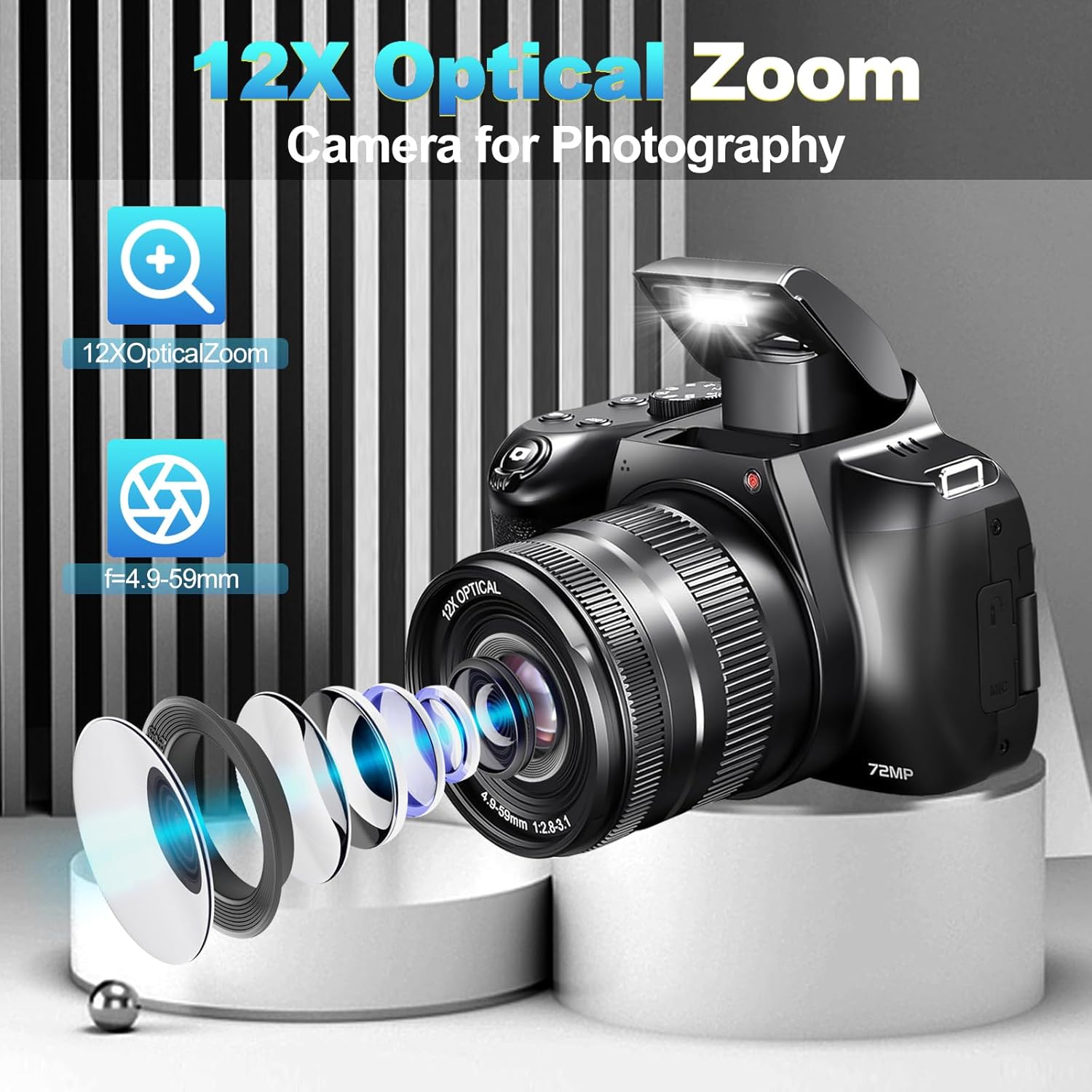
Image: Detailed view of the 12X optical zoom lens components.
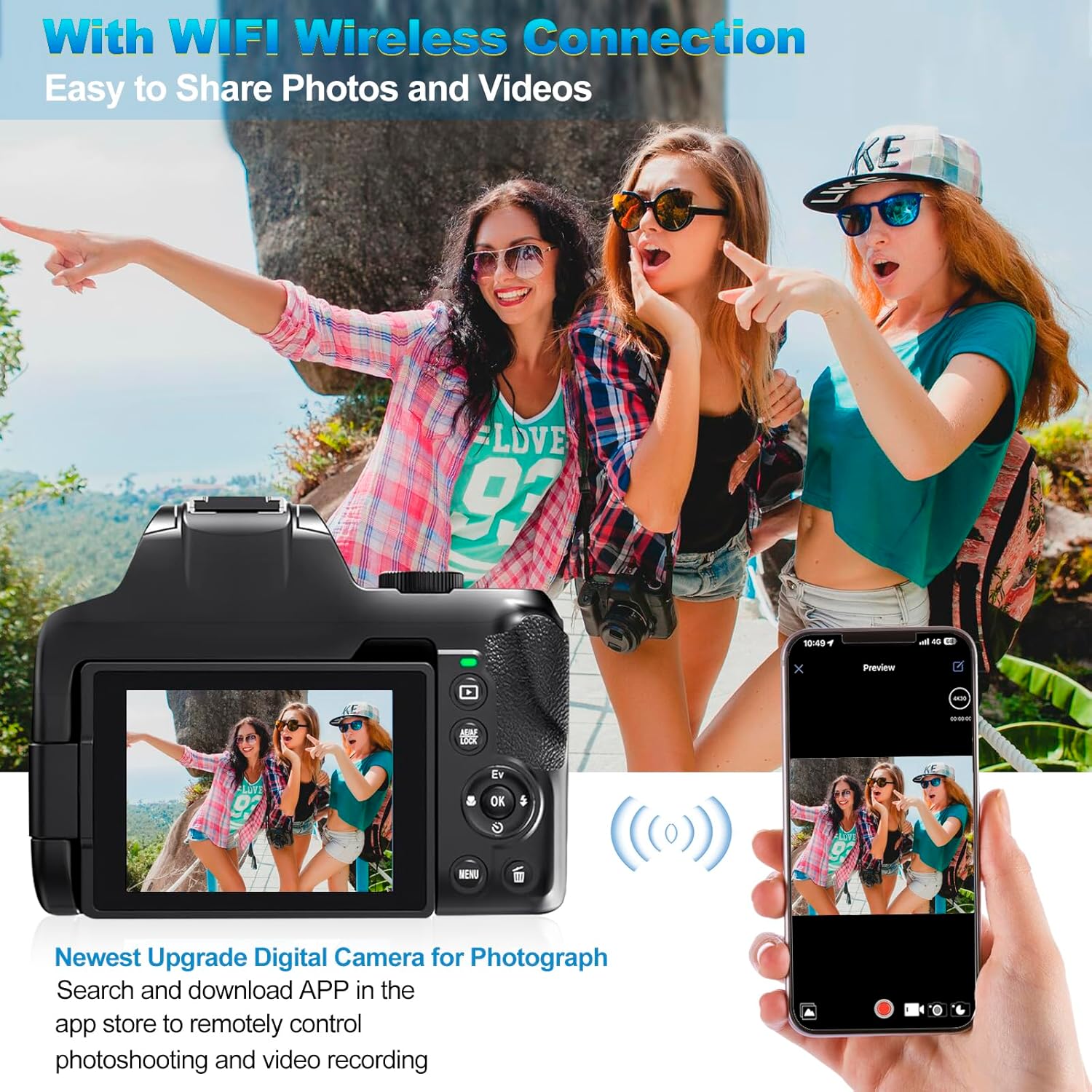
Image: Illustrates various filter effects and the hotshoe interface for external accessories.
3. Maintenance
3.1 Cleaning the Camera
- Use the provided cleaning cloth to gently wipe the camera body and screen.
- For the lens, use a specialized lens cleaning solution and cloth to avoid scratches.
- Do not use harsh chemicals or abrasive materials.
3.2 Battery Care
- Store batteries in a cool, dry place when not in use.
- Avoid fully discharging batteries regularly to prolong their lifespan.
- Charge batteries using only the provided dual charger.
3.3 Storage
When storing the camera for extended periods, remove the battery and SD card. Store the camera in a dry, dust-free environment, preferably in its original packaging or a camera bag.
4. Troubleshooting
| Problem | Possible Cause | Solution |
|---|---|---|
| Camera does not power on. | Battery is dead or incorrectly inserted. | Charge the battery fully. Ensure the battery is inserted with correct polarity. |
| Poor image quality. | Lens is dirty; incorrect settings; insufficient lighting. | Clean the lens. Adjust shooting mode or exposure settings. Use the built-in fill light or shoot in better lighting conditions. |
| Cannot connect to Wi-Fi. | Wi-Fi is not enabled on camera; incorrect password; app issue. | Ensure camera Wi-Fi is on. Verify Wi-Fi password. Restart camera and smartphone app. |
| SD card error. | SD card is full, corrupted, or incorrectly inserted. | Check if the SD card is full and delete unnecessary files. Reinsert the SD card. Format the SD card (this will erase all data). Try a different SD card. |
| Camera freezes. | Software glitch or low battery. | Remove and reinsert the battery to reset the camera. Ensure battery is charged. |
5. Specifications
| Feature | Detail |
|---|---|
| Brand | OIEXI |
| Model Name | Camera For Photograph (Model W3) |
| Photo Sensor Technology | CMOS |
| Effective Still Resolution | 13 MP (Max. 72 MP interpolated) |
| Video Resolution | 4K (3840 x 2160 pixels) at 24 FPS |
| Optical Zoom | 12x |
| Digital Zoom | 2x |
| Screen Size | 3 Inches (270° Flip Screen) |
| Image Stabilization | Sensor-shift |
| Connectivity Technology | Wi-Fi, USB, HDMI |
| Supported File Format | MP4, JPEG |
| Memory Storage Capacity | 64 GB (MicroSD card included) |
| Battery Type | Lithium Ion |
| Special Features | Autofocus, Built-in Flash, Built-in Fill Light, Time-Lapse, Continuous Shooting, Slow Motion, Webcam Functionality |
6. Warranty and Support
Your OIEXI 4K Digital Camera is covered by a manufacturer's warranty. Please refer to the warranty card included in your package for specific terms and conditions. For technical support, troubleshooting assistance, or warranty claims, please contact OIEXI customer service through the contact information provided in your product documentation or on the official OIEXI website.
Please retain your proof of purchase for warranty validation.