
1. Introduction
Thank you for choosing the CATCATCH C1 2K Dash Cam. This manual provides detailed instructions for the installation, operation, and maintenance of your device. Please read this manual thoroughly before use to ensure proper functionality and to maximize your driving safety experience.
Package Contents
- CATCATCH C1 Dash Cam
- Windshield Mount (with adhesive pad)
- Car Charger (USB to Type-C cable)
- 32GB SD Card
- User Manual
2. Product Overview
The CATCATCH C1 is a compact and discreet dash camera designed to capture high-quality video footage of your journeys. It features advanced technologies for enhanced recording and user convenience.
Key Features
- 2K QHD Recording: Captures clear video at 2K resolution with a 170° wide-angle lens and F1.8 aperture.
- Built-in WiFi & App Control: Connects to a dedicated mobile app (iOS/Android) for live preview, video download, settings adjustment, and sharing.
- Compact & Hidden Design: Small form factor (3"x1"x1.2") ensures minimal obstruction to your view.
- Enhanced Night Vision & WDR: Equipped with Wide Dynamic Range (WDR) and infrared night vision for clear footage in low-light conditions.
- 24/7 Protection: Includes G-Sensor for automatic emergency locking and Loop Recording to continuously overwrite old files.
- Wide Temperature Tolerance: Operates reliably in temperatures ranging from -22°F to 158°F.

A visual representation of the CATCATCH C1 Dash Cam, emphasizing its core features: 2K QHD resolution, built-in WiFi, Super Night Vision capabilities, and the inclusion of a 32GB SD card.
3. Setup and Installation
Follow these steps to properly install your CATCATCH C1 Dash Cam in your vehicle.
3.1 Inserting the SD Card
- Ensure the dash cam is powered off.
- Locate the SD card slot on the side of the dash cam.
- Insert the provided 32GB SD card (or another compatible card up to 256GB) into the slot until it clicks into place. The contacts should face the front of the camera.
- To remove, gently push the card in until it springs out.
3.2 Mounting the Dash Cam
- Clean the area on your windshield where you intend to mount the dash cam. Ensure it is free of dust and grease.
- Peel off the protective film from the adhesive pad on the windshield mount.
- Firmly press the mount onto the chosen area of the windshield, ideally behind the rearview mirror to avoid obstructing your view. Hold for a few seconds to ensure a strong bond.
- Attach the dash cam to the mount. The camera is 360° rotatable, allowing you to adjust the lens angle for optimal road coverage.
3.3 Power Connection
- Connect the Type-C end of the provided car charger cable to the dash cam's power port.
- Plug the other end (USB or cigarette lighter adapter) into your car's USB port or cigarette lighter socket.
- The dash cam will automatically power on and begin recording when your vehicle starts.
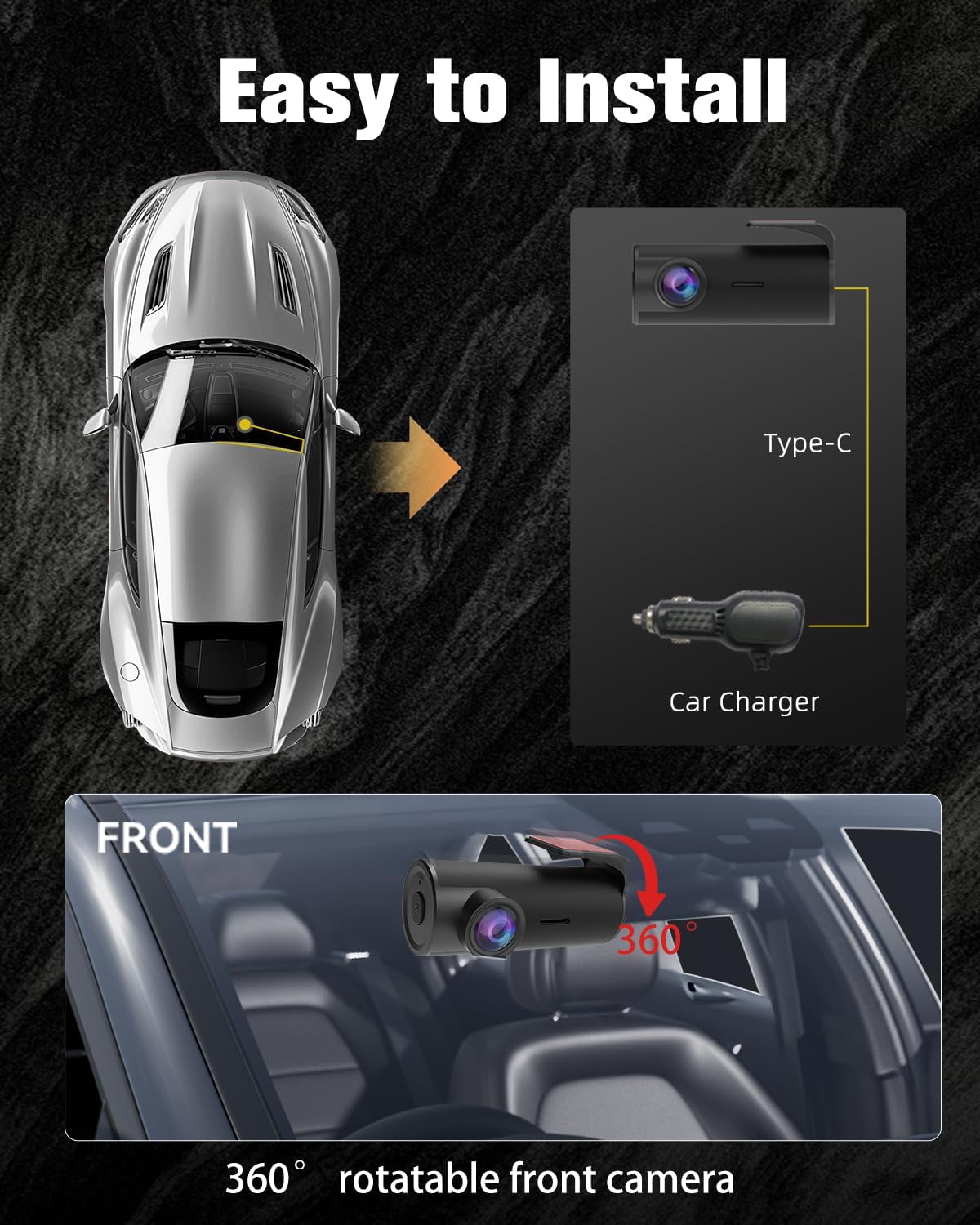
An instructional diagram illustrating the simple installation process of the CATCATCH C1 Dash Cam, including connecting it to a car charger and highlighting its 360-degree rotatable front camera for flexible positioning.
4. Operating Instructions
Understand how to use your dash cam's various functions.
4.1 Powering On/Off
- Automatic Operation: The dash cam powers on and off automatically with your vehicle's ignition when connected to the car charger.
- Manual Power: If your car's power outlet is always on, you may need to manually power off the device by disconnecting the power cable.
4.2 App Control and WiFi Connection
- Download the dedicated CATCATCH app from the iOS App Store or Google Play Store.
- Turn on the dash cam.
- On your smartphone, go to WiFi settings and connect to the dash cam's WiFi network (SSID and password typically found on the device or in the app instructions).
- Open the app to access live footage, review recorded videos, download clips to your phone, and adjust camera settings.

A user's hand interacting with the CATCATCH C1 Dash Cam's mobile application, demonstrating how to preview footage, download clips, and share content via built-in WiFi to various social media platforms.
4.3 Recording Modes
- Loop Recording: The dash cam continuously records video in short segments (e.g., 1, 3, or 5 minutes). When the SD card is full, the oldest unlocked files are automatically overwritten to ensure continuous recording.
- G-Sensor (Emergency Locking): In the event of a sudden impact or collision, the built-in G-Sensor detects the event and automatically locks the current video segment, preventing it from being overwritten by loop recording. These files are stored in a separate folder on the SD card.
4.4 Night Vision and WDR
The C1 Dash Cam utilizes Wide Dynamic Range (WDR) technology and infrared night vision to optimize video quality in challenging lighting conditions. WDR balances bright and dark areas in the frame, ensuring details are visible in both shadows and highlights, while night vision enhances clarity in low-light environments.

An example of the CATCATCH C1 Dash Cam's enhanced night vision and Wide Dynamic Range (WDR) technology, illustrating how it captures clear and balanced video in challenging low-light and high-contrast environments.
4.5 Parking Monitor (Requires Hardwire Kit)
For 24/7 surveillance, the dash cam supports a parking monitor feature. This requires a hardwire kit (sold separately) to provide continuous power to the dash cam when the vehicle is off. When enabled, the dash cam will automatically record if an impact is detected while parked.

A composite image detailing the CATCATCH C1 Dash Cam's protective features: 24-hour parking monitoring, automatic emergency video locking upon impact, and continuous loop recording to ensure constant coverage.
5. Maintenance
Proper maintenance ensures the longevity and optimal performance of your dash cam.
- Clean the Lens: Regularly wipe the camera lens with a soft, lint-free cloth to ensure clear video recording.
- Format SD Card: It is recommended to format the SD card every 2-4 weeks to prevent data corruption and ensure smooth operation. This can usually be done through the mobile app settings.
- Temperature: Avoid exposing the dash cam to extreme temperatures outside its operating range (-22°F to 158°F) for extended periods.
6. Troubleshooting
If you encounter issues with your dash cam, refer to the following common problems and solutions.
| Problem | Possible Solution |
|---|---|
| Dash cam does not power on. |
|
| Recording stops or footage is corrupted. |
|
| WiFi connection issues. |
|
| Dash cam gets hot during operation. |
|
7. Specifications
Technical details of the CATCATCH C1 Dash Cam.
| Feature | Detail |
|---|---|
| Model Name | C1 |
| Video Capture Resolution | 2K |
| Field Of View | 170 Degrees |
| Mounting Type | Windshield Mount |
| Special Features | App Control, Built-In WiFi, Compact Design, Night Vision, Voice Alert |
| Power Connection Type | USB / Cigarette Lighter (via Type-C cable) |
| Storage Support | Up to 256GB SD Card (32GB included) |
| Product Dimensions | 3 x 1 x 1.2 inches |
| Item Weight | 7 ounces |
| Operating Temperature | -22°F to 158°F |
| Color | Black |
| Manufacturer | CATCATCH |
8. Warranty and Support
8.1 12-Month Warranty
The CATCATCH C1 Dash Cam comes with a 12-month warranty from the date of purchase. This warranty covers manufacturing defects. In the event of a defect, CATCATCH will repair or replace the product at no cost. Please retain your proof of purchase for warranty claims. This warranty does not cover damage caused by misuse, accidents, unauthorized modifications, or normal wear and tear.
8.2 Customer Support
For technical assistance, troubleshooting, or warranty inquiries, please contact CATCATCH customer support. Refer to the product packaging or the official CATCATCH website for the most current contact information.