
1. Product Overview
The Yunseity R1 VR Remote Controller is a versatile Bluetooth gamepad designed to enhance your virtual reality and multimedia experiences. It integrates multiple functions including gaming control, selfie activation, page flipping, mouse operation, and sound adjustment. This controller offers convenient wireless connectivity and wide compatibility with various devices.
Key Features:
- Multifunctional Control: Supports gaming, selfie timer, VR video control, e-book/PPT page flipping, mouse operation (Android only), and sound adjustment.
- Wireless Bluetooth Connection: Provides a stable and convenient wireless experience.
- Wide Compatibility: Compatible with VR headsets, smartphones, and tablets. Limited functionality for PC and Xbox One.
- Ergonomic Design: Lightweight and comfortable for extended use.
2. Product Components and Layout
Familiarize yourself with the components of your Yunseity R1 VR Remote Controller:
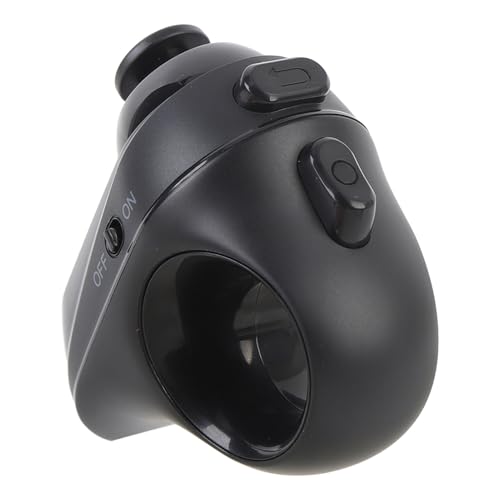
Figure 2.1: Angled view of the Yunseity R1 VR Remote Controller, showing its compact design.

Figure 2.2: Front view displaying the joystick and A, B, C, D action buttons.
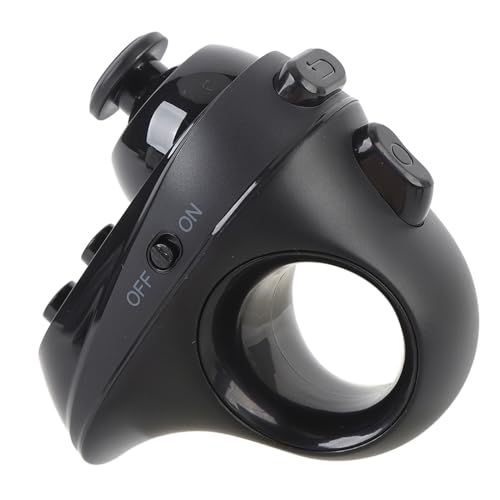
Figure 2.3: Side view showing the ON/OFF power switch.
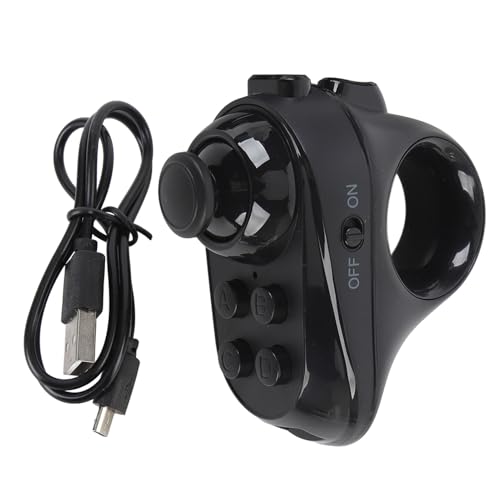
Figure 2.4: The controller alongside its USB charging cable.
3. Setup Instructions
3.1 Charging the Controller
Before initial use, ensure the controller is fully charged.
- Connect the small end of the provided USB charging cable to the charging port on the controller.
- Connect the standard USB end of the cable to a USB power source (e.g., computer USB port, USB wall adapter).
- The charging indicator light will illuminate during charging and turn off or change color when fully charged.
3.2 Powering On/Off
- To Power On: Slide the ON/OFF switch to the 'ON' position. The indicator light will flash.
- To Power Off: Slide the ON/OFF switch to the 'OFF' position. The indicator light will turn off.
3.3 Bluetooth Pairing
Follow these steps to pair your controller with a compatible device:
- Ensure the controller is charged and powered on. The indicator light should be flashing, indicating it is in pairing mode.
- On your smartphone, tablet, or VR headset, navigate to the Bluetooth settings.
- Enable Bluetooth and search for available devices.
- Select "VR-BOX" or a similar device name from the list of found devices to initiate pairing.
- Once paired, the controller's indicator light will stop flashing and remain solid.
4. Operating Instructions
The Yunseity R1 VR Remote Controller offers various functionalities depending on the connected device and operating system.
4.1 Basic Controls
- Joystick: Used for directional navigation (up, down, left, right). Note that this functions as a D-pad (4-direction input) rather than an analog joystick.
- A/B/C/D Buttons: Perform various actions such as selection, confirmation, back, or specific game commands, depending on the application.
4.2 Specific Functions
- Gaming Control: Use the joystick for movement and A/B/C/D buttons for in-game actions.
- Selfie Timer: Can be used to trigger the camera shutter on compatible devices.
- VR Video Control: Navigate menus, play, pause, and adjust volume within VR video applications.
- E-Book/PPT Page Flipping: (Android System Only) Use the controller to turn pages in e-books or advance slides in presentations.
- Mouse Operation: (Android System Only) The joystick can control a cursor on the screen, and buttons can act as clicks.
- Sound Adjustment: Control media volume on connected devices.
5. Maintenance
Proper care will ensure the longevity and optimal performance of your controller.
- Cleaning: Use a soft, dry cloth to clean the surface of the controller. Avoid using harsh chemicals or abrasive materials.
- Storage: Store the controller in a cool, dry place away from direct sunlight and extreme temperatures.
- Battery Care: Avoid fully discharging the battery frequently. Charge the controller regularly, even if not in use for extended periods, to maintain battery health.
- Avoid Moisture: Do not expose the controller to water or excessive humidity.
6. Troubleshooting
If you encounter issues with your Yunseity R1 VR Remote Controller, refer to the following common problems and solutions:
- Controller not powering on:
Ensure the battery is charged. Connect the controller to a power source using the USB cable and allow it to charge for at least 30 minutes before attempting to power on again. - Controller not pairing via Bluetooth:
Verify that the controller is powered on and its indicator light is flashing. Ensure Bluetooth is enabled on your device and that the device is discoverable. Try turning both the controller and your device's Bluetooth off and on again. Move the controller closer to your device. - Limited functionality on PC or Xbox One:
The mouse control and page flipping functions are primarily designed for Android systems. While the controller may connect to a PC or Xbox One, its functionality might be limited to basic inputs or specific applications, such as audio control, and may not support full mouse emulation or complex game controls. - Joystick not providing analog movement:
The joystick on this controller functions as a 4-directional D-pad (up, down, left, right) rather than a true analog joystick with variable input. This is by design. - Buttons unresponsive:
Check the battery level. If the battery is low, charge the controller. If the issue persists, try re-pairing the controller with your device.
7. Specifications
| Feature | Detail |
|---|---|
| Brand | Yunseity |
| Model Name | Yunseity1vbt9ikszg |
| ASIN | B0DTLPH762 |
| Connectivity Technology | Wireless (Bluetooth) |
| Controller Type | Hand Control |
| Compatible Devices | VR Headsets, Smartphones, Tablets, PC, Xbox One (with functional limitations) |
| Hardware Platform | PC |
| Color | Black (#011) |
| Package Quantity | 1 |
8. Warranty and Support
For warranty information or technical support, please refer to the product packaging or contact Yunseity customer service directly through their official website or the retailer where the product was purchased. Please have your model name (Yunseity1vbt9ikszg) and ASIN (B0DTLPH762) available when contacting support.