
1. Introduction
This manual provides detailed instructions for the setup, operation, and maintenance of your IVEOPPE Touchpad Keyboard Case. Please read this manual thoroughly before use to ensure optimal performance and longevity of your product.
1.1 Product Overview
The IVEOPPE Touchpad Keyboard Case is designed to enhance the functionality and protection of your compatible tablet. It features a detachable wireless Bluetooth keyboard with a multi-touch trackpad, 7-color adjustable backlighting, and a durable folio stand with multiple viewing angles.
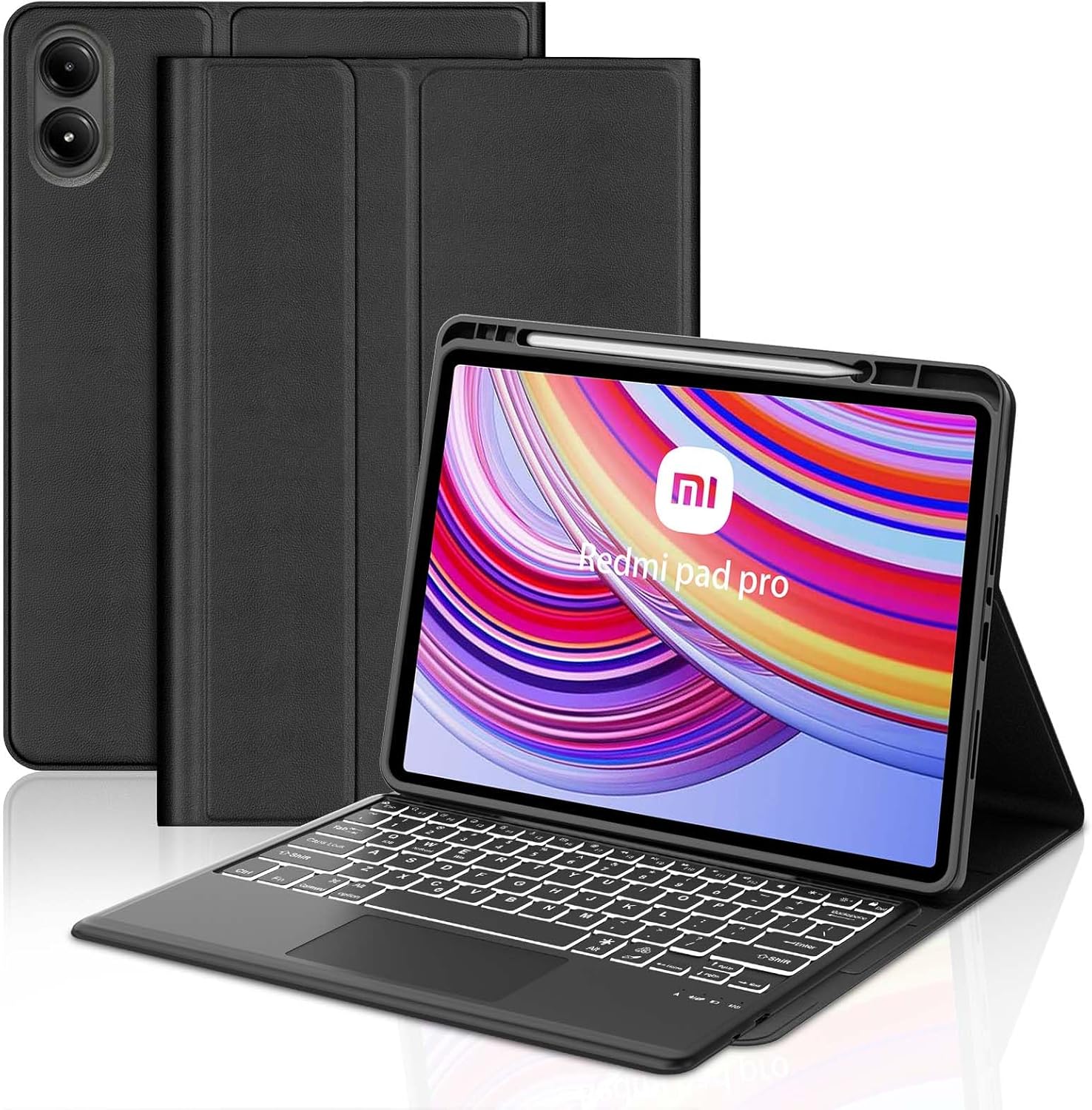
Image 1.1: IVEOPPE Touchpad Keyboard Case with a tablet inserted, showcasing the keyboard and stand functionality.
1.2 Compatibility
This keyboard case is exclusively compatible with the following 12.1-inch tablets released in 2024:
- Xiaomi Redmi Pad Pro 12.1
- Xiaomi Poco Pad 12.1
It is not compatible with any other tablet models or sizes.

Image 1.2: Visual representation confirming compatibility with Xiaomi Redmi Pad Pro 12.1 inch and Xiaomi Poco Pad 12.1 inch tablets.
2. Package Contents
Please check the package for the following items:
- 1 x IVEOPPE Touchpad Keyboard Case
- 1 x Detachable Wireless Bluetooth Keyboard
- 1 x USB-C Charging Cable
- 1 x User Manual (this document)
3. Product Features
- Detachable Bluetooth Keyboard: Magnetic attachment allows for flexible use.
- 7-Color Backlight: Adjustable brightness and color options for typing in various lighting conditions.
- Multi-Touch Trackpad: Supports various gestures for enhanced navigation.
- Integrated Pen Holder: Securely stores your stylus.
- Auto Sleep/Wake Function: Automatically puts your tablet to sleep or wakes it up when the case is opened or closed.
- Multi-Angle Stand: Three adjustable horizontal viewing angles (120°, 125°, 130°) for comfort.
- Full Protection: Premium TPU leather exterior and soft anti-slip interior protect against collisions and scratches.
- Efficient Heat Release: Honeycomb grid pattern design aids in heat dissipation.
- Long Battery Life: Built-in 500 mAh battery provides extended working time.
- Precise Cutouts: Ensures full access to all ports, sensors, speakers, microphones, and cameras.

Image 3.1: Detailed view of the case's protective features, including charging port, speaker cutout, camera hole, power button, and volume button access.
4. Setup Instructions
4.1 Installing Your Tablet
- Gently align your Xiaomi Redmi Pad Pro 12.1 or Poco Pad 12.1 with the case.
- Insert the tablet into the protective shell, ensuring all edges are securely seated and cutouts align with the tablet's ports and buttons.
4.2 Charging the Keyboard
Before first use, fully charge the keyboard. Use the provided USB-C charging cable.
- Connect the small end of the USB-C cable to the charging port on the keyboard.
- Connect the large end of the USB-C cable to a USB power adapter (not included) or a computer's USB port.
- The charging indicator light will illuminate. A full charge typically takes 3-4 hours.
- The indicator light will change or turn off once charging is complete.

Image 4.1: Illustration of the keyboard's Type-C charging port and battery specifications (500mAh capacity, 3-4 hours charging, 240 hours working time).
4.3 Pairing the Bluetooth Keyboard
- Ensure the keyboard is charged.
- Turn on the keyboard by sliding the power switch to the 'ON' position. The Bluetooth indicator light will flash.
- On your tablet, go to Settings > Bluetooth and turn Bluetooth on.
- Your tablet will search for available devices. Select "Bluetooth Keyboard" (or similar name) from the list.
- If prompted, enter the pairing code displayed on your tablet using the keyboard, then press Enter.
- Once paired, the Bluetooth indicator light on the keyboard will stop flashing and remain solid or turn off, indicating a successful connection.
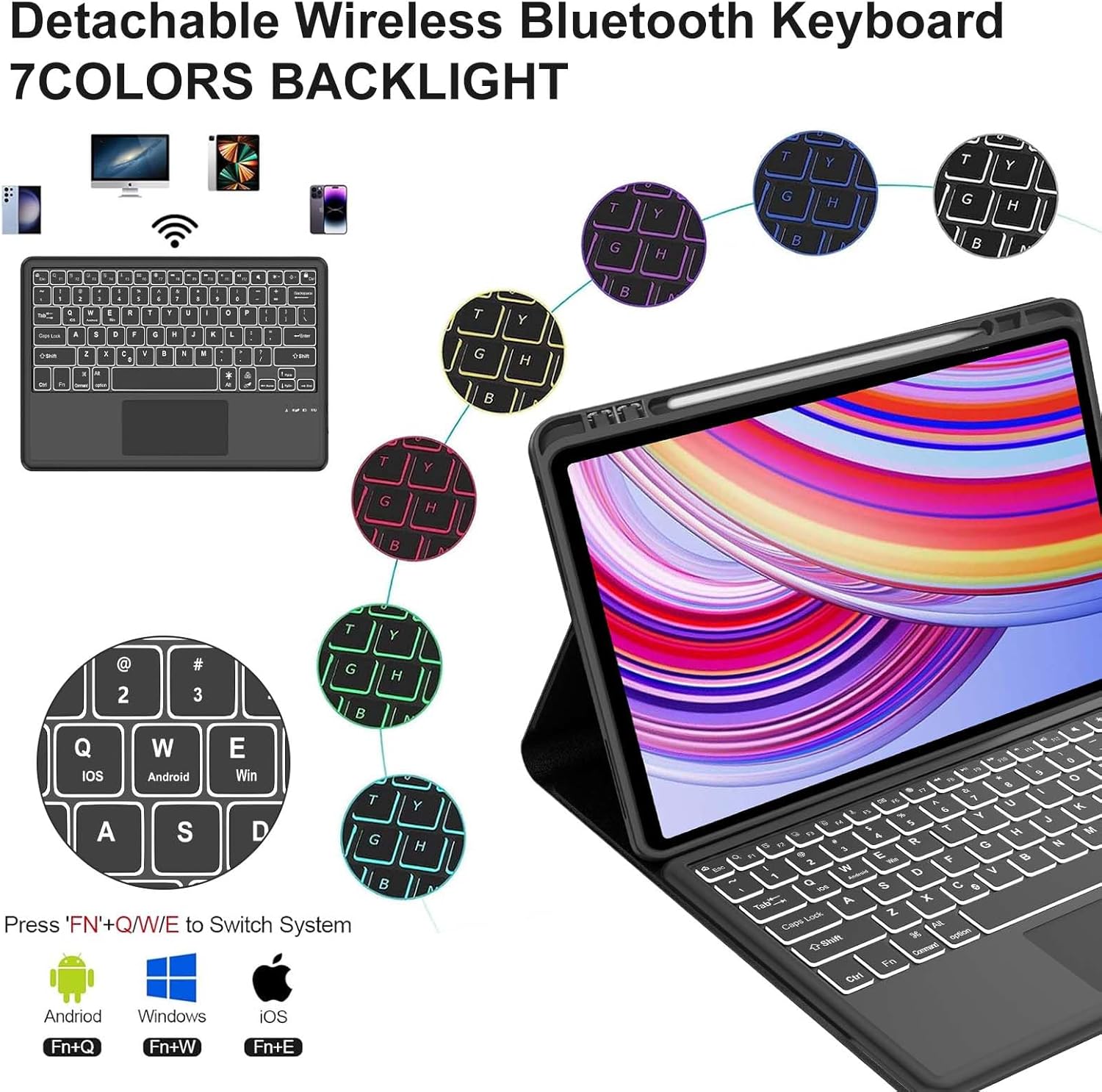
Image 4.2: The detachable wireless Bluetooth keyboard, highlighting its 7-color backlight feature and keys for switching between Android, Windows, and iOS systems.
5. Operating Instructions
5.1 Using the Keyboard
- System Switching: Press Fn + Q for Android, Fn + W for Windows, and Fn + E for iOS to optimize keyboard functions for your tablet's operating system.
- Backlight Adjustment: Press the backlight key (often depicted as a light bulb icon) to cycle through 7 different colors. Use Fn + backlight key to adjust brightness levels (3 levels).
- Shortcut Keys: The keyboard includes various shortcut keys for common functions such as volume control, media playback, and screen lock. Refer to the keyboard layout for specific key functions.
5.2 Using the Multi-Touch Trackpad
The integrated trackpad supports various gestures for intuitive navigation:
- Single Finger Tap: Left-click.
- Two Finger Tap: Right-click (context menu).
- Two Finger Scroll: Scroll up/down or left/right.
- Pinch to Zoom: Use two fingers to zoom in or out.
- Three Finger Swipe: Specific gestures may vary by tablet OS (e.g., app switching, desktop view).

Image 5.1: The keyboard's smooth touchpad, illustrating various multi-touch gestures for navigation.
5.3 Adjusting Viewing Angles
The case features three horizontal bracket angle slots for optimal viewing:
- Position your tablet in the desired slot to achieve a 120°, 125°, or 130° viewing angle.
- The magnetic keyboard can be detached and repositioned for comfortable typing regardless of the tablet's angle.

Image 5.2: The case demonstrating its multiple viewing angles (120°, 125°, 130°) and the detachable magnetic keyboard.
5.4 Auto Sleep/Wake Function
The case supports automatic sleep/wake functionality. Opening the case will wake your tablet, and closing it will put your tablet to sleep, conserving battery life.
6. Maintenance
- Cleaning the Case: Wipe the exterior of the case with a soft, damp cloth. Avoid harsh chemicals or abrasive cleaners.
- Cleaning the Keyboard: Use a soft, dry cloth to clean the keyboard surface. For dust between keys, use compressed air.
- Storage: When not in use for extended periods, store the keyboard case in a cool, dry place. Ensure the keyboard is turned off to preserve battery life.
- Avoid Liquids: Keep the keyboard and case away from liquids to prevent damage.
7. Troubleshooting
7.1 Keyboard Not Connecting via Bluetooth
- Check Power: Ensure the keyboard is turned on and fully charged.
- Re-pair: Delete the keyboard from your tablet's Bluetooth device list and attempt to pair it again (refer to Section 4.3).
- Restart Devices: Restart both your tablet and the keyboard.
- Interference: Move away from other wireless devices that might cause interference.
7.2 Keys Not Responding
- Check Connection: Ensure the keyboard is properly connected via Bluetooth.
- Battery Level: Charge the keyboard fully.
- System Mode: Verify that the keyboard is set to the correct operating system mode (Fn + Q/W/E).
7.3 Trackpad Not Working
- Bluetooth Connection: Ensure the keyboard is connected.
- Tablet Settings: Check your tablet's accessibility or pointer settings to ensure the trackpad is enabled.
- Clean Surface: Ensure the trackpad surface is clean and free of debris.
7.4 Backlight Not Working
- Battery Level: Ensure the keyboard is sufficiently charged. Low battery might disable backlighting.
- Activate Backlight: Press the backlight key to turn it on or cycle through colors.
8. Specifications
| Model | IVEOPPE Keyboard Case for Xiaomi Redmi Pad Pro 12.1 / Poco Pad 12.1 (2024) |
| Connectivity | Bluetooth |
| Battery Capacity | 500 mAh (Lithium-ion) |
| Charging Time | 3-4 hours |
| Working Time | Up to 240 hours (without backlight) |
| Backlight Colors | 7 colors, 3 brightness levels |
| Material | Premium TPU Leather, ABS (keyboard) |
| Product Dimensions | 13 x 10 x 0.8 inches (approx.) |
| Item Weight | 1.96 pounds (approx.) |
| Manufacturer | IVEOPPE |
9. Warranty and Support
This product comes with a standard manufacturer's warranty. For specific warranty details, please refer to the documentation provided with your purchase or contact IVEOPPE customer support.
For technical assistance, troubleshooting, or warranty claims, please contact IVEOPPE customer service through the retailer where the product was purchased or visit the official IVEOPPE website for support information.


