
1. Product Overview
The upHere E240KC is a 240mm All-in-One (AIO) liquid CPU cooler designed for efficient heat dissipation. It features a unique pump design, ARGB lighting, and high-performance fans to maintain optimal CPU temperatures during demanding tasks. This cooler is compatible with a wide range of Intel and AMD sockets.

Image 1.1: Overview of the upHere E240KC 240mm AIO CPU Liquid Cooler.
Key Features:
- Wide Compatibility: Supports Intel LGA 1851/1700/115x/1200/2011/2066 and AMD AM5/AM4 sockets.
- Dual-View Design: Unique pump design allows for two aesthetic orientations.
- Powerful Cooling: Up to 280W TDP support with pump speeds of 800-2500 RPM ±10%.
- ARGB Aesthetics: 15 ARGB LEDs on the pump head and ARGB fans for customizable lighting effects.
- Quiet Operation: Two 120mm PWM fans with speeds between 600-1800 RPM and noise levels below 27 dB(A).
- Easy Installation: Integrated cable management and magnetic pump cover for simplified setup and maintenance.
2. Package Contents
Before beginning installation, please verify that all components are present in the package:

Image 2.1: Included installation accessories, including thermal paste, mounting brackets, and screws for various CPU sockets.
- 240mm Radiator with Integrated Pump and Tubing
- 2 x 120mm PWM ARGB Fans
- Intel Mounting Bracket (LGA 1851/1700/115x/1200/2011/2066)
- AMD Mounting Bracket (AM5/AM4)
- Backplate for Intel Sockets
- Mounting Screws and Standoffs
- Thermal Paste
- User Manual
3. Setup and Installation
Follow these steps carefully to install your upHere E240KC AIO CPU Liquid Cooler. Ensure your system is powered off and unplugged before proceeding.
3.1. Prepare the CPU Socket
- Identify your CPU socket type (Intel or AMD).
- For Intel sockets, install the appropriate backplate behind the motherboard. Secure it with the provided standoffs.
- For AMD sockets, remove the existing plastic retention clips from the motherboard, but keep the original backplate.
3.2. Apply Thermal Paste
Apply a small amount of thermal paste to the center of your CPU's Integrated Heat Spreader (IHS). Use the included spreader tool to evenly distribute a thin layer across the surface. Alternatively, apply a pea-sized dot in the center, and the pressure from the cold plate will spread it.
3.3. Mount the Pump Block
- Attach the correct mounting brackets to the pump block.
- Carefully align the pump block with the CPU and the mounting holes on the motherboard.
- Gently place the pump block onto the CPU, ensuring even contact.
- Secure the pump block using the provided screws, tightening them in a diagonal pattern until snug. Do not overtighten.

Image 3.1: The pump head features a magnetic cover for easy removal and aesthetic customization.
3.4. Install the Radiator and Fans
- Determine the optimal mounting location for the 240mm radiator in your PC case (e.g., top, front, or rear).
- Mount the two 120mm fans to the radiator using the longer screws, ensuring the airflow direction is as desired (typically exhausting air out of the case).
- Secure the radiator assembly to your PC case using the appropriate screws.
3.5. Connect the Cables
- Connect the pump's 3-pin power cable to an available CPU_FAN or AIO_PUMP header on your motherboard.
- Connect the fan PWM cables to the CPU_FAN or SYS_FAN headers on your motherboard.
- Connect the ARGB cables from the pump and fans to a 5V 3-pin ARGB header on your motherboard or an ARGB controller. Ensure correct polarity to avoid damage.
3.6. Installation Video Guide
Video 3.2: General installation guide for upHere AIO CPU Coolers. While this video features the E360KC (360mm) model, the installation steps are largely similar for the E240KC (240mm).
4. Operating Instructions
Once installed, the upHere E240KC operates automatically to cool your CPU. The fans and pump adjust their speeds based on CPU temperature, managed by your motherboard's BIOS/UEFI settings or dedicated software.
4.1. ARGB Lighting Control
The ARGB lighting on the pump head and fans can be controlled via your motherboard's ARGB software (e.g., ASUS Aura Sync, MSI Mystic Light Sync, Gigabyte RGB Fusion, ASRock Polychrome Sync) or a separate ARGB controller (if included or purchased separately). This allows for synchronization with other ARGB components in your system and customization of lighting effects.
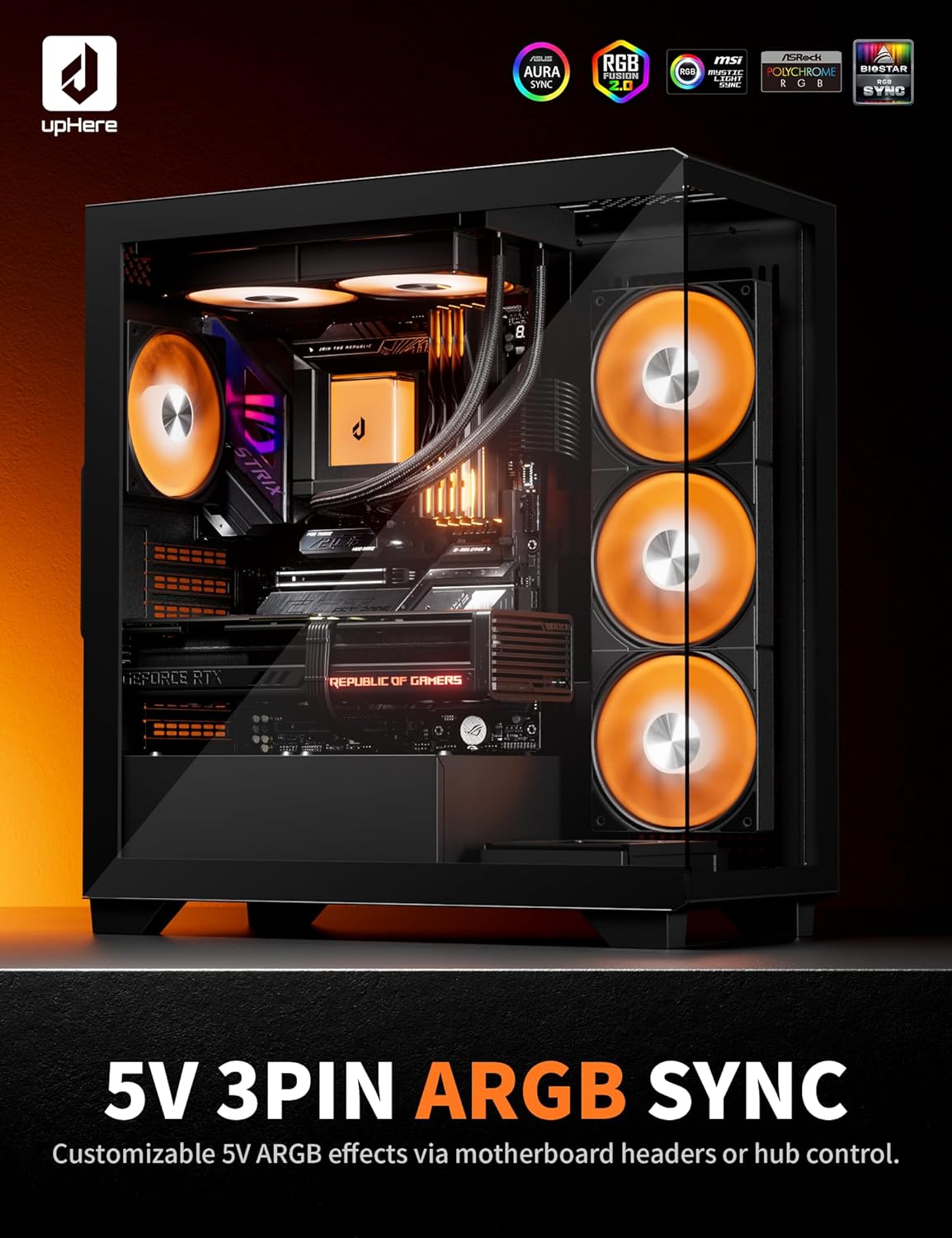
Image 4.1: The E240KC cooler installed in a PC, showcasing its customizable ARGB lighting effects.
4.2. Performance Monitoring
Monitor your CPU temperatures and cooler performance using motherboard monitoring software or third-party utilities. Ensure temperatures remain within safe operating limits, especially during heavy loads.
4.3. Product Overview Video
Video 4.2: Product overview video for upHere AIO CPU Coolers. This video features the E360KC (360mm) model, highlighting general features and aesthetics applicable to the E240KC.
5. Maintenance
Regular maintenance helps ensure the longevity and optimal performance of your liquid cooler.
- Dust Cleaning: Periodically clean dust from the radiator fins and fan blades using compressed air. Ensure fans are not spinning during cleaning.
- Magnetic Pump Cover: The magnetic pump cover can be easily removed for cleaning or aesthetic customization.
- Tubing Inspection: Occasionally inspect the tubing for any signs of kinks, leaks, or damage.
- Thermal Paste: While not frequently required, if you remove the cooler from the CPU, you must clean off old thermal paste and apply a fresh layer before reinstallation.
6. Troubleshooting
If you encounter issues with your upHere E240KC cooler, refer to the following common troubleshooting steps:
- High CPU Temperatures:
- Ensure the pump is running and connected to the correct motherboard header.
- Verify that the cold plate has proper contact with the CPU and thermal paste is correctly applied.
- Check fan connections and ensure they are spinning.
- Clean any dust buildup on the radiator fins.
- Fans Not Spinning or ARGB Not Working:
- Check all power and ARGB cable connections to the motherboard or controller.
- Ensure the 5V 3-pin ARGB header is correctly connected (not 12V 4-pin RGB).
- Verify motherboard BIOS/UEFI settings for fan control and ARGB.
- Update motherboard drivers and ARGB software.
- Unusual Noises:
- Check for loose fan screws or cables interfering with fan blades.
- Ensure the pump is securely mounted and not vibrating against other components.
- A slight gurgling sound during initial startup is normal as air bubbles settle. If persistent, gently tilt the PC case to help move air bubbles to the radiator.
7. Specifications
| Feature | Specification |
|---|---|
| Product Dimensions (L x W x H) | 27.7 x 12 x 2.7 cm |
| Cooling Method | Liquid (Water) |
| Material | Aluminum |
| Power Connector Type | 3-pin |
| Voltage | 12 Volts (DC) |
| Power | 4.2 Watts |
| Noise Level | 27 Decibels |
| Max Rotation Speed (Fans) | 1800 RPM |
| Airflow | 71 CFM |
| TDP Support | Up to 280W |
| Compatible Devices | Desktop computer, Laptop |
| CPU Socket Compatibility | Intel LGA 1851/1700/115x/1200/2011/2066, AMD AM5/AM4 |
8. Warranty and Support
upHere products are manufactured to high-quality standards. For warranty information, technical support, or service inquiries, please refer to the official upHere website or contact your retailer. Keep your proof of purchase for warranty claims.