
Introduction
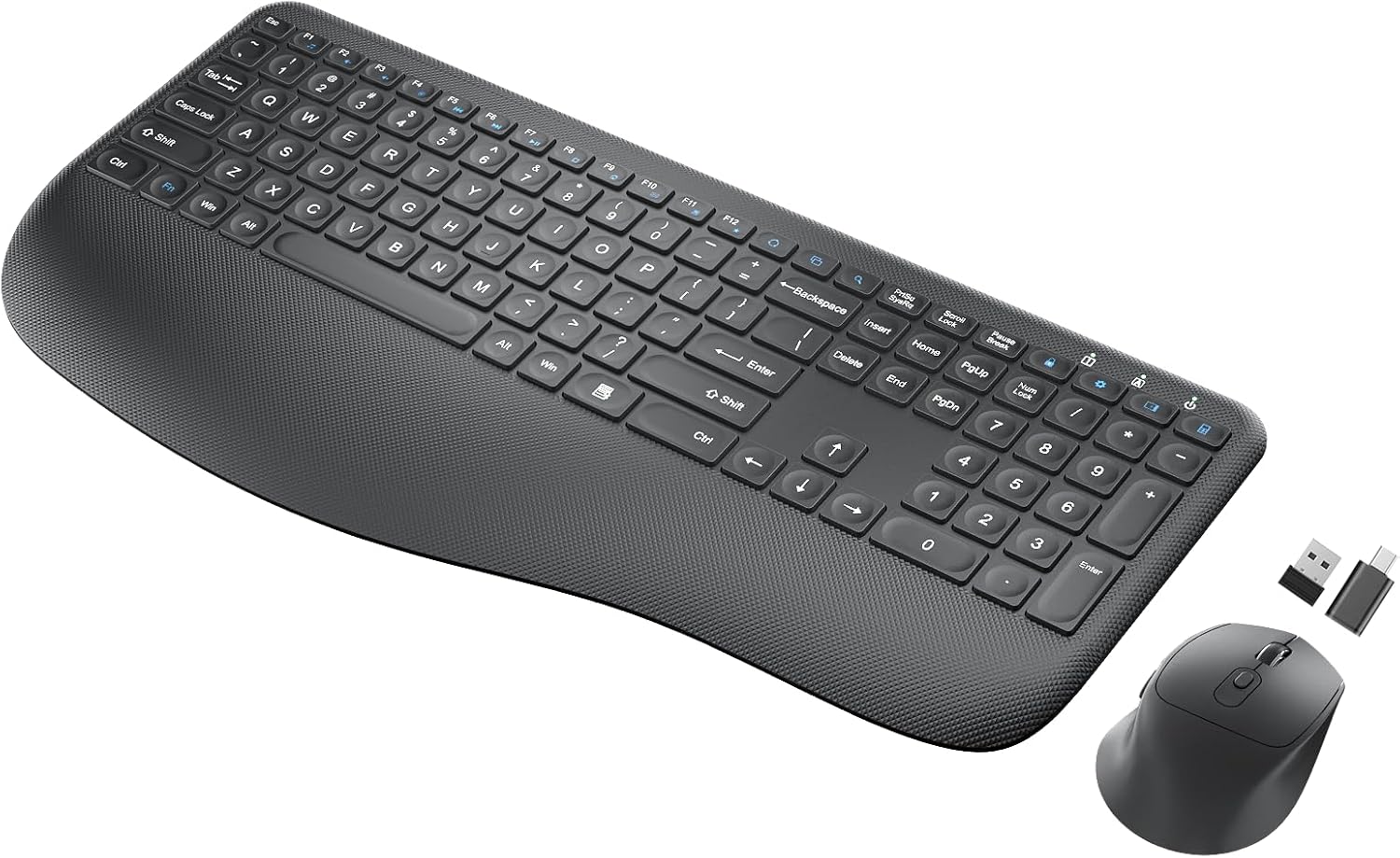
This manual provides instructions for the setup, operation, and maintenance of your QUASIO Wireless Keyboard and Mouse Combo. This combo offers a full-sized ergonomic keyboard with a comfortable palm rest and an optical wireless mouse, designed for efficient use with Windows and Mac OS systems.
Package Contents
Please verify that all items are present in your package:
- 1 x Wireless Keyboard
- 1 x Wireless Mouse
- 1 x USB Receiver
- 1 x Type-C Adapter
- 1 x User Manual

Image: An illustration showing the contents of the QUASIO Wireless Keyboard and Mouse Combo package, including the keyboard, mouse, USB receiver, Type-C adapter, and user manual.
Setup Instructions
1. Battery Installation
The keyboard requires two (2) AAA batteries, and the mouse requires one (1) AA battery. Batteries are not included.
- Locate the battery compartment on the underside of the keyboard and mouse.
- Open the compartment covers.
- Insert the batteries, ensuring correct polarity (+/-).
- Close the battery compartment covers.
2. Connecting the USB Receiver
The keyboard and mouse connect wirelessly via a single 2.4 GHz USB receiver.
- Locate the USB receiver, typically stored within the mouse's battery compartment.
- Plug the USB receiver into an available USB-A port on your computer. If your computer only has USB-C ports, use the provided Type-C adapter.
- Turn on the keyboard and mouse using their respective ON/OFF switches.
- The devices are plug-and-play and should connect automatically within a few seconds. No additional software installation is required.
The wireless connection is reliable up to 33 feet (10 meters).

Image: Underside view of the keyboard and mouse, highlighting the battery compartments, ON/OFF switches, and the USB dongle storage slot within the mouse.

Image: A visual guide demonstrating how to connect the 2.4GHz USB receiver to a computer's USB-A port and a Type-C adapter for USB-C ports, illustrating the plug-and-play setup.
Operating Instructions
Ergonomic Design
The keyboard features an ergonomic design with a comfortable palm rest and adjustable tilt feet to promote a natural typing posture and reduce wrist strain. The mouse is contoured for a comfortable grip.

Image: A user's hands positioned comfortably on the ergonomic keyboard with its integrated palm rest and adjustable tilt, illustrating reduced wrist fatigue compared to a standard flat keyboard.
Keyboard Features
- Full-Size Layout: Includes a numeric keypad for efficient data entry.
- Quiet Typing: Low-profile scissor keys provide a quiet and smooth typing experience.
- Multimedia Hotkeys: 7 dedicated multimedia hotkeys for quick access to media controls.
- Shortcut Keys: 12 shortcut keys for enhanced productivity.
- Smart LED Indicators: Indicators for Power, Caps Lock, and Number Lock to show keyboard status.

Image: A close-up of the keyboard highlighting the 7 independent multimedia keys and 12 combined multimedia keys for functions like Share, Search, Operation Center, Calculator, Multi-task, and Screen Lock.

Image: A detailed view of the keyboard's upper right section, pointing out the Power Indicator, Caps Lock Indicator, and Number Lock Indicator LEDs.
Mouse Features
- 6-Button Design: Includes left click, right click, scroll wheel, DPI switch, forward, and backward buttons.
- Quiet Click: Designed to produce 95% less noise than standard mice, enhancing focus.
- Adjustable DPI: Three tracking speeds (800/1200/1600 DPI) for precise control. Use the DPI button to cycle through settings.
- Navigation Buttons: Forward and backward buttons for faster web browsing.

Image: A diagram of the wireless mouse, labeling its six buttons: Scroll Wheel, Left Button, Right Button, Forward Button, Backward Button, and the 3-level DPI switch (800/1200/1600).
Automatic Power Saving
To conserve battery life, both the keyboard and mouse feature an automatic sleep mode:
- The keyboard enters sleep mode after 15 minutes of inactivity.
- The mouse enters sleep mode after 10 minutes of inactivity.
To wake the device, simply click any button on the mouse or press any key on the keyboard.
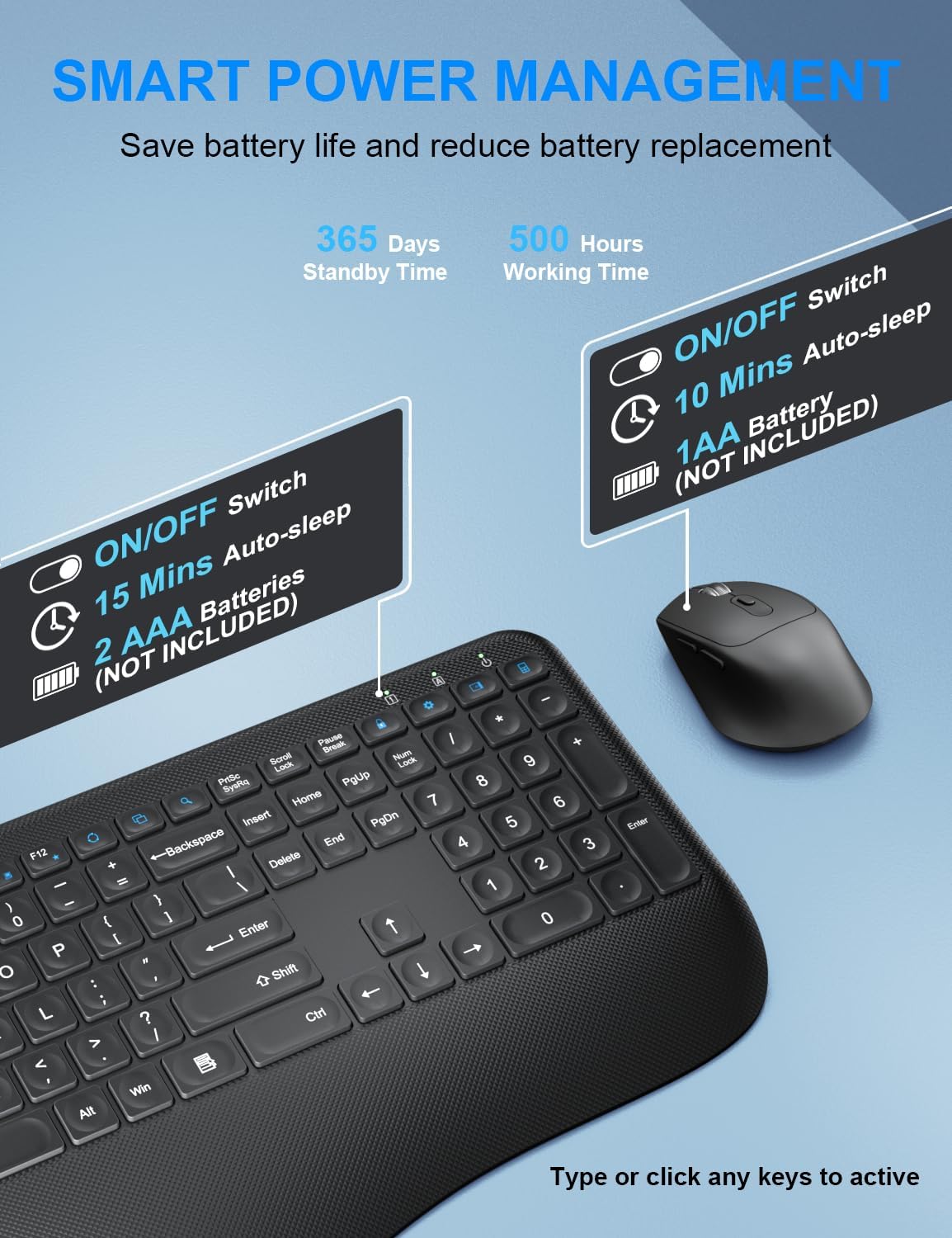
Image: An illustration detailing the smart power management features, showing the keyboard's 15-minute auto-sleep and 2xAAA battery requirement, and the mouse's 10-minute auto-sleep and 1xAA battery requirement, along with ON/OFF switches.
Compatibility
The QUASIO Wireless Keyboard and Mouse Combo is compatible with a wide range of operating systems and devices, including:
- Windows XP/Vista/7/8/10/X
- Mac OS
- Desktops
- Chromebooks
- PCs
- Laptops

Image: A graphic illustrating the wide compatibility of the keyboard and mouse combo with various devices and operating systems, including PC, Laptop, Desktop, and TV, running Windows, Chrome OS, or Mac OS.
Maintenance
Battery Replacement
When the devices stop responding or show signs of low power (e.g., lag, intermittent connection), it is time to replace the batteries. Follow the battery installation steps outlined in the Setup section.
Cleaning
To clean your keyboard and mouse, use a soft, dry cloth. For stubborn dirt, a slightly damp cloth with mild soap can be used, ensuring no liquid enters the device. Avoid harsh chemicals or abrasive materials.
Troubleshooting
- No Connection / Device Not Responding:
- Ensure the keyboard and mouse are turned ON.
- Check if the batteries are correctly installed and have sufficient charge. Replace if necessary.
- Verify the USB receiver is securely plugged into a working USB port on your computer. Try a different USB port.
- Move the keyboard and mouse closer to the USB receiver to rule out range issues.
- Restart your computer.
- Lag or Intermittent Connection:
- Replace batteries.
- Ensure there are no large metal objects or other wireless devices (e.g., Wi-Fi routers, cordless phones) operating too close to the receiver, which might cause interference.
- Reduce the distance between the devices and the receiver.
- Mouse Cursor Jumps or is Inaccurate:
- Clean the optical sensor on the underside of the mouse.
- Ensure you are using the mouse on a suitable surface (non-reflective, non-transparent).
- Adjust the DPI setting using the DPI button on the mouse.
Specifications
| Feature | Detail |
|---|---|
| Brand | QUASIO |
| Model | B0DTK58QM7 |
| Connectivity Technology | 2.4Ghz Wireless |
| Keyboard Batteries | 2 x AAA (not included) |
| Mouse Batteries | 1 x AA (not included) |
| Special Features | Ergonomic, Wrist Rest |
| Compatible Devices | Laptop, Personal Computer (Windows, Mac OS, Chrome OS) |
| Item Weight | 1.92 pounds |
| Package Dimensions | 17.36 x 10.75 x 1.73 inches |

Image: A detailed diagram showing the dimensions of the full-sized ergonomic keyboard (16.1 inches x 8.1 inches x 1.2 inches/0.8 inches) and the optical mouse (4.5 inches x 3.1 inches x 1.5 inches).
Warranty and Support
Your QUASIO Wireless Keyboard and Mouse Combo comes with a 24-month support period. Our customer service team is committed to resolving any issues you may encounter within 24 hours.
For assistance, please refer to the contact information provided on the product packaging or the official QUASIO website.