
Product Overview
The Auskang Smart Wallet AK-WL201A is a minimalist leather wallet designed for modern convenience and security. It integrates Apple Find My technology for tracking, offers RFID blocking for data protection, and supports wireless charging for ease of use.
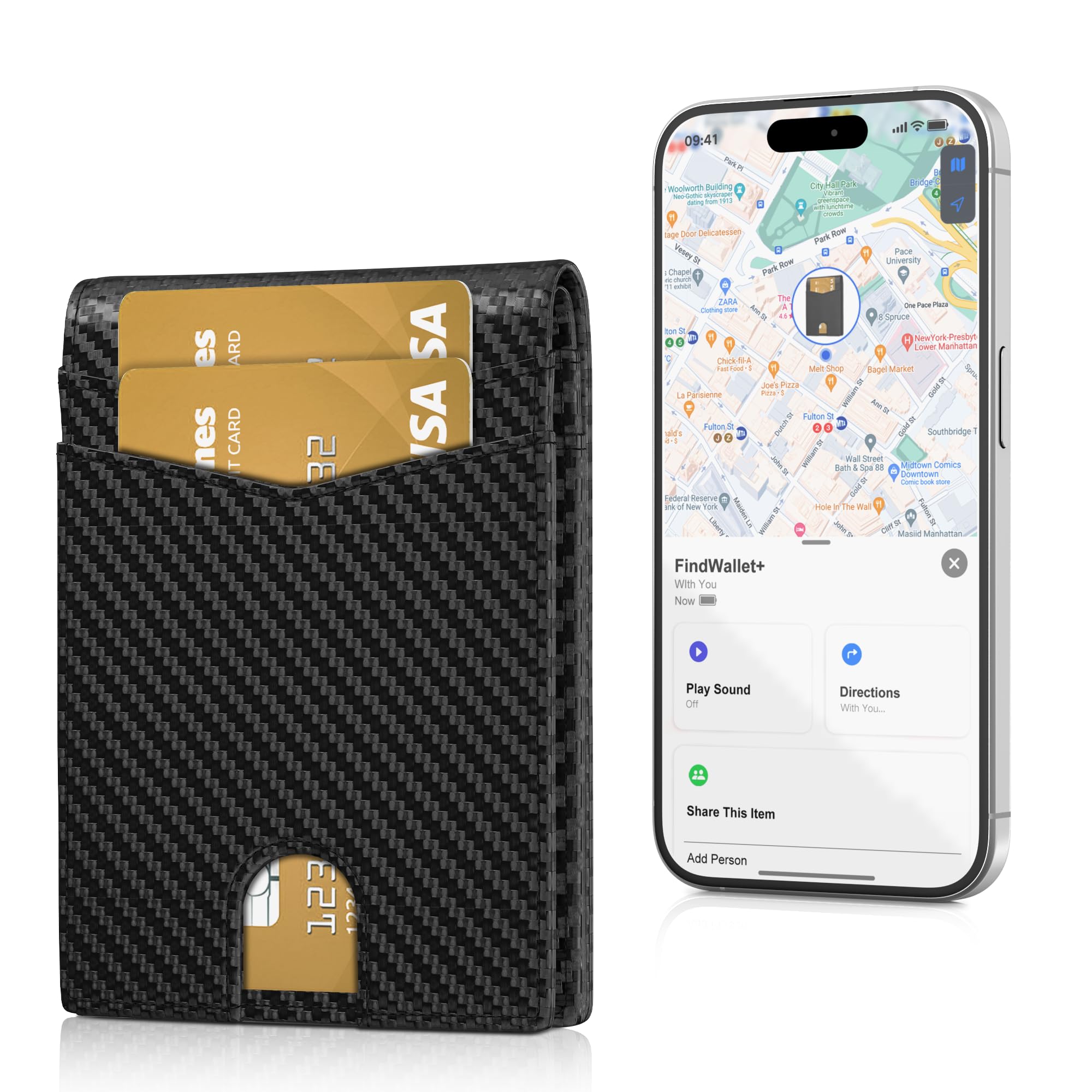
Image: Auskang Smart Wallet AK-WL201A, showcasing its sleek design and compact form factor.
Key Features:
- Apple Find My App Integration: Locate your wallet anytime, anywhere with precise tracking, loud sound alerts, and left-behind reminders.
- Minimalist Design: Slim profile with 6 card slots, 1 cash pocket, 1 ID window, and 2 multifunctional compartments.
- RFID Blocking: Safeguards credit cards from unauthorized scanning and information theft.
- Wireless Charging: Conveniently recharge the integrated tracker without special cables.
Setup Guide
1. Initial Charging
Before first use, ensure your smart wallet's integrated tracker is fully charged. The wallet supports Qi-compatible wireless charging.

Image: The Auskang Smart Wallet placed on a wireless charging pad, indicating its charging capability.
2. Pairing with Apple Find My
The smart wallet is designed to work seamlessly with Apple's Find My network. Follow these steps to pair your wallet:
- Ensure Bluetooth is enabled on your iOS device.
- Open the "Find My" app on your iPhone.
- Navigate to the "Items" tab and tap the "+" icon.
- Select "Add Other Item".
- Press the power button on your wallet once. A beep will sound to indicate it is turned on and ready for pairing.
- Your iPhone will search for the wallet. Once detected, follow the on-screen prompts to connect and name your wallet.

Image: Visual steps for connecting the smart wallet to the Apple Find My application on an iPhone.
Note: This smart wallet is compatible only with Apple iOS devices and the Apple Find My network. Android devices are not supported for tracking features.
Operating Your Smart Wallet
1. Card and Cash Storage
The wallet features multiple compartments for your cards and cash:
- 6 Card Slots: For credit cards and other essential cards.
- 1 Cash Pocket: For banknotes.
- 1 ID Window: With a thumb opening for easy access to your identification.
- 2 Multifunctional Compartments: For additional cards or receipts.

Image: The interior layout of the wallet, highlighting its storage capacity for cards and cash.
2. RFID Blocking Functionality
The wallet is equipped with RFID blocking technology to protect your credit cards and personal information from unauthorized scanning and electronic theft. This feature is always active.

Image: A visual representation of the wallet's RFID blocking layers protecting cards from scanning devices.
3. Using Apple Find My Features
Once paired, you can utilize the following features through the Apple Find My app:
- Precise Tracking: View the real-time location of your wallet on a map.
- Loud Sound Alert: If your wallet is nearby but out of sight, you can play a sound from the Find My app to help locate it.
- Left-Behind Remind: Receive notifications on your iPhone if you leave your wallet behind.
- Lost Mode: Mark your wallet as lost in the Find My app. This allows you to display a message and contact information to anyone who finds it.

Image: Examples of the Find My app interface demonstrating tracking and alert functions for the smart wallet.
Maintenance
1. Charging the Tracker
The integrated tracker is powered by a rechargeable battery. Place the wallet on a compatible wireless charger (not included) to recharge. A full charge provides approximately 4 months of battery life.
Note: The wireless charger is not included with the wallet.
2. Cleaning
To clean your leather wallet, gently wipe it with a soft, damp cloth. Avoid using harsh chemicals or abrasive cleaners, as these can damage the leather and electronic components.
3. Storage
Store the wallet in a cool, dry place away from direct sunlight and extreme temperatures to preserve the leather and internal electronics.
Troubleshooting
| Issue | Possible Cause | Solution |
|---|---|---|
| Wallet not appearing in Find My app | Bluetooth is off; Wallet battery is low; Wallet is not paired; Out of range. | Ensure Bluetooth is on. Charge the wallet. Re-pair the wallet following the setup guide. Move closer to the wallet. |
| Cannot charge wirelessly | Incompatible charger; Wallet not placed correctly; Charger not powered. | Use a Qi-compatible wireless charger. Ensure the wallet is centered on the charging pad. Check if the charger is plugged in and powered on. |
| Sound alert is not loud enough | Environmental noise; Wallet is covered. | Move to a quieter environment. Ensure the wallet is not deeply buried or covered by other items. |
| Location not updating frequently | Wallet is out of range of Apple devices; Low battery. | The Find My network relies on nearby Apple devices. Location updates may be less frequent in isolated areas. Charge the wallet. |
Product Specifications
| Feature | Detail |
|---|---|
| Brand | Auskang |
| Model Number | AK-WL201A |
| Material | Genuine Leather |
| Color | Black |
| Style | Grid Pattern |
| Dimensions (D x W x H) | 4.1" x 3" x 0.6" |
| Item Weight | 3.2 ounces |
| Card Slots | 6 |
| Cash Pocket | 1 |
| ID Window | 1 |
| Multifunctional Compartments | 2 |
| Tracking | Works with Apple Find My |
| Security | RFID Blocking |
| Charging | Wireless Charging (Qi-compatible) |
| Battery Life (Tracker) | Approx. 4 months per charge |
Warranty and Support
For warranty information and customer support, please refer to the documentation included with your purchase or visit the official Auskang website. Keep your proof of purchase for warranty claims.