
Topsand cb7ecd9c-470e-4986-80bc-0c2ceb2f7ed7
User Manual for Topsand 8.7 Inch Android 14 Tablet with Premium Protective Case
Model: cb7ecd9c-470e-4986-80bc-0c2ceb2f7ed7 | Brand: Topsand
1. Introduction
Welcome to the user manual for your new Topsand 8.7 Inch Android 14 Tablet and its accompanying Premium Protective Case. This manual provides essential information on setting up, operating, maintaining, and troubleshooting your device to ensure optimal performance and longevity. Please read this manual thoroughly before using your tablet.
2. Package Contents
Please verify that all items are present in your package:
- Topsand 8.7 Inch Android 14 Tablet
- Premium Protective Case
- 128GB Micro SD Card
- Charging Cable (USB-C)
- Power Adapter
- User Manual (this document)
3. Product Overview
The Topsand 8.7 Inch Android 14 Tablet is designed for seamless performance, entertainment, and productivity. It features a powerful octa-core processor, a vibrant IPS display, and advanced camera capabilities. The included premium protective case offers robust protection and enhanced usability.
3.1 Tablet Features
- Operating System: Latest Android 14 with GMS certification.
- Processor: Robust 8-core CPU and Mali G57 GPU for smooth performance.
- Display: 8.7-inch IPS display with 1340x800 HD resolution, 178° wide view angle, 16.7M colors, and 350 Nit brightness. Features TDDI incell touch screen and Widevine L1 Certification for high-quality streaming.
- Memory & Storage: 12GB (4GB+8GB) RAM and 128GB ROM, expandable up to 2TB via TF card.
- Cameras: 16MP rear camera and 5MP front camera with face unlock.
- Connectivity: BT 5.0 and 2.4/5GHz WiFi support.
- Design: Sleek all-metal body, just 8.3 mm thick.

Figure 3.1: Overview of the Topsand 8.7 Inch Android 14 Tablet highlighting key specifications like screen size, Wi-Fi, camera, battery, and storage.

Figure 3.2: Details of the tablet's IPS display, including resolution, wide view angle, color depth, and brightness, along with Widevine L1 certification for streaming services.
3.2 Protective Case Features
- Advanced Shock Absorption: Built-in materials protect against impacts and accidental drops.
- Premium Quality: Durable construction with synthetic leather exterior and microfiber soft lining.
- Precision Fit: Engineered for effortless access to all buttons, ports, and features.
- Secure Closure: Elastic belts keep the case securely closed.
- Adjustable Stand: Built-in anti-slip grooves allow for multi-angle vision.
4. Setup
4.1 Tablet Initial Setup
- Charge the Tablet: Before first use, fully charge the tablet using the provided charging cable and power adapter. The charging port is typically located on the side or bottom edge of the tablet.
- Power On: Press and hold the power button (usually on the side) until the Topsand logo appears on the screen.
- Initial Configuration: Follow the on-screen prompts to select your language, connect to a Wi-Fi network, set up your Google account, and configure basic settings.
- Install Micro SD Card (Optional): If you wish to expand storage beyond the internal 128GB, locate the TF card slot (often covered by a small flap on the side) and insert the included 128GB Micro SD card or your own compatible card. Ensure it is inserted correctly until it clicks into place.
4.2 Installing the Protective Case
The protective case is designed for easy installation and a secure fit.
- Prepare the Tablet: Ensure your tablet is clean and free of dust or debris.
- Position the Tablet: Place the tablet onto the open case, aligning the corners.
- Secure Corners: Gently stretch and fit each of the four elastic bands over the corresponding corners of the tablet. Ensure the bands are firmly fixed and do not obstruct any ports or buttons.
- Verify Fit: Check that the tablet is snugly held within the case and all ports, buttons, and cameras are accessible.

Figure 4.1: Visual guide for securing the tablet within the protective case using the four elastic corner bands.
5. Operating Instructions
5.1 Basic Navigation
- Touch Gestures: Use taps, swipes, pinches, and long presses to navigate the Android interface.
- Home Screen: Swipe left or right to access different home screens.
- App Drawer: Swipe up from the bottom of the screen to access all installed applications.
- Notifications & Quick Settings: Swipe down from the top of the screen to view notifications and access quick settings toggles.
5.2 Connecting to Wi-Fi
- Go to Settings > Network & internet > Internet.
- Turn on Wi-Fi. The tablet will scan for available networks.
- Select your desired Wi-Fi network from the list.
- Enter the password if prompted, then tap Connect.
5.3 Bluetooth Pairing
- Go to Settings > Connected devices > Connection preferences > Bluetooth.
- Turn on Bluetooth.
- Ensure the device you want to pair with is in pairing mode.
- Select the device from the list of available devices and follow any on-screen prompts to complete pairing.
5.4 Camera Usage
The tablet is equipped with a 16MP rear camera and a 5MP front camera for photos and video calls. It also supports face unlock for secure access.
- Open the Camera application from your home screen or app drawer.
- Tap the camera switch icon to toggle between the front and rear cameras.
- Tap the shutter button to take a photo or the record button to start/stop video recording.
- Access settings within the camera app to adjust modes, filters, and other preferences.
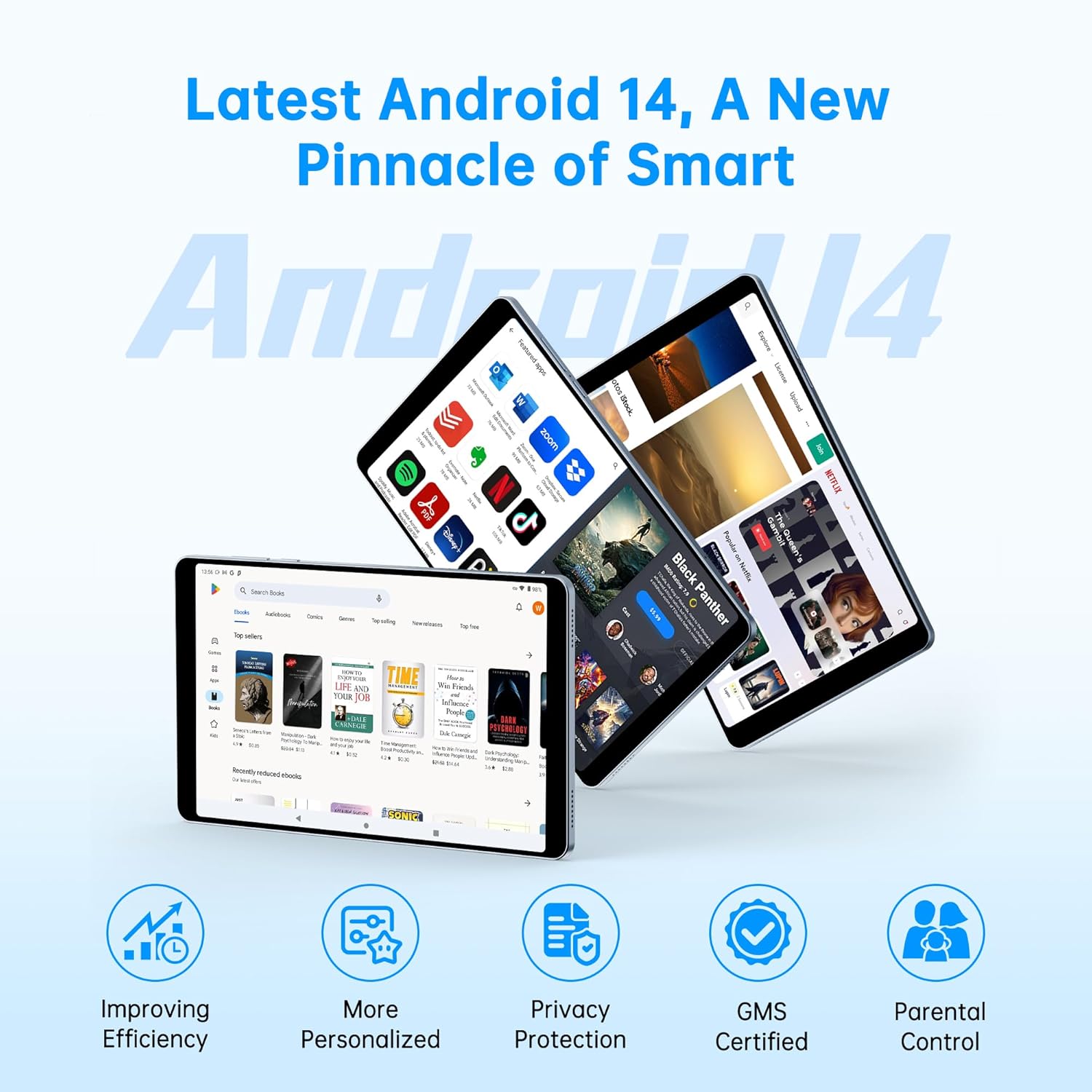
Figure 5.1: Illustration of the tablet's 16MP rear camera and 5MP front camera, highlighting its capability for HD picture capture and face unlock.
5.5 Storage Management
Your tablet comes with 128GB of internal storage, expandable up to 2TB via a TF card. Regularly manage your storage to ensure optimal performance.
- Check Storage: Go to Settings > Storage to view storage usage and free up space.
- Move Files: Transfer large files (photos, videos) to the Micro SD card to free up internal storage.
- Uninstall Apps: Remove unused applications to reclaim space.

Figure 5.2: Depiction of the tablet's storage capabilities, including 12GB RAM, 128GB ROM, 2TB expandable storage, and 2.4/5GHz WiFi connectivity, emphasizing faster response and larger storage space.
5.6 Media Playback
Enjoy your favorite movies, shows, and music on the vibrant display. The tablet supports various media formats and streaming services.
- Streaming Apps: Pre-installed or downloadable apps like Netflix, Disney+, Hulu, Amazon Prime Video, and YouTube are supported, leveraging Widevine L1 certification for high-definition content.
- Local Media: Use the built-in media player or download third-party apps to play videos and music stored on your tablet or SD card.
6. Maintenance and Care
- Cleaning: Use a soft, lint-free cloth to clean the screen and body of the tablet. For stubborn smudges, slightly dampen the cloth with water or a screen cleaner. Avoid harsh chemicals.
- Battery Care: To prolong battery life, avoid extreme temperatures. Do not let the battery fully drain frequently, and avoid overcharging for extended periods.
- Software Updates: Regularly check for and install system updates to ensure your tablet has the latest features, security patches, and performance improvements. Go to Settings > System > System update.
- Storage: Store the tablet in a cool, dry place away from direct sunlight and extreme temperatures when not in use.
- Case Care: The protective case can be wiped clean with a damp cloth. Avoid abrasive cleaners.
7. Troubleshooting
This section addresses common issues you might encounter with your tablet.
| Problem | Possible Solution |
|---|---|
| Tablet won't turn on | Ensure the tablet is charged. Connect it to the charger for at least 30 minutes. If still unresponsive, perform a force restart by holding the power button for 10-15 seconds. |
| Wi-Fi connection issues | Restart your Wi-Fi router. Go to Settings > Network & internet > Internet, forget the network, and reconnect. Ensure you are within range of the Wi-Fi signal. |
| Apps are crashing or freezing | Clear the app's cache (Settings > Apps > [App Name] > Storage & cache > Clear cache). If the issue persists, uninstall and reinstall the app. Ensure sufficient free storage space. |
| Slow performance | Close unused background apps. Clear cache for frequently used apps. Free up storage space. Restart the tablet periodically. |
| Screen is unresponsive | Perform a force restart. If the issue continues, ensure the screen is clean and dry. |
8. Technical Specifications
| Feature | Specification |
|---|---|
| Brand | Topsand |
| Model Name | Topsand 8.7 Inch Android 14 Tablet with Premium Protective Case |
| Item Model Number | cb7ecd9c-470e-4986-80bc-0c2ceb2f7ed7 |
| Operating System | Android 14 |
| Screen Size | 8.7 Inches |
| Screen Resolution | 1456x814 pixels (HD) |
| Max Screen Resolution | 1920x1080 |
| Processor Brand | ARM (Octa-core CPU) |
| Graphics Card Description | Integrated (Mali G57 GPU) |
| RAM | 12GB (4GB+8GB) |
| Internal Storage | 128GB ROM |
| Expandable Storage | Up to 2TB via TF card (Micro SD) |
| Connectivity | Bluetooth 5.0, 2.4/5GHz Wi-Fi |
| Cameras | 16MP Rear, 5MP Front |
| Dimensions (Tablet) | 8.3 mm thickness (approx.) |
| Date First Available | January 21, 2025 |
9. Warranty and Support
Your Topsand 8.7 Inch Android 14 Tablet and Premium Protective Case are covered by a standard manufacturer's warranty. For specific warranty terms and conditions, please refer to the warranty card included with your product or visit the official Topsand support website.
For technical assistance, troubleshooting beyond this manual, or to inquire about repairs, please contact Topsand customer support through their official channels. Details for contacting support can typically be found on the product packaging or the brand's website.
Ask a question about this manual
Ask about setup, troubleshooting, compatibility, parts, safety, or missing instructions. Manuals+ will review the question and use this page’s manual context to help answer it.