
SAMSUNG UN65DU6900FXZA
SAMSUNG 65-Inch Class Crystal UHD 4K Smart Tizen TV User Manual
Model: UN65DU6900FXZA
1. Introduction
Welcome to the user manual for your new SAMSUNG 65-Inch Class Crystal UHD 4K Smart Tizen TV, model UN65DU6900FXZA. This television is designed to provide a vibrant, lifelike picture and a seamless smart TV experience. Powered by Tizen OS, it offers instant access to streaming services, voice assistants, and various connectivity options. This manual will guide you through the setup, operation, and maintenance of your television to ensure optimal performance and enjoyment.
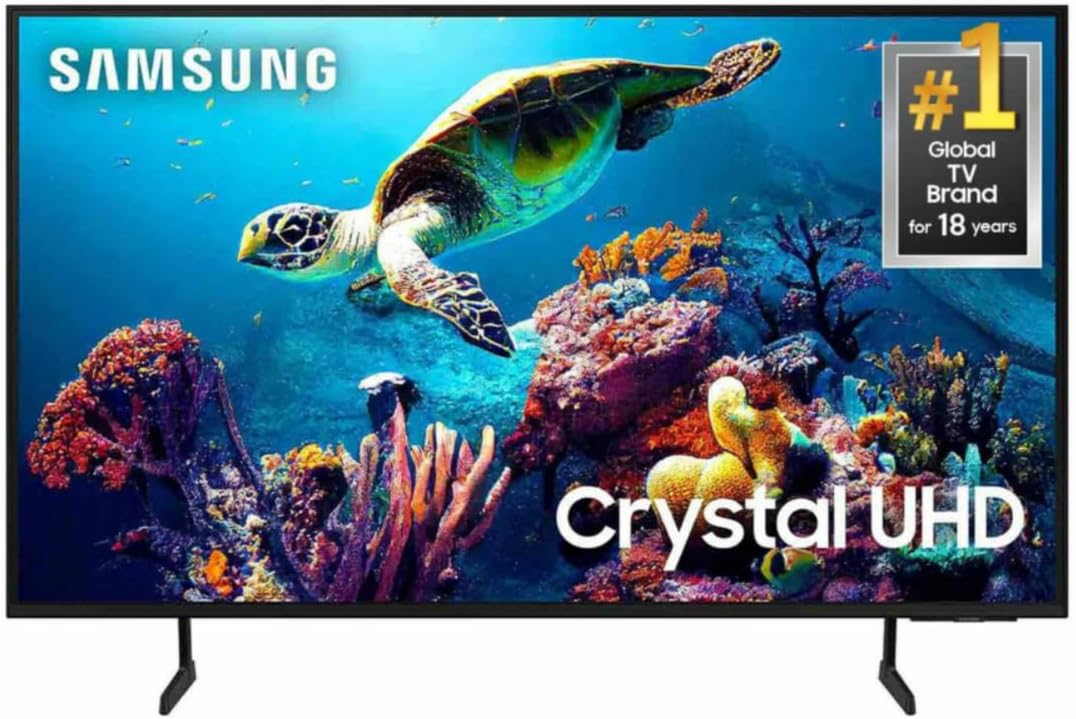
Image 1.1: Front view of the SAMSUNG 65-Inch Class Crystal UHD 4K Smart Tizen TV. This image shows the television with its stand, displaying a colorful underwater scene.
2. What's in the Box
Please check the contents of your product box. If any items are missing or damaged, contact your retailer.
- SAMSUNG 65-Inch Class Crystal UHD 4K Smart Tizen TV (UN65DU6900FXZA)
- Remote Control
- Power Cable
- User Manual (this document)
- TV Stand Components (if applicable)
- Batteries for Remote Control (may be included)
3. Setup
3.1 Unpacking and Placement
Carefully remove the TV from its packaging. It is recommended to have two people for this process due to the size and weight of the television. Place the TV on a stable, flat surface or mount it on a wall using a compatible VESA mount (sold separately). Ensure adequate ventilation around the TV.

Image 3.1: Side view of the SAMSUNG 65-Inch Class Crystal UHD 4K Smart Tizen TV. This image highlights the television's slim design and the structure of its stand.
3.2 Connecting the Power Cable
Connect the included power cable to the power input port on the back of the TV. Then, plug the other end of the power cable into a wall outlet. Ensure the connection is secure.
3.3 Initial Setup and Network Connection
Upon first power-on, the TV will guide you through the initial setup process. This includes selecting your language, connecting to a Wi-Fi network (Wi-Fi 5 supported), and agreeing to terms and conditions. A stable internet connection is required to access Smart TV features and updates.
- Press the Power button on the remote control to turn on the TV.
- Follow the on-screen instructions to complete the initial setup.
- Select your preferred language.
- Connect to your home Wi-Fi network by selecting it from the list and entering the password.
- Sign in to your Samsung account or create a new one to access all Smart TV features.
4. Key Features
4.1 PurColor Technology
PurColor technology allows the TV to express a wide spectrum of colors, offering a vibrant and lifelike picture quality. This innovative color technology enhances the viewing experience by rendering a broader range of hues compared to traditional RGB models, making scenes from green turf to amazing sunsets appear more true-to-life.

Image 4.1: PurColor in action. This image illustrates the enhanced color reproduction capabilities of the TV, showing fine-tuned colors for a vibrant, lifelike picture.
4.2 4K Upscaling
The powerful 4K Upscaling feature transforms each pixel of lower-resolution content to near-4K resolution. This ensures a clearer and more detailed picture for all your shows and videos, regardless of their original resolution, providing an enhanced viewing experience.

Image 4.2: 4K Upscaling demonstration. This visual explains how the TV enhances content to near-4K resolution for improved clarity.
4.3 Motion Xcelerator
Motion Xcelerator technology improves motion between frames, allowing you to watch fast-paced content smoothly with less lag and blur. This feature is particularly beneficial for sports and action movies, ensuring a seamless and clear picture.
4.4 Mega Contrast
Mega Contrast automatically adjusts the brightness and contrast levels of the display. It reduces the difference between light and dark areas on the screen, making objects stand out more and enhancing the overall depth and detail of the image.
4.5 Q-Symphony
Q-Symphony orchestrates the TV and compatible soundbar speakers to operate simultaneously, creating a richer and more immersive surround sound effect. This unique feature allows both the TV's built-in speakers and the soundbar to work in harmony without muting the TV speakers, delivering an enhanced audio experience.

Image 4.3: Q-Symphony in operation. This image visually represents how the TV and soundbar work together for a harmonious audio output.
4.6 Samsung Tizen OS
The Smart TV is powered by Samsung's Tizen OS, providing an intuitive and user-friendly interface. It offers access to a vast ecosystem of apps, streaming services, and features like Samsung TV Plus (with 200+ free live TV channels) and the Gaming Hub. Tizen OS also integrates with SmartThings for controlling smart devices and ensures user privacy and personal information security via Knox Security.

Image 4.4: Samsung Tizen OS interface. This image displays the home screen of the Tizen OS, showcasing various applications and content options.
4.7 Samsung Daily+
Samsung Daily+ is an open app ecosystem within Tizen OS that helps you easily manage your daily activities and lifestyle. It provides curated experiences for smart home control (SmartThings), health and fitness tracking (Samsung Health, Workout Tracker), communication, and workspace functionalities, all from the comfort of your TV.

Image 4.5: Samsung Daily+ interface. This image shows the Samsung Daily+ dashboard with various lifestyle and smart home features.
4.8 Gaming Hub
The Gaming Hub acts as a convenient conduit to your favorite cloud gaming platforms, console games, and standalone apps. It displays recommendations for other games across platforms, saving you time and allowing you to quickly access and speed-run the game selection process without needing a separate console for many titles.

Image 4.6: Samsung Gaming Hub. This image shows the Gaming Hub interface, providing access to various gaming services and titles.
4.9 AI Energy Mode
With AI Energy Mode, you can conserve power. The TV automatically detects and analyzes surrounding light levels to adjust the brightness, reducing overall power consumption without significantly impacting viewing quality. This feature contributes to energy saving and sustainability.

Image 4.7: AI Energy Mode. This image demonstrates the AI Energy Mode feature, which helps conserve power by adjusting brightness based on ambient light.
5. Operating Instructions
5.1 Using the Remote Control
The included remote control allows you to navigate the TV's menus, adjust settings, and control playback. Familiarize yourself with the buttons for power, volume, channel, home, back, and directional navigation.
5.2 Smart TV Functions
Access the Smart Hub by pressing the Home button on your remote. From here, you can launch installed apps, browse content, and access various smart features. The Tizen OS provides a personalized experience with recommended content.
5.3 Voice Assistants
Your TV is compatible with popular voice assistants such as Amazon Alexa, Bixby, and Google Assistant. To activate, press the microphone button on your remote (if available) or use the voice command feature. You can use voice commands to search for content, control smart home devices, and adjust TV settings.
5.4 Connectivity
The TV offers various connectivity options:
- HDMI Ports: Two HDMI ports are available, supporting HDMI Audio Return Channel (ARC) for simplified audio connections.
- USB Port: One USB-A port is available for connecting external storage devices.
- Network Connector: One LAN port for wired internet connection.
- Wireless Networking: Built-in Wi-Fi 5 for wireless internet access.
- Bluetooth: Bluetooth 5.2 for connecting compatible wireless devices like headphones or soundbars.
6. Specifications
| Feature | Detail |
|---|---|
| Brand | SAMSUNG |
| Model Number | UN65DU6900FXZA |
| Screen Size | 65 Inches (166 cm diagonal) |
| Display Technology | LED |
| Resolution | 4K (2160p) |
| Refresh Rate | 60 Hz |
| Aspect Ratio | 16:9 |
| Operating System | Samsung Tizen OS |
| Connectivity Technology | Bluetooth 5.2, Wi-Fi 5, Ethernet (LAN) |
| Ports | 2 x HDMI (ARC), 1 x USB-A, 1 x LAN |
| Product Dimensions (D x W x H) | 57"D x 10"W x 34"H (approx.) |
| Item Weight | 45 Pounds (approx.) |
| Special Features | PurColor, 4K Upscaling, Motion Xcelerator, Mega Contrast, Q-Symphony, SmartThings Hub / Matter Hub / IoT-Sensor Functionality / Quick Remote |
| Included Components | Remote Control, Power Cable |
7. Maintenance
7.1 Cleaning the TV
To clean the screen, gently wipe it with a soft, dry microfiber cloth. For stubborn marks, lightly dampen the cloth with water or a screen-cleaning solution specifically designed for electronics. Avoid using harsh chemicals, abrasive materials, or direct spraying of liquids onto the screen or frame.
To clean the TV frame and stand, use a soft, dry cloth. Do not use any liquid cleaners directly on the TV.
7.2 General Care
- Keep the TV away from direct sunlight and heat sources.
- Ensure proper ventilation around the TV to prevent overheating.
- Avoid placing heavy objects on top of the TV.
- Unplug the TV from the power outlet during lightning storms or when it will be left unattended for long periods.
8. Troubleshooting
If you encounter issues with your TV, please refer to the following common problems and solutions before contacting support.
| Problem | Possible Solution |
|---|---|
| No Power | Ensure the power cable is securely plugged into both the TV and the wall outlet. Try a different outlet. Check if the power indicator light on the TV is on. |
| No Picture / Black Screen | Check the input source. Press the Source button on your remote to cycle through inputs. Ensure all external devices (cable box, Blu-ray player) are powered on and connected correctly. |
| No Sound | Check the volume level. Ensure Mute is not activated. Check audio output settings in the TV menu. If using external speakers, ensure they are connected and powered on. |
| Remote Control Not Working | Check or replace the batteries. Ensure there are no obstructions between the remote and the TV's IR receiver. Try pairing the remote again if it's a Bluetooth remote. |
| Wi-Fi Connection Issues | Restart your router and modem. Go to Network Settings on the TV and try reconnecting. Ensure the Wi-Fi password is correct. Move the TV closer to the router if possible. |
9. Warranty and Support
9.1 Product Warranty
This product is sold as a "Renewed" item. Please refer to the specific warranty terms provided by the seller, "Exclusive Bulbs", or Amazon Renewed for details regarding coverage and duration. Typically, renewed products come with a limited warranty or a return policy. For this specific product, a 90-day refund/replacement return policy is mentioned.
9.2 Customer Support
For technical assistance, troubleshooting beyond this manual, or warranty claims, please contact the seller "Exclusive Bulbs" directly through the Amazon platform. You may also visit the official SAMSUNG support website for general product information and software updates related to your TV model.
- Seller Contact: Refer to your Amazon order details for contact information for "Exclusive Bulbs".
- Samsung Support: Visit www.samsung.com/us/support/ for product support and FAQs.