
Introduction
The See and Say Blue-Bot is a programmable floor robot designed to introduce control and programming concepts in an engaging and interactive manner. This manual provides detailed instructions for setting up, operating, and maintaining your Blue-Bot, along with its accompanying TacTile Code Reader and TacTile Standard Extension Pack. It is an ideal tool for fostering computational thinking and problem-solving skills in educational environments.
The Blue-Bot can communicate with other Blue-Bots and Bee-Bots, promoting teamwork. Its transparent design allows users to observe the internal mechanisms, sparking curiosity about technology. The robot aligns with Key Stages 1 and 2 Computing curriculum, supporting learning in programming, debugging, and algorithm understanding.
Product Components
Your Blue-Bot package includes the following components:
- 6x Blue-Bot Programmable Rechargeable Robot (See & Say Version)
- 1x TacTile Code Reader with 25x Blue-Bot Tiles
- 1x TacTile Standard Extension Pack (25 pieces)

Figure 1: Overview of the Blue-Bot kit components, including multiple robots, the TacTile Code Reader, and various programming tiles.
Setup Guide
1. Blue-Bot Robot Setup
- Charging: Before first use, fully charge your Blue-Bot using the provided USB cable. Connect the cable to the charging port on the robot and a compatible USB power source. The charging indicator light will show the charging status.
- Power On: Locate the power switch on the underside of the Blue-Bot and slide it to the 'ON' position. The robot will emit a sound and its eyes will light up, indicating it is ready for use.

Figure 2: A detailed view of the Blue-Bot robot, highlighting its transparent design and control interface.
2. TacTile Code Reader Setup
- Charging: The TacTile Code Reader is rechargeable. Connect it to a USB power source using its charging cable.
- Power On: Turn on the TacTile Code Reader.
- Connecting to Blue-Bot: Ensure your Blue-Bot is powered on. On the TacTile Code Reader, press the "Connect" button. Wait for the blue light on the reader to illuminate, indicating a successful connection with the Blue-Bot. You can connect up to three readers for longer programs.
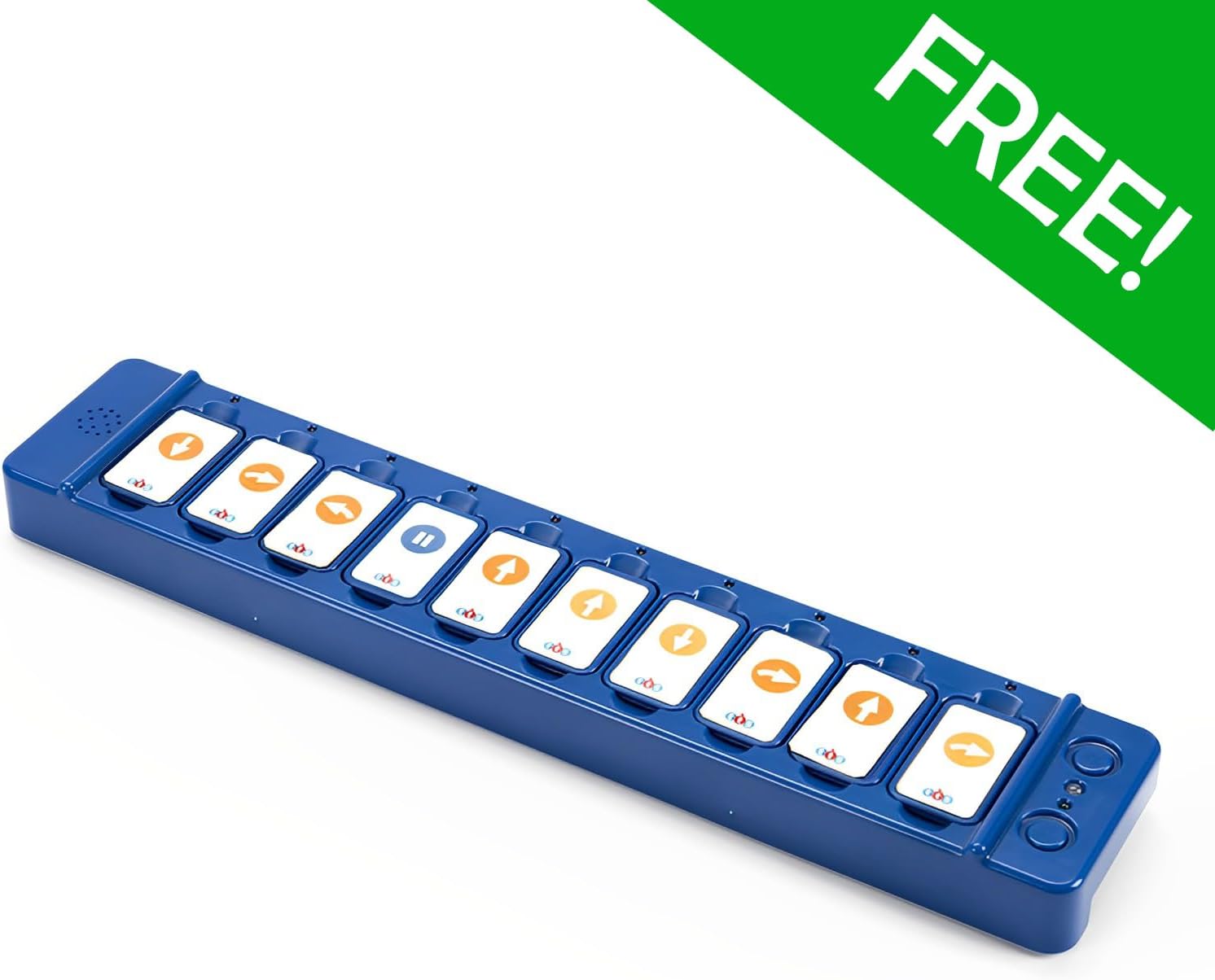
Figure 3: The TacTile Code Reader, ready for programming with inserted tiles.
Operating Instructions
1. Basic Blue-Bot Operation (On-Board Buttons)
The Blue-Bot can be programmed directly using the buttons on its back:
- Forward/Backward Arrows: Move the Blue-Bot one step forward or backward.
- Left/Right Arrows: Rotate the Blue-Bot 90 degrees left or right.
- Pause Button (||): Inserts a pause in the program.
- Clear (X) Button: Clears the current program sequence.
- Go Button: Executes the programmed sequence.

Figure 4: Blue-Bot's control panel with directional and action buttons.
2. Programming with the TacTile Code Reader
The TacTile Code Reader offers an alternative and intuitive method for programming your Blue-Bot:
- Arrange Tiles: Select the desired TacTile programming cards (e.g., forward, turn, pause) and arrange them in the slots of the TacTile Code Reader in the sequence you want the Blue-Bot to follow.
- Execute Program: Once the tiles are arranged, press the "Go" button on the TacTile Code Reader. The Blue-Bot will then execute the program precisely as instructed by the tiles.
- Modify Program: If a mistake is made or you wish to change the program, simply rearrange or swap the tiles in the reader and press "Go" again.

Figure 5: Demonstrating the placement of a programming tile into the TacTile Code Reader.

Figure 6: A child engaging with the Blue-Bot and TacTile Code Reader for interactive learning.
3. Using the TacTile Extension Pack
The Extension Pack adds advanced functionality to your programming:
- 45-Degree Turn Tiles: Introduce more precise directional control.
- Repeat Loop Tiles (e.g., x2, x3): Simplify complex algorithms by repeating a sequence of commands multiple times.
- Integrate these tiles into your TacTile Code Reader sequences to explore more complex programming concepts and spatial awareness.
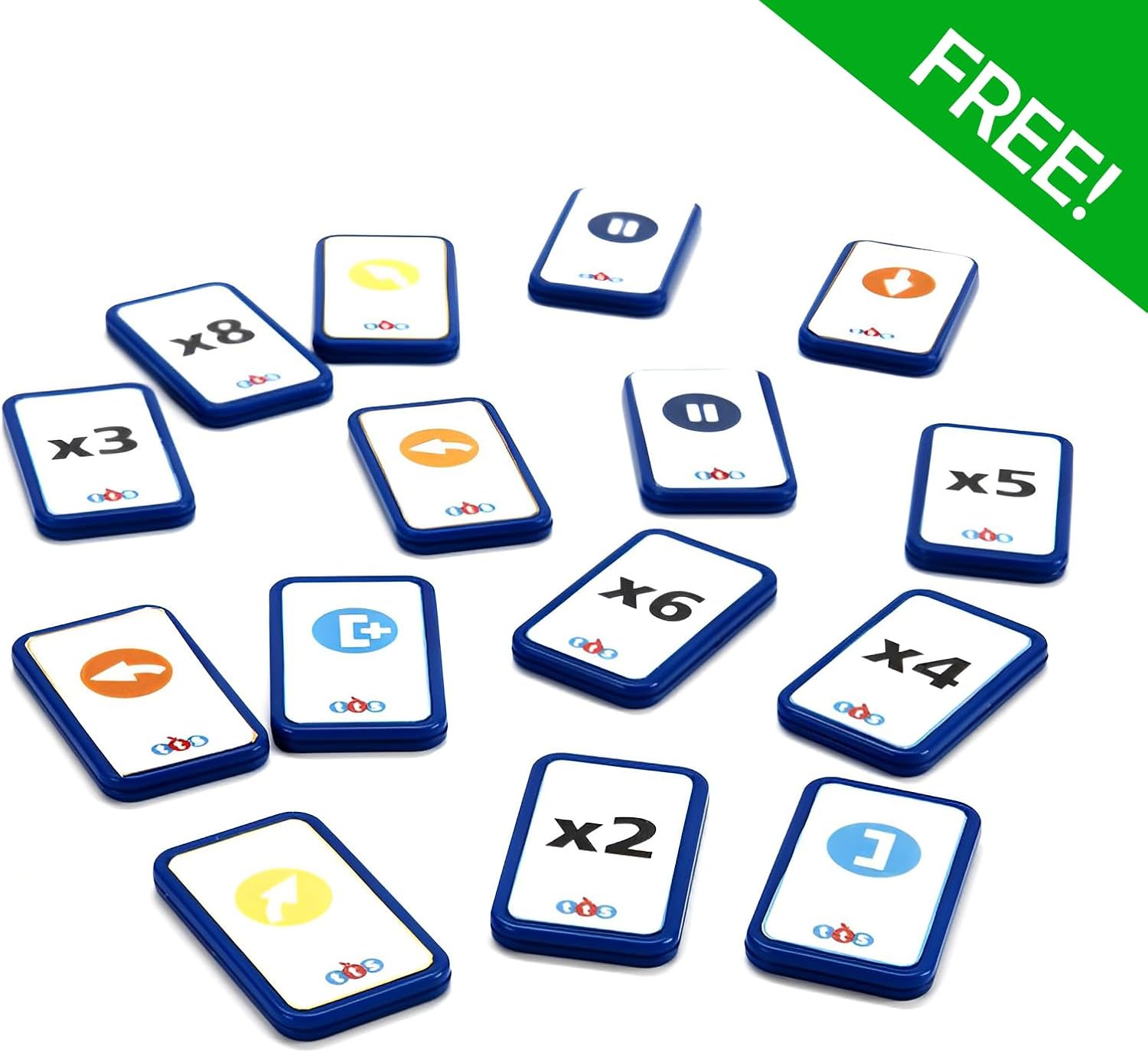
Figure 7: TacTile Extension Pack tiles, offering advanced programming commands.

Figure 8: Detailed view of individual TacTile Extension Pack cards.
4. Bluetooth Connectivity (Tablet Integration)
The Blue-Bot features Bluetooth functionality for enhanced programming experiences:
- Download the official Blue-Bot app on your compatible tablet device.
- Ensure Bluetooth is enabled on your tablet.
- Open the Blue-Bot app and follow the on-screen instructions to connect to your Blue-Bot. This allows for secure and innovative programming without personal data collection.

Figure 9: Programming the Blue-Bot via a tablet application.
Maintenance
- Cleaning: Wipe the Blue-Bot and TacTile components with a soft, dry cloth. Avoid using abrasive cleaners or solvents.
- Storage: Store the Blue-Bot and its accessories in a cool, dry place away from direct sunlight and extreme temperatures.
- Battery Care: For optimal battery life, avoid fully discharging the Blue-Bot and TacTile Code Reader frequently. Recharge them regularly.
Troubleshooting
| Problem | Possible Cause | Solution |
|---|---|---|
| Blue-Bot does not move. | Low battery; Not powered on; Incorrect program. | Charge the Blue-Bot; Ensure power switch is ON; Clear and re-enter the program. |
| TacTile Code Reader not connecting. | Blue-Bot not on; Reader not charged; Connection issue. | Ensure Blue-Bot is ON; Charge the reader; Press "Connect" button again. |
| Blue-Bot not responding to app. | Bluetooth off; App not connected; Blue-Bot out of range. | Enable Bluetooth on tablet; Reconnect in app; Move Blue-Bot closer to tablet. |
| Program not executing as expected. | Incorrect tile sequence; Tiles not fully inserted. | Review and correct tile arrangement; Ensure tiles are firmly in slots. |
Specifications
| Feature | Detail |
|---|---|
| Model Number | B0DTJ5B5WN |
| Brand | Generic |
| Manufacturer | Terrific Teaching Solutions |
| Recommended Age | 15 years and up |
| Memory Capacity | Up to 200 steps (Blue-Bot) |
| Connectivity | Bluetooth (for tablet integration) |
| Power Source | Rechargeable battery (Blue-Bot, TacTile Reader) |
Warranty and Support
For warranty information and technical support, please refer to the manufacturer's official website or contact their customer service department. Keep your proof of purchase for any warranty claims.
Manufacturer: Terrific Teaching Solutions


