
1. Introduction
Thank you for purchasing the BASETEC 3-in-1 USB Flash Drive. This device is designed to provide convenient and high-speed data transfer and storage expansion for your smartphones, tablets, and computers. It features Lightning, Type-C, and USB 3.0 connectors, making it compatible with a wide range of devices including iOS, Android, and Mac systems. This manual will guide you through the setup, operation, and maintenance of your new flash drive.
2. Product Overview
The BASETEC 3-in-1 USB Flash Drive offers versatile connectivity and ample storage.

Image: The BASETEC 3-in-1 USB Flash Drive, showcasing its three distinct connectors: Lightning, Type-C, and standard USB 3.0. This design allows for broad compatibility across various devices.
Key Features:
- 3-in-1 Connectivity: Equipped with Lightning, Type-C, and USB 3.0 interfaces for universal compatibility.
- High-Speed Data Transfer: USB 3.0 support ensures rapid transfer of large files, including photos and videos.
- Storage Expansion: Easily expand storage for your iPhone, Android smartphone, tablet, or PC without needing a dedicated app.
- Direct Storage & Playback: Save photos and videos directly to the drive, and play media files without an internet connection.
- Multiple Capacities & Colors: Available in 64GB, 128GB, 256GB, and 512GB, and colors such as Silver, Black, and Pink.

Image: This image displays the compact dimensions of the BASETEC USB Flash Drive (approximately 60mm length, 14mm width, 6mm thickness) and illustrates the three available color options: Silver, Black, and Pink.
3. Setup
The BASETEC 3-in-1 USB Flash Drive is designed for plug-and-play functionality, requiring no special applications for basic data transfer on most devices.
Initial Connection:
- Identify the correct connector: The drive has a Lightning connector for iOS devices, a Type-C connector for compatible Android devices and newer PCs/Macs, and a standard USB 3.0 connector for traditional PCs and Macs.
- Connect to your device: Gently insert the appropriate connector into your smartphone, tablet, or computer's port. Ensure a secure connection.
- Device Recognition: Your device should automatically recognize the flash drive as external storage. For iOS devices, you may need to access it via the "Files" app. For Android, it typically appears in the file manager. For PCs/Macs, it will appear as a removable drive.

Image: This illustration demonstrates the versatility of the BASETEC USB Flash Drive, showing it connected to an Android/Mac device via Type-C, a PC via USB, and an iPhone/iPad via Lightning, highlighting its broad compatibility.
4. Operating Instructions
4.1 Data Transfer from iPhone/iPad to USB Flash Drive
- Connect the flash drive to your iPhone/iPad using the Lightning connector.
- Open the "Photos" app or "Files" app on your iOS device.
- Select the photos, videos, or documents you wish to transfer.
- Tap the "Share" button (usually a square with an arrow pointing up).
- Scroll down and select "Save to Files" (or "ファイルに保存" if your device is in Japanese).
- In the "Files" app, navigate to the BASETEC USB Flash Drive (it may appear as "Untitled" or a similar name).
- Choose a folder on the flash drive (e.g., "写真" for photos, "動画" for videos, "ドキュメント" for documents) or create a new one.
- Tap "Save" (or "保存"). The selected files will be copied to the flash drive.

Image: A hand holds an iPhone with the BASETEC USB Flash Drive connected. The phone screen displays a file management interface, indicating the drive's integration for easy data access and transfer.
4.2 Data Transfer from Android Device to USB Flash Drive
- Connect the flash drive to your Android device using the Type-C connector.
- Open your device's file manager app (e.g., "Files," "My Files," "File Manager").
- Locate the files you wish to transfer on your device's internal storage or SD card.
- Select the files, then choose "Copy" or "Move."
- Navigate to the USB Flash Drive (often labeled as "USB storage," "OTG," or "Untitled").
- Paste the files into the desired folder on the flash drive.

Image: The BASETEC USB Flash Drive is shown connected to both a smartphone and a laptop, illustrating its capability for seamless data transfer between mobile devices and computers.
4.3 Data Transfer with PC/Mac
- Connect the flash drive to your PC or Mac using the USB 3.0 or Type-C connector.
- The drive will appear as a removable disk in "My Computer" (Windows) or on the desktop/Finder (Mac).
- Drag and drop files between your computer and the flash drive as you would with any other external storage device.

Image: The BASETEC USB Flash Drive is plugged into a laptop, with the screen displaying various file types such as photos, videos, music, and documents, demonstrating its ability to manage diverse data.
4.4 Playing Media Files Directly from the Drive
You can play videos and music directly from the flash drive without needing an internet connection. Simply navigate to the file on the drive using your device's file manager or media player and open it.
Video: This video demonstrates the ease of use and multi-device compatibility of the BASETEC 3-in-1 USB Flash Drive, showing how it can be used to transfer and access files across smartphones, tablets, and computers. It also highlights the direct playback feature for media files.
5. Specifications
| Feature | Detail |
|---|---|
| Brand | BASETEC |
| Model Number | B0DTHQZM5C |
| Memory Storage Capacity | 128 GB (Other capacities available: 64GB, 256GB, 512GB) |
| Hardware Interface | USB 3.0, USB Type-C, Lightning |
| Write Speed | Up to 400 (units not specified, typically MB/s) |
| Color | Silver (Other colors available: Black, Pink) |
| Compatible Devices | iOS (iPhone, iPad, iPod), Android (Type-C smartphones/tablets), PC (Windows/Mac) |
| Country of Origin | China |
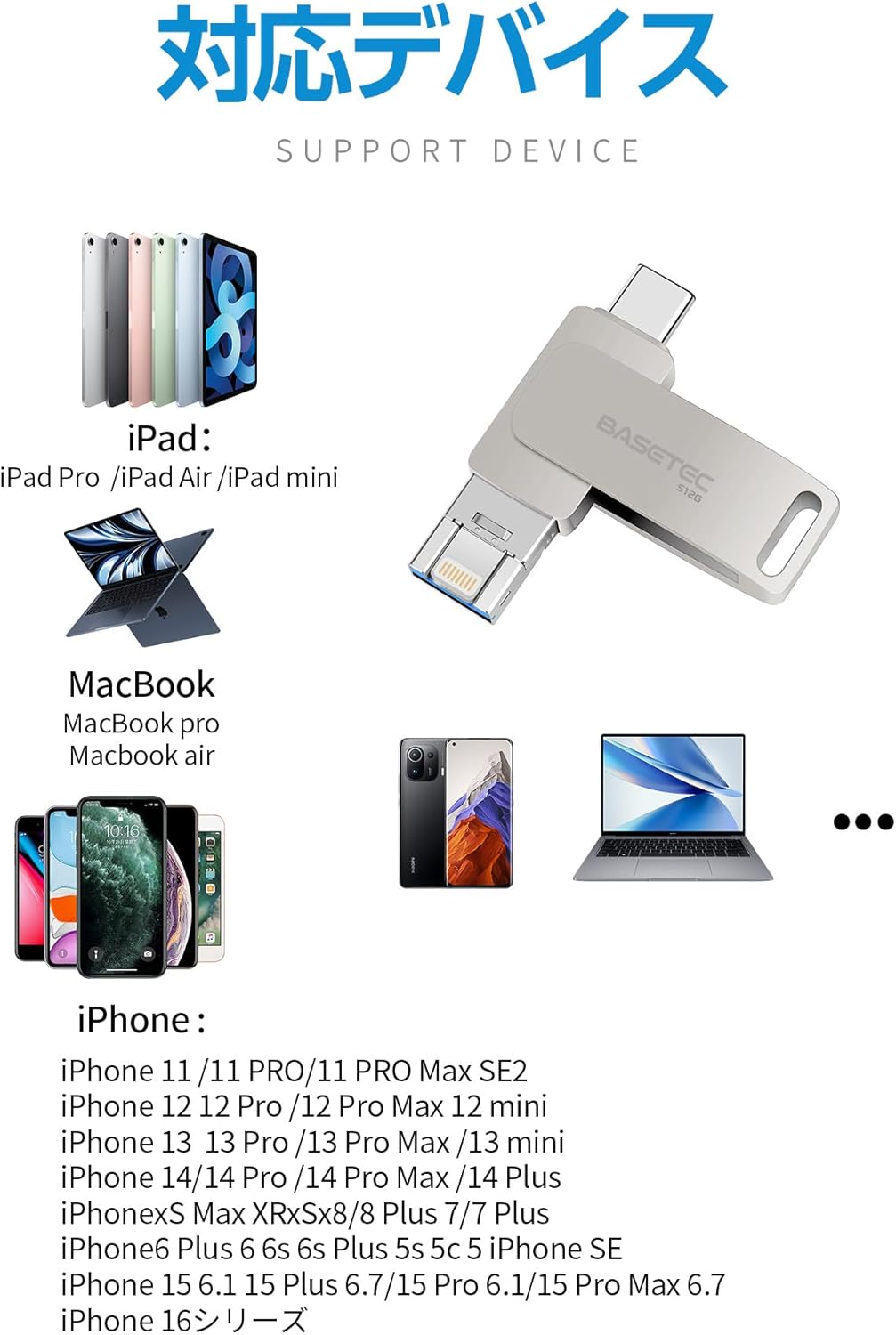
Image: This image lists the compatible devices for the BASETEC 3-in-1 USB Flash Drive, including various models of iPad, MacBook, and iPhone, ensuring users can verify compatibility with their existing electronics.
6. Maintenance
- Handle with Care: Avoid dropping the device or subjecting it to strong impacts.
- Keep Dry: Protect the flash drive from water and moisture.
- Clean Connectors: If necessary, gently clean the connectors with a dry, lint-free cloth. Do not use liquids or abrasive cleaners.
- Safe Removal: Always safely eject the flash drive from your computer before physically removing it to prevent data corruption. For mobile devices, simply unplugging is usually sufficient after data transfer is complete.
- Backup Important Data: Regularly back up important data stored on the flash drive to another storage medium.
7. Troubleshooting
- Q: The flash drive is not recognized by my device.
- A:
- Ensure the connector is fully and correctly inserted into the port.
- Try connecting to a different port or a different device to rule out a port issue.
- For iOS devices, check the "Files" app. For Android, check your file manager.
- Restart your device and try again.
- Q: Data transfer is slow.
- A:
- Ensure you are using a USB 3.0 compatible port on your computer for optimal speed.
- Large files (over 500MB) or a large number of small files may take longer to transfer. Try transferring files in smaller batches.
- The speed can also depend on the read/write speed of your device's internal storage.
- Q: Files are corrupted or cannot be accessed.
- A:
- Always ensure the flash drive is safely ejected from computers before removal.
- Avoid interrupting data transfers.
- If the issue persists, try formatting the drive (this will erase all data). Ensure you back up any recoverable data first.
- Q: The drive gets warm during use.
- A: It is normal for flash drives to generate some heat during active data transfer. If it becomes excessively hot or causes device malfunction, discontinue use and contact support.

Image: This image highlights important precautions for using the BASETEC USB Flash Drive, including advice on transferring large files in batches, backing up critical data, and a disclaimer regarding responsibility for data loss or device malfunction.
8. Warranty and Support
This BASETEC product comes with a one-year manufacturer's warranty from the date of purchase. The warranty covers defects in materials and workmanship under normal use.
The manufacturer is not responsible for any data loss or damage to devices that may occur during the use of this product. It is highly recommended to back up all important data before using the flash drive.
For technical support or warranty claims, please contact BASETEC customer service through your retailer or the official BASETEC website.