GK GAMAKAY TK75HE V2 Rapid Trigger Wireless Keyboard Instruction Manual
Model: TK75HE V2
Introduction
This manual provides detailed instructions for the setup, operation, maintenance, and troubleshooting of your GK GAMAKAY TK75HE V2 Rapid Trigger Wireless Keyboard. Please read this manual thoroughly to ensure proper use and to maximize your keyboard's performance.
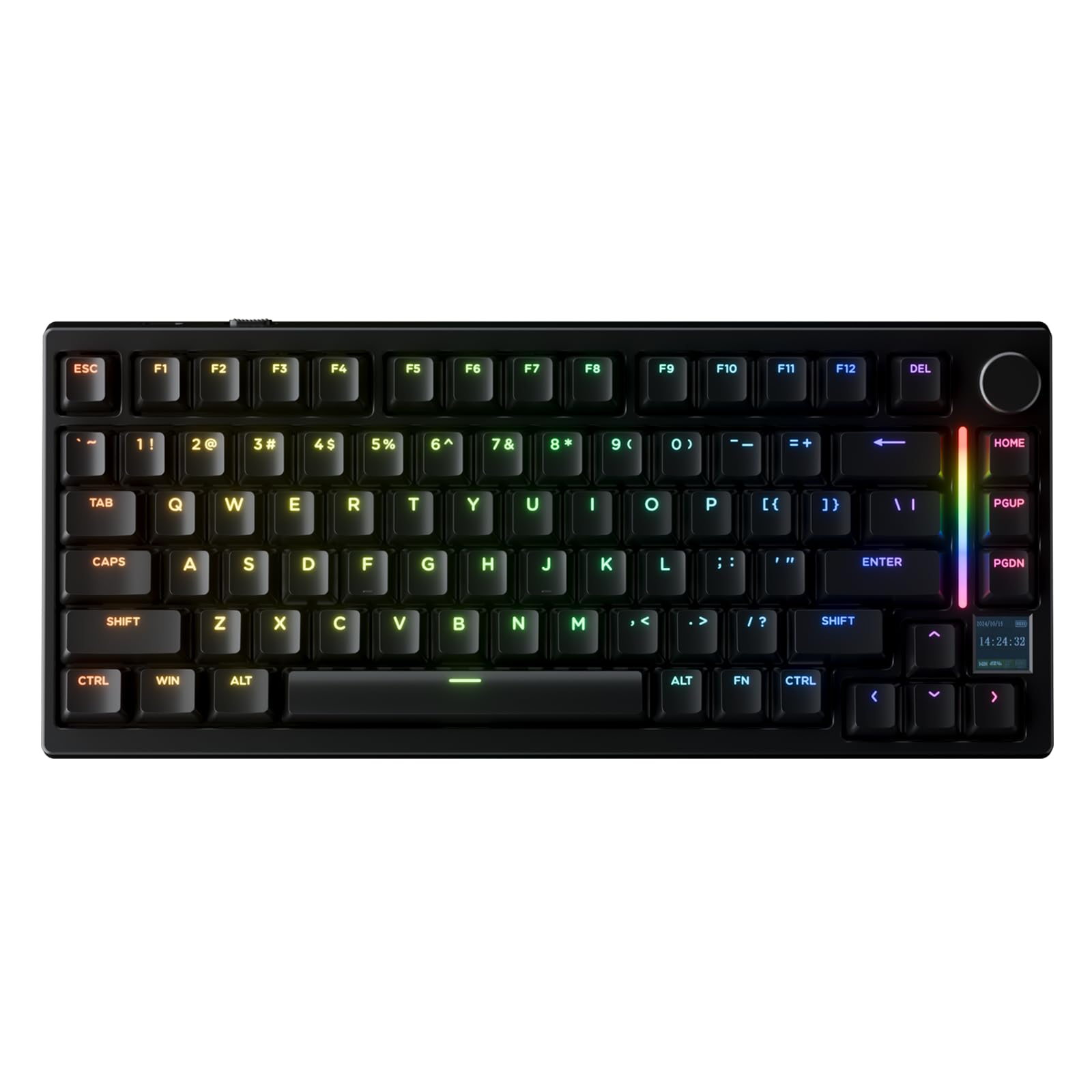
Image: The GK GAMAKAY TK75HE V2 Rapid Trigger Wireless Keyboard in black, showcasing its 75% layout, RGB lighting, and integrated TFT screen.
Setup
Package Contents
- GK GAMAKAY TK75HE V2 Keyboard
- USB Cable
- Keycap Puller
Connectivity Options
The TK75HE V2 keyboard supports three connection modes:
- USB-C Wired Connection: Connect the keyboard directly to your computer using the provided USB-C cable. This mode ensures the lowest latency and provides power to the keyboard.
- 2.4GHz Wireless Connection: Use the included 2.4GHz USB receiver for a stable wireless connection. Insert the receiver into an available USB port on your computer.
- Bluetooth Connection: Pair the keyboard with your device via Bluetooth. Refer to your device's Bluetooth settings for pairing instructions.
Software Installation
To unlock the full customization features, including adjustable actuation points, Rapid Trigger settings, DKS, Snap Tap, and TFT screen customization, download the official GK GAMAKAY software from the manufacturer's website. The software is compatible with both Mac and Windows operating systems.

Image: An overview of the GK GAMAKAY TK75HE V2 keyboard's features, including its 75% layout, 8K polling rate, hot-swappable switches, TFT screen, tri-mode connection, and Cherry-profile keycaps.
Operating Instructions
Multifunctional CNC Knob and TFT Screen
The keyboard features a CNC knob and a 0.85-inch TFT screen for interactive control and information display.
- Press Knob: Play/Pause media.
- Rotate Right: Increase volume.
- Rotate Left: Decrease volume.
The TFT screen displays customizable information such as battery status, date, time, and supports JPG/GIF animations. Customization is performed via the GK GAMAKAY software.

Image: A close-up view of the multifunctional CNC knob and 0.85-inch TFT screen on the GK GAMAKAY TK75HE V2 keyboard, illustrating its controls and customization options for images and GIFs.
Rapid Trigger and Adjustable Actuation Point
The TK75HE V2 features Hall effect magnetic switches, allowing for precise control over key actuation.
- Rapid Trigger (RT): This feature allows keys to actuate and reset based on movement rather than a fixed point, enabling faster repeated inputs. The keyboard offers 0.005mm rapid trigger accuracy.
- Adjustable Actuation Point: Each key's actuation point can be set from 0.1mm to 3.4mm in 0.01mm steps using the software, catering to different typing and gaming preferences.

Image: A visual representation of the 0.005mm adjustable rapid trigger feature, comparing mechanical switch behavior to rapid trigger for various game genres like FPS, MOBA, RTS, and Rhythm.
Dynamic Keystroke (DKS) and Snap Tap
- Dynamic Keystroke (DKS): Assign up to four different actions to a single keystroke based on press depth. This feature enhances gameplay and productivity by allowing complex commands with minimal input.
- Snap Tap: Prioritize the latest input between two selected keys without releasing the previous one, providing more responsive inputs for quick directional changes in games.
RGB Lighting
The keyboard features dynamic RGB lighting with 16.8 million colors and programmable effects. Customize lighting patterns and colors using the GK GAMAKAY software to match your setup or mood.

Image: The GK GAMAKAY TK75HE V2 keyboard illuminated with vibrant RGB lighting, showcasing the customizable color options.
Maintenance
Cleaning
To clean your keyboard, disconnect it from your computer. Use a soft, dry cloth to wipe down the keycaps and chassis. For deeper cleaning, use a can of compressed air to remove dust and debris from between the keys. Avoid using harsh chemicals or abrasive materials.
Keycap and Switch Replacement
The TK75HE V2 features full hot-swappable magnetic switches, allowing you to customize your typing experience. Use the provided keycap puller and switch puller to safely remove and replace keycaps and switches.
- Removing Keycaps: Gently attach the keycap puller to the keycap and pull upwards until the keycap detaches.
- Removing Switches: After removing the keycap, use the switch puller to grasp the switch firmly and pull it straight up.
- Installing Switches: Align the new magnetic switch with the socket and press down gently until it clicks into place. Ensure the switch is properly seated.
- Installing Keycaps: Place the keycap over the switch stem and press down firmly until it is secure.
The keyboard supports other brands of magnetic switches (PS: N pole magnets).

Image: A close-up view demonstrating the hot-swappable feature of the GK GAMAKAY TK75HE V2 keyboard, showing a switch being removed with a puller.
Troubleshooting
Chattering Keys / Phantom Keystrokes
If you experience unintended key presses or ghosting, it may be due to calibration issues. Use the TK75HE V2 software to calibrate the keys. This process helps ensure accurate detection of inputs.

Image: A banner illustrating the 'Accuracy & Calibration' feature for the TK75HE V2 keyboard, highlighting anti-ghosting and ultra-low latency of 0.06ms.
Connectivity Issues
- Wired Connection: Ensure the USB-C cable is securely connected to both the keyboard and your computer. Try a different USB port or cable if issues persist.
- 2.4GHz Wireless: Ensure the USB receiver is properly inserted. Check for interference from other wireless devices. Re-pair the keyboard with the receiver if necessary (refer to software instructions).
- Bluetooth: Ensure Bluetooth is enabled on your device and the keyboard is in pairing mode. Remove previous pairings and attempt to re-pair.
Software Difficulties
If the software is difficult to use or connect, ensure you have downloaded the latest version from the official GK GAMAKAY website. Some users have reported that the web version of the software can be easier to use. For issues with GIF/image uploads to the TFT screen, ensure the files are optimized for the screen's resolution and consider using external tools for GIF creation before uploading.
Battery Life
If you experience shorter than expected battery life, ensure the keyboard is fully charged. Adjust RGB lighting brightness or disable it when not needed, as lighting significantly impacts battery consumption. Consider using a wired connection for extended periods to conserve battery.
Specifications
| Model Number | TK75HE V2 |
| Product Dimensions | 12.5 x 5 x 1.5 inches |
| Item Weight | 2.57 pounds |
| Manufacturer | GK GAMAKAY |
| Connectivity Technology | Bluetooth, 2.4GHz Wireless, USB-C Wired (Tri-Mode) |
| Keyboard Description | Magnetic Gaming Keyboard |
| Special Features | 0.005mm Rapid Trigger (RT) Accuracy, Zero Dead Zone, 8000Hz Polling Rate, 0.06ms Ultra-Low Latency, Adjustable Actuation Points (0.1mm to 3.4mm), Mod-Tap (MT), Toggle Key (TGL), Snap Tap, Dynamic Keystrokes (DKS), 0.85-inch TFT Screen |
| Key Switch Type | Hall Effect Magnetic Switch (Phoenix Silent, Mercury) |
| Keycap Material | PBT (Cherry-profile translucent) |
| Keyboard Backlighting | RGB (16.8 million colors) |
| Compatible Devices | Laptop, PC, Gaming Console (Mac & Win compatible) |
Warranty and Support
Warranty Information
GK GAMAKAY products are manufactured to high-quality standards. For specific warranty terms and conditions, please refer to the warranty card included with your product or visit the official GK GAMAKAY website. Keep your proof of purchase for warranty claims.
Customer Support
For technical assistance, software downloads, or further inquiries, please visit the official GK GAMAKAY support page or contact their customer service. Ensure you have your product model number (TK75HE V2) ready when seeking support.


