
GOHHDL CarPlay Motorrad
GOHHDL 5-inch Wireless CarPlay/Android Auto Screen for Motorcycle Instruction Manual
Model: CarPlay Motorrad
1. Introduction
Thank you for choosing the GOHHDL 5-inch Wireless CarPlay/Android Auto Screen for your motorcycle. This device is designed to enhance your riding experience by providing seamless integration of your smartphone's navigation, music, and communication features directly onto your motorcycle's handlebars. It features a durable, waterproof design suitable for various weather conditions.

Image 1: GOHHDL 5-inch Wireless CarPlay/Android Auto Screen
This manual provides essential information for the proper installation, operation, and maintenance of your new device. Please read it thoroughly before use to ensure optimal performance and safety.
2. What's in the Box
Verify that all components are present in your package:
- Main Display Unit (5-inch Wireless CarPlay/Android Auto Screen)
- 150cm Power Cable
- Mounting Brackets
- Zip Ties
- User Manual
- Additional Accessories

Image 2: Package Contents including the main unit, power cable, brackets, zip ties, and user manual.
3. Setup and Installation
The GOHHDL CarPlay Screen is designed for straightforward installation on most motorcycles. The package includes a mounting kit and tools to ensure stability.
3.1 Mounting the Device
Mount the display unit securely onto your motorcycle's handlebars using the provided brackets. Ensure the viewing angle is optimal for safe operation while riding.
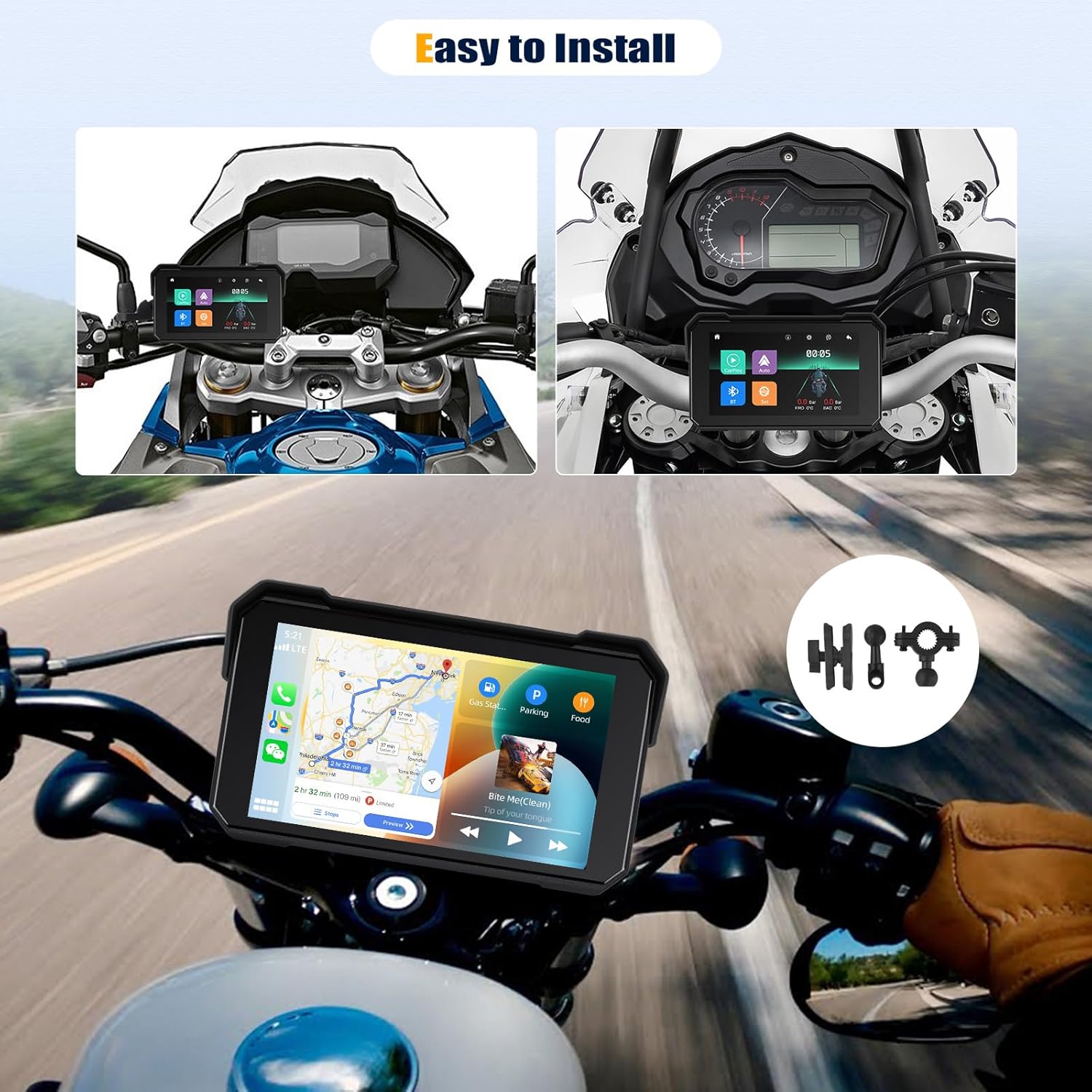
Image 3: Example of the GOHHDL screen mounted on motorcycle handlebars.
3.2 Power Connection
Connect the power cable to the designated port on the screen. Then, connect the power adapter to your motorcycle's power supply. The device will power on automatically once connected.
4. Operating Instructions
The GOHHDL screen offers wireless connectivity for both Apple CarPlay and Android Auto, as well as standard Bluetooth functions.
4.1 Wireless CarPlay Connection
- Ensure the GOHHDL screen is powered on.
- On your iPhone, go to Settings > Bluetooth and turn Bluetooth ON.
- On the GOHHDL screen, select the CarPlay icon. The screen will display a Bluetooth device name (e.g., CAR-BT_4DAF) and a PIN code.
- On your iPhone, locate and select the matching Bluetooth device name from the list of available devices.
- Confirm the PIN code displayed on both devices and tap Pair on your iPhone.
- Allow contacts and favorites sync if prompted.
- Tap Connect to initiate CarPlay.
Video 1: Demonstrates the wireless CarPlay connection process, showing pairing via Bluetooth and the CarPlay interface.
4.2 Wireless Android Auto Connection
- Ensure the GOHHDL screen is powered on and your Android phone has the Android Auto app installed.
- On your Android phone, go to Settings > Bluetooth and turn Bluetooth ON.
- On the GOHHDL screen, select the Auto icon. The screen will display a Bluetooth device name (e.g., CAR-BT_4DAF) and a PIN code.
- On your Android phone, locate and select the matching Bluetooth device name from the list of available devices.
- Confirm the PIN code displayed on both devices and tap Pair on your Android phone.
- Allow contacts and favorites sync if prompted.
- Android Auto will launch automatically after successful pairing.
Video 2: Demonstrates the wireless Android Auto connection process, showing Bluetooth pairing and the Android Auto interface.
4.3 Bluetooth Connection (for calls/music only)
If you wish to use only Bluetooth for calls and music without CarPlay or Android Auto:
- On the GOHHDL screen, select the BT (Bluetooth) icon.
- On your smartphone, enable Bluetooth and search for available devices.
- Select the device name (e.g., CAR-BT_4DAF) displayed on the GOHHDL screen.
- Confirm the pairing request on your phone.
- Once connected, you can make calls or play music directly through the device.
Video 3: Demonstrates the Bluetooth connection process for hands-free calling and music playback.
4.4 Core Functions
- Navigation: Utilize your smartphone's navigation apps (e.g., Google Maps, Apple Maps) displayed on the screen.
- Music Playback: Stream music from your favorite apps (e.g., Spotify, Apple Music) with controls directly on the display.
- Hands-Free Calling: Make and receive calls safely using the integrated Bluetooth functionality and voice commands.
- Voice Control: Access Siri or Google Assistant for voice commands to operate apps or control the screen.

Image 4: Displaying various smartphone features accessible through the GOHHDL screen, including voice commands, music playback, navigation, and call management.
5. Key Features
- IP68 Waterproof and Anti-Theft Design: The device is constructed with durable, waterproof materials (IP68 rated) to withstand various weather conditions. It also features a removable anti-theft holder for security when not in use.
- Wide Operating Temperature Range: Designed to function reliably in temperatures ranging from -4°F to 158°F.
- TF Card Slot: Equipped with a TF card slot for system upgrades. (TF card not included in package).
- Universal Compatibility: Suitable for installation on all types of motorcycles.
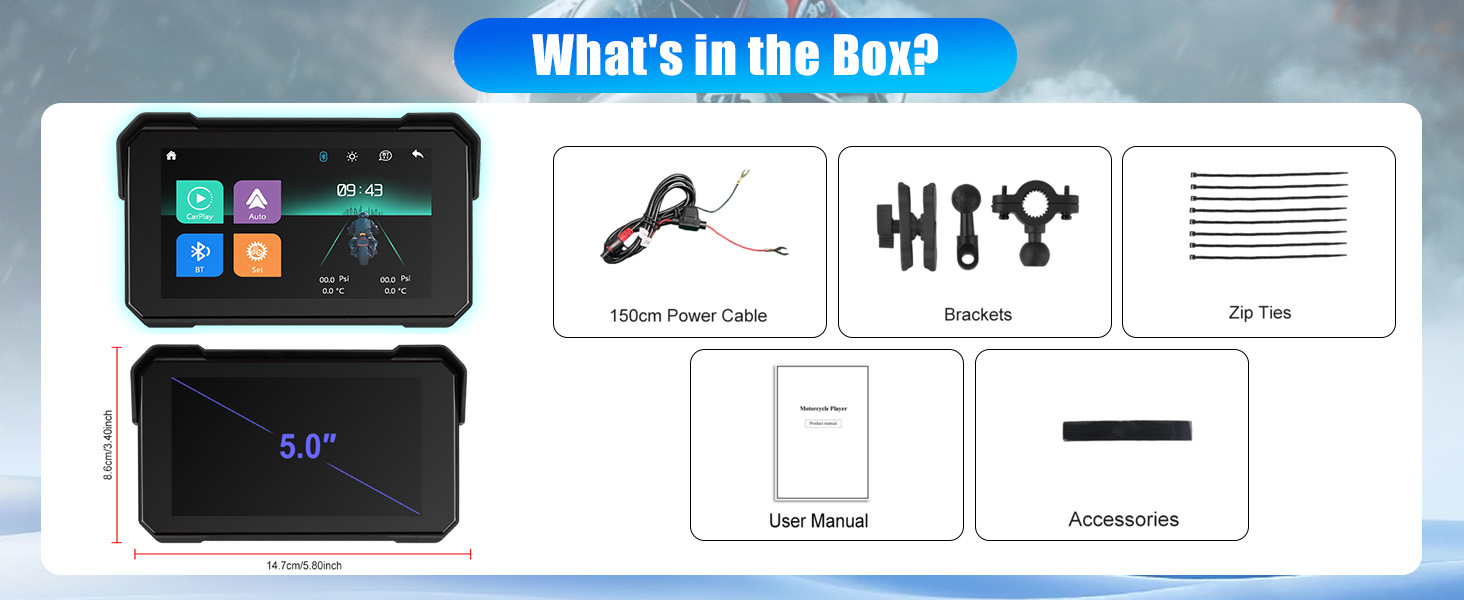
Image 5: Illustrates the IP68 waterproof rating and the device's ability to operate in extreme temperatures.
6. Maintenance
- Cleaning: Use a soft, damp cloth to clean the screen and exterior. Avoid abrasive cleaners or solvents.
- Waterproof Seals: Periodically inspect the waterproof seals around the device and cable connections to ensure they are intact and free from damage.
- Storage: When not in use for extended periods, store the device in a cool, dry place, away from direct sunlight and extreme temperatures.
7. Troubleshooting
7.1 Connectivity Issues (CarPlay/Android Auto/Bluetooth)
- Ensure Bluetooth and Wi-Fi are ON: Both Bluetooth and Wi-Fi must be active on your smartphone for wireless CarPlay/Android Auto to function.
- Re-pair Device: If connection is unstable, try deleting the device from your phone's Bluetooth settings and re-pairing.
- Check for Interference: Other wireless devices nearby might cause interference. Try moving away from such devices.
- Restart Devices: Restart both your smartphone and the GOHHDL screen.
7.2 Screen Not Responding
- Power Cycle: Disconnect and reconnect the power cable to restart the device.
- Clean Screen: Ensure the screen is clean and free of debris or moisture that might affect touch sensitivity.
7.3 No GPS Signal (Android Auto)
- Smartphone GPS: The device relies on your smartphone's GPS for navigation. Ensure your phone has a strong GPS signal and location services are enabled.
8. Specifications
| Feature | Specification |
|---|---|
| Model Number | CarPlay Motorrad |
| Display Size | 5 Inches |
| Item Weight | 10.6 ounces (0.3 Kilograms) |
| Package Dimensions | 7.87 x 5.12 x 4.72 inches |
| Connectivity Technology | Bluetooth |
| Special Feature | Built-In Bluetooth |
| Audio Output Mode | Stereo |
| Mounting Type | Handlebar Mount |
| Vehicle Service Type | Motorcycle |
| Voice Command | Touchscreen |
9. Warranty and Support
9.1 Warranty Information
GOHHDL provides a 12-month replacement warranty on all products from the date of purchase. This warranty covers manufacturing defects and ensures your product is free from material and workmanship flaws under normal use.
9.2 Customer Support
For any customization problems, usage issues, or technical assistance, please contact our customer service team. We offer lifetime technical support to ensure your satisfaction.
Email: gohhdltechsupport@yeah.net

Image 6: GOHHDL customer support team ready to assist with product inquiries.