
1. Introduction
This manual provides detailed instructions for the installation, operation, maintenance, and troubleshooting of the TKOWTB GM861 USB Interface 1D/2D Bar Code QR Code Barcode Scanner Module. Please read this manual thoroughly before using the device to ensure proper functionality and to prevent damage.
2. Product Overview
The TKOWTB GM861 is a compact and versatile USB interface barcode scanner module designed for reading both 1D and 2D barcodes, including QR codes. It features a stainless steel threaded design for easy installation and includes a fill light for enhanced performance in low-light conditions. The module is compatible with various operating systems, making it suitable for a wide range of applications.

Figure 2.1: TKOWTB GM861 USB Barcode Scanner Module. This image shows the compact scanner module with its integrated USB cable, ready for connection.

Figure 2.2: USB Interface Scanning Module Features. This image highlights the module's capabilities, including reading various code sizes, providing light prompts for decoding, and supporting simple application development.
Key Features:
- Stainless Steel Thread Design: Facilitates easy and secure installation.
- Versatile Code Reading: Decodes various 1D and 2D barcode systems.
- Fill Light: Provides auxiliary lighting for optimal reading in low-light environments.
- Multi-system Compatibility: Supports Windows XP, 7, 8, 10, Linux, Android, and macOS.
- Decoding Light Prompt: Green light indicates successful code reading.
3. Setup Instructions
Follow these steps to set up your GM861 barcode scanner module:
- Physical Installation: The module features a stainless steel threaded design. Securely mount the module into your desired application or enclosure using the threaded body. Ensure the scanning window is unobstructed.

Figure 3.1: Stainless Steel Thread Installation. This image illustrates the threaded design of the scanner module, allowing for secure and convenient mounting into various setups.
- Connect to Host Device: Plug the USB cable from the GM861 module into an available USB port on your computer or host device. The module is plug-and-play, requiring no additional drivers for most operating systems.
Figure 3.2: Connecting the USB Barcode Scanner Module. This image shows the scanner module with its USB cable, ready to be plugged into a host device for power and data transfer.
- System Recognition: Your operating system (Windows, Linux, Android, macOS) should automatically detect and configure the scanner as a standard HID (Human Interface Device) keyboard or serial port device, depending on its internal configuration.

Figure 3.3: Multi-system Compatibility. This graphic illustrates the broad compatibility of the scanner module with various operating systems, including Windows, Linux, Android, and macOS.
4. Operating Instructions
Once the module is connected and recognized by your system, it is ready for operation.
- Scanning a Barcode: Position the barcode or QR code within the scanning window of the module. The module will automatically detect and scan the code.
- Decoding Confirmation: Upon successful decoding, a green prompt light will illuminate, and the decoded data will be transmitted to your host device as if typed from a keyboard.

Figure 4.1: Supported Barcode Types. This image displays various 1D and 2D barcode formats that the scanner module can interpret, including PDF417, Micro PDF417, QR, Micro QR, Aztec, and Data Matrix codes.
- Using the Fill Light: The module includes a supplementary fill light. This light automatically activates or can be configured to assist in reading barcodes in dimly lit environments, improving scanning performance.
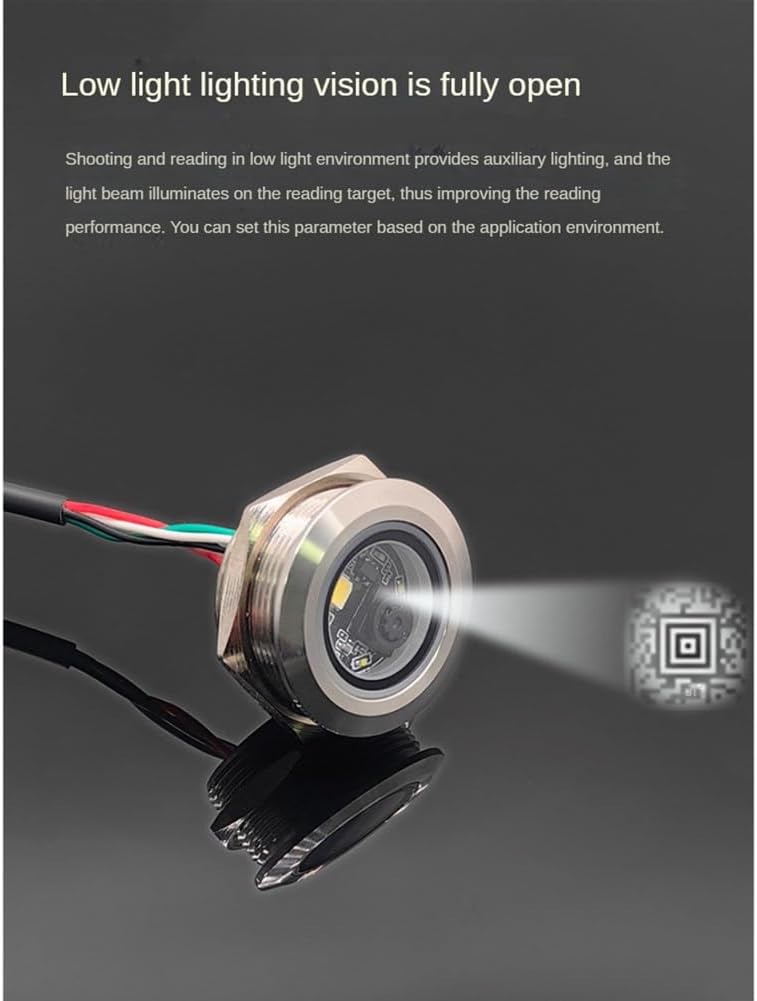
Figure 4.2: Scanner Module with Fill Light in Action. This image shows the scanner module emitting its fill light to illuminate a QR code, demonstrating its capability to enhance reading in low-light conditions.
5. Maintenance
To ensure the longevity and optimal performance of your GM861 scanner module, follow these maintenance guidelines:
- Cleaning: Gently wipe the scanning window with a soft, lint-free cloth. For stubborn dirt, slightly dampen the cloth with water or a mild, non-abrasive cleaner. Do not use harsh chemicals or abrasive materials.
- Environmental Protection: Avoid exposing the module to extreme temperatures, high humidity, or direct sunlight for extended periods.
- Physical Protection: While the stainless steel design offers durability, avoid dropping the module or subjecting it to strong impacts.
6. Troubleshooting
If you encounter issues with your GM861 scanner module, refer to the following common problems and solutions:
- Scanner not recognized by computer:
- Ensure the USB cable is securely connected to both the module and the host device.
- Try connecting to a different USB port.
- Restart your computer or host device.
- Verify that your operating system is one of the supported systems (Windows, Linux, Android, macOS).
- Scanner not reading barcodes:
- Ensure the barcode is clean, undamaged, and clearly printed.
- Position the barcode correctly within the scanning window.
- Check for any obstructions on the scanning window and clean if necessary.
- Ensure there is adequate lighting. The fill light should assist in low-light conditions.
- Verify the barcode type is supported by the scanner (refer to Section 4, Figure 4.1).
- No green prompt light upon successful scan:
- This may indicate a failed scan or a malfunction. Try scanning a known good barcode.
- If the issue persists, contact customer support.
7. Specifications
| Parameter | Value |
|---|---|
| Image Sensor | CMOS |
| Pixel | 640*480 |
| Prompt Light | Green light for successful reading |
| 1D Code System Support | EAN-13, EAN-8, UPC-A, UPC-E, ISSN, CodaBarCode, Code 128, Code 93, ITF-14, ITF-6, Interleaved 2 of 5, Industrial 2 of 5, Matrix 2 of 5, Code 39, Code 11, MSI-Plessey, GS1-Databar (RSS) |
| 2D Code System Support | QR Code, Data Matrix, PDF417, Micro-PDF417, Micro-QR |
| Symbol Contrast | 25% |
| Reading Angle | 360° rotation, 65° deflection, 65° tilt |
| Scanning Angle | 67° (horizontal), 53° (vertical) |
| Reading Accuracy | ≥10mil |
| Communication Interface | USB |
| Prompt Mode | LED indication |
| Working Voltage | 5V |
| Working Current | Less than 70mA |
| Sleep Current | ≤6mA (typical value) |
| Startup Time | ≤250ms (typical value) |
| Product Dimensions | 5.91 x 3.94 x 1.18 inches |
| Item Weight | 1.55 ounces |
| Material | Plastic + Stainless Steel |
8. Warranty and Support
For warranty information and technical support, please refer to the documentation provided with your purchase or contact TKOWTB customer service directly. Keep your purchase receipt as proof of purchase for any warranty claims.
Manufacturer: TKOWTB
For further assistance, please visit the official TKOWTB website or contact their support channels.