
CARPURIDE 502PRO-BS
Carpuride Smart Monitor Motorcycle Navigation System
Model: 502PRO-BS
User Manual
1. Introduction
This manual provides detailed instructions for the installation, operation, and maintenance of your Carpuride 502PRO-BS Smart Monitor. Designed for motorcycle use, this device offers wireless Apple CarPlay and Android Auto, handlebar dial control, and robust IP67 waterproofing, enhancing your riding experience with smart navigation, communication, and entertainment.
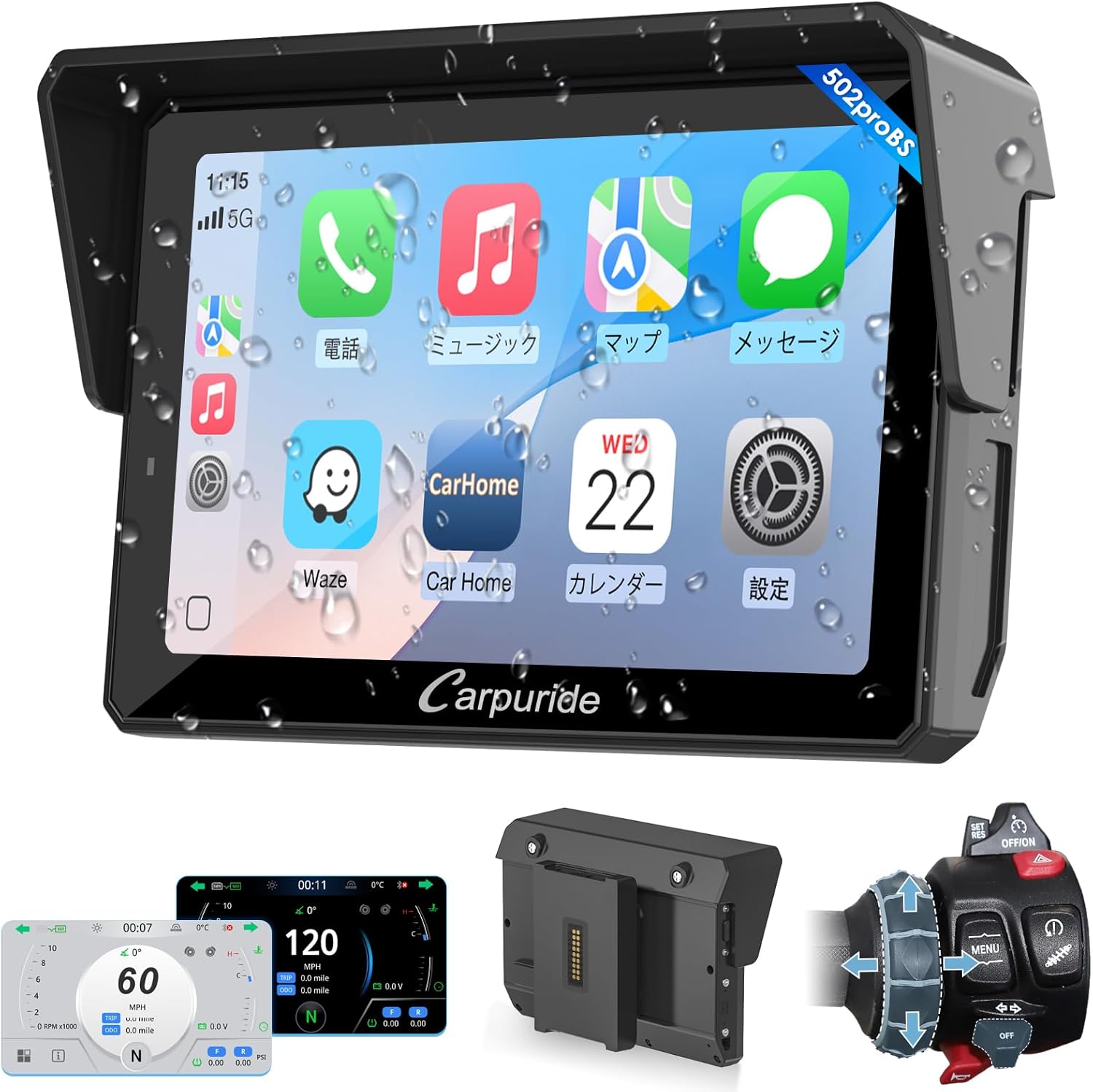
Figure 1.1: Carpuride 502PRO-BS Smart Monitor
2. Safety Information
Please read all safety warnings and instructions carefully before using this product to ensure safe operation and prevent damage.
- Do not attempt to disassemble or modify the device.
- Ensure all connections are secure before riding.
- Always prioritize safe riding practices. Do not operate the device in a way that distracts you from the road.
- Compatibility Warning: Before purchasing, please verify compatibility with your specific motorcycle model and mobile phone.
- BMW Motorcycle Compatibility: This device supports original BMW wheel control functions on models such as R1300GS (R1300GS Adv), R1250GS (R1250GS Adv), R1200GS, R1200GS LC, R1200GS K50, R1200GS Adv, R1200RS, S1000XR. However, it is not compatible with R1200RT, R1250RT, K1600 GT, K1600 GTL, R1200GS (2019) for controller functions. For F900GS (F900GS Adv), F900XR, F850GS (F850GS Adv), F800GS, F750GS, the controller function works but the rear brake warning light may remain on.
- Android Phone Compatibility: Most AQUOS mobile phones are incompatible. Samsung S-series, Note-series, Huawei P-series, Mate-series, Xiaomi series (e.g., 12 Pro, 11 lite, 9, 14T Pro, Poco X3 pro), and Oppo series (e.g., Reno 2, Reno2 Z, A16S) may also have compatibility issues.
3. Package Contents
Verify that all items are present in your package:
- Carpuride 502PRO-BS Smart Monitor Unit
- Mounting Bracket
- Power Cable
- Japanese User Manual (this document)
- Warranty Card

Figure 3.1: Package Contents
4. Product Overview
Familiarize yourself with the main components and features of your Carpuride Smart Monitor.

Figure 4.1: Front and Side View of the Monitor
4.1. Key Features
- 5-inch IPS Display: High-brightness IPS screen for clear visibility in various lighting conditions.
- Wireless CarPlay/Android Auto: Seamless smartphone integration for navigation, music, and calls.
- Handlebar Dial Control: Compatible with certain BMW motorcycle models for intuitive operation.
- IP67 Waterproof: Designed to withstand rain, dust, and wind.
- Bluetooth 5.2: Stable and fast wireless connectivity.
- Music Sharing: Share audio with another headset in two-person mode.
- Voice Control: Use Siri or Google Assistant for hands-free operation.
5. Setup and Installation
Follow these steps to properly install your Carpuride Smart Monitor on your motorcycle.
5.1. Mounting the Device
The 502PRO-BS is designed for easy installation on motorcycles equipped with an original BMW navigation bracket (e.g., R1200GS, R1250GS, R1300GS, S1000XR).
- Ensure your motorcycle has the genuine BMW navigation base.
- Align the back of the 502PRO-BS unit with the BMW navigation base.
- Slide the unit onto the base according to the instructions provided with your motorcycle's original bracket.
- Once securely attached, the installation is complete and the unit is ready for use.

Figure 5.1: Installation Steps
5.2. Power Connection
Connect the provided power cable to the monitor and your motorcycle's power source. Ensure the connection is firm and waterproof.
6. Operating Instructions
This section details how to use the Carpuride Smart Monitor for various functions.
6.1. Initial Power On and Interface
Press and hold the power button to turn on the device. The main interface will display icons for Phone, Music, Maps, Messages, Waze, Car Home, Calendar, and Settings.
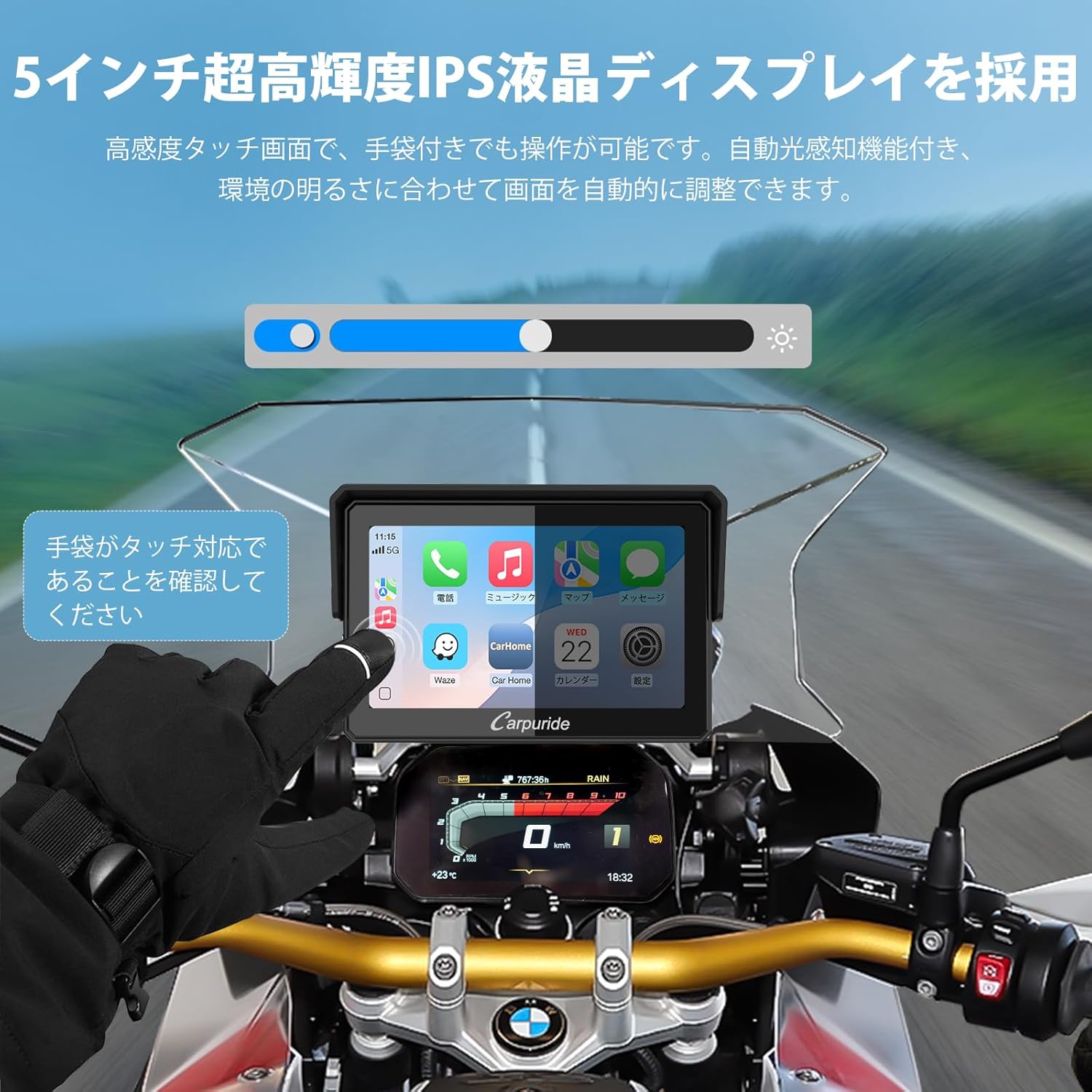
Figure 6.1: Screen Interaction and Brightness Adjustment
The monitor features an automatic light sensor that adjusts screen brightness according to ambient light conditions. Ensure your gloves are touch-compatible for screen interaction.
6.2. Wireless CarPlay & Android Auto
Connect your smartphone wirelessly to access navigation, music, and communication features.
- Apple CarPlay: Compatible with iOS 11 and iPhone 6 or later.
- Android Auto: Compatible with Android 11.0 or later.
Once connected, you can keep your phone safely in your pocket while enjoying navigation and music on the monitor. Voice guidance simplifies route confirmation, and real-time traffic information helps optimize your journey.
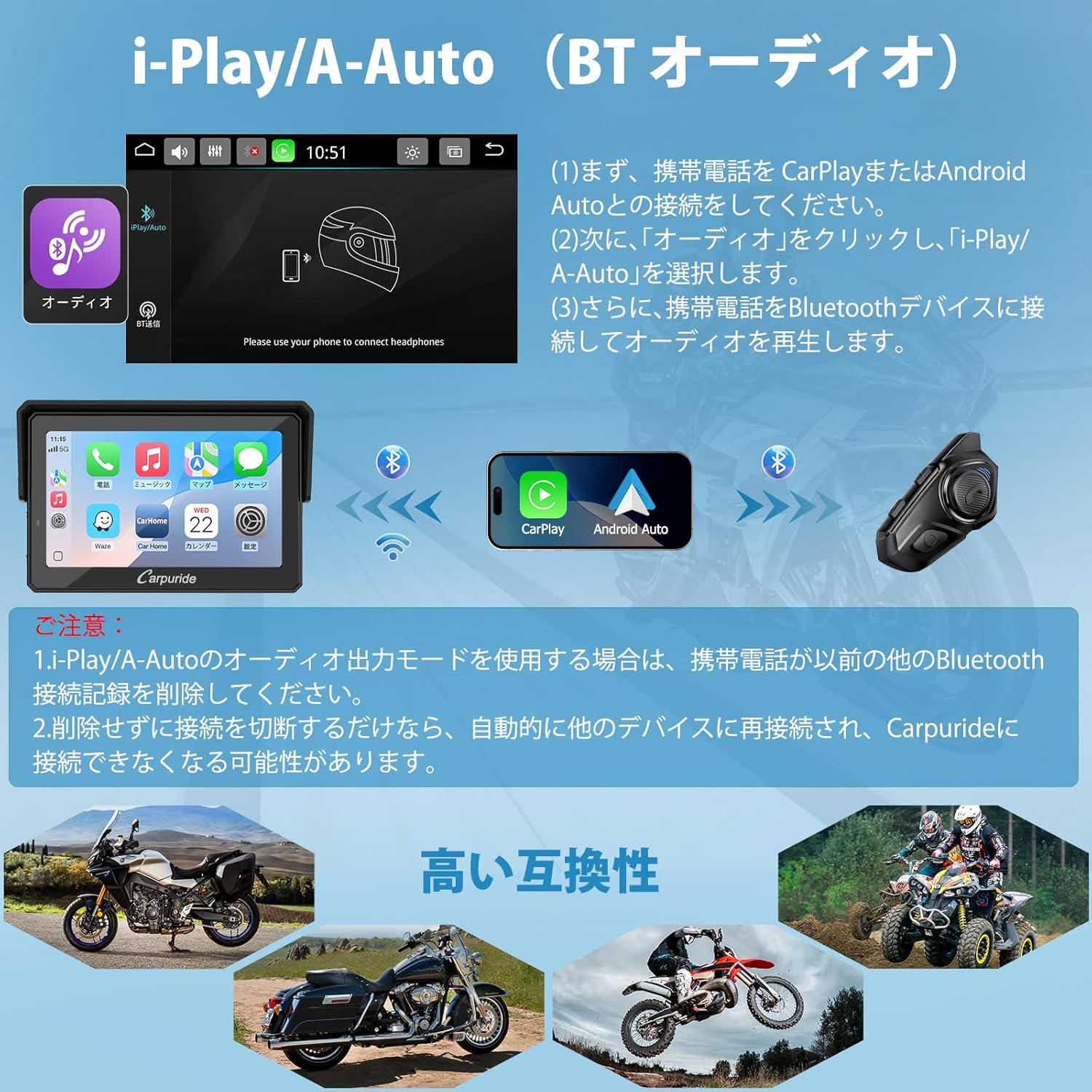
Figure 6.2: Multi-functional Display (Navigation, Voice Control, Music, Calls)
6.3. Voice Control
Utilize Siri or Google Assistant for hands-free control of navigation, calls, and music. Ensure your Bluetooth headset has a microphone for voice commands.
Video 6.1: Product Overview and Features Demonstration
7. Bluetooth Connectivity
The Carpuride 502PRO-BS offers versatile Bluetooth connectivity options for single and dual headset use.
7.1. Single Mode (BT Trans Mode - Bluetooth 1)
After successfully connecting to CarPlay/Android Auto, the device can search for and connect to an intercom via Bluetooth, transmitting audio to the intercom.
- If using Bluetooth transmission, do not connect your mobile phone directly to the intercom. If it is connected, delete the pairing record.
- For navigation voice assistant broadcasts and call audio, ensure your rider's headset is connected to Bluetooth 1.
7.2. Two-Person Mode (Transceiver Mode and BT Trans Mode)
The device can search for and connect to two different intercoms simultaneously, allowing for music sharing and intercom functions between two riders up to 10 meters apart.
- Transceiver mode and BT Trans mode cannot be used simultaneously. Only one mode can be used at a time.
- When using i-Play/A-Auto (BT Audio) mode, only a single connection is supported.
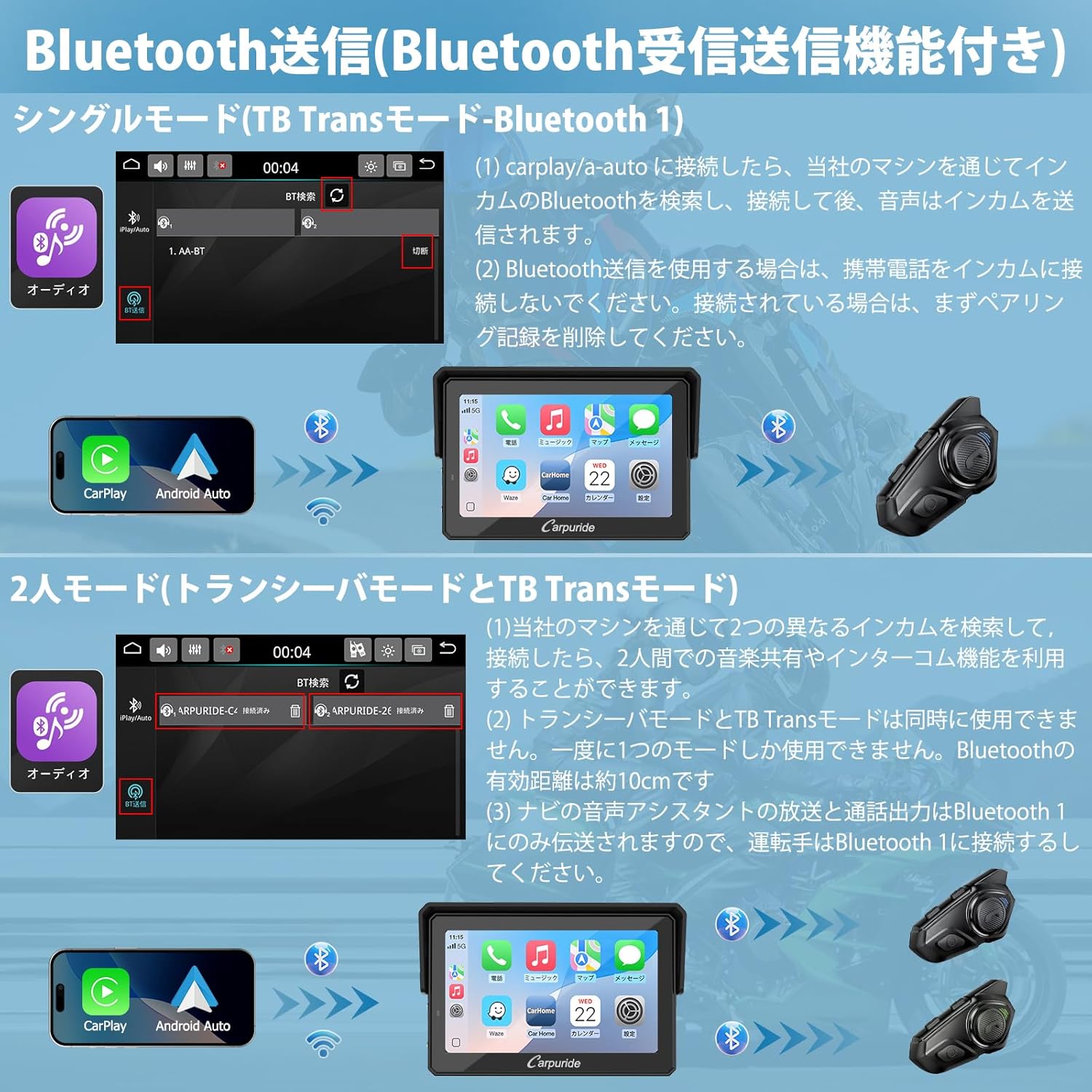
Figure 7.1: Bluetooth Connection Modes
8. BMW Wheel Control Integration
The Carpuride 502PRO-BS features proprietary technology that supports the original vehicle wheel control on compatible BMW motorcycles. This allows for convenient operation without taking your hands off the handlebars.

Figure 8.1: BMW Wheel Control in Action
8.1. Control Functions
Using the original BMW wheel control, you can perform various operations:
- Map zoom in/out
- Music track selection (previous/next)
- Volume adjustment
- App switching
- View vehicle mileage and other original vehicle information.

Figure 8.2: BMW Wheel Control Button Layout
8.2. Button Functions by Mode
| Function | K1 | K2 | K3 | K4 | K5 | K6 | K7 |
|---|---|---|---|---|---|---|---|
| BM Motorcycle Meter Screen | Short press to return to the previous interface of the BM meter. | If cursor is not displayed, press K5 to activate UI cursor. (Cursor disappears after 5 seconds of inactivity). | Long press for 5 seconds to switch to NAV mode (enters Carpuride screen). | Switch to TFT mode (returns to BM display). | |||
| Carpuride Main Interface | Short press to return to the previous interface. | Press to confirm the selected item and enter. | Move cursor left to select required APP. | Move cursor right to select required APP. | Press K5 to move cursor up/down to select. Long press to switch. Press K2 to confirm. | ||
| CARPLAY Mode | Press to return to the main interface. | In CarPlay mode, you do not need to press K5; use K1 to return to the previous operation page. | |||||
| A-AUTO Mode | Short press, (1) return to main interface. | In A-Auto mode, long press for 3 seconds to return the cursor to the previous operation page from the detailed operation page of the app. | |||||
| BT Mode | Short press, (1) return to main interface; (2) hang up call; (3) cancel call interface. | Short press, (1) play/pause music; (2) answer call; (3) confirm call interface. | Move cursor left, (1) previous song; (2) previous call interface. | Move cursor right, (1) next song; (2) next call interface. | In BT communication mode, press K5 to display the last 10 call records. | ||
| SD Mode | Short press, (1) return to main interface; (2) cancel playlist. | Short press, (1) play/pause music; (2) confirm SD card playlist. | Move cursor left, (1) previous song; (2) move up playlist. | Move cursor right, (1) next song; (2) move down playlist. | In SD playback mode, press K5 to display the SD card playlist. | ||
| Compass/Settings/Audio Output Mode | Short press to return to the main interface. | None |
Table 8.1: BMW Wheel Control Button Functions
Important Notes:
- To enable vehicle control functions, the Carpuride unit must be mounted on the original BMW bracket.
- Vehicle control settings vary by motorcycle model. Please refer to your original motorcycle's instruction manual for specific operations.
9. IP67 Waterproof Performance
The Carpuride Smart Monitor is designed with IP67 waterproof, dustproof, and windproof capabilities, ensuring reliable performance in various outdoor conditions.

Figure 9.1: All-Weather Performance
You can confidently enjoy your motorcycle rides regardless of the weather. This smart monitor also includes a convenient compass function for outdoor navigation, helping you stay oriented without worry.
10. Troubleshooting
This section addresses common issues you might encounter and provides solutions.
10.1. Connectivity Issues
- Cannot connect to CarPlay/Android Auto:
- Ensure your smartphone's Wi-Fi and Bluetooth are enabled.
- Check if your phone model is listed as incompatible in the Safety Information section (e.g., AQUOS, certain Samsung, Huawei, Xiaomi, Oppo models).
- Delete previous Bluetooth pairing records on both the monitor and your phone, then attempt to reconnect.
- Restart both the monitor and your smartphone.
- Bluetooth audio issues:
- Ensure your headset is properly paired with the monitor (Bluetooth 1 for navigation/calls).
- Verify that your headset is not simultaneously connected to your mobile phone if using BT Trans mode.
- Check the effective range (approx. 10 meters) for Bluetooth connections.
10.2. Display Problems
- Screen flickering or unresponsiveness:
- If the screen flickers or becomes unresponsive, especially in warm conditions (e.g., above 24°C), this may indicate overheating. Ensure proper ventilation around the unit.
- Consider operating in cooler environments or providing shade to the unit if possible.
- Restart the device.
- Screen not bright enough:
- The monitor has an automatic light sensor. Ensure the sensor is not obstructed.
- Manually adjust brightness settings if needed.
10.3. BMW Wheel Control Not Working
- Ensure your motorcycle model is listed as compatible for wheel control in the Safety Information section.
- Verify that the Carpuride unit is correctly mounted on the original BMW navigation bracket.
- Refer to your motorcycle's manual for specific wheel control operations.
11. Specifications
| Brand | CARPURIDE |
| Model Name | 502PRO-BS |
| Screen Size | 5 Inches |
| Display Type | Resistive Touch Screen |
| Connectivity Technology | Bluetooth |
| Map Type | Terrain |
| Compatible Vehicle Type | Motorcycle |
| Audio Output Mode | Bluetooth |
| Package Dimensions | 18.1 x 13.3 x 5.9 cm |
| Item Weight | 410 g |
| Origin | China |
| First Available Date | May 25, 2025 |
12. Maintenance
To ensure the longevity and optimal performance of your Carpuride Smart Monitor, follow these maintenance guidelines:
- Cleaning: Use a soft, damp cloth to clean the screen and exterior. Avoid abrasive cleaners or solvents.
- Storage: When not in use for extended periods, store the device in a cool, dry place away from direct sunlight and extreme temperatures.
- Connections: Periodically check all cable connections for wear or damage. Ensure they are securely fastened.
- Firmware Updates: Carpuride provides software upgrade services. Check the official website or contact support for available firmware updates to ensure the best performance and compatibility.
13. Warranty and Support
Carpuride is committed to providing high-quality products and excellent customer service.
13.1. Warranty Information
Your Carpuride Smart Monitor comes with a 12-month quality guarantee from the date of purchase. Please retain your purchase receipt and the included warranty card for any warranty claims.
13.2. Customer Support
For any questions, technical assistance, or service requests, please contact Carpuride customer support. We strive to provide a convenient and comfortable driving experience through our dedicated after-sales service and free upgrade programs.

Figure 13.1: Carpuride Commitment
Ask a question about this manual
Ask about setup, troubleshooting, compatibility, parts, safety, or missing instructions. Manuals+ will review the question and use this page’s manual context to help answer it.