
METEESER Forester Series
METEESER Android Car Radio Stereo User Manual
For Subaru Forester 2002-2008 (Model: Forester Series)
1. Introduction
This manual provides detailed instructions for the installation, operation, and maintenance of your METEESER Android Car Radio Stereo. This unit is specifically designed for Subaru Forester models from 2002 to 2008, offering advanced features such as a 9-inch IPS touchscreen, Wireless CarPlay, Android Auto, GPS navigation, Bluetooth 5.0, and a high-definition backup camera. Please read this manual thoroughly before installation and use to ensure proper functionality and safety.
2. Package Contents
Verify that all items listed below are included in your package. If any items are missing or damaged, please contact customer support.

Image: Visual representation of all items included in the package, such as the main unit, various cables, microphone, backup camera, and installation tools.
- METEESER 9-inch Android Car Radio Stereo Unit
- Power Cable
- RCA Cable (x2)
- 3.8 Pin Canbus Plug (Connect to host)
- USB Cable
- Rear Camera Input Cable
- Radio Antenna
- GPS Antenna
- Backup Camera (170° wide-angle AHD waterproof)
- External Microphone
- Installation Tool
- User Manual
- Accessories (Mounting brackets, etc.)
3. Setup and Installation
Professional installation is recommended. Before beginning, ensure the vehicle's battery is disconnected to prevent electrical damage. This unit is designed for Subaru Forester 2002-2008 models. Please verify compatibility with your vehicle's dashboard before proceeding.
3.1 Dashboard Compatibility
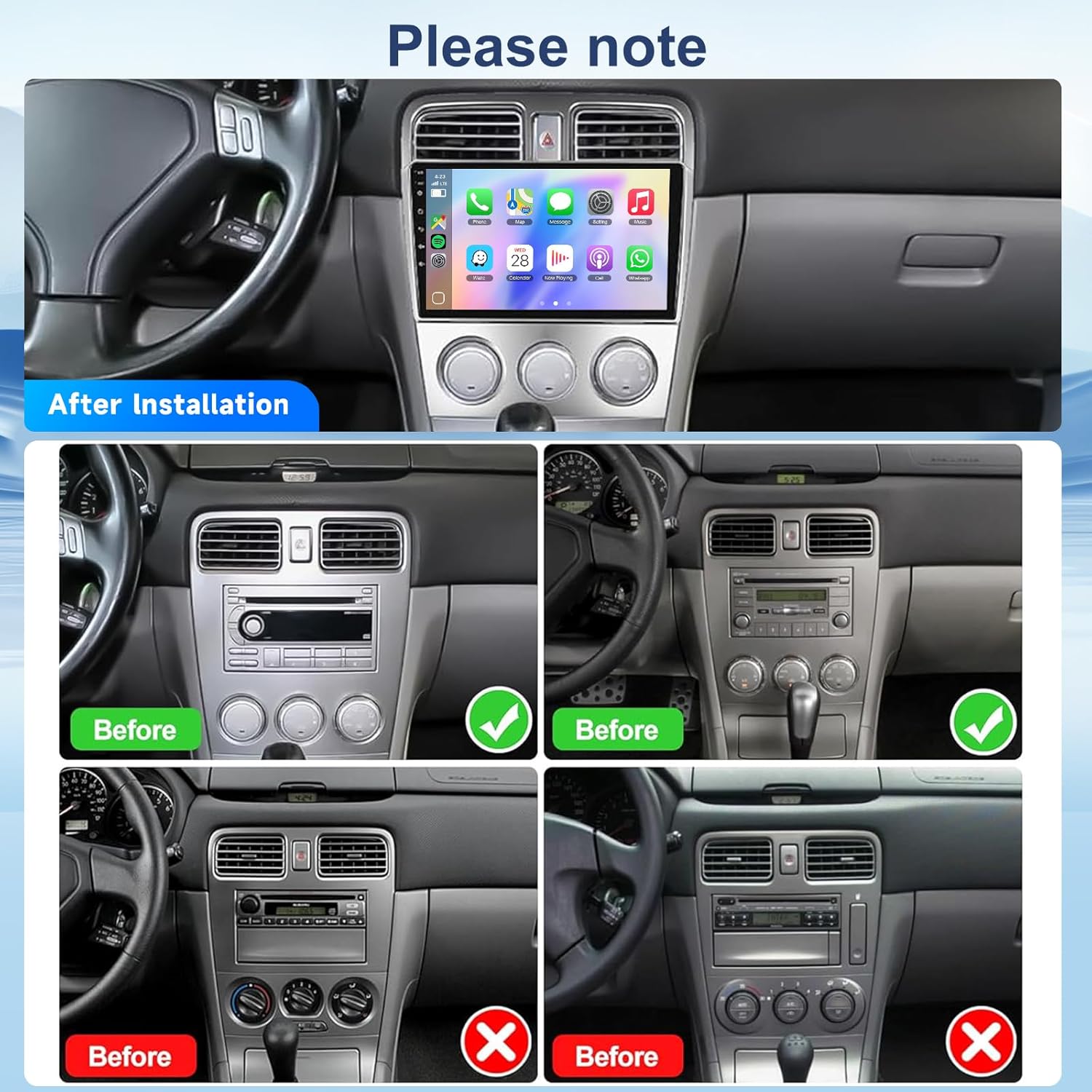
Image: Comparison of a Subaru Forester dashboard before and after the METEESER stereo installation, showing proper fitment.
The image above illustrates the compatible dashboard configuration for the Subaru Forester 2002-2008. Ensure your vehicle's dashboard matches the "After Installation" example for proper fitment. If your dashboard resembles the "Before" images with an incompatible layout, this unit may not fit without modifications.
3.2 Wiring Connection Tips

Image: Detailed wiring diagram for the car stereo, showing connections for power, RCA, Canbus, USB, rear camera, radio antenna, and GPS antenna.
Refer to the provided wiring diagram for correct connections. Each cable is labeled for easy identification:
- Power Cable: Connects to the vehicle's power supply.
- RCA Cable: For audio/video input/output.
- 3.8 Pin Canbus Plug: Connects to the host unit for vehicle data communication.
- USB Cable: For external USB devices.
- Rear Camera Input Cable: Connects to the backup camera.
- Radio Antenna: Connects to the vehicle's radio antenna.
- GPS Antenna: Connects to the GPS module for navigation.
Friendly Reminder:
If the original car amplifier cannot be used after installing the car stereo, please connect the original car amplifier wires to the ACC wire to ensure the amplifier functions properly.
4. Operating Instructions
4.1 Wireless CarPlay & Android Auto
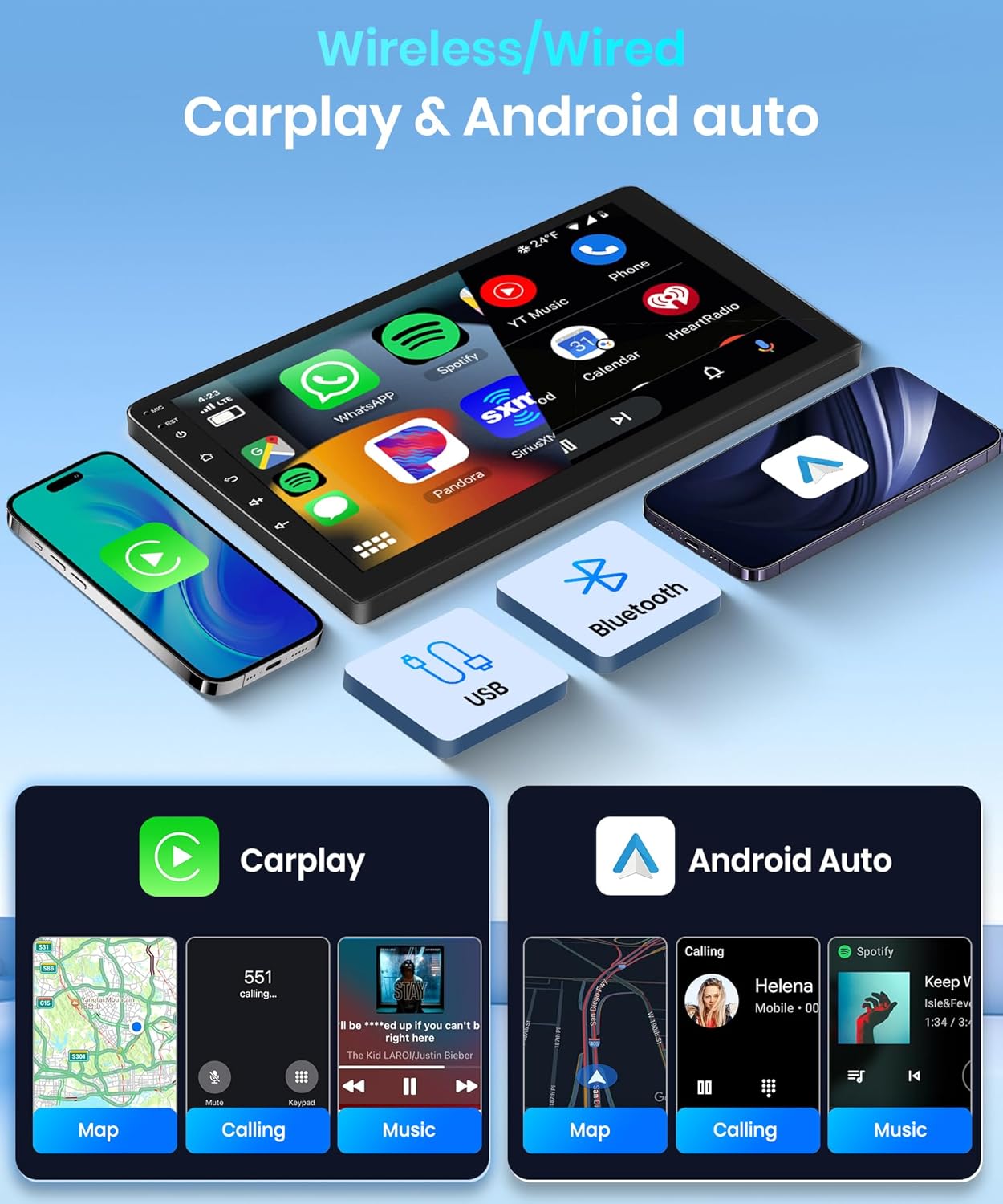
Image: Display showing the Wireless CarPlay and Android Auto interfaces, highlighting app integration and hands-free operation.
This unit supports both Wireless CarPlay and Wireless Android Auto. Connect your compatible smartphone via Bluetooth or USB to access navigation, music, messages, and calls directly on the stereo's display. Activate Siri or Google Assistant for voice control.
- Connection: Pair your smartphone via Bluetooth or connect using a USB cable.
- Voice Control: Use "Hey Siri" or "Hey Google" to control functions hands-free.
- App Integration: Access compatible apps for navigation, music streaming, and communication.
4.2 GPS Navigation & WiFi Connectivity

Image: Graphics illustrating GPS navigation with map views and WiFi connectivity for app downloads.
The built-in GPS module and antenna provide accurate navigation. Connect to a WiFi hotspot to download online maps, update applications, and browse the internet.
- GPS: Use pre-installed navigation apps or download others from the Play Store.
- WiFi: Connect to a mobile hotspot or available WiFi network to access online features.
4.3 Audio Features (FM/RDS Radio, Bluetooth 5.0, DSP)

Image: Display showing the FM/RDS radio interface with frequency selection and Bluetooth 5.0 connection for calls and music streaming.
Enjoy high-quality audio with various features:
- FM/RDS Radio: Tune into your favorite radio stations. RDS (Radio Data System) displays station information.
- Bluetooth 5.0: Fast pairing for hands-free calls and wireless music streaming.
- AI DSP with 32-band EQ: Customize your audio experience with the built-in Digital Sound Processor and 32-band equalizer for optimal sound balance.
4.4 Steering Wheel Controls (SWC)

Image: Screen showing the steering wheel control learning interface, allowing users to map vehicle steering wheel buttons to stereo functions.
The unit supports original steering wheel controls. Follow the on-screen instructions in the settings menu to program your steering wheel buttons for functions like volume, track skipping, and call management.
4.5 Backup Camera Functionality

Image: A car stereo display showing the wide-angle view from the backup camera with parking guidelines, aiding in safe reversing.
When the vehicle is shifted into reverse, the stereo automatically displays the feed from the included 170° wide-angle AHD waterproof backup camera. This feature assists in safer parking and maneuvering.
4.6 Android System and User Interface

Image: Graphic illustrating the Android 13 operating system, 4-core processor, 4GB RAM, and 64GB ROM for smooth performance.
The unit runs on an Android 13 operating system with a 4-core processor, 4GB RAM, and 64GB ROM, allowing you to download and install various applications from the Google Play Store. The 59UI customizable interface offers a personalized user experience.

Image: Screenshot showing the customizable homepage and various wallpaper options available on the stereo.
You can customize the homepage layout and choose from multiple optional wallpapers to suit your preference. Long-press an app icon to switch applications or rearrange them.
5. Maintenance
- Cleaning: Use a soft, dry cloth to clean the touchscreen and unit. Avoid abrasive cleaners or solvents.
- Software Updates: Periodically check for system updates via the settings menu to ensure optimal performance and access to new features.
- Temperature: Avoid exposing the unit to extreme temperatures.
6. Troubleshooting
| Problem | Possible Cause | Solution |
|---|---|---|
| Unit does not power on. | Incorrect wiring, blown fuse, vehicle battery disconnected. | Check power cable connections, inspect vehicle fuses, ensure battery is connected. |
| No sound. | Volume too low, incorrect audio settings, speaker wiring issues. | Increase volume, check audio output settings, verify speaker connections. If using original amplifier, ensure ACC wire connection. |
| GPS signal weak or inaccurate. | GPS antenna not properly installed or obstructed. | Ensure GPS antenna is mounted in a clear location with an unobstructed view of the sky. |
| CarPlay/Android Auto not connecting. | Bluetooth/USB connection issue, phone compatibility, app not running. | Restart phone and stereo, re-pair Bluetooth, try a different USB cable, ensure CarPlay/Android Auto is enabled on your phone. |
| Backup camera not displaying. | Camera wiring issue, camera power issue, vehicle not in reverse. | Check rear camera input cable connection, ensure camera is receiving power, verify vehicle is in reverse gear. |
If you encounter issues not listed here or require further assistance, please contact METEESER technical support.
7. Specifications
| Feature | Detail |
|---|---|
| Model Name | METEESER Forester Series |
| Compatible Vehicle | Subaru Forester 2002-2008 |
| Display Size | 9 Inches |
| Screen Resolution | 1280*720P IPS Touchscreen |
| Operating System | Android 13 |
| Processor | 4-Core |
| RAM | 4GB |
| Internal Storage | 64GB |
| Connectivity | Bluetooth 5.0, WiFi, USB, FM/RDS |
| Special Features | Wireless CarPlay, Wireless Android Auto, GPS Navigation, 32-band AI DSP, HiFi Audio, Steering Wheel Control (SWC), HD Backup Camera support |
| Included Components | Backup camera, External microphone, GPS module, Rear Camera Input Cable, Power Cable, RCA Cables, USB Cable, Installation Tool, User Manual |
| Item Weight | 3.37 pounds |
| Package Dimensions | 13.78 x 10.63 x 4.25 inches |
8. Warranty and Support
This METEESER product comes with a 2-year warranty as specified in the product details. For warranty claims or technical assistance, please contact METEESER customer support.
Our professional technical support team is available to assist with installation questions and troubleshooting. Please feel free to reach out for prompt assistance.
Contact Information: Refer to your purchase documentation or the METEESER official website for the most current customer support contact details.
Ask a question about this manual
Ask about setup, troubleshooting, compatibility, parts, safety, or missing instructions. Manuals+ will review the question and use this page’s manual context to help answer it.