
ITleads B0C89N3M13
ITleads 2.1in AIO Display Screen Upgrade Kit User Manual
Model: B0C89N3M13
Introduction
The ITleads 2.1in AIO Display Screen Upgrade Kit is designed to provide real-time monitoring of your computer's vital statistics, such as CPU and GPU temperature, usage, and more. This compact, round LCD screen integrates seamlessly with your CPU liquid cooler, offering a clear and customizable display. Its durable aluminum alloy construction and versatile display options make it an essential accessory for PC enthusiasts.

Figure 1: The ITleads 2.1in AIO Display Screen, showcasing real-time CPU temperature and usage metrics.

Figure 2: The display screen mounted on a CPU liquid cooler, integrated within a computer system.
Setup and Installation
Follow these steps to properly install your ITleads 2.1in AIO Display Screen:
- Prepare your system: Ensure your computer is powered off and unplugged from the wall outlet before beginning installation.
- Identify connection points: The display connects via a 9-PIN USB header on your motherboard. Locate an available 9-PIN header.
- Mount the display: The display can be mounted using the included double-sided tape. Choose a suitable flat surface inside or outside your PC chassis, typically on the CPU liquid cooler pump or a flat area near it. Ensure the surface is clean and dry before applying the tape.
- Connect the 9-PIN cable: Carefully connect the provided 9-PIN cable from the display to the identified 9-PIN USB header on your motherboard. Ensure the connection is secure and correctly oriented to avoid damage.
- Power on and install software: After physical installation, power on your computer. The display requires specific software (often referred to as "Turzx" software) to function and customize. Download the latest version of the software from the manufacturer's official website.
- Software Installation Note: The software may not install in a conventional manner and might not appear in Windows' "Add or Remove Programs." It typically runs as a background application. Refer to the software's specific instructions for installation and uninstallation.

Figure 3: Connection method for the display, highlighting the single USB connection requirement.
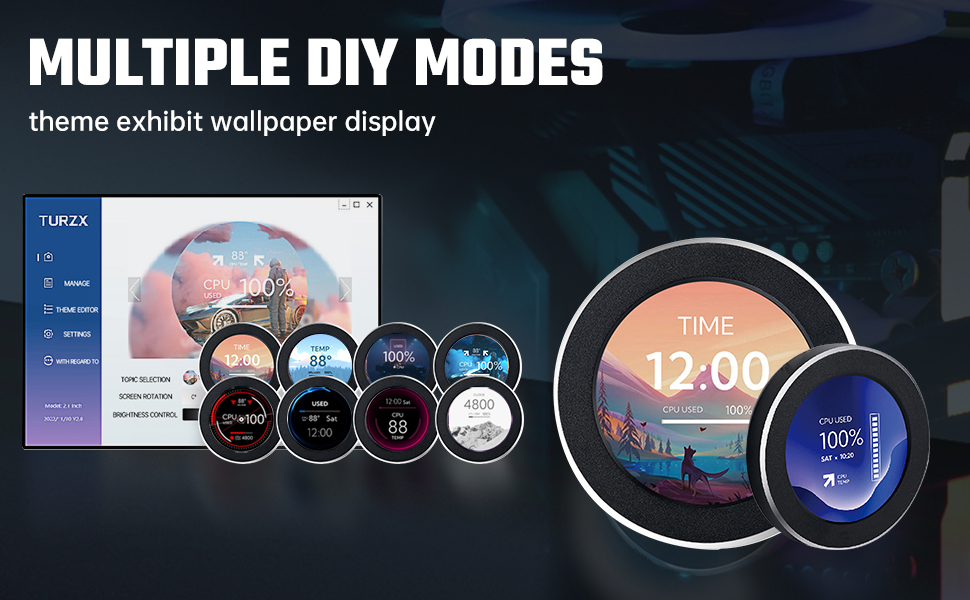
Figure 4: The visual editing software interface for customizing display themes and layouts.
Operating Instructions
Once installed and the software is running, the ITleads display screen will automatically begin monitoring and displaying system information. You can customize the display using the dedicated software.
- Real-time Monitoring: The screen provides real-time data for CPU, GPU, and RAM usage and temperature. It can also display internet speed, date, time, volume, and weather forecasts.
- Customization: Use the accompanying software to select from various preset layouts and themes. You can also upload custom images or videos as backgrounds.
- Dynamic Backgrounds: The display supports dynamic video backgrounds, utilizing its internal storage (128MB available space) and high-performance processor.
- 360-Degree Rotation: The display supports 360-degree rotation, allowing for flexible orientation regardless of mounting position.
- Power Saving: The screen features power-saving capabilities, including automatic screen turn-off after power loss.
- Brightness Adjustment: Adjust the screen brightness through the software settings for optimal visibility.
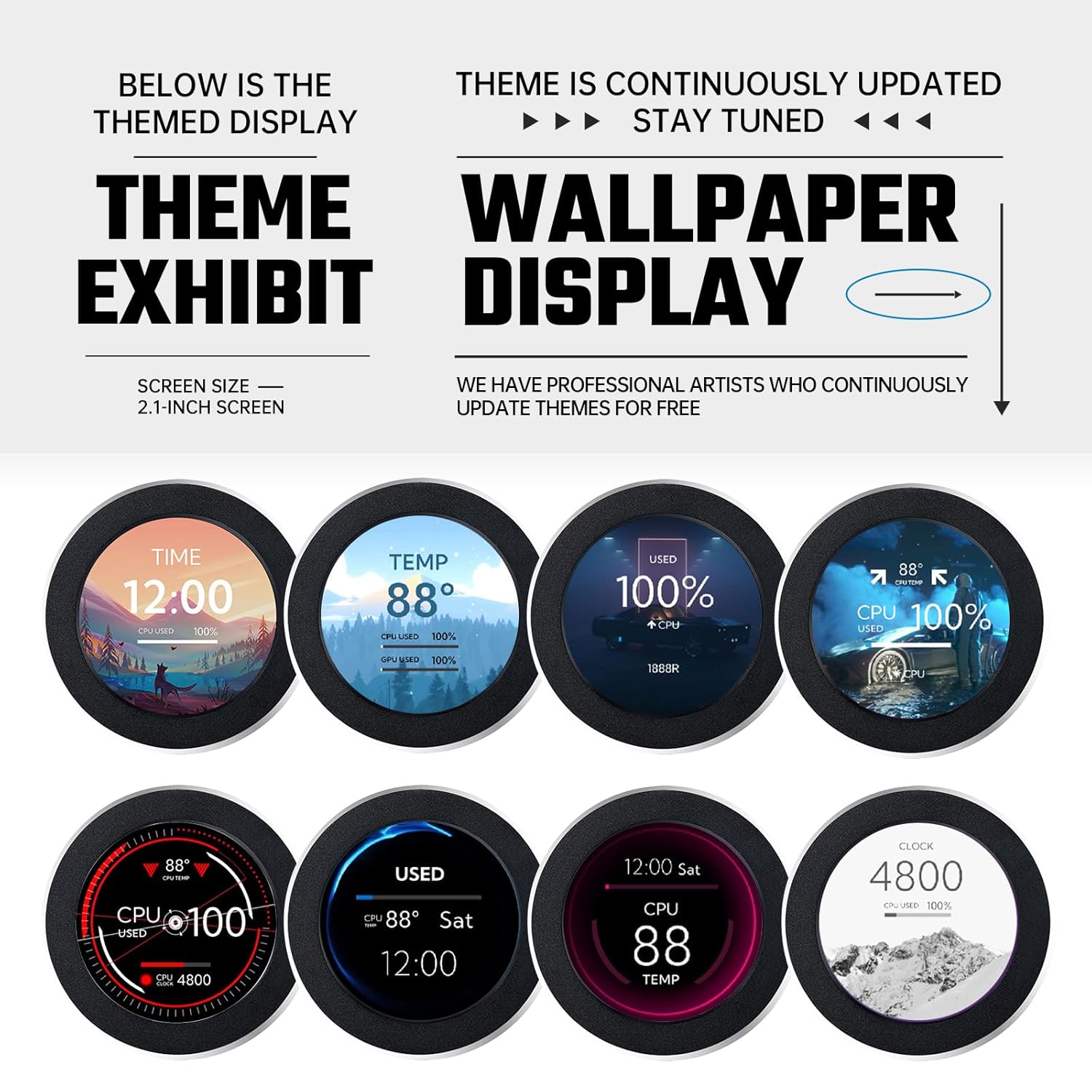
Figure 5: Examples of various display themes and wallpaper options available for customization.
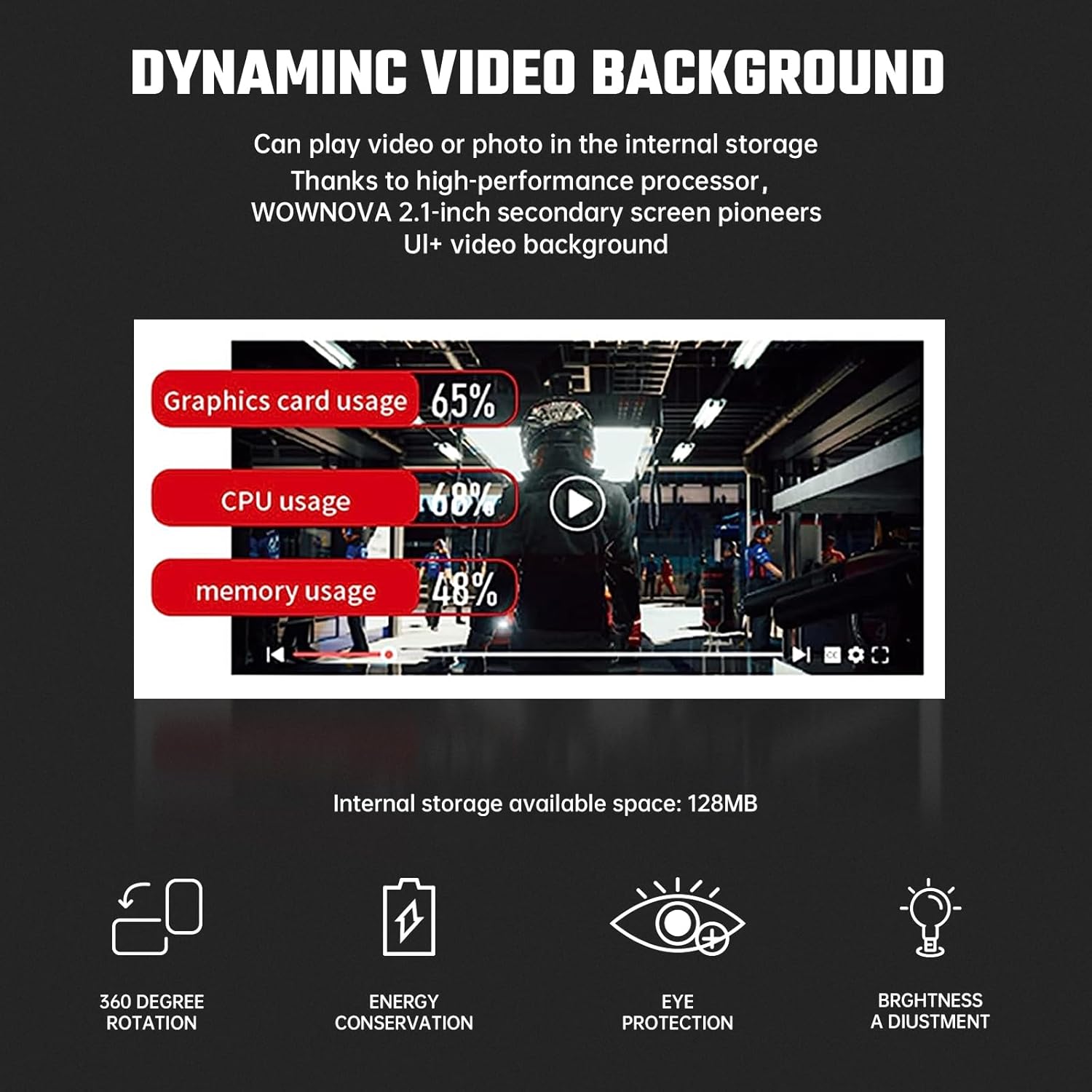
Figure 6: Overview of dynamic video background feature and other operational benefits.
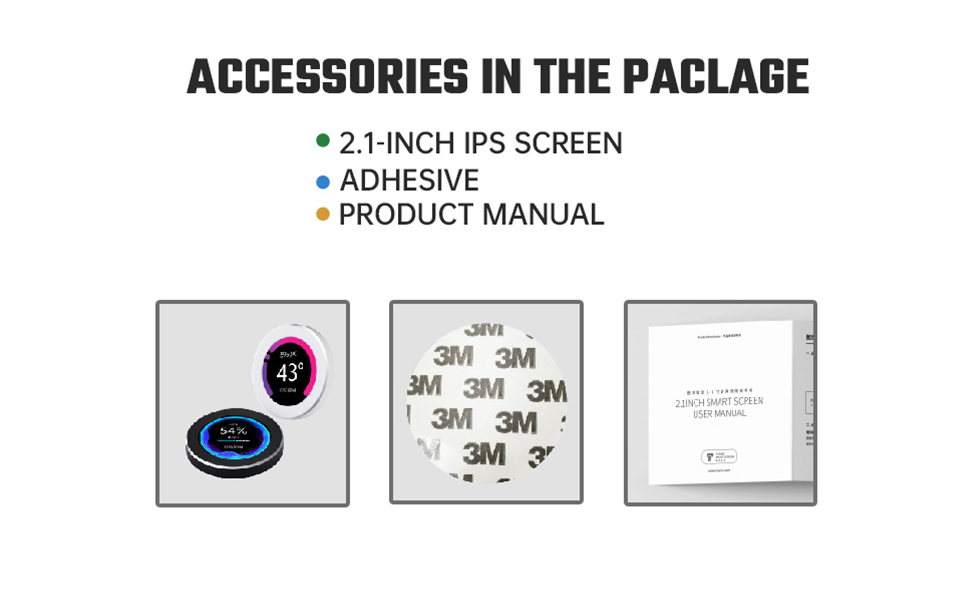
Figure 7: Comprehensive list of system metrics supported for monitoring.
Maintenance
The ITleads display screen requires minimal maintenance. Follow these guidelines to ensure its longevity:
- Cleaning: Gently wipe the screen and casing with a soft, dry, lint-free cloth. For stubborn smudges, slightly dampen the cloth with water. Avoid using harsh chemicals, abrasive cleaners, or solvents, as these can damage the display surface or finish.
- Dust Removal: Use compressed air to remove dust from around the display and its connections periodically.
- Software Updates: Regularly check the manufacturer's website for software updates. Keeping the software updated can improve performance, add new features, and resolve potential issues.
Troubleshooting
If you encounter issues with your ITleads display screen, refer to the following common problems and solutions:
| Problem | Possible Cause | Solution |
|---|---|---|
| Screen does not turn on. |
|
|
| Display shows incorrect data or freezes. |
|
|
| Screen gets hot. |
|
|
| PC does not sleep properly. |
|
|
Specifications
| Feature | Detail |
|---|---|
| Display Size | 2.1 inches |
| Display Type | IPS LCD |
| Resolution | 480x480 pixels |
| Material | Aluminum alloy (CNC machined case with anodized finish) |
| Power Connector | 9-Pin USB |
| Compatible Devices | Desktop PCs |
| Cooling Method | Water (designed for CPU liquid coolers) |
| Rotation Support | 360-degree |
| Internal Storage | 128MB (for dynamic backgrounds) |
| Package Dimensions | 6.3 x 5.75 x 0.67 inches |
| Weight | 4.16 ounces |
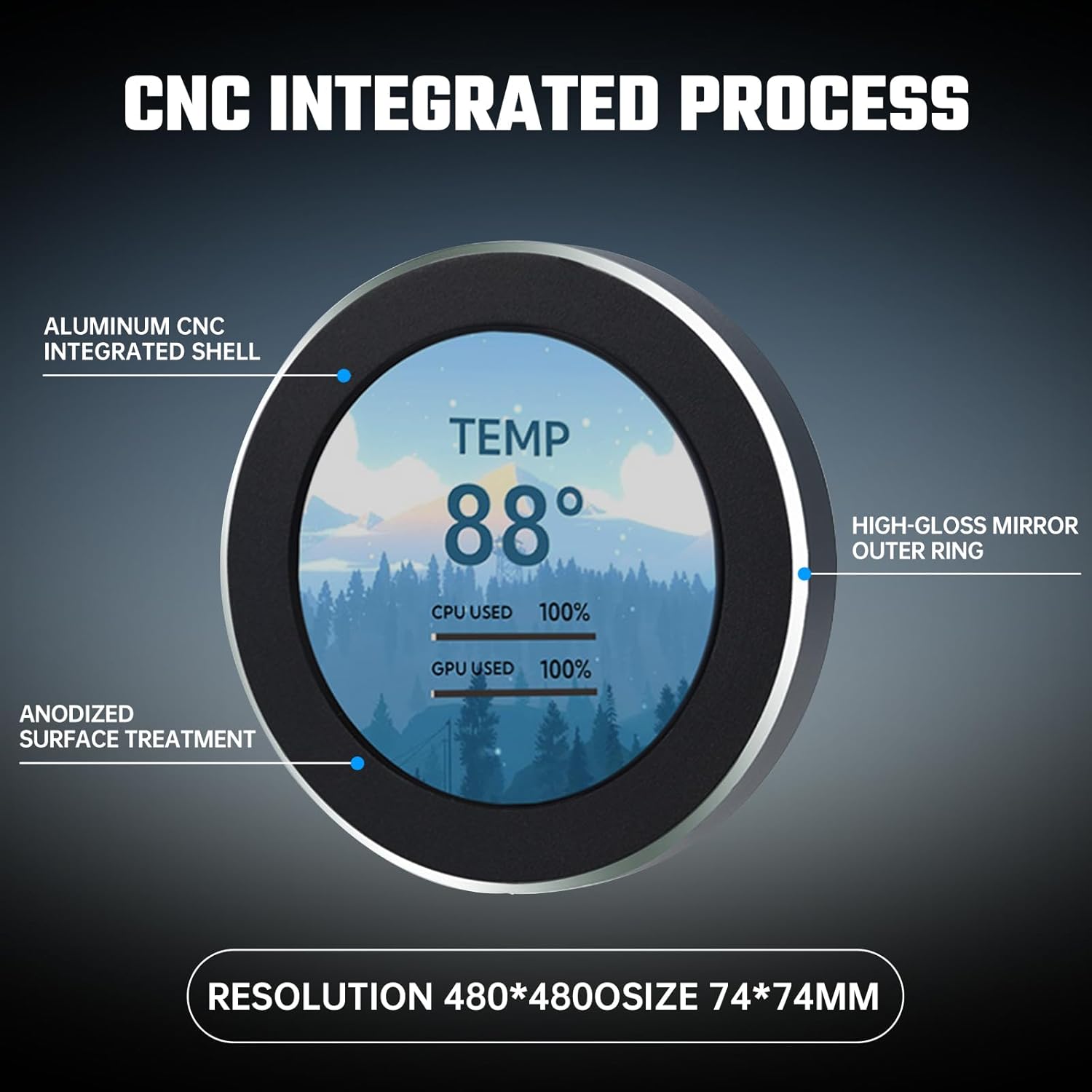
Figure 8: Detailed view of the display's construction and dimensions.
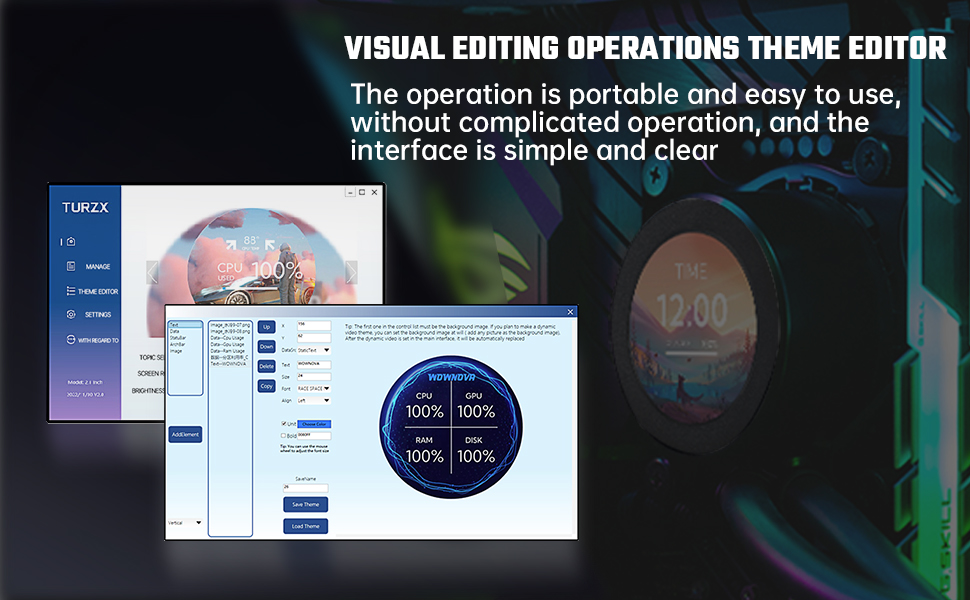
Figure 9: Information regarding the internal processor and its capabilities.
Warranty and Support
For warranty information and technical support, please refer to the official ITleads website or contact their customer service directly. Keep your purchase receipt as proof of purchase for warranty claims.
Contact Information:
- Manufacturer: ITleads
- Website: Visit ITleads Brand Page on Amazon (for general brand information)
- For specific support, please consult the documentation included with your product or search for "ITleads support" online.