
1. Introduction
Thank you for choosing the Ponovo 128GB Magnetic Voice Recorder. This device is designed for high-quality audio recording with advanced features such as voice activation, password protection, and a long-lasting battery. Please read this manual carefully to ensure proper use and optimal performance.

Image: The Ponovo 128GB Magnetic Voice Recorder shown with its magnetic plate, back clip, and in hand for size comparison.
2. Package Contents
Please verify that all items are present in your package:
- 1 x Ponovo 128GB Magnetic Voice Recorder (Model Po-V79)
- 1 x USB-C Cable
- 1 x Earphones
- 1 x Magnetic Plate
- 1 x Back Clip
- 1 x User Manual

Image: A visual representation of all items included in the product box.
3. Product Overview
The Ponovo Po-V79 is a compact and versatile voice recorder. Its metal housing ensures durability, while the integrated display provides essential information. Key features include a stable back clip and an auxiliary magnetic plate for flexible placement.

Image: Detailed view of the recorder's buttons and ports, including Power On/Off, Type-C Port, Volume/Delete, Vol+/Vol-, Play/Confirm, Menu/Return, and Recording switch.
The device features a simple button design for efficient use, including dedicated controls for power, volume, playback, and menu navigation. The Type-C port is used for charging and data transfer.
4. Setup
4.1 Charging the Device
Before first use, fully charge the voice recorder. Connect the supplied USB-C cable to the device and a compatible USB power adapter (not included) or a computer's USB port. The battery indicator on the display will show charging status.
Video: Demonstrates connecting the voice recorder to a power adapter for charging, showing the battery indicator filling up.
4.2 Attaching the Back Clip and Magnetic Plate
The recorder comes with a detachable back clip and a magnetic plate for versatile attachment options. The back clip allows you to secure the device to clothing or other objects, while the magnetic plate enables attachment to metal surfaces.
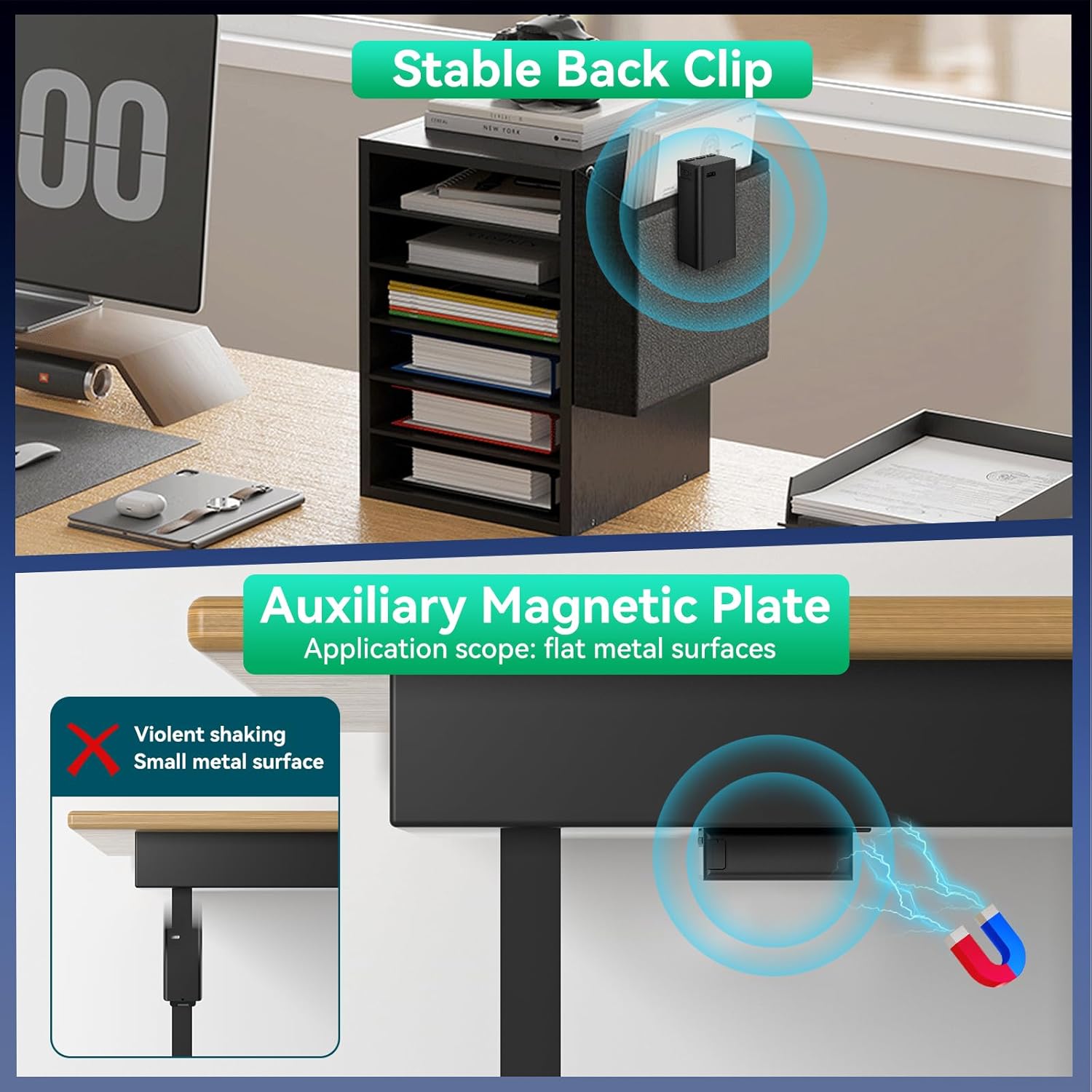
Image: Instructions for attaching the stable back clip and the auxiliary magnetic plate, highlighting their application scope.
To attach the back clip, align it with the slot on the back of the recorder and slide it into place until it clicks. For magnetic attachment, ensure the magnetic plate is securely fastened to the recorder, then place it on a flat metal surface.
5. Operating Instructions
5.1 One-Click Recording
To start recording, simply slide the dedicated recording switch to the 'REC' position. The device will begin recording immediately. To save the recording, slide the switch back to the 'SAVE' position. The recording will be saved automatically.
Video: Shows the one-click recording feature, demonstrating how to start and stop recording by sliding a switch.
5.2 Voice Activated Recording (VOR)
The voice-activated recording feature intelligently skips silent periods, focusing on recording key content and saving storage space. Refer to the device's menu settings to enable and adjust VOR sensitivity.

Image: Visual explanation of Voice Activated Recording, indicating how the device intelligently records only when sound is detected.
5.3 Password Protection
To protect your recordings, the device supports 4-digital password protection. This creates an impenetrable barrier against unauthorized access, guaranteeing audio safety. Set up your password through the device's menu.

Image: Depiction of the 4-digital password protection feature, ensuring the security of your recorded data.
5.4 File Transfer
You can easily transfer recorded files to a computer or Android phone. Connect the device using the USB-C cable. The recorder will appear as a removable drive, allowing you to copy files directly.

Image: Illustration of file transfer capabilities, showing connection to a computer and an Android phone for easy data management.
5.5 Playback
Recordings can be played back directly on the device using the included earphones, or by transferring files to a computer or smartphone for playback. The device also supports A-B repeat functionality for reviewing specific sections of a recording.
6. Features and Specifications
6.1 Key Features
- 128GB Huge Memory: Provides 8888 hours of recording capacity at 32 kbps.
- 6000mAh Massive Battery: Offers up to 1080 hours of continuous recording.
- 2159 Professional Noise Reduction: Equipped with the latest 2159 noise reduction chip for HD stereo sound quality.
- Voice Activated Recording (VOR): Intelligently skips silent periods.
- Password Protection: Secure your recordings with a 4-digital password.
- Magnetic Suction & Back Clip: For versatile placement.
- MP3 Music Playback: Can also function as an MP3 player.
- OTG/File Transfer: Easy transfer to computers and Android phones.

Image: Visual representation of the recorder's compact design and impressive battery life, including key metrics like 6000mAh battery and 1080 hours of continuous recording.
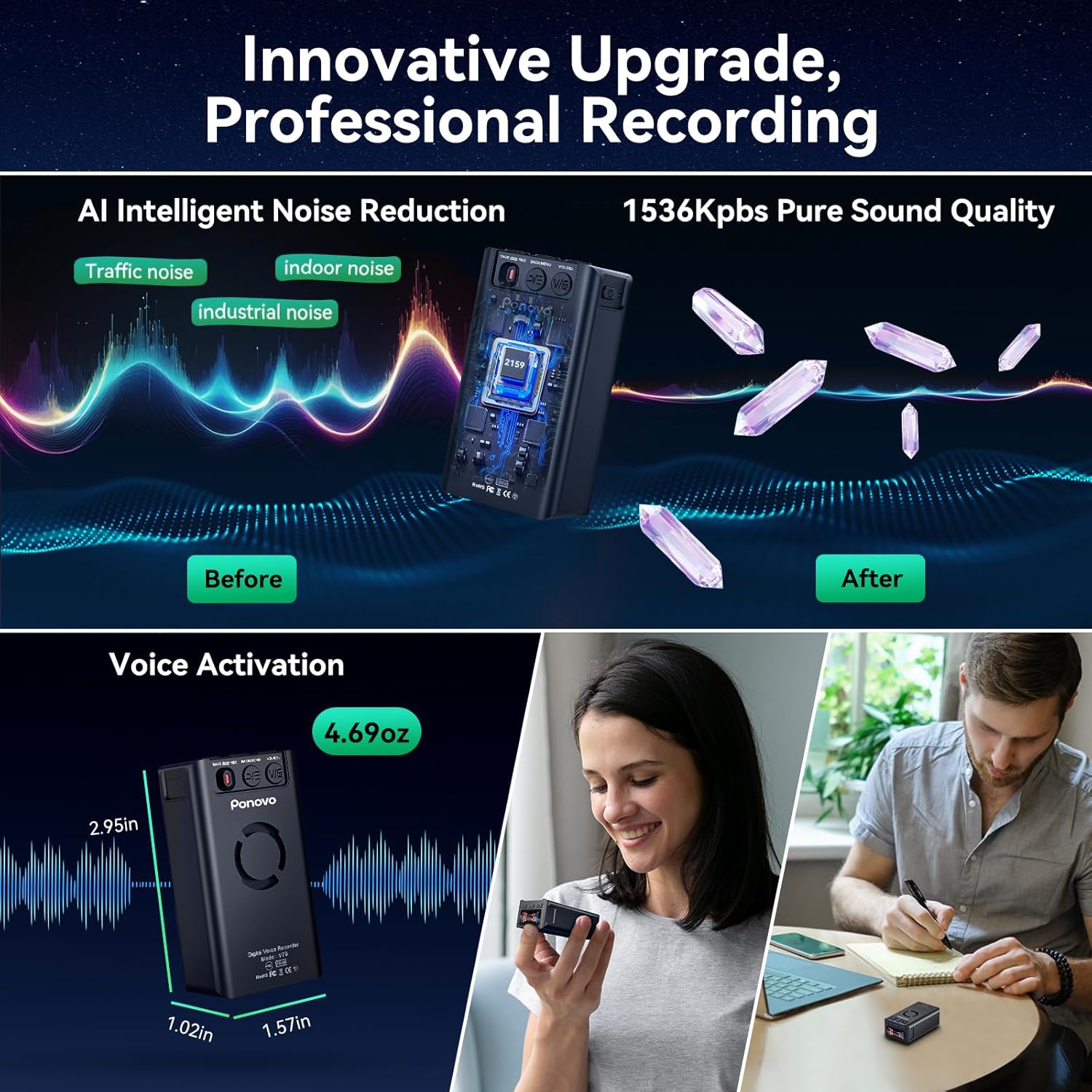
Image: Illustration of the advanced AI Intelligent Noise Reduction and high-fidelity sound quality, showing the effect of noise reduction on audio waveforms.
6.2 Technical Specifications
| Product Dimensions | 2.95 x 1.02 x 1.57 inches |
| Item Weight | 9.1 ounces |
| Memory Storage Capacity | 128 GB |
| Battery Life | 1080 Hours (Recording) |
| Digital Recording Time | 1080 hours |
| Microphone Operation Mode | Noise Cancellation |
| Format | WAV |
| Screen Size | 0.96 Inches |
| Item model number | Po-V79 |
7. Maintenance
To ensure the longevity and optimal performance of your Ponovo Voice Recorder, please follow these maintenance guidelines:
- Keep the device dry and away from moisture.
- Avoid extreme temperatures.
- Clean the device with a soft, dry cloth. Do not use harsh chemicals or abrasive cleaners.
- Store in a cool, dry place when not in use for extended periods.
- Regularly back up your recordings to prevent data loss.
8. Troubleshooting
If you encounter issues with your voice recorder, please refer to the following common solutions:
- Device not turning on: Ensure the battery is charged. Connect to a power source and try again.
- Cannot record: Check if the memory is full. Delete unnecessary files or transfer them to another device. Ensure the recording switch is in the correct position.
- Poor sound quality: Ensure the microphone is not obstructed. Record in a quieter environment. The device features noise reduction, but extreme noise can still affect quality.
- Cannot connect to computer: Try a different USB-C cable or USB port. Ensure the device is powered on.
- Forgotten password: Refer to the full user manual or contact customer support for password reset procedures.
If the problem persists, please contact Ponovo customer support for further assistance.
9. Warranty and Support
Ponovo products come with a standard manufacturer's warranty. For detailed warranty information, technical support, or service inquiries, please visit the official Ponovo website or contact their customer service team. Keep your purchase receipt as proof of purchase for warranty claims.
Ponovo Official Store: Visit Store