Product Overview
The MSI MAG X870E Tomahawk WiFi Motherboard is designed for high-performance computing, supporting the latest AMD Ryzen 9000/8000/7000 Processors on the AM5 platform. It features advanced connectivity and cooling solutions to ensure stable and efficient operation for demanding tasks and gaming.
- ULTRA POWER: Supports the latest Ryzen 9000 Processors with a 14 Duet Rail Power System (80A, SPS) VRM for the AMD X870E chipset.
- FROZR GUARD: Premium cooling features including 7W/mK MOSFET thermal pads, extra choke thermal pads, an Extended Heatsink, chipset heatsink, and double-sided EZ M.2 Shield Frozr II.
- DDR5 MEMORY, PCIe 5.0 x16 SLOT: Four DDR5 DIMM SMT slots for extreme memory overclocking (8400+ MT/s) and one PCIe 5.0 x16 SMT slot with Steel Armor II for cutting-edge graphics cards.
- QUADRUPLE M.2 CONNECTORS: Two M.2 Gen5 x4 128Gbps slots and two M.2 Gen4 x4 64Gbps slots, featuring EZ M.2 Shield Frozr II and EZ M.2 Clip II.
- ULTRA CONNECT: Full-speed Wi-Fi 7 module with Bluetooth 5.4, Realtek 5G LAN, USB4 Type-C (40Gbps) with 8K/60Hz display support, and 7.1 USB High Performance Audio with Audio Boost 5.
Package Contents
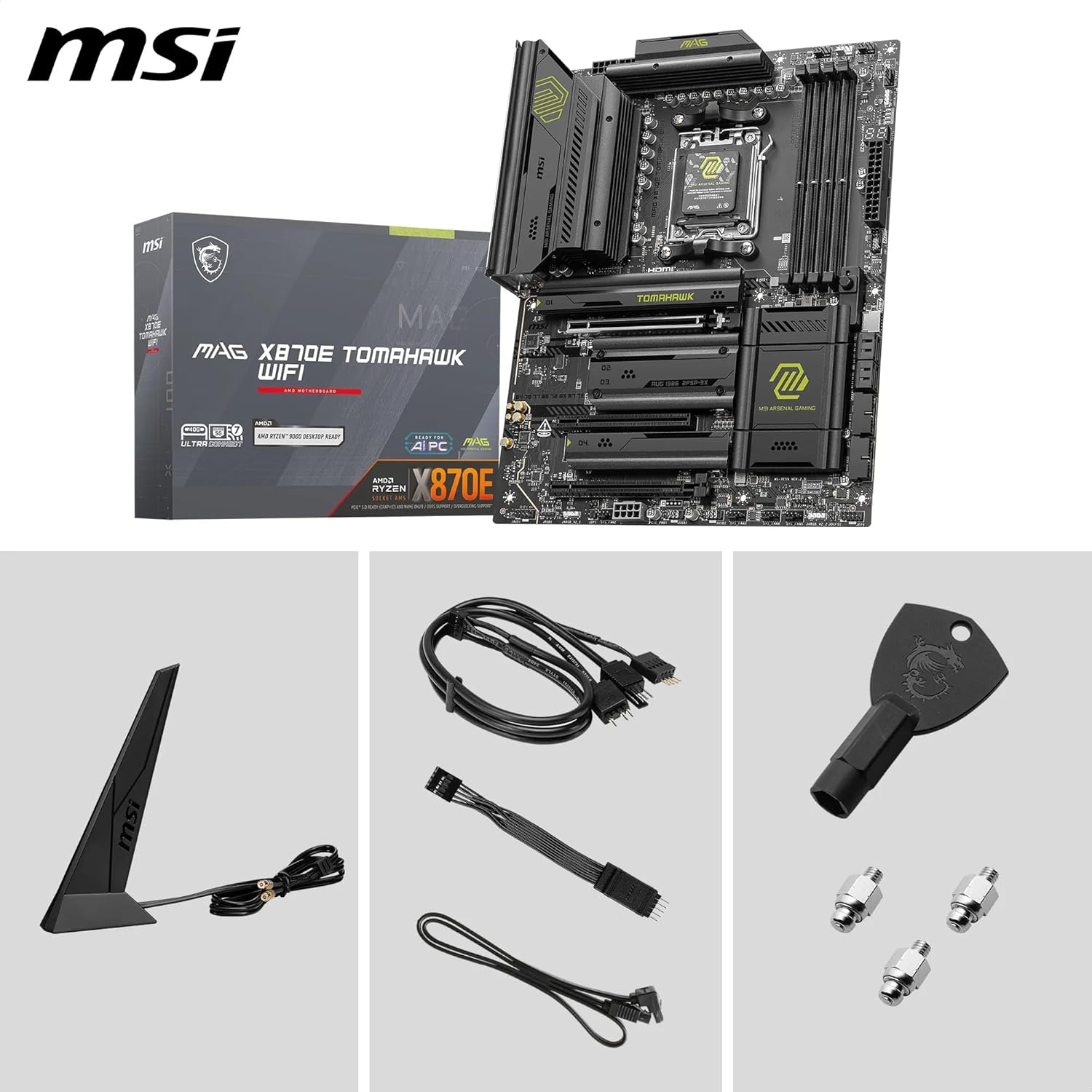
Image: The MSI MAG X870E Tomahawk WiFi Motherboard with its retail box and various accessories, including the Wi-Fi antenna, cables, and M.2 screws.
Please verify that all items listed below are present in your package. If any item is missing or damaged, contact your retailer.
- MSI MAG X870E Tomahawk WiFi Motherboard
- Wi-Fi Antenna
- SATA Cables
- M.2 Screws and Standoffs
- User Manual and Quick Start Guide
- Driver CD/USB Drive (if applicable)
Setup Guide
Follow these steps for proper installation of your MSI MAG X870E Tomahawk WiFi Motherboard into your system.
1. Motherboard Installation

Image: A detailed top-down view of the MSI MAG X870E Tomahawk WiFi Motherboard, showing the CPU socket, DIMM slots, and PCIe slots.
- Ensure your power supply is disconnected from the wall outlet.
- Install the CPU into the AM5 socket, aligning the triangular markers.
- Install the CPU cooler according to its manufacturer's instructions.
- Install DDR5 memory modules into the DIMM slots. Refer to the motherboard manual for optimal slot population.
- Mount the motherboard into your PC case, securing it with screws.
2. Storage Device Installation

Image: A close-up view of the M.2 slots on the MSI MAG X870E Tomahawk WiFi Motherboard, highlighting the EZ M.2 Shield Frozr II heatsinks.
- For M.2 NVMe SSDs, remove the EZ M.2 Shield Frozr II heatsink, insert the SSD, and secure it with the EZ M.2 Clip II. Reattach the heatsink.
- Connect SATA drives (HDDs/SSDs) to the SATA ports using SATA data and power cables.
3. Graphics Card and Expansion Slots

Image: The MSI MAG X870E Tomahawk WiFi Motherboard with labels indicating the PCIe Gen5 x16 slot and PCIe Gen4 slots, emphasizing its expansion capabilities.
- Insert your graphics card into the primary PCIe 5.0 x16 slot (usually the top reinforced slot).
- Secure the graphics card with the case screw.
- Install any additional expansion cards (e.g., sound cards, network cards) into available PCIe slots.
4. Power Connections
- Connect the 24-pin ATX main power connector from your power supply to the motherboard.
- Connect the 8-pin (or 4+4-pin) CPU power connector(s) to the motherboard.
- Connect power cables to your graphics card and other components as needed.
5. Front Panel and Peripherals
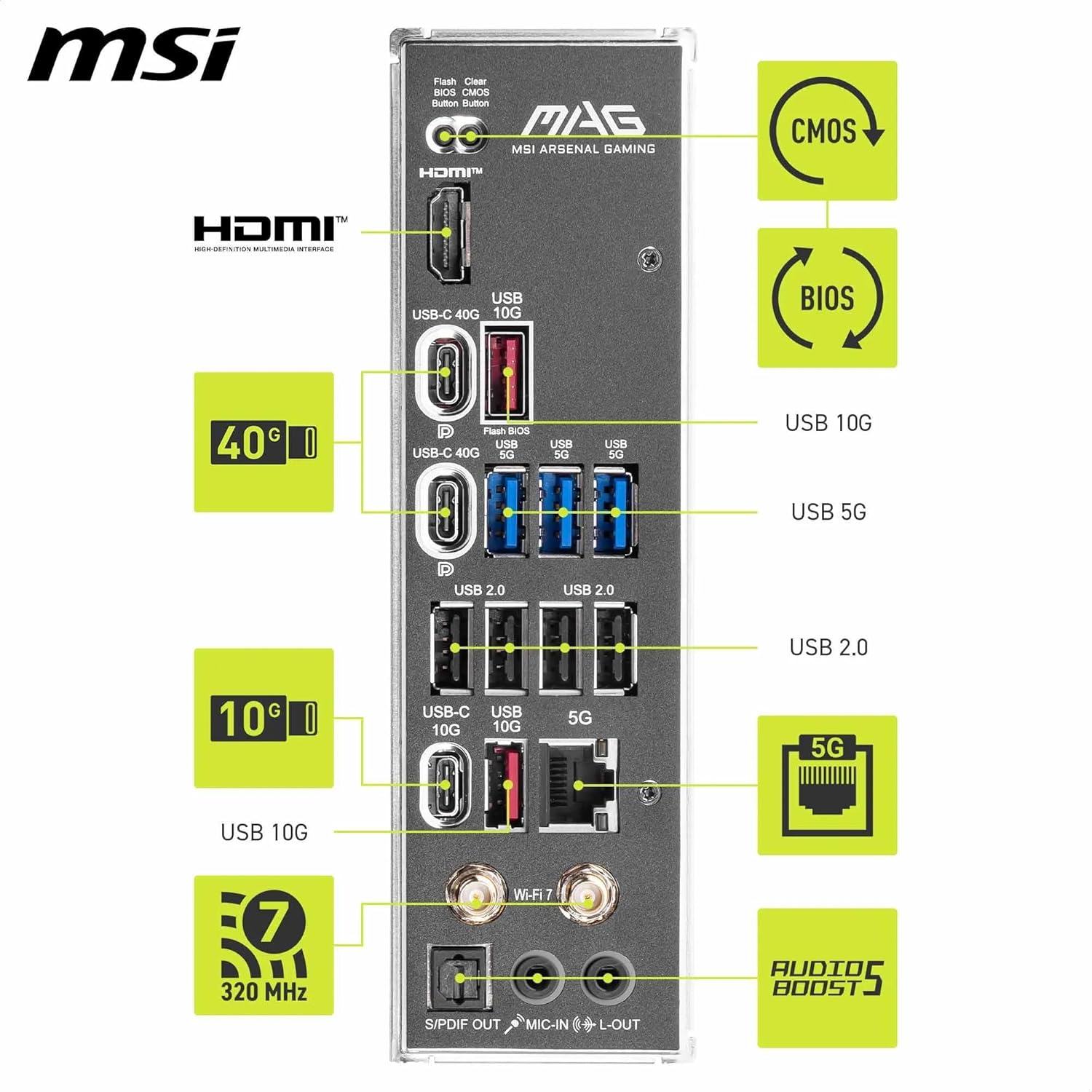
Image: The rear input/output panel of the MSI MAG X870E Tomahawk WiFi Motherboard, showcasing various USB ports, LAN, Wi-Fi 7 antenna connectors, and audio jacks.
- Connect your case's front panel connectors (power button, reset button, USB ports, audio jacks) to the corresponding headers on the motherboard. Refer to the motherboard manual for header locations.
- Attach the Wi-Fi antenna to the rear I/O panel connectors.
- Connect your monitor, keyboard, mouse, and other peripherals to the rear I/O ports.
Operating Instructions
This section provides basic instructions for operating your motherboard and system.
First Boot and BIOS Setup
- After connecting all components and peripherals, connect your power supply to the wall outlet and turn it on.
- Press the power button on your PC case.
- During boot-up, repeatedly press the DEL key to enter the BIOS/UEFI setup.
- In the BIOS, you can configure boot order, enable/disable features, and monitor system status. Save changes and exit to continue booting into your operating system installer or existing OS.
Driver Installation
For optimal performance and stability, install the latest drivers for your motherboard components. These can typically be found on the MSI official website for your specific model.
- Chipset Drivers
- LAN Drivers (for 5G Ethernet)
- Wi-Fi and Bluetooth Drivers
- Audio Drivers
- USB Drivers
Maintenance
Proper maintenance ensures the longevity and optimal performance of your motherboard.
- Keep it Clean: Regularly clean dust from your PC case and motherboard components using compressed air. Ensure the system is powered off and unplugged before cleaning.
- BIOS/UEFI Updates: Periodically check the MSI website for BIOS/UEFI updates. Updates can improve compatibility, stability, and performance. Follow MSI's instructions carefully when updating the BIOS.
- Driver Updates: Keep all system drivers updated to their latest versions for best performance and security.
- Monitor Temperatures: Use monitoring software to keep an eye on CPU, chipset, and M.2 temperatures to prevent overheating, especially under heavy loads.
Troubleshooting
This section addresses common issues you might encounter and their potential solutions.
No Display/No Boot
- Check Power Connections: Ensure all power cables (24-pin ATX, 8-pin CPU, GPU power) are securely connected.
- Reseat Components: Try reseating the RAM modules, graphics card, and CPU to ensure they are properly seated in their slots.
- Clear CMOS: Refer to your motherboard manual for instructions on how to clear the CMOS (Complementary Metal-Oxide-Semiconductor) settings. This can resolve boot issues caused by incorrect BIOS configurations.
- Test with Minimal Components: Remove all non-essential components (extra drives, expansion cards) and try booting with only the CPU, one RAM stick, and the graphics card.
System Instability/Crashes
- Check Temperatures: Overheating can cause instability. Monitor component temperatures.
- Update Drivers/BIOS: Ensure all drivers and the BIOS are up to date.
- Memory Issues: Run a memory diagnostic tool (e.g., Windows Memory Diagnostic, MemTest86) to check for faulty RAM.
- Power Supply: Ensure your power supply unit (PSU) has sufficient wattage and is functioning correctly.
Network Connectivity Issues
- Check Cables/Antenna: Ensure Ethernet cables are properly connected and Wi-Fi antennas are securely attached.
- Driver Installation: Verify that the correct LAN and Wi-Fi drivers are installed.
- Router/Modem: Restart your router and modem.
Specifications
| Feature | Detail |
|---|---|
| Brand | MSI |
| Model Name | MAG X870E Tomahawk WiFi |
| CPU Socket | Socket AM5 |
| Compatible Processors | Supports AMD Ryzen 9000/7000 Series Desktop Processor |
| Chipset Type | X870E |
| RAM Memory Technology | DDR5 |
| Memory Speed | 8400 MT/s (OC) |
| PCIe Slots | 1 x PCIe 5.0 x16, other PCIe Gen4 slots |
| M.2 Connectors | 2 x M.2 Gen5 x4, 2 x M.2 Gen4 x4 |
| LAN | Realtek 5G LAN |
| Wireless Connectivity | Wi-Fi 7, Bluetooth 5.4 |
| USB Ports | USB4 Type-C (40Gbps), USB 10G, USB 5G, USB 2.0 |
| Audio | 7.1 USB High Performance Audio with Audio Boost 5 |
| Dimensions (LxWxH) | 13.6 x 10.7 x 2.9 inches |
| Item Weight | 4.82 pounds |
Warranty and Support
For warranty information, technical support, and driver downloads, please visit the official MSI website or contact their customer service. Keep your purchase receipt for warranty claims.
MSI Official Website: www.msi.com
Amazon Product Page: https://www.amazon.com/MSI-MAG-X870E-Tomahawk-WiFi/dp/B0DT55ZJM7


