
1. Introduction
Thank you for choosing the AOC 27B35HM Full HD 27-inch monitor. This display is designed to provide a high-quality visual experience with features such as a 120 Hz refresh rate, 1ms MPRT response time, and Adaptive Sync technology for smooth, responsive images. It also incorporates eye-care technologies like Low Blue Light and Flicker-Free to enhance viewing comfort during extended use. This manual will guide you through the setup, operation, and maintenance of your new monitor.
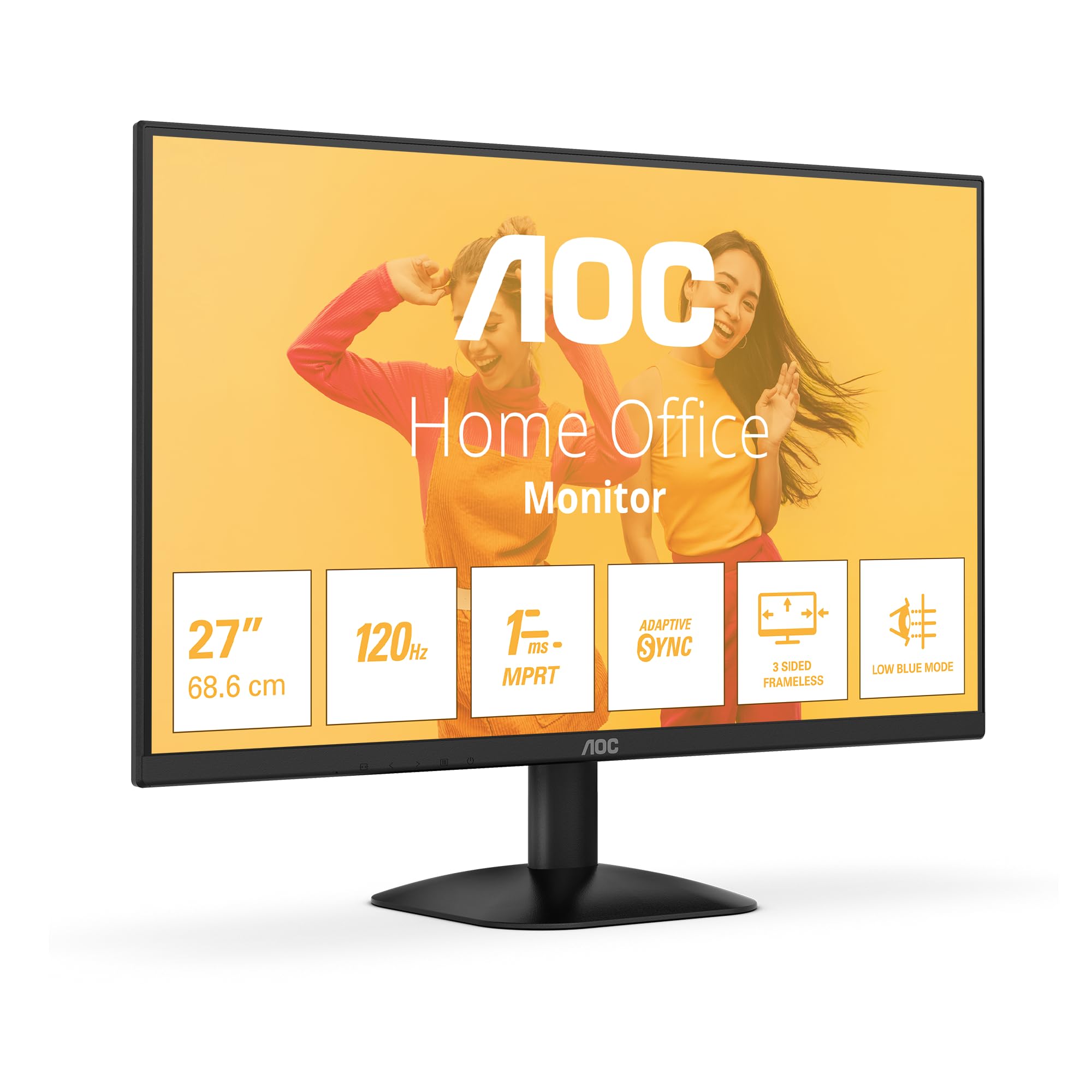
Figure 1: Front view of the AOC 27B35HM monitor, showcasing its 27-inch screen, 120Hz refresh rate, 1ms MPRT, Adaptive Sync, 3-sided frameless design, and Low Blue Light mode.
2. Safety Information
Please read all instructions carefully before using this product. Keep this manual for future reference.
- Do not place the monitor near water or in humid environments.
- Ensure proper ventilation around the monitor. Do not block ventilation openings.
- Use only the power adapter supplied with the monitor.
- Avoid placing heavy objects on the power cord.
- Do not attempt to service the monitor yourself. Refer all servicing to qualified personnel.
- Unplug the monitor from the power outlet during lightning storms or when unused for long periods.
3. Package Contents
Verify that all the following items are present in your product package:
- AOC 27B35HM Monitor
- Monitor Stand (Base and Neck)
- Power Cable
- HDMI Cable
- D-Sub (VGA) Cable (may vary by region)
- User Manual and Warranty Card
4. Setup
4.1 Assembling the Stand
- Carefully place the monitor face down on a soft, clean surface to prevent scratches.
- Attach the stand neck to the monitor's rear panel. Secure it with the provided screws.
- Attach the stand base to the stand neck. Tighten the thumb screw at the bottom of the base.
4.2 Connecting to a Computer
The AOC 27B35HM monitor supports HDMI and D-Sub (VGA) connections.
- HDMI Connection: Connect one end of the HDMI cable to the HDMI port on your computer's graphics card and the other end to the HDMI 1.4 port on the monitor.
- D-Sub (VGA) Connection: Connect one end of the D-Sub cable to the VGA port on your computer's graphics card and the other end to the D-Sub port on the monitor.
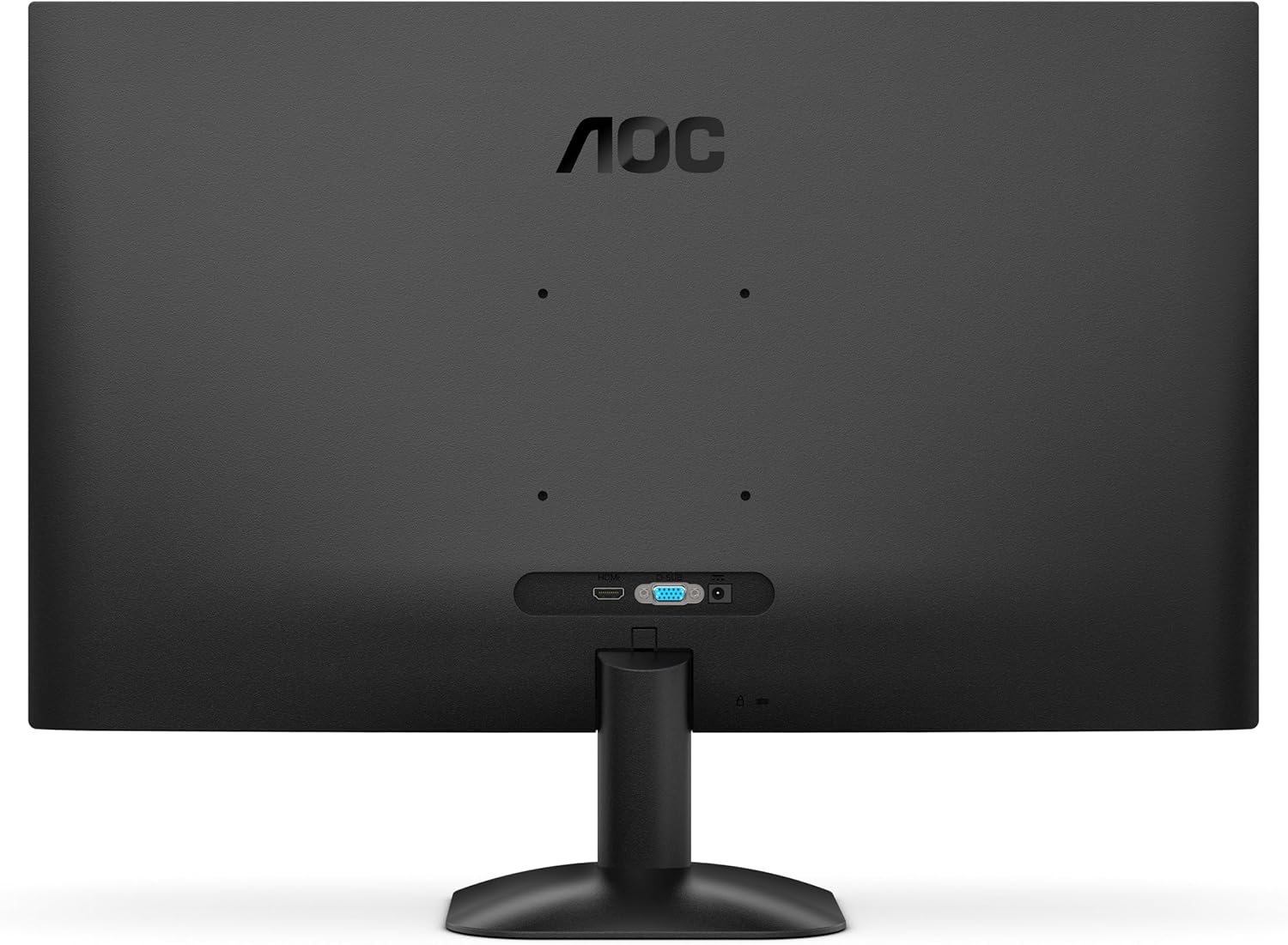
Figure 2: Rear view of the monitor, illustrating the location of the HDMI and D-Sub input ports.
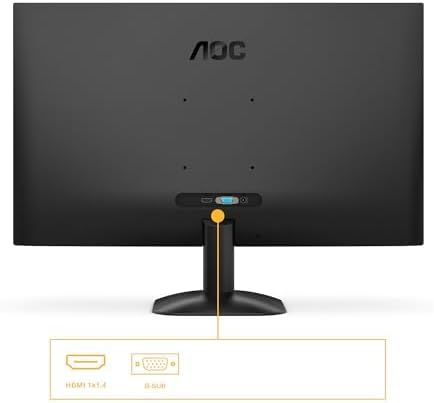
Figure 3: Detailed view of the monitor's connectivity options, specifically highlighting the HDMI 1.4 and D-Sub ports.
4.3 Power Connection
- Connect the power cable to the monitor's power input.
- Plug the other end of the power cable into a grounded electrical outlet.
5. Operating Instructions
5.1 Powering On/Off
Press the power button located on the bottom right of the monitor to turn it on or off. The power indicator light will illuminate when the monitor is on.
5.2 On-Screen Display (OSD) Menu
The OSD menu allows you to adjust various monitor settings. Use the buttons or joystick (if applicable) on the monitor's bezel to navigate the menu.
Key OSD Functions:
- Brightness/Contrast: Adjust the overall luminance and contrast of the display.
- Color Settings: Modify color temperature, gamma, and individual RGB levels.
- Input Select: Manually switch between HDMI and D-Sub input sources.
- Picture Mode: Select from preset display modes (e.g., Standard, Text, Game, Movie).
- Adaptive Sync: Enable or disable Adaptive Sync for tear-free gaming (requires a compatible graphics card).
- Low Blue Light Mode: Reduce blue light emission to minimize eye strain.
- Flicker-Free Technology: This monitor features flicker-free technology to reduce eye fatigue during prolonged use.
- HDR10: The monitor supports HDR10 for enhanced color and contrast, providing a more vivid visual experience.
6. Maintenance
6.1 Cleaning the Screen
Gently wipe the screen with a soft, lint-free cloth. For stubborn marks, dampen the cloth with a small amount of screen cleaner (non-ammonia based) and wipe gently. Do not spray cleaner directly onto the screen.
6.2 Cleaning the Exterior
Wipe the monitor's exterior with a soft, dry cloth. Avoid using abrasive cleaners or solvents.
7. Troubleshooting
If you encounter issues with your monitor, refer to the following common problems and solutions:
| Problem | Possible Cause | Solution |
|---|---|---|
| No Power | Power cable not connected; Power outlet faulty. | Ensure power cable is securely connected to monitor and outlet; Test outlet with another device. |
| No Signal | Video cable not connected; Incorrect input selected. | Check video cable connections (HDMI/D-Sub); Use OSD menu to select correct input source. |
| Image is too dark/bright | Brightness/Contrast settings incorrect. | Adjust Brightness and Contrast settings via the OSD menu. |
| Image is distorted/blurry | Incorrect resolution; Faulty cable. | Set display resolution to 1920 x 1080; Try a different video cable. |
| Flickering screen | Refresh rate mismatch; Graphics card issue. | Ensure graphics card drivers are updated; Check monitor refresh rate settings in OS. |
8. Specifications
Detailed technical specifications for the AOC 27B35HM monitor:
| Feature | Specification |
|---|---|
| Brand | AOC |
| Model Number | 27B35HM |
| Screen Size | 27 inches (68.6 cm) |
| Resolution | 1920 x 1080 (Full HD) |
| Aspect Ratio | 16:9 |
| Refresh Rate | 120 Hz |
| Response Time | 1 ms (MPRT) |
| Panel Type | LED LCD |
| Surface Description | Matte |
| Contrast Ratio | 1000:1 to 3000:1 |
| Connectivity | 1 x HDMI 1.4, 1 x D-Sub (VGA) |
| Special Features | Eye Care (Low Blue Light, Adaptive Sync), HDR10 |
| Color | Black |
| Manufacturer | AOC International |
| Country of Origin | China |
8.1 Energy Information
For detailed energy efficiency information, please refer to the EPREL database:
- EPREL Registration Number: 2046639
- EPREL Link: https://eprel.ec.europa.eu/qr/2046639
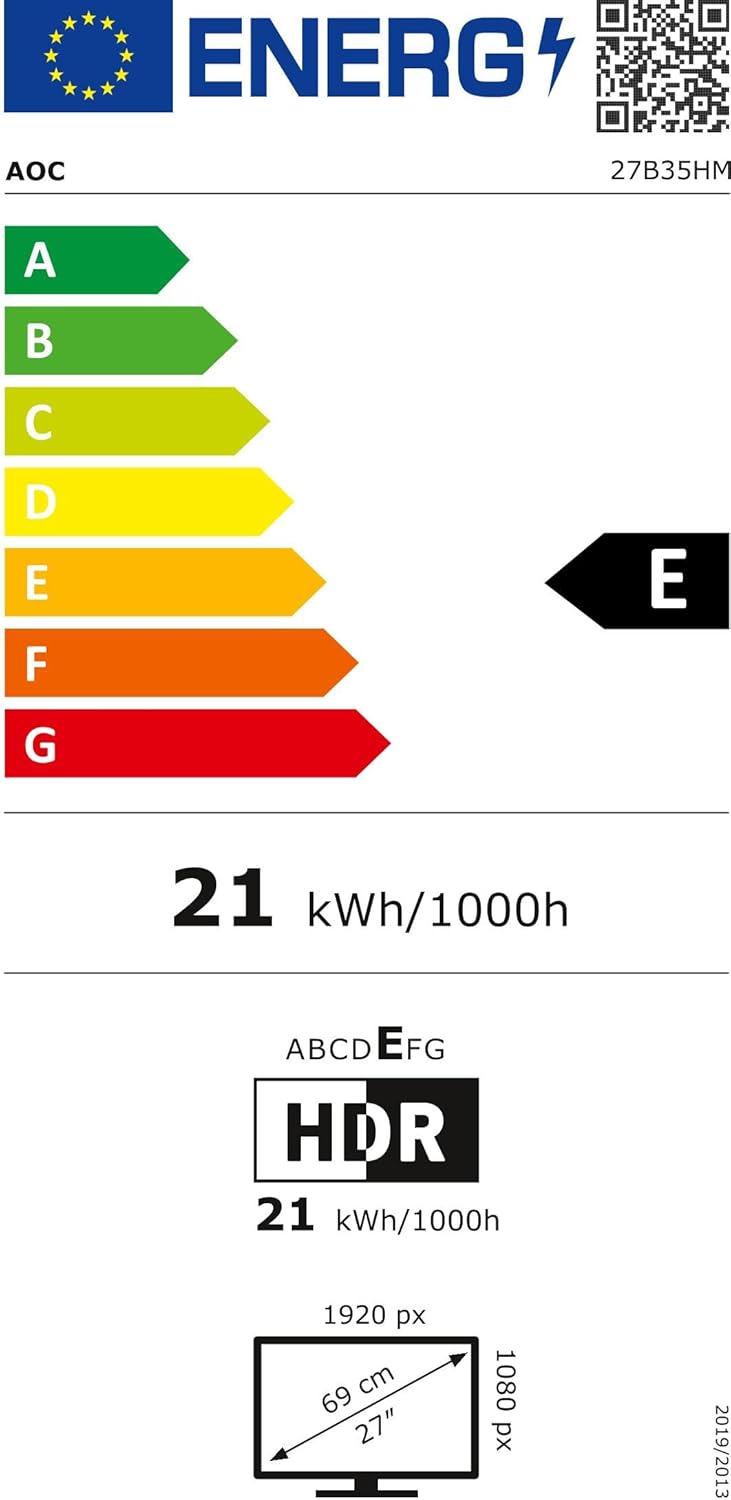
Figure 4: EU Energy Label for the AOC 27B35HM monitor, showing its energy efficiency class E and consumption of 21 kWh/1000h.
9. Warranty and Support
9.1 Warranty Information
This product comes with a minimum guaranteed product support period of 8 years and a minimum guarantee period of 3 years offered by the supplier.
9.2 Customer Support
For technical assistance, warranty claims, or other inquiries, please contact AOC International (Europe) B.V. using the following information:
- Website: https://eu.aoc.com
- Email: kevin.yang@tpv-tech.com
- Telephone: +31 (0)20 504 6962
- Address: Prins Bernhardplein 200 1097 JB Amsterdam, Netherlands


