
1. Introduction
This manual provides essential information for setting up, operating, and maintaining your AITRIP Nano V3.0 microcontroller board. The Nano V3.0 is a compact, breadboard-friendly development board based on the ATmega328P microcontroller, featuring a CH340 USB-to-serial converter and a Type-C USB connector. It is designed for various electronics projects and is compatible with the Arduino IDE.
2. Package Contents
Verify that all items listed below are included in your package:
- 3 x AITRIP Nano V3.0 Microcontroller Boards (ATmega328P, CH340, Type-C USB)
- 1 x Type-C USB Cable
- Pin headers (typically included for soldering)

Image: Contents of the AITRIP Nano V3.0 package, showing three Nano boards, a Type-C USB cable, and pin headers.
3. Board Layout and Components
Familiarize yourself with the key components and pinout of the AITRIP Nano V3.0 board.

Image: Detailed diagram illustrating the various components and pin functions on the AITRIP Nano V3.0 board, including digital pins, analog pins, power pins, Type-C USB, ATmega328P, reset button, and LEDs.
- ATmega328P Microcontroller: The main processing unit.
- CH340 USB-to-Serial Chip: Facilitates communication between the board and your computer via USB.
- Type-C USB Connector: For power and data communication.
- Digital I/O Pins (D0-D13): 14 pins for digital input/output, 6 of which support PWM (Pulse Width Modulation).
- Analog Input Pins (A0-A7): 8 pins for analog input.
- Power Pins: 5V, 3.3V, GND (Ground), VIN (External Voltage Input).
- Reset Button: Resets the microcontroller.
- TX/RX LEDs: Indicate data transmission and reception.
- Power LED: Indicates the board is powered on.
4. Specifications
Key technical specifications of the AITRIP Nano V3.0 board:
| Feature | Specification |
|---|---|
| Microcontroller | ATmega328P |
| USB to Serial Chip | CH340 |
| Operating Voltage | 5V |
| Input Voltage (Recommended) | 7-12V |
| Input Voltage (Limit) | 6-20V |
| Digital I/O Pins | 14 (6 provide PWM output) |
| Analog Input Pins | 8 |
| DC Current per I/O Pin | 40 mA |
| Flash Memory | 32 KB (ATmega328P), 2 KB used by bootloader |
| SRAM | 2 KB (ATmega328P) |
| EEPROM | 1 KB (ATmega328P) |
| Clock Speed | 16 MHz |
| Dimensions | 43 mm x 18 mm (1.69 inches x 0.70 inches) |
| USB Connector | Type-C |

Image: AITRIP Nano V3.0 board showing its dimensions (43mm x 18mm) and the included Type-C USB cable with its length (22cm).
5. Setup Guide
Follow these steps to prepare your AITRIP Nano V3.0 board for use with the Arduino IDE.
5.1. Driver Installation (CH340)
The AITRIP Nano V3.0 uses the CH340 chip for USB-to-serial communication. You may need to install specific drivers for your operating system if they are not automatically recognized.
- Download CH340 Driver: Search online for "CH340 driver" for your operating system (Windows, macOS, Linux). Reputable sources include the manufacturer's website or Arduino community forums.
- Install Driver: Follow the installation instructions provided with the driver package. On Windows, this usually involves running an executable. On macOS, it might involve installing a
.pkgfile and potentially restarting your computer. - Verify Installation: After installation, connect the Nano board to your computer using the provided Type-C USB cable. Open your computer's Device Manager (Windows) or System Information (macOS) and look for a new COM port (Windows) or USB serial device (macOS).
5.2. Arduino IDE Setup
To program your Nano V3.0 board, configure the Arduino IDE as follows:
- Install Arduino IDE: If you haven't already, download and install the Arduino IDE from the official Arduino website (www.arduino.cc/en/software).
- Connect Board: Connect your AITRIP Nano V3.0 board to your computer using the Type-C USB cable.
- Select Board: In the Arduino IDE, go to Tools > Board and select "Arduino Nano".
- Select Processor: This is a critical step for many clone boards. Go to Tools > Processor and select "ATmega328P (Old Bootloader)". If this option is not available or if you encounter upload errors, try "ATmega328P".
- Select Port: Go to Tools > Port and select the COM port (Windows) or
/dev/cu.usbserial-XXXX(macOS/Linux) corresponding to your connected Nano board.
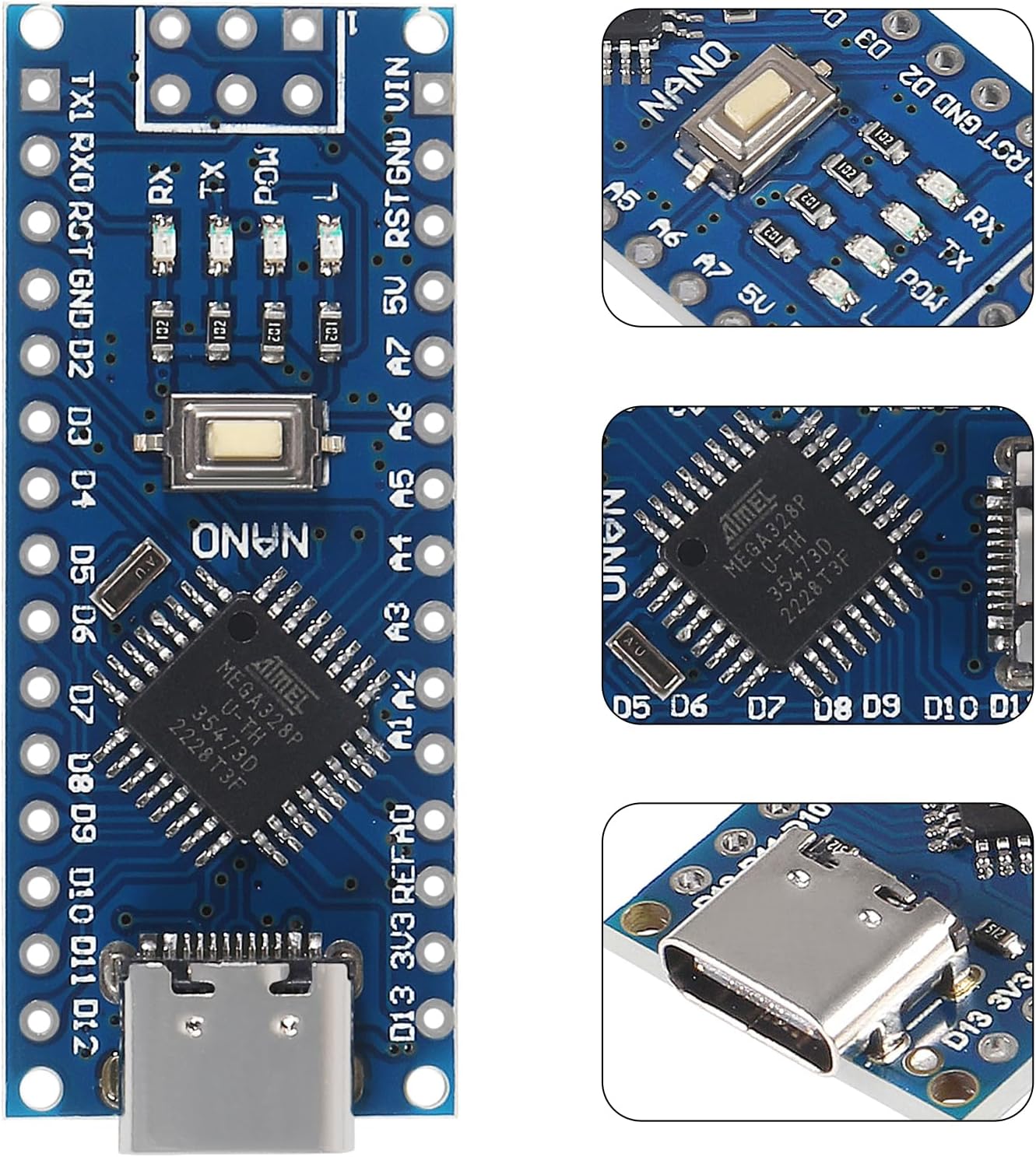
Image: Close-up view of the AITRIP Nano V3.0 board, highlighting the ATmega328P microcontroller and the CH340 USB-to-serial chip.
6. Operating Instructions
Once your AITRIP Nano V3.0 board is set up, you can begin programming and using it in your projects.
6.1. Powering the Board
The Nano V3.0 offers several power options:
- USB-C Connection: Connect the board to your computer via the Type-C USB cable. This provides 5V power and enables data communication.
- External Unregulated Power Supply (VIN pin): Provide 6-12V DC to the VIN pin. The onboard voltage regulator will convert this to 5V for the microcontroller.
- External Regulated 5V Power Supply: Provide a regulated 5V DC to the 5V pin.
The board automatically senses and switches to the higher potential power source, eliminating the need for a manual power selection jumper.
6.2. Uploading Sketches
To upload your code (sketch) to the Nano V3.0:
- Write or open a sketch in the Arduino IDE.
- Ensure the correct board (Arduino Nano), processor (ATmega328P (Old Bootloader)), and port are selected under the Tools menu.
- Click the Upload button (right arrow icon) in the Arduino IDE. The TX/RX LEDs on the board will blink during the upload process.
- Upon successful upload, the IDE will display "Done uploading."
7. Maintenance
The AITRIP Nano V3.0 board requires minimal maintenance to ensure longevity.
- Storage: Store the board in an anti-static bag or container when not in use to protect it from electrostatic discharge.
- Cleaning: If necessary, gently clean the board with a soft, dry brush or compressed air to remove dust. Avoid using liquids.
- Handling: Handle the board by its edges to avoid touching components, especially the pins, which can be sensitive to static electricity.
- Power Supply: Always ensure your power supply voltage is within the recommended limits (7-12V for VIN, 5V for 5V pin) to prevent damage.
8. Troubleshooting
Here are solutions to common issues you might encounter with your AITRIP Nano V3.0 board.
8.1. Board Not Recognized by Computer
- CH340 Driver: Ensure the CH340 driver is correctly installed for your operating system. Refer to Section 5.1.
- USB Cable: Try a different Type-C USB cable. Some cables are for charging only and do not support data transfer.
- USB Port: Try connecting to a different USB port on your computer.
8.2. Upload Errors (e.g., "avrdude: stk500_getsync(): not in sync")
- Processor Selection: The most common issue. Go to Tools > Processor and ensure "ATmega328P (Old Bootloader)" is selected. If this option is not present, ensure you have the correct board package installed in the Arduino IDE.
- Port Selection: Verify that the correct COM port is selected under Tools > Port.
- Board Selection: Confirm "Arduino Nano" is selected under Tools > Board.
- Reset Button: Sometimes pressing the reset button on the Nano board just before or during the upload process can help.
8.3. Board Not Powering On
- Power Source: Check your USB cable or external power supply. Ensure the power source is providing adequate voltage and current.
- Power LED: If the power LED does not light up, there might be an issue with the power input or the board itself.
9. Warranty and Support
Specific warranty details and official support contact information for the AITRIP Nano V3.0 board are not provided in the product information. For any issues or inquiries, please refer to the retailer or vendor from whom the product was purchased.